Last updated: 2025-12-03
Release Notes - SmartOffice Pro Canadian Edition 10.1.7.2
About This Document
For general information about SmartOffice release notes, visit the Release Notes home page.
Release Overview
The main improvements in this version of SmartOffice are the completely updated look of the user interface, support for Google Chrome and several important usability enhancements (see the SmartOffice Pro Changes section for details). However, users should note several other important changes:
- New product name: The full-featured, desktop/laptop-optimized interface for accessing SmartOffice is now called SmartOffice Pro. This change helps to distinguish it from the lighter, mobile-optimized SmartOffice Anywhere interface, which is aimed at beginners and users who do not need the full SmartOffice feature set.
- New release naming: The naming of SmartOffice releases now contains the year of the release and the release number for that year (e.g., SmartOffice 2017 Release 1).
- Outlook sync changes: This version of SmartOffice drops support for SmartOffice Sync for Outlook, the Outlook add-in that enabled users to manually sync calendar and contact records between Outlook and SmartOffice (this includes the QuickSync feature). Users who need Outlook contact and calendar sync are encouraged to use SmartOffice's automatic Microsoft Exchange sync solution.
Enhancement Highlights
This section provides quick links to the featured enhancements in this release.
Core System
Agency Management
Wealth Management
SmartOffice Anywhere
System Requirements
The system requirements for SmartOffice have changed with this release. The most significant changes are:
- Dropped support for Internet Explorer 10. SmartOffice Pro is compatible with Internet Explorer 11 or later.
- Added support for the latest version of Google Chrome.
Important: This release of SmartOffice also requires the latest version of the Microsoft Plug-in for SmartOffice for correspondence, document management, list export and other workflows involving Microsoft Windows and Office. Learn more about this and related changes regarding Windows and Office workflows.
Compare your plug-in version to the version number listed on the plug-in download page. Your plug-in version is displayed in the lower-right corner of the plug-in sign-in window. If the sign-in window shows an earlier version or no version information, your plug-in needs to be upgraded.
For detailed system requirements, see System Requirements.
Important Changes to Default Settings
This section highlights notable changes to SmartOffice settings and changes to system default settings that may alter existing workflows, reports and other areas of the system.
- A number of columns were renamed in SmartOffice Pro. These changes may cause issues with analytic (Excel) report templates that reference the old SmartOffice 7 column names in formulas. See the list of renamed columns.
- For new SmartView for Advisors accounts:
- The Presale Activity/Proposals user right is now selected by default.
- The SmartOffice Anywhere license is now selected by default.
- The following user rights are now cleared and read-only by default: Timer Functionality, New (Comprehensive), SmartSearch, Case Status Reports, SmartPad and Sets.
(PMG-651285)
Note Regarding Text Changes in SmartOffice
This release may contain minor changes to text in dialog boxes and other areas of the SmartOffice user interface. Changes of this type are typically made to correct spelling, grammar, punctuation and other language-related issues. Such changes normally are not listed in this document unless they affect the way the application works.
SmartOffice Pro Changes
Core System
Featured Enhancements
Updated Look and Streamlined Navigation
The look of SmartOffice Pro has been updated throughout with a more modern color scheme and icons. In addition, pop-up windows have been largely eliminated, and several adjustments to navigation have been made to help users access features more quickly.
The key changes are summarized below. For a more general overview of the SmartOffice Pro user interface, see Navigation.
Feature
What's New
Quick Action Corner/Alert Center
The appearance of the Quick Action Corner in the upper-left corner was updated with new icons and is now more compact in size.

 at the top of any page. For more information, see Quick Action Corner and Alert Center.
Search Box
The Search box at the top of all pages functions much like it did in previous SmartOffice versions, except that the Detailed Search link has been renamed Advanced Search and is now located to the right of the Search box. In addition, the search drop-down list is organized into submenus.

For more information, see Search Box.
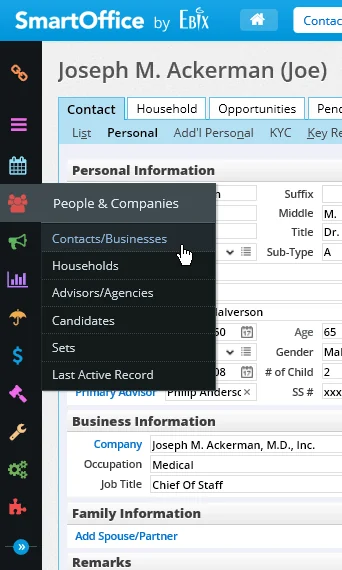
Side Menu
The Side Menu can now be collapsed to display only icons. This enhancement allows users to expand the main content area for viewing records, lists, reports and other content. For more information, see Side Menu.
Add New Menu
 at the top of any page. For more information, see New Menu.
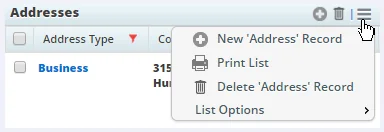
Options Menu
 that frees space in section title bars for additional custom buttons.
Global Hyperlinks
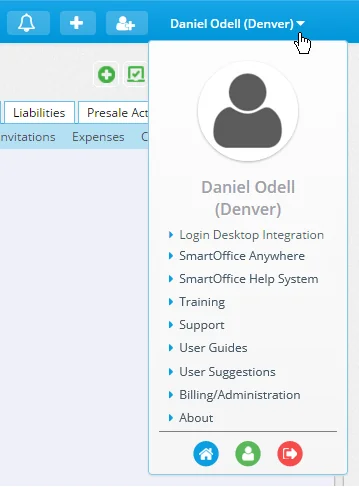
The Global Hyperlinks in the upper-right corner (Home, Settings, Sign Out and Help/Training) have been replaced with a comprehensive profile menu, which you can access by clicking your name.
 , accessing user and office settings
  and navigating to your home page and dashboards
  . For more information, see Navigation - Profile Menu.
Buttons
Buttons throughout SmartOffice Pro have been updated as part of the visual redesign. Here are a few examples of the new buttons for commonly used commands:
-
 Save
Save
-
 Delete
-
 New Record
-
 Previous
-
 Next
Next
-
 View SmartPad Notes
-
 New SmartPad Note
-
 Run Reports (PDF)
-
 Run Dynamic Reports
To quickly determine the function of any unfamiliar button, point to it to reveal its ToolTip.

Expanded Browser Support
SmartOffice Pro is compatible with the latest versions of these desktop web browsers:
- Internet Explorer
- Google Chrome
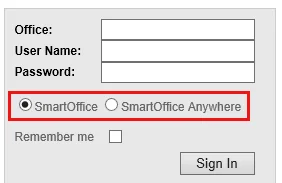
As part of this enhancement, SmartOffice Online users now have a sign-in page option that lets them choose between accessing SmartOffice Pro and SmartOffice Anywhere, regardless of which browser they are using.
Changes to Correspondence, Document and Other Workflows
To complete certain workflows in SmartOffice Pro, users are now prompted to download and open a special .sopro configuration file. This download is required for workflows that rely on SmartOffice's integration with Microsoft Office or Windows, such as:
- Sending correspondence
- Viewing and uploading documents
- Exporting lists
- Using analytic (Excel) reports
- Printing labels
This change enables these features to work in browsers other than Internet Explorer, such as Google Chrome.
(PMG-642339, PMG-642549, PMG-644756, PMG-646917)
Correspondence Wizard Changes
The changes in SmartOffice Pro workflows related to the plug-in altered the way in which the Correspondence Wizard functions. Now, after a user selects letter options and clicks the final Continue button, a message explains that the user must download and open the .sopro file.
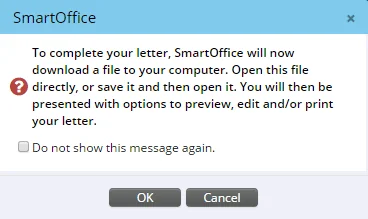
When the user opens the file, a Correspondence dialog box opens in Windows. From here, the user can complete the process of viewing, editing and/or printing the letter.
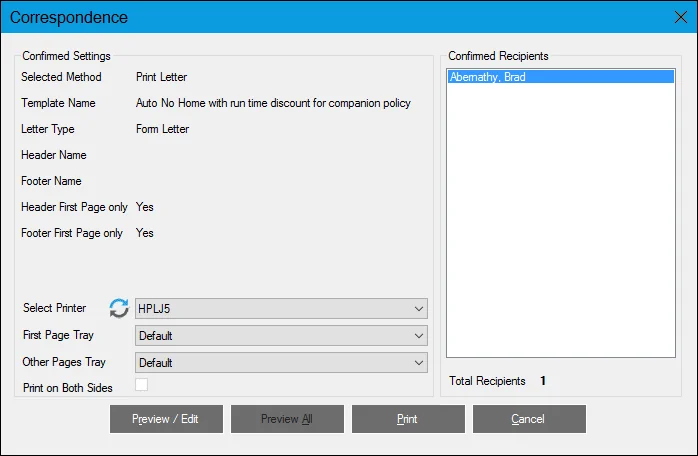
(PMG-617437, PMG-617439)
Single Sign-on to SmartOffice Anywhere
Users who are signed in to SmartOffice Pro can now access SmartOffice Anywhere without having to sign in again. To do so, open the profile menu and select SmartOffice Anywhere.
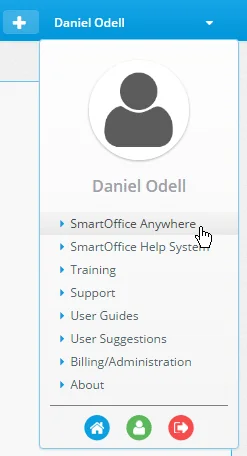
A similar menu option is available in SmartOffice Anywhere for navigating back to SmartOffice Pro (see SmartOffice Anywhere Changes). (PMG-633445)
Merge Codes for All Contact Custom Fields
SmartOffice Pro now features merge codes for all fields found on the contact Custom content link. This enhancement makes it possible to include any of those fields in SmartOffice correspondence. Previously, merge codes were available for only a subset of these fields. (PMG-684095)
Automatic Sign-in to Plug-In
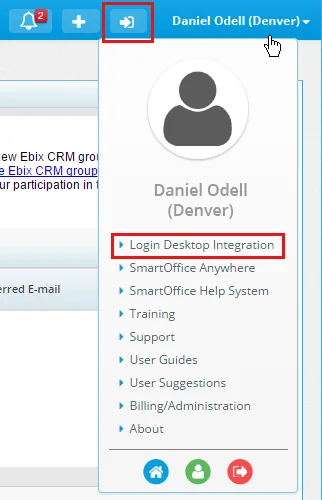
When a user starts a SmartOffice Pro workflow that requires the Microsoft Plug-in for SmartOffice (e.g., correspondence), SmartOffice Pro now signs the user in to the plug-in automatically to complete the workflow. Previously, the user had to sign in to the plug-in manually.

or selecting the Login Desktop Integration command from the profile menu.
(PMG-663153)
Other Enhancements
General
- Compliance View: To aid in forensic analysis of data for legal and compliance requirements, enterprise customers can now give SmartOffice administrators the right to view all data in SmartOffice without restriction. A new user right named Compliance View allows an administrator to access data regardless of record privatization, office hierarchy, user assignments, user rights and user proxies. This user right can be assigned only from the System office. In addition, the user assigning the right and the user being assigned the right must have the Administrator: User Rights & Creation/Licenses/Groups user right. (PMG-559754)
- More configuration options for new-office welcome e-mail: Enterprise customers now have additional options for configuring the support information that appears in the welcome e-mail message sent to administrators of new offices. In the server config.xml file, users can configure the support company's name, phone number, e-mail address and team name, as well as whether support information is displayed at all. The following elements were added to config.xml as child elements of the
element:
(PMG-609969)
- Drop-down navigation improvements: Placing focus on a field containing a drop-down list now opens the list automatically, and typing a letter automatically highlights the corresponding option. This change helps reduce the number of clicks when users fill in fields. (PMG-617443)
- Parent office deletion restrictions: To prevent negative effects on child offices, SmartOffice no longer allows parent offices to be disabled if they are linked to child offices in the office hierarchy. (PMG-636991)
- Proxy creation/modification date columns: In lists that provide access to columns in the Proxy table (e.g., the Proxy content links in user accounts), user can now add the CreatedOn and ModifiedOn columns to display those dates. (PMG-656696)
- Document viewing without plug-in: A new configuration setting (for enterprise customers only) allows all users on a SmartOffice server to view documents without having to install the Microsoft Plug-in for SmartOffice on their computers. When this setting is enabled, documents stored in SmartOffice open in read-only mode. Server administrators can enable this setting by editing the server config.xml file to change the content of the
element, which is a child of the element, to true. For example:
(PMG-657252)
- Changes for default landing page settings: On the Basic Info content link in User Preferences, users can now configure their default landing page for SmartOffice Anywhere as well as SmartOffice Pro. In addition, the landing page options are now labeled as follows for clarity:
- Default location at sign-in (SOPRO)
- Default location at sign-in (SO Anywhere)
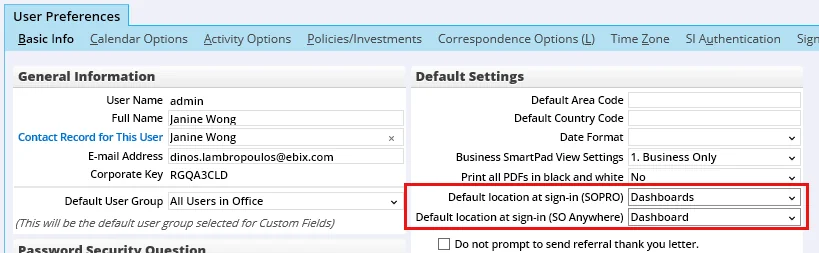
(PMG-664806)
- More custom fields: The number of custom fields in SmartOffice records was expanded to allow customers to track even more custom data. In any record containing a Custom content link, users will now find a total of 90 alphanumeric fields, 30 numeric fields, 61 date fields, 25 lookup fields, 30 integer fields and 30 yes/no fields. (PMG-665766)
- Activity reminder improvements: When users sign in, SmartOffice now checks for past activity reminders going back only two weeks and going forward one day. Previously, the system was checking for all past activity reminders, which was causing sign-in delays. This change optimizes the sign-in process. (PMG-675652)
- Editable Office Code field: In Office Settings, the Office Code field on the office Detail content link can now be edited. Previously, customers had to submit a request to Ebix to modify this field. This enhancement primarily benefits enterprise customers who need to alter this value for DataXchange Enterprise operations. (PMG-678917)
- Update history on About page: The About page, accessible from the profile menu, now includes a Patch History section. This section lists the ID numbers of updates that have been applied to the SmartOffice server. (PMG-681676)
- List refresh option removed: The Disable Refresh option was removed from the List Layout Customization dialog box because it is no longer necessary. Unlike earlier versions of SmartOffice, SmartOffice Pro automatically refreshes lists to reflect any changes to records. (PMG-683388)
Alert Center
- Alert Center display enhancement: In the Alert Center section of User Preferences, the Number of days' worth of alerts to display drop-down list now contains several additional options to provide users with more flexibility. The default is now 90 days. (PMG-642548)
Contact Management
- Full-page width option for all portlets in page layouts: When creating custom page layouts for contacts and other records, users can now make any portlet in the Available Portlets list full-page width. Previously, only certain portlets had this option. (PMG-566135)
- Larger maximum character count for e-mail/web address remarks: In e-mail and web address entries, the maximum character count of the Remarks field was increased to 2,048 characters. Previously, the maximum was 120. (PMG-658869)
- Database enhancement for deleted contacts: A RESTORELOG table was added to the SmartOffice database to record which user restored a contact from the Deleted Records area of the system. (PMG-666990)
- Contact deletion restriction for linked user accounts: SmartOffice no longer allows the deletion of a contact or advisor record linked to a user account. This enhancement resolves an issue in offices that have Protect Communication History enabled. Previously, in those offices, deleting the contact/advisor was archiving the contact and rendering the linked user account inaccessible. (PMG-675781)
- Contact export improvements: Improvements were made to the process of exporting contacts to other offices. When multiple contacts with key relationships are exported from the source office during the same SmartOffice session, those contacts and relationships are now reconstructed in the target office. (PMG-710789)
Correspondence
- French accent support in intra-office e-mail: Intra-office e-mail messages now display French accent characters properly. (PMG-300286)
- Renamed attachment options: Two changes related to attachment preferences for e-mail correspondence were made:
- In User Preferences - Correspondence Options, under E-mail Attachment Options, the RTF option was renamed Microsoft Word.
- In Step 4 of the Correspondence Wizard, the RTF option in the Send form letter as e-mail attachment drop-down list was renamed MS Word.
(PMG-666219)
- Ability to control overrides in Correspondence Wizard: Enterprise customers can now specify whether their users can override recipient problems detected by the Correspondence Wizard. The
element under the element in the server config.xml file determines whether the Override button appears in the Validate & Send step of the wizard. Setting the element to false removes the button from the wizard:
(PMG-719319)
Dynamic Reports
- Dynamic Report redirection: Enterprise customers who manage their own SmartOffice servers can now enable a new server-level configuration option that redirects all Dynamic Report generation, printing and export requests to SmartOffice’s report instance. By directing these report functions away from the application instance, this option can improve overall application performance. (PMG-270584)
- New Asset Allocation report options: The report options for the Asset Allocation PDF report were enhanced as follows:
- The Cost column can be excluded by selecting the Do Not Show option from the Cost Options drop-down list.
- The Shares and Price columns can be included by selecting the Shares and Price option.
Because of this enhancement, the Asset Allocation w/o Cost Column report and the Asset Allocation with Shares and Price report are no longer listed as separate reports in SmartOffice; to generate them, users must now run the Asset Allocation report and select the appropriate report options. (PMG-559745)
- Improved reliability for automatic report e-mailing: Enhancements were made to SmartOffice so that extended maintenance periods no longer interfere with the automatic e-mailing of Dynamic Reports. Previously, if a maintenance period extended past a certain length, some reports were not being sent.
As part of this enhancement, enterprise customers can now configure SmartOffice so that, if the SmartOffice server is restarted within a certain time window, the SERVICELOG table is checked to ensure that the report e-mailing service completed successfully during the previous 24 hours. If this check reveals that the report e-mailing service did not complete, the service is restarted. The time window can be set using the
(PMG-692174)
- Report printing improvement: When users print the results of a Dynamic Report, the printout no longer includes the text "Dynamic Report" in the title by default. (PMG-709900)
Microsoft Plug-in for SmartOffice
- Third-party integration support in the Microsoft Plug-In: Users can now access SmartOffice integrations directly from Microsoft Outlook. Open a contact in Outlook and click the Integrations button in the upper-right corner of the SmartOffice pane to see a menu of available third-party applications. (PMG-534766)
- Outlook plug-in user right: SmartOffice administrators can now control whether users can access SmartOffice data in Microsoft Outlook using the plug-in. The new user right is called SmartOffice Access in Outlook and is located in the User Rights column of the User Accounts – User Rights content link. Note that disabling this user right does not remove the plug-in from Outlook. Instead, when a user tries to access SmartOffice data in Outlook, a message appears stating that the user does not have access to that feature. (PMG-557958)
PDF Reports
- Ability to hide PDF reports from specific offices: Enterprise customers can now specify which offices have access to a particular PDF report. From the System office, open the report’s setup to find the new Permissions section. In that section, use the drop-down list to specify whether the report should be available in all offices, available in the offices listed or excluded from the offices listed. Then select Options > Add More Offices to add offices to the list. In the offices themselves, the Shared Office Name column, which can be added to PDF report lists, displays the names of the other offices that have access to the report. (PMG-159055, PMG-273615)
- Ability to share more package reports by e-mail: From the Processed Reports Log, users can now select the Menu > E-mail command for report packages created for household, position and account group sets. (PMG-570931)
- Report option changes: Several enhancements related to report options were made:
- When presented with report options while running a PDF report, users who select the Save Settings option now see a confirmation message. The message states that saving the settings will overwrite any previously saved custom settings for that report.
- In Report Setup, users who tried to create a report options record with an invalid entry in the Percentage field for Merge Slices Less Than were encountering an error. However, the field was not appearing highlighted to indicate where the problem was. The field now appears highlighted.
- When users created a report options record in Report Setup, the Maximum of 10 slices option for pie charts was not selected by default. It is now the default option.
- After creating a report options record in Report Setup, users were finding that the Run-Time Options check box for the report was not enabled unless they selected Menu > Save. Running the report at that point was producing an error. Now, users do not have to save the record for the Run-Time Options check box to be enabled.
- When a report was run without having at least one report options record in Report Setup, SmartOffice was displaying an error that did not adequately describe the problem. The error now explains the report options requirement.
(PMG-616295)
- Renamed command for making reports available for packages: In Report Setup, the Menu command Add Report to PDF List was renamed Make Available in Packaged Reports to reflect its purpose more accurately. In addition, selecting this command now displays a confirmation message informing the user that the selected reports will be made available for use in report packages and bunch reports. (PMG-618535)
- Report sharing improvements: For enterprise customers, two enhancements were made to the PDF report permission options available in a report's setup in the System office:
- In the Permissions section, when the option in the drop-down list is changed from Available in all offices to one of the other options, the user is now prompted immediately to search for and select one or more offices. Office selection is required; if no office is selected, the option remains as Available in all offices.
- Changes to report permissions now generate e-mail notifications.
- Deleting a report from the System office now generates an e-mail notification.
(PMG-632298)
SmartOffice Sync for Microsoft Exchange
- Ability to generate reports listing Exchange sync setups: A new Dynamic Report category called Microsoft Exchange Sync Reports enables users to create reports that return a list of Exchange sync setup records that exist in the enterprise hierarchy. The new report category is part of the Other family of Dynamic Reports and is available to users in all offices that belong to the hierarchy. (PMG-553399)
- Ability to make Exchange sync setups read-only: Enterprise users can now make Exchange sync setup records created by a parent office read-only for users in child offices. In the server config.xml file, add the following tags to the
element to accomplish this:
(PMG-556147)
- Improved field validation in sync setup: On the Exchange sync user setup page, SmartOffice now validates the data entered more thoroughly to help ensure that sync setups are created properly. (PMG-606269)
- Activity attendee/contact sync: When a calendar activity created in Exchange using Outlook or another compatible application is synchronized, the activity's attendees can now be assigned automatically as activity contacts in SmartOffice. Previously, such activities were not automatically linked to SmartOffice contacts when synchronized, preventing users from using SmartOffice features such as activity outcome tracking.
Enterprise customers can turn this feature on or off at the server level by setting the
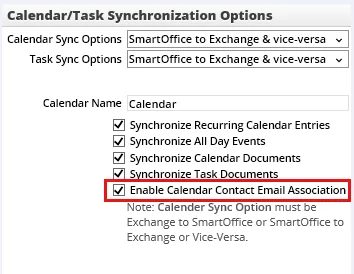
(PMG-636172)
- New server-level sync configuration options: SmartOffice server administrators now have additional control over Exchange contact sync user setup options. Under the
element in the server config.xml file, a
The
The
SmartPad
- SmartPad report export limits: To maintain overall performance, the system now allows users to export a maximum of 300 SmartPad records from a Dynamic Report results list. (PMG-638125)
- E-mail subject column in SmartPad: Users with list layout customization rights can now add the E-mail Subject column to the SmartPad list. The column displays the subject lines of posted e-mail messages. (PMG-666662)
Resolved Issues
General
- When a user applied three or more column filters to a list and then tagged the list in the History tab, the filter selections were not being saved. This issue was resolved. (PMG-307657)
- An issue with the Notes (last 30 days) option in the Search drop-down list was resolved. After selecting that option, clicking the Detailed Search hyperlink and changing the date range in the Search Notes dialog box, users were finding that the search results did not match the selected date range. (PMG-531882)
- While creating custom page layouts, users who added the Primary Advisor field from the Available Column list to their layouts were finding that the field displayed a numeral instead of the advisor’s name. In addition, the field was not editable. These issues were resolved. (PMG-556638)
- Calculated columns that used the Divide operation were producing an error when the calculation involved division by zero. This issue was resolved. (PMG-556851)
- Users who accessed User Preferences from the side menu (Setup > User Preferences) were finding that the Password Reminder section on the Basic Info content link was not editable. This issue was resolved. (PMG-556998)
- When the Default User Group setting on a user account was set to something other than All Users in Office, the user was unable to mass modify custom Yes/No fields. This issue was resolved. (PMG-560508)
- An issue that occurred when users in parent offices uploaded documents to child office records was resolved. In some cases, parent office users who opened documents in parent office records were seeing documents that had been uploaded to the child office. (PMG-564370)
- An issue affecting offices that use custom field sharing in an enterprise office hierarchy was resolved. In Office Settings, the Custom Tab Office Subscriptions list was displaying the names of offices that were not part of the same office hierarchy. This issue occurred when Enterprise View was turned off. (PMG-564756)
- A “failed to load object” error that was occurring when users tried to search for policies or pending cases was resolved. (PMG-567459)
- Some users were finding that their page layout customizations were not appearing when they signed out of SmartOffice and later signed back in. This issue was resolved. (PMG-573543)
- An alert with the subject line “Failed to run opt out service” was being sent erroneously to some offices. This issue was resolved. (PMG-580708)
Contact Management
- Users were encountering an error stating, “The file could not be located,” when they tried to open files in the contact Document List. This issue was resolved. (PMG-544750)
- An issue with linking an advisor record to a new contact was resolved. When the advisor had a SmartView for Advisors user account, SmartOffice was not adding the advisor to the User Assignment list on the contact Add’l Personal content link. (PMG-559743)
- The Address column of the contact Preferred Address table was displaying the contact’s entire address instead of just the street. This issue, which affected the Contact List as well as Contact-category Dynamic Reports, was resolved. (PMG-563016, PMG-569916)
- An issue with the contact Key Relations content link was resolved. After filtering the list of key relations by selecting an option from the Type drop-down list, users who printed the list using the Print All option were finding that all key relations were being printed regardless of type. (PMG-575032)
Dynamic Reports
- After running a Dynamic Report from the Calendar Agenda using the command Options > Reports > Run ‘Activity’ Dynamic Reports, users who clicked the Record Count link on the results list were seeing an incorrect count. This issue was resolved. (PMG-559380)
- When the labels of the custom fields on the user account Detail content link were customized, the custom labels were not appearing in Dynamic Reports that included those columns. This issue was resolved. (PMG-559383)
- A “failed to load object” error that users encountered when running Calendar-family Dynamic Reports was resolved. (PMG-566527)
Filters
- When users tried to create a filter for the Primary Advisor column of the Contact table, the filter condition drop-down list was displaying integer-related conditions (e.g., is less than, is greater than) instead of text-related conditions (e.g., contains, does not contain). This issue was resolved. (PMG-537485)
PDF Reports
- Several issues with PDF report disclaimers were resolved:
- Users who selected the Bottom of Each Page option when configuring optional disclaimers were finding that cover page disclaimers were also appearing at the bottom of the page.
- Users who selected the Bottom of Each Page option when configuring optional disclaimers were finding that, after selecting a disclaimer and being prompted to refresh the page, clicking Yes was running the report immediately.
- Users who selected the Bottom of Each Page option when configuring optional disclaimers were finding that, after confirming deletion of a disclaimer and being prompted to save the changes, clicking Yes was running the report immediately.
- In Holding Statement PDF reports, footer disclaimers that were longer than one line were being truncated in the middle of the second line.
- When configuring report options, users were able to change the disclaimer type of a local mandatory disclaimer.
(PMG-187646)
- A “failed to load object” error that was appearing when users selected PDF List from the View drop-down list on the Report Packages list was resolved. The issue occurred when the Report File Name column was not present on the PDF Report List. (PMG-557550)
- When the details or members of a set assigned to a PDF report package were changed, the changes were being reflected in jobs that were already submitted, processing or complete. This issue was resolved. (PMG-558298)
- An issue that prevented some users from running PDF reports was resolved. (PMG-574296)
- An issue that was causing slowdowns when users ran PDF reports was resolved. (PMG-579699)
- Enterprise customers were finding that offices did not have access to certain System-office PDF reports for use in bunch reports, even when those reports had the Available in all offices permission enabled. This issue was resolved. (PMG-592491)
SmartPad
- When users opened an e-mail message posted to the SmartPad, the message was opening in SmartOffice as well as Outlook. This issue was resolved. (PMG-549540)
- An issue that was causing the SmartPad’s Subject column to be blank for entries that had a subject was resolved. (PMG-564749)
SmartCalendar
Featured Enhancements
Activity Outcome Alerts
When a completed calendar activity or task has the Track Activity Outcome option selected but contains no activity outcome information, users now receive an alert. The alert reminds the user to record outcome information and includes a link that the user can click to immediately enter the activity outcome workflow.
Users can turn these alerts on or off in SmartOffice by going to the Alert Center content link in User Preferences and selecting or clearing the Activity Outcome option under SmartOffice Alerts.
Enterprise customers can fine-tune this feature at the server level. In the server config.xml file, the following tags allow administrators to specify how often (in minutes) the service generates outcome alerts for users (
(PMG-535126, PMG-575815)
Resolved Issues
- An “insert/update failed” error that users encountered when they tried to mark activities Done on the contact Activity Log tab was resolved. The error occurred when users selected the Contact Made and Schedule New Appointment Activity options in the activity outcome workflow. (PMG-544944)
- During the activity outcome workflow in SmartOffice, users who tried to customize the choices for certain drop-down lists were encountering an “illegal argument” error. This issue was resolved. (PMG-559766)
- The Track Activity Outcome option was being enabled automatically for calendar activities, even when users had the Disable default Activity Tracking for new activities option enabled in User Preferences. This issue was resolved. (PMG-566614, PMG-567808, PMG-567889)
- An issue that was causing recurring activities to be scheduled at the wrong time and on the wrong date was resolved. (PMG-567682, PMG-562915)
- Some users were seeing other users’ calendar data in their own calendars. This issue was resolved. (PMG-578226)
SmartLeads
Resolved Issues
- The Leads Web Options section on the Detail content link in Office Settings was missing. The section was restored. (PMG-574903)
SmartOpportunities
Enhancements
- Ability to assign staff users as opportunity owners: Users whose user type is Staff can now be assigned as opportunity owners. Previously, only Producer/Manager-type users could be opportunity owners. (PMG-649574)
SmartEvents
Resolved Issues
- The Allocatable column was removed from the Expenses content link of event records because it was not applicable to that list. (PMG-576081)
Advisors/Agencies
Featured Enhancements
Parent and Child Presale Records
A presale record can now be designated as a "parent" record containing one or more linked "child" presale records. To designate a presale record as a parent, select the new Parent option on the presale Detail content link, and then save the record. Once saved, the parent record displays a new Related Presales content link.
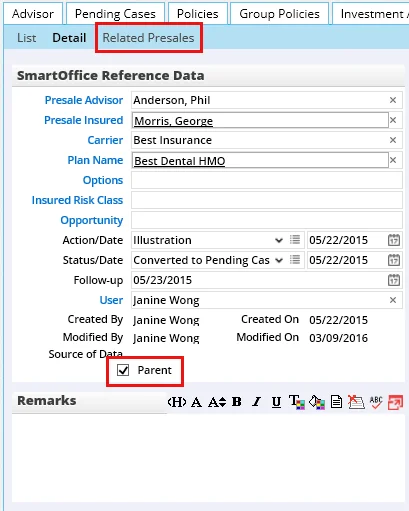
and selecting New 'RelProposalTracking' Record. To unlink presale records, select Unlink Presale. As part of this enhancement, two additional changes were made:
- A Miscellaneous Information section containing five custom alphanumeric fields was added to the bottom of the presale Detail content link.
- Several new columns are now available for addition to the Presale Activity/Proposals List. These include columns for the new Miscellaneous Information fields (AlphaNum1 through AlphaNum5) and well as the following columns: Parent, Parent Id, Alt/Addl Remarks, Alternate/Additional and Batch Indicator.
(PMG-620442)
Other Enhancements
- Ability to hide presale action and status choices: On the presale activity Detail content link, users with drop-down list customization rights can now hide options in the Action and Status drop-down lists. When these users click the Customize Choice button on these fields, the Drop-down Choice Customization dialog box now contains Hide and Un-Hide buttons. (PMG-272017)
- Default active advisor/agency list view: The Advisor List, Agency List and Advisor & Agency List now display Active-status advisor and agency records by default. Previously, these lists displayed all advisors and agencies by default. (PMG-565964)
- Presale filtering and field enhancements: Two changes were made to improve presale activity management:
- Users can now filter the Presale Activity/Proposal List by role. A Role drop-down list was added to the Presale Activity/Proposals tabs of contact, advisor and wholesaler records.
- A Presale Owner field was added under the Presale Insured field on the presale activity Detail content link.
(PMG-640698)
- Presale result class field enhancement: On the presale activity Detail content link, the character limit of the Result Class field was increased to 256 from 64. (PMG-671250)
- Improvements to advisor reassignment: The Advisor Reassignment feature, which reassigns contacts and their holdings from one advisor to another, was enhanced in two ways:
- The system now allows any holding linked to an advisor to be reassigned, regardless of the advisor's role. Previously, the system allowed reassignment of only those holdings for which the advisor had the Primary Advisor role.
- A Reassigned advisor role was added to the system. Once a holding is reassigned, the old advisor is now added to the holding's advisor list with a role of Reassigned. Note that this change does not apply to advisor roles for which an "Old" role designation already exists in the system (e.g., Old - Primary Advisor, Old - Referral Advisor, Old - Servicing Advisor, Old - Writing Advisor).
(PMG-676676)
Resolved Issues
General
- An issue with advisor/agency key relationships was resolved. In some cases, when an advisor was linked to an agency, two key relationship records were being created for the same advisor: one with the Employee role and another with the Agent role. This issue was resolved. (PMG-305520)
SmartView for Advisors
- SmartView for Advisors users with SmartOffice Format accounts were able to access features that are not intended for them. The following features were removed:
- The Notes (last 30 days) option in the Search drop-down list
- The command Menu > Advanced Options > Extra Fields on contact records
- The command Menu > Advanced Options > Start the Timer on contact records
- The calculated column button (+) on the List Layout Customization dialog box
- The command Menu > Advanced Options > Open Call Scripts from contact, advisor, policy, pending case and group policy records
- The command Menu > Activity Options on advisor records
- The Open Link icon on policy and pending case notes
- The command Menu > New ‘Commission Rate Information’ record and the ability to edit records on the Commission Rates List accessible from the Policy Rider List and the product Detail content link
- The ability to start the group policy creation workflow using the Group Policy option in the New drop-down list without having the rights to create group policies
- The command Menu > Data Feed Setup on carrier records
- The command Menu > Group Product Policy Statistics on group product records
- The command Menu > Communication > Correspondence on group policy and presale activity records
(PMG-561333)
- In offices with office security enabled, SmartView for Advisors users were able to view household records even when the associated contacts were not visible to them. This issue was resolved. (PMG-562048)
SmartPolicies
Featured Enhancements
Page Layout Customization for Policy Records
Users who have the appropriate rights can now customize the information that appears on the policy Basic Information content link. This allows users to select the fields that are most important to them and hide any fields that they do not normally work with. To begin customizing the layout, open a policy record and select Menu > Page Layouts. For more information, see Page Layout Customization. (PMG-297672)
Ability to Mass Assign an Additional Advisor to Multiple Policies
It is now possible to assign the same non-primary advisor to multiple policies simultaneously. To use this feature, tag multiple policies in a list, select Menu > Advanced Options > Mass Assign Advisor, and then specify the advisor and role. Advisors added to policies in this way are assigned a split percentage of zero. (PMG-676678)
Other Enhancements
- Renamed Class field on policy insured records: The Class field for policy and pending case insured records was relabeled to be more specific. On the pending case Detail content link, when you open a record from the Policy Insured List, the field is now labeled Proposed Class. The same field on the policy Basic Information and pending case Delivery content links is now labeled Issued Class. (PMG-174099)
- Replacement and Team fields in policy records: Two additions were made to the policy Basic Information content link:
- A Replacement check box was added under Basic Policy Information to indicate whether the policy was purchased to replace an existing policy.
- A Team field was added under Important Contacts to make policy records more consistent with pending case records.
(PMG-215152)
- New benefit field for reports: In long-term care policy and pending case records, a field called Benefit for Reports was added. The amount entered in this field appears in PDF reports such as the Policy Summary. The field was added to address an issue in which amounts entered for maximum lifetime and monthly benefits for these policies were not being reflected in reports. (PMG-255149)
- New policy status: A status called Actual Placing Date was added as a system choice for policy records. (PMG-572198)
- Ability to list active policies in correspondence: A new merge code, ActivePolicyList, allows users to automatically pull a list of any contact's Active-status policies into a letter. The policy list is formatted as a table that displays the policy type, product name, carrier name, policy number, policy date, benefits and annual premium of each policy. (PMG-573439)
- Additional columns for deleted policies list: In the Deleted Records area of the system, users can now determine at a glance who deleted particular policies/pending cases and when. Two new columns, Deleted By and Deleted On, can now be added to the Deleted Policy List. (PMG-581799)
- Improved display of policy trustee information: In the Trustee column of the Policy List, a line break was added between each name to improve readability. (PMG-582020)
- Policy list column enhancements: In policy lists, the following enhancements were made to allow for easier sorting:
- A column named Insured Last Name, First Name was added to the Policy table.
- The Trustee column in the Policy table was changed to display the trustee's last name first.
(PMG-582018)
- Proposed/issued class information for second insureds: Users can now add proposed/issued class information for second insureds on pending cases and policies that support second insureds. To view this information, open the second-insured record in the Policy Insured List of a case or policy. The new Proposed Class or Issued Class field is below the Current Risk Class field.
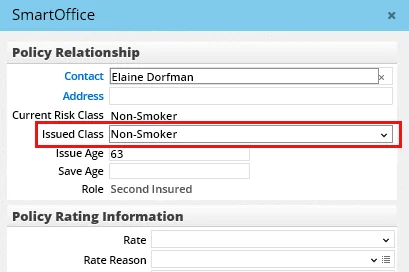
(PMG-582028)
- New annuity and life plan types: Two annuity plan types (Indexed and FPDA) and five life plan types (Permanent, Life Settlement, COL, Group Universal Life (GUL) and Survivorship Universal Life (SUL)) were added to the system. (PMG-596327, PMG-620065)
- Deleted policies retained after merge: After a policy merge, SmartOffice now moves the deleted source policy to the Deleted Records area of the system. Previously, the source policy was being deleted completely after being merged into the target. (PMG-610135)
- Commissionable modal premium recalculation after policy import: During policy import, selecting the Update existing policies based on policy # only option for an import file containing updates to flat extra amounts now automatically recalculates the relevant commissionable modal premium amounts in SmartOffice. (PMG-618163)
- New merge codes for policy relations: Several new merge codes can now be used in correspondence and documents to display information about policy relations in a comma-separated format. The merge codes are AllOwners, BeneficiaryNames, AllTrustees and RelationshipManager. (PMG-621772)
- New group policy paid-to field: The Sys Paid-to field, which was previously available only in individual policies, was added to the group policy Detail content link. The field, which is visible only to SmartCommissions users, is read-only and specifies the Paid-To/Next Due date of the last commission transaction at the point of reconciliation in Carrier Posting. (PMG-625624)
- Higher character limit for policy relationship remarks: In policy relationship records, the character limit of the Remarks field was increased to 1,024 from 255. This change resolves an issue that was preventing users from saving remarks. (PMG-628830)
- Modified Date column import and mass modification: The Modified Date column is now available for mapping in policy import setups and for modification through the Mass Modify feature. (PMG-640667)
- Ability to delete child-office advisor records: Parent-office users who have Enterprise View turned on can now delete advisor records residing in child offices. Previously, these users could only add or modify those records. (PMG-659928)
- Policy note notification enhancement: In policy notes, when a user selects the Send this note as an alert and e-mail to other user(s) option, the e-mail message now contains the policy number, insured's name, carrier and unique case ID in the subject line. (PMG-662735)
Resolved Issues
- Performing a policy merge was creating an incorrect entry in the SmartPad. The entry was corrected. (PMG-559397)
- When the names of two insurance products in SmartOffice partially matched the name of the plan in an imported policy, the imported policy was being linked to the wrong product in some instances. This issue was resolved. (PMG-567790)
- On the Coverage content link of an extended health policy, the Deductible, Co-Payment and Out of Pocket fields were not accepting values greater than 32,767. This issue was resolved. (PMG-569244)
Insurance Products and Carriers
Enhancements
- New carrier name field for reports and letters: A field labeled Insurance Company was added to the carrier Misc Information content link. The field is intended for use in Dynamic Reports and correspondence when the user wants to refer to the carrier by a name other than the default name. (PMG-667476)
SmartCaseManager
Enhancements
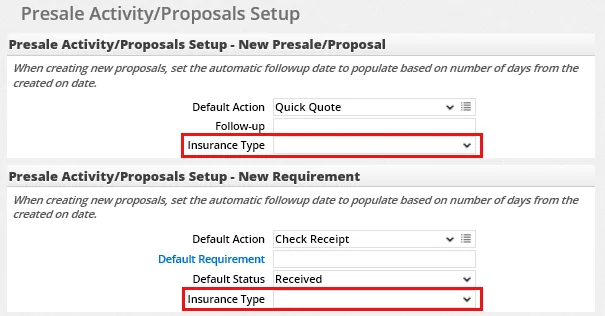
- Insurance type defaults for new presales activities and pending cases: Administrators can now set default insurance types for new presale activities, new presale requirements and new pending cases. This feature reduces the number of clicks for users who work frequently with a particular insurance type. To set the presale defaults, open Policy/Case Setup and navigate to Follow-up > Presale Activity/Proposals. Look for the new Insurance Type drop-down lists for new presale activities and new presale requirements.
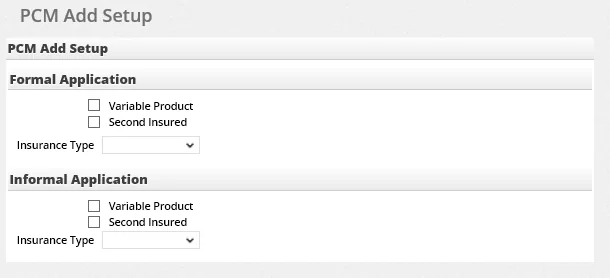
To set the defaults for new pending cases, go to PCM Workflows > PCM Add Setup and note the Insurance Type drop-down lists for formal and informal cases (defaults for the Variable Product and Second Insured options can also be specified here).
(PMG-158400, PMG-576327)
- Keywords field for pending cases: A Keywords field was added to the pending case Detail content link under Basic Policy Information. This makes pending case records more consistent with policy records, which already contain this field. (PMG-345038)
- Custom fields for pending case page layouts: When customizing the page layout for pending case records, users can now add fields from custom-field tables. (PMG-540089)
- New pending case Dynamic Report: A report category called Requirements - Include Rating was added to the Pending Case family of Dynamic Reports. Reports in this category can display a case's requirements and information about the required-of insured for each. The report includes requirements for child informal cases. (PMG-557466)
- Quick link to parent case from informal case: Informal child pending cases now contain a Show Parent link that users can click to navigate instantly to the associated parent case. The new link is located under the Keywords field on the informal child pending case Detail content link. (PMG-558415)
- Improved workflow for closing cases: When the system asks the user whether any follow-up dates for a closed case should also be removed, clicking the Yes button now also changes the status of any outstanding requirements to Canceled. This change allows users to run reports for requirement aging that exclude closed cases and their requirements. (PMG-589302)
- Improved generation of requirements: Two change were made to enhance the way in which standard underwriting requirements are generated in pending cases:
- A lack of gender information for the insured no longer prevents unisex requirements from generating.
- Proper error messages now appear when generation does not occur, such as when the face amount was missing.
(PMG-636729)
- New case status choices: Two status options were added for pending cases: Await Exam and Await Agent Signatures. Both belong to the Underwriting stage. (PMG-667475)
Resolved Issues
- When the Requirement Remarks field of a pending case requirement contained quotation marks, letters generated from SmartOffice that included those remarks were displaying the HTML entity " instead of the proper punctuation. This issue was resolved. (PMG-530165, PMG-551002)
- An issue that was causing approval remarks to populate for all Approval-type underwriting requirements was resolved. The remarks now populate only for those requirements that are created through the Await Approval workflow. (PMG-541074)
- Users who tried to export the list of child informal cases on an informal parent case were encountering an “invalid data from server” error. This issue was resolved. (PMG-542076)
- On the Underwriting Requirement List of a pending case, users who selected Options > Switch to Edit Mode to work in the spreadsheet were encountering an issue with completion dates. The issue occurred when users changed the Status and Required Of columns to match the settings specified in Policy/Case Setup for automatically marking requirements as completed. SmartOffice was automatically filling in the completion dates as expected, but after saving the spreadsheet and returning to the requirements list, users were finding that the completion dates were not being saved. (PMG-543759)
- An issue that was causing e-mail Case Status reports to display incorrect Entered dates for pending cases was resolved. (PMG-544917)
- An issue involving carriers whose status was Inactive or No PCM Activity was resolved. When users selected these carriers during the pending case creation process, carrier and product information was being filled in automatically, allowing the user to proceed with creating the case. (PMG-556991)
- Two pending case PDF report issues that occurred when users turned on Enterprise View were resolved:
- Running the Cases with Outstanding Requirements - Detail report from the Pending Case List was producing an error stating that the file was damaged.
- Running the Pending Case Detail Report was producing an “internal server” error.
(PMG-559765)
- When the Cross Office Record Sharing user right was disabled for a user account, the user was finding that Interested Parties-category Dynamic Reports were still displaying records from the other office. This occurred when the reports were sorted on the Product Name, Policy # or Status column. This issue was resolved. (PMG-573523)
- When exporting the list of child cases from an informal pending case record, users were finding that the exported columns were not matching the columns in the SmartOffice list layout. This issue was resolved. (PMG-578322)
SmartBenefits
Enhancements
- Improved advisor information on group policies: On the group policy Detail content link, advisor information is now contained in a separate Policy Advisor List section, similar to how this information is presented in individual policy records. Previously, group policies contained only a Primary Advisor field; with this enhancement, that field is no longer necessary and was removed. (PMG-471269)
Resolved Issues
- An issue with the Policy Advisor List on the group policy Detail content link was resolved. After opening an advisor record and clicking the Contract Information link, users who expected to see contracts that specified lines of business were finding that those contracts were missing from the list. This issue was resolved. (PMG-578656)
SmartCommissions
Featured Enhancements
Ability to Mass Assign Commission Splits
A new mass operation was added for advanced commission split users. SmartOffice now allows users to assign an advanced commission split to multiple policies that do not already have a split assigned to them. From the Policy List, tag multiple policies and select Menu > Advanced Options > Mass Assign Advanced Commission Split to open the Advanced Commission Payouts dialog box. After selecting a split, click the OK button to apply that split to all of the tagged policies. (PMG-564188)
Batch Information in Carrier Posting Lists
To quickly see information about the commission batch associated with a particular carrier posting, users can now add columns from the Commission Batch table to the Carrier Posting List and the Carrier Posting content link of carrier records. The table includes columns such as Batch Name, Date, Sent to Job Queue and Status. (PMG-620875)
Other Enhancements
General
- Interested party columns in projected commission reports: Users now have access to columns from the Interested Party table when configuring Commission-family Dynamic Reports in the Projected Advisor Commission and Projected Agency Commission categories. With these columns, users can more easily configure reports to show split cases. (PMG-236850)
- Message to clarify changes to expected commissions: When a user with the Administrative Database Maintenance user right changes the status of an expected commission transaction, SmartOffice now displays a message informing the user that any associated advisor-level commission transactions will not be modified. (PMG-558399)
- Export enhancement for commissionable transactions: When commissionable policy transactions are exported to Excel from the Policy Transaction content link, the Num1 and Num2 fields are now formatted as currency. (PMG-666198)
- New merge codes for commission premium: Two merge codes were added to display commission premium information in correspondence:
- ActiveLifePoliciesYTD: This merge code displays a five-column table showing life policies that have an Active-stage date within the year-to-date period and that are visible to advisors. The columns displayed are Carrier, Product, Policy #, Inforce Date and Commission Premium.
- ActiveLifeCommAnlzdPremYTD: This merge code displays the total commission premium for all life policies that have an Active-stage date within the year-to-date period and that are visible to advisors. Policy details are not displayed.
(PMG-671675)
Batch Processing
- Product custom fields in advisor commission list and statements: In batch processing records, users can now include columns from the Product Custom table in the layout of the Advisor Commission List. Because changes to this list affect the layout of e-mailed commission statements, this enhancement makes Product Custom columns available for use in those statements as well. (PMG-575488)
- Improved Enterprise View visibility: While processing a batch with the Include Adjustment Commission Entries option enabled, Enterprise View users can now see child-office advisors listed. (PMG-664273)
Speed Receipts
- Improved speed receipt transaction validation: During validation of a commission transaction entered in Speed Receipts, the system now checks the product or group product code to determine a match if multiple policies with the same policy number are found. (PMG-595549)
- Speed receipt layout improvement: In speed receipt records, the height of the Commission Data section was increased to display more data. (PMG-654660)
Resolved Issues
General
- On the advisor Commission content link, when users exported the Advisor Payment List to Excel, the columns in the exported document were not matching the columns in SmartOffice. This issue was resolved. (PMG-530838)
- Several issues with deleting commission rates were resolved:
- Users who did not have the CTM Administrator license were encountering an error when they deleted the policies linked to a commission rate and then tried to modify the rate.
- Users who modified a rider rate were not being presented with the option to apply the changes to all linked policies. In addition, users who did not have the CTM Administrator license were not being presented with a message informing them that the rate cannot be modified.
- Users with the CTM Supervisor View license were encountering issues when trying to specify search criteria or column filters for commission rates and contracts.
(PMG-559696)
- With Enterprise View turned on, users who tried to add an advisor, agency or broker-dealer to the commission split on a child office policy were able to select records from the parent and other child offices in the enterprise hierarchy. This issue was resolved so that only those advisors, agencies and broker-dealers residing in the same child office as the policy can be selected. (PMG-560332)
- When a policy/case was in an Active or Issued stage, users who tried to calculate commissions from the case record’s Projected Commission List were encountering an error stating that commission records already existed for the specified date range. The error occurred when expected commission records existed for the same dates. This issue was resolved. (PMG-560920)
- Users who entered future premium payments for a policy had to project commissions for at least two years in order for commission calculations to work properly. This issue was resolved. (PMG-560922)
- When users ran the Mass Projection utility with the Refresh Commission Hierarchy option selected, the system was refreshing hierarchies even on pending cases in which the advisor had the Hierarchy Locked option selected. This issue was resolved. (PMG-561249)
- An issue affecting users with the SmartCommissions - Advisor license was resolved. When these users tried to calculate commission on a policy in the Underwriting stage using the Commission Calculator, they were encountering a “processing canceled” error. (PMG-562021)
- Users were unable to delete a policy permanently from the Deleted Records area of the system when the policy contained commission transactions calculated from the Commissionable Premium Payment Transaction List. This issue was resolved. (PMG-565077)
- Two issues that occurred when users modified premiums on rider commissions were resolved:
- SmartOffice was not recalculating the commission on the modified premium.
- When a rider’s effective date was after the policy date, duplicate rider commission records were being created in some instances.
(PMG-569667)
Batch Processing
- An issue that prevented Smart Checks from generating for advisor transaction postings after batch processing was resolved. (PMG-574479)
- Carrier Posting-category Dynamic Reports were displaying duplicate entries when multiple payable commissions for an advisor existed under the same cheque in a batch. This issue was resolved. (PMG-576037)
Carrier Posting
- When the difference between expected and received commission amounts was written off during the reconciliation process, unreconciling the transaction and then reconciling it again was causing an incorrect amount to appear in the transaction’s Write Off Amount field. This issue was resolved. (PMG-559372)
SmartInvestments
Featured Enhancements
Quick Access to Records Linked to Asset Allocation Models
Users can now quickly see which SmartOffice records are linked to a particular asset allocation model. Opening a model record now reveals four tabs—Contact, Household, Investment Accounts and Account Groups—that users can click to review linked records. (PMG-159047)
On-Access Validation Improvements
On-access investment validation was further improved in this release so that, during normal business hours, the system now validates records when users access them regardless of the last validation date and time, as long as the records have modified investment data.
As part of this enhancement, SmartOffice now features a validation restriction time window from 8:00 PM to 9:00 AM Eastern Time. This time window works as follows:
- When a record with modified investment data is accessed outside the restriction time window, SmartOffice now validates the record immediately, regardless of when it was last validated.
- When a record with modified investment data is accessed within the restriction time window, SmartOffice validates the record only if it was last validated more than an hour before (this validation period may be different for customers with customized server configurations).
Enterprise customers can customize the restriction time window and the logging of updated records in the server config.xml file. The new
In addition, the
(PMG-559431)
Personal Holdings Workflow Enhancement
Users can now create personal holdings directly from the Global Investment Position List. This enhancement changes the workflow for creating positions from that list. Now, the user is prompted to select a security type first. If the user selects a personal-holding security type (i.e., Bank Account, Notes Receivable, Personal Property or Real Estate), the system prompts the user to select the appropriate contact or business. (PMG-628675)
Other Enhancements
General
- Automatic SmartPad posting for more investment-related actions: SmartOffice now posts an entry to the SmartPad when the following commands are used:
- Reassign Primary Contact (for investment accounts)
- Relink Position to Another Account
The entry displays information about the change, the time and date the change occurred and the user who made the change.

For this to work, the Changes to Investment Position option must be selected on the SmartPad/New Contact/E-mail Posting in Office Settings. (PMG-538589)
Investment Accounts
- Additional reports for account groups: Users can now run Account Master-category PDF reports for account groups. (PMG-267672)
- Mass modification improvements for investment accounts: On investment account lists, users can now use the Mass Modify feature to change the Custodian field for multiple accounts simultaneously. (PMG-550283)
- Improved warning regarding existing account numbers: The warning message that appears when a user tries to create an investment account using an existing account number was improved as follows:
- If the existing account is not visible to the user, the message mentions this and lists the possible reasons (e.g., the record is private, linked to a private or deleted contact, etc.).
- If the existing account is visible to the user, the message contains a link the user can click to open the account record.
(PMG-557290)
- Account group validation improvement: When investment validation is run at the account group level, all linked accounts are now validated, and the current values, net values and loan balances of those accounts are totaled to arrive at the values for the account group. (PMG-561326)
- Custodian drop-down list: The Custodian field on the investment Account Detail content link was changed from a text box to a drop-down list. This change helps to ensure more consistent entry of custodian information. (PMG-564313)
- Letters/Documents content link for account groups: A Letters/Documents content link was added to account group records, enabling users to post correspondence and files related to an account group. As part of this enhancement, PDF report packages that are linked to an account group report set are now automatically posted to this content link instead of the associated contact's Letters/Documents content link. (PMG-570899)
- New cash value column: A Total Account Cash Value column was added to the Investment Accounts table. The new column displays the sum of the dollar values of all Cash and Equivalent positions in an account. The column is available for use in investment account and position lists as well as Dynamic Reports that include the Investment Accounts table. (PMG-590135)
- New method for mass-updating Exclude from Performance option: To update the Exclude from Performance option for multiple investment accounts, positions or securities at once, users must now use the command Menu > Advanced Options > Update Exclude from Performance. Previously, users were able to update this option with the Mass Modify command, but that capability was removed. (PMG-626748)
- New column displaying interested-party percentages: On the Global Investment Account List, users with the appropriate rights can now add a column that displays all interested parties along with their interest percentages. The new column, All Interested Parties with Percent, belongs to the Investment Accounts table and is also available in Account - Interested Party-category Dynamic Reports. The existing All Interested Parties column remains available for users who want to display interested parties without percentages. (PMG-640512)
- Improved column layout for Deleted Account List: The default list layout of the Deleted Account List was modified to provide more relevant information to users. The list now contains the following columns (the associated database tables are in parentheses): Contact Name (Contact), Account # (Investment Accounts), Account Name (Investment Accounts), Tax ID (Investment Accounts), Private Record (Investment Accounts), Total Value (Investment Accounts). (PMG-650925)
Investment Positions
- Reconciliation access change: To access the investment reconciliation feature, a user must now have both the Show Investment Transactions and Show Investment Position History user rights. (PMG-559389)
- Cash and Equivalent-type position improvement: When a user updates the maturity date and/or the share price/date of a Cash and Equivalent-type security, a confirmation message now notifies the user that all linked positions will be automatically updated. If the user proceeds with the change, linked positions are updated and automatically validated. (PMG-573096)
- New columns for position lists and reports: Columns from the following security-related tables are now available for inclusion in all investment position lists and Position-category Dynamic Reports:
- Security - Bond
- Security - Cash
- Security - Miscellaneous
- Security - Mutual Fund
- Security - Stock
- Security - UIT
- Security - VA
(PMG-573455)
- Ability to relink multiple positions: Users can now relink multiple investment positions to an account in one step. From any list of positions that are linked to accounts, tag multiple positions, and then select Menu > Advanced Options > Relink Position to Another Account. (PMG-617065)
- Maturity Date field for bond positions: A read-only Maturity Date field was added to the Position Detail content link of bond positions. The field reflects the maturity date on the linked security. (PMG-630449)
- New position detail fields: On the Position Detail content link, the Purchase Information section now contains a Status field and a Liquidated Date field. (PMG-630474)
Investment Reports
- Maturity date added to position summary report: The Position Summary w/out Loan Info PDF report was modified to include a Maturity Date column. (PMG-181858)
- Term life renewal dates in summary report: The Policy Summary PDF report now includes renewal date information for term life policies. (PMG-540587)
- Sorting for Summary of Accounts report: Users can now sort the Summary of Accounts PDF report by account type. In the report options, select the Account Type option from the Sort By drop-down list. (PMG-616524)
- Interested party report improvement: For Investment-family Dynamic Reports in the Account - Interested Party category, users can now filter on the First Name and Last Name columns of the Investment Accounts - Primary Contact table. (PMG-640513)
- New column layout for position summary report: To make the layout of the Position Summary w/out Loan Info report more logical, the Maturity Date column was moved to the right of the Purchase Date column. (PMG-640638)
Investment Securities
- Maturity Date field for Cash and Equivalent-type securities: A Maturity Date field was added to the Detail content link of Cash and Equivalent-type investment security records. In addition, the following changes were made as part of this enhancement:
- For list layouts and reports, the Last Div Date column from the Security - Cash table was renamed Cash and Equivalent Maturity Date.
- The Last Div column from the Security - Cash table was hidden.
(PMG-573094)
- New method for mass-updating Fixed Price option: To update the Fixed Price option for multiple investment securities at once, users must now use the command Menu > Advanced Options > Update Fixed Price. Previously, users were able to update this option with the Mass Modify command, but that capability was removed. (PMG-626750)
- Additional sector, asset class and industry options: For security records, several new system choices were added to the Sector, Asset Class and Industry drop-down lists.
- The new sector choices are Basic Materials, Cash, Comm. Svcs., Cons. Cyclical, Cons. Defense, Energy, Fin. Services, Healthcare, Industrials, Multi-Sector, Not Avail, Other Invest, Real Estate, Stock, Technology and Utilities.
- The new asset class choices are All Cap, Alternative, Alternative Fixed Income, Asset Allocated, Balanced, Bank Loan, Bear Market, Commodities, Equity Arbitrage, Fund of Funds, Global Equity, Hedged Equity, Int'l Developed Mkts, Int'l Emerging Mkts, Intermediate Muni, Large Cap Core, Long Muni, Managed Futures, Market Neutral, Mid-Cap Core, Multi-Strategy, Short Muni and Small-Cap Core.
- The new industry choices (these apply to Stock- and Miscellaneous-type securities only) are Basic Materials, Cash, Cons. Cyclical, Cons. Defense, Fixed Inc, Healthcare, Multi-Sector, Not Avail, Real Estate, Stock and Utilities.
(PMG-647177)
Investment Validation
- Automatic validation of account groups: Account groups are now automatically validated when any of their linked investment accounts are validated. (PMG-588520)
- Smart Validation reset message: Users who clear the Smart Validation option in User Preferences now see a message stating when the option will be automatically re-enabled. (PMG-596240)
- Improved transaction validation: Running investment validation at the contact, account or position level now also validates position transactions. Previously, transactions could only be validated manually on the Position Transactions content link. To conserve system resources, SmartOffice validates only those transactions that have been modified since their last validation. (PMG-618199)
- New option to control Validate command: Enterprise customers can now control the Validate command’s behavior. Normally, selecting the command validates only records that have changed (this is known as Smart Validation). With this enhancement, a server administrator can alter that behavior so that validation occurs regardless of whether a record has changed. This is accomplished through a new
setting in the server config.xml file, added as a child element under . The syntax is as follows:
If the value is false, validation occurs whenever the Validate command is selected. If true, validation occurs normally, i.e., only when a change affecting the record has occurred. (PMG-688448)
Performance Calculations
- Improved performance report warning: The message that appears when a user runs a performance report and performance data needs to be updated was reworded to improve clarity. (PMG-559005)
- Streamlined handling of negative share exclusions: To improve performance when running time-weighted rate of return calculations, SmartOffice no longer checks for positions with negative share values when the Exclude from Performance option is selected at the security, account or position level. (PMG-561980)
Resolved Issues
General
- Investment Dashboards were removed from SmartOffice, and the related portlets are no longer available for addition to home page tabs. (PMG-253020)
Investment Accounts
- When customizing the column layout of the Interested Parties list in an investment account record, users who tried to add the Index List column from the Account Performance table were encountering a “failed to load object” error. This issue was resolved by removing Account Performance from the list of tables available for use when customizing the Interested Parties list. (PMG-552758)
- The system was not allowing an investment account record to be saved when the Open Date field was blank. This issue was resolved. (PMG-561642)
- Several issues affecting the Group Positions content link of account groups were resolved:
- The Validate Tagged Positions command was not working.
- When trying to use the Mass Modify command, users were encountering an error stating, “No column on this list can be mass modified.”
- The Relink Position to Another Account command was not working.
- Users were encountering errors when they tried to run PDF reports.
- Users were encountering issues when trying to delete positions from the list.
(PMG-568484)
Investment Reports
- The Investment Summary with Maturity Date PDF report was including positions with negative share values even when the Exclude Positions with Negative Share Balance option was selected in the report options. This issue was resolved. (PMG-561309)
- Customers who use Crystal Reports with SmartOffice were finding that the fonts in pie charts were different compared to previous SmartOffice releases. The fonts were restored. (PMG-561509)
- An issue with the Asset Allocation - Target vs. Actual PDF report was causing values in the % Target Allocation column to differ from those shown in the Target Allocation pie chart. This issue was resolved. (PMG-568104)
- Two issues with asset allocation PDF reports were resolved:
- The reports were not properly displaying share values containing 10 digits to the left of the decimal point.
- The Quantity column heading was changing to Shares when users ran the reports with the Shares and Price report option selected.
(PMG-568843)
- An issue that was causing incorrect gain/loss percentage values to appear in investment PDF reports was resolved. (PMG-573465)
Integrations and Data Services
Enhancements
SmartIntegrator
- New group census property exposed: The RelatedToID property of the GroupCensus object was exposed to developers though SmartIntegrator. (PMG-564498)
- Searchable custom data fields: The following fields in the CustomData table are now searchable through SmartIntegrator: AlphaNum4, AlphaNum5, AlphaNum6, AlphaNum7, AlphaNum8. (PMG-631990)
- Ability to link policies to activities through SmartIntegrator: Two properties, LinkID and LinkTable, were added to the Activity object to allow developers to link policy objects to activity objects. The LinkID property specifies the object ID of the policy (e.g., Policy.1.12), while the LinkTable property specifies the ID of the Policy table, which is 27. (PMG-635067)
- Additional presale fields exposed to developers: Several new properties of the ProposalTracking object are now accessible to developers through SmartIntegrator. The properties (and their corresponding field names in SmartOffice) are:
- ADBRiderAmt (Accidental Death Benefit Amount)
- ADBRiderInd (Accidental Death Benefit)
- ADBRiderMaxInd (Accidental Death Benefit Use Max Amount)
- ChildRiderInd (Child Rider)
- ChildRiderUnits (Child Rider # of Units)
- DBeneAmt (Death Benefit)
- MultiFaceAmt (Multiple Values for Face Amount)
- WaiverPremInd (Waiver of Premium)
(PMG-644792)
SmartOffice Anywhere Changes
Featured Enhancements
New Mobile Layout
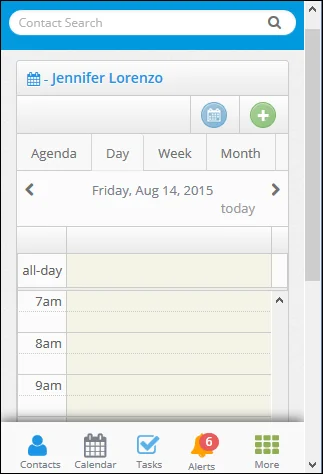
SmartOffice Anywhere’s user interface on mobile devices has been redesigned to place the most frequently used features front and center. Navigation is now centralized in a convenient navigation bar at the bottom. The bar features buttons that directly access contacts, calendar, tasks and alerts, with a More button offering access to settings and other features.
(PMG-374201, PMG-564815)
PIN Access

to open your security settings. Tap Change Password to open the Edit Password/PIN Settings screen, and then tap Use PIN and type a PIN into the field.
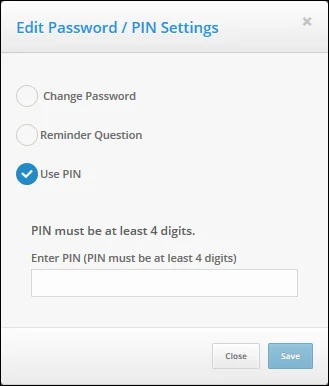
After saving the PIN, sign out of SmartOffice Anywhere. On the sign-in screen, select the Use PIN option, type the PIN and click or tap Login. (PMG-298273, PMG-572065)
Third-Party Integration Support in SmartOffice Anywhere
SmartOffice integrations with third-party applications are now compatible with SmartOffice Anywhere. This compatibility extends to integrations that exchange data with SmartOffice (for example, Laser App Anywhere, eMoney, Profiles, etc.) as well as those that connect to SmartOffice through single sign-on (SSO). Integrations can be accessed in two places:
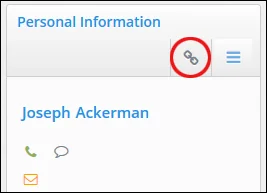
- In contact records, click or tap the integrations button in the Personal Information section.
- Click or tap Integrations on the navigation menu (desktop only).
(PMG-533888, PMG-564197)
Default Landing Page Selection
In Settings, an option was added in the Profile section to specify which page the user sees first when signing in to SmartOffice Anywhere.
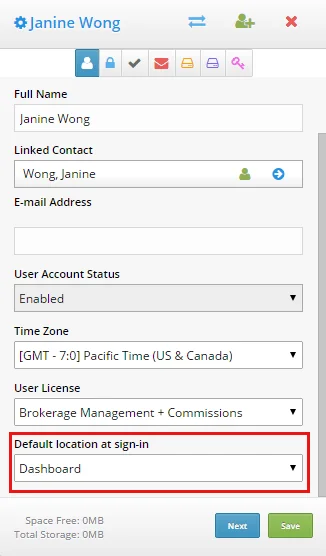
The Default location at sign-in drop-down list offers the following options: Dashboard, Day, Agenda, Week, Month, Policy List, Presale List, Opportunity List and Alert Center. (PMG-656255)
Calendar Usability Improvements
Several enhancements were made to the calendar to make it easier to read and use:
- Activities now display using the same colors that the user sees in SmartOffice Pro.
- Day numbers in the month view are now aligned left instead of right.
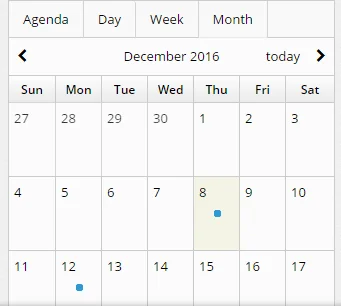
- Activity display in the month view was simplified. On small screens, a dot now indicates days on which activities are scheduled; tapping the dot opens the day view to display the activities.
On large screens, only one activity appears for any day. To see all activities for the day, the user taps or clicks a small arrow to open the day view.
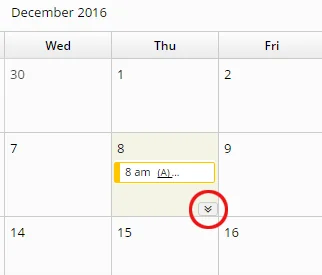
- A new button on the week and month views lets users switch between a five-day and seven-day view. The five-day view hides Saturdays and Sundays.
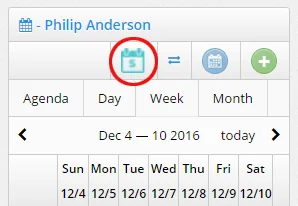
(PMG-670943)
Single Sign-on to SmartOffice Pro
Users who are signed in to SmartOffice Anywhere on a desktop/laptop browser can now access SmartOffice Pro without having to sign in again. To do so, open the profile menu and select SmartOffice Pro.
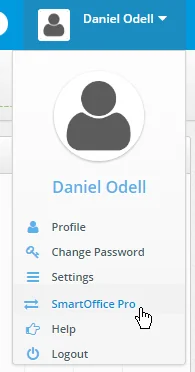
A similar menu option is available in SmartOffice Pro for navigating back to SmartOffice Anywhere (see SmartOffice Pro Changes). (PMG-633445)
Other Enhancements
- English/French support: Users can now switch between English and French in SmartOffice Anywhere. Click the English or Français link at the top of the screen to choose the preferred language.
- Dedicated calendar screen: On desktop/laptop browsers, SmartOffice Anywhere now has a Calendar option in the side menu that users can click to view the calendar on its own page (previously, the calendar was available only on the Dashboard). This new view displays activities on the Day and Week views in a larger format, making them easier to view and tap/click. The new calendar page also displays tasks. (PMG-323384)
- Alerts button: An Alerts button now indicates the number of waiting alerts and lets users view those alerts. (PMG-535093)
- Duplicate contact list and contact merge: SmartOffice Anywhere can now display a list of duplicate contacts that users can merge. On a desktop/laptop browser, navigate to the Contact List and click or tap the Duplicate Contacts button
 at the top. Then click the Merge Record button for the target contact (i.e., the contact into which data will be merged). When prompted, select the source contact, and then click the Merge button. (PMG-549621, PMG-574654, PMG-579770)
- Contact import: Users can now import contacts from comma-separated values (.csv) files into SmartOffice Anywhere on a desktop/laptop browser. The new import capability is located on the Contact List. Click or tap the Data Import button
 to see a list of available contact import setups. Then click or tap the button for a specific setup to begin the import process. (PMG-549635)
- SMTP server setting in first-time setup: The First-Time Setup wizard in SmartOffice Anywhere now asks the administrator to specify an SMTP server to handle outgoing e-mail generated from SmartOffice. (PMG-552718)
- Deployment-level control over SmartOffice Anywhere access: Enterprise SmartOffice administrators can now control access to SmartOffice Anywhere for all users at the server level. The following line in the licenses.xml file controls this access:
To disable access to SmartOffice Anywhere for all users, remove that line from licenses.xml. (PMG-558049)
- SmartPad search: A search bar was added to the SmartPad section of contact records. As users type their search terms into the box, the SmartPad list changes to display only those entries that contain the terms. (PMG-560949)
- E-mail and SMS alert settings: A Receive Alerts Outside of SmartOffice option was added to the Security section of Settings in SmartOffice Anywhere. Selecting this setting reveals additional options for delivering SmartOffice alerts to the user by e-mail or text. (PMG-565955)
- Ability to create policies: On policy list, users with the appropriate permissions can now create policy records using the new Add button
 . On the New Policy screen, users can enter basic policy details (policy number, advisor, carrier, plane, etc.) as well as status, premium and other information. (PMG-568980, PMG-587448)
- Ability to create advisor and agency records: On the Advisor/Agencies List, users with the appropriate permissions can now create advisor and records using the new Add button . (PMG-574807)
- Policy date in the policy list: The Policy List view on desktop/laptop browsers now contains a Policy Date column that displays the inforce date for each policy (or the pending case creation date if the policy is not yet inforce). (PMG-576229)
- Ability to link referral contacts: The Referred By field was added to contact and business records, enabling SmartOffice Anywhere users to link contacts together to track referrals. To edit the new field, open a contact or business, click or tap the menu button in the Personal Information section, and then select Edit. (PMG-581376)
- Ability to add related contacts to policy records: In policy records, the Contacts section now contains a New button that lets users add policy contacts such as the owner, beneficiary, insured, primary contact and payor. (PMG-592520)
- Ability to allow simultaneous sign-in: Corporate customers can now control whether their users can sign in to SmartOffice Anywhere on multiple devices simultaneously. Customers can allow this while still restricting users to one sign-in on SmartOffice Pro. The following elements were added to the
element in config.xml:
Note that the server reads this setting only if the global
- Notes and activities in policies: In policy records, users can now view SmartPad entries and calendar activities linked to the policy. (PMG-593672)
- Calendar preferences that reflect SmartOffice Pro selections: To provide a more consistent experience for users who switch between SmartOffice Anywhere and SmartOffice Pro, SmartOffice Anywhere now reflects the selections made for the following user preference defaults (under Activity Options) in SmartOffice Pro:
- Start Time for New Appointments
- Calendar Activity - Type
- Task - Type
(PMG-597782)
- Ability to link businesses to contacts: The Company field was added to contact records, allowing SmartOffice Anywhere users to link a business record to a contact. (PMG-611154)
- Ability to create opportunity records: Users can now create opportunity records. Tap or click the Add button
 on the Opportunities List, which can be accessed on the contact detail screen or, on desktop/laptop browsers, by selecting the Opportunities in the navigation menu. (PMG-618793)
- Calendar/task view enhancements: The Calendar View Options and Task View Options that a user selects in SmartOffice Pro (User Preferences > Calendar Options) now apply to SmartOffice Anywhere. This means that, when a SmartOffice Anywhere user changes the calendar view to see another user's activities, the other user's SmartOffice Pro settings determine which activities are visible. (PMG-621092)
- SmartView for Advisors improvements: Several enhancements were made to improve the SmartOffice Anywhere experience on small screens for SmartView for Advisors users:
- After signing in, advisors now see a list of their policies instead of the standard Dashboard.
- The policy list's layout was improved, making it easier for users to view a policy's details (by tapping the policy number) or view contact's details (by tapping the contact's name).
- The policy list can be sorted by date, status or contact, while the presale activities list can be sorted by date or contact.
(PMG-626083)
- Improved font color: The basic font used to display data throughout SmartOffice Anywhere was changed from gray to black to improve readability. (PMG-629332)
- Ability to create opportunity notes: While viewing the details of an opportunity in SmartOffice Anywhere, users can now add opportunity notes by clicking the Add button in the Opportunity Notes section. (PMG-634645)
- Simplified opportunity list for small-screen devices: When viewed on small-screen devices, the Opportunity List now has a simplified layout of only three columns—Current Stage, Contact Name and Potential Revenue—for easier navigation. Users can tap or click the stage to view the opportunity's details. Tapping or clicking the contact's name displays the appropriate contact details. (PMG-649718)
- See data assigned to other users: In offices with Office Security enabled, users can now restrict their contact searches to records assigned to particular users. Click the See Data For button
 next to the search box to specify the users (this button is not available on the mobile apps). (PMG-652216)
- Business key relation enhancements: SmartOffice Anywhere now performs the following actions when the user adds a business to a contact record:
- The contact is added to the business's business relations with a contact role of Employee.
- The contact is added to the business's key relations.
- The contact is added to the business's employee census.
These same actions are performed when the user links an agency to an advisor record. (PMG-652632)
- Set privacy and modification restrictions: Several set-related enhancements were made:
- Users can now prevent other users from modifying specific sets that they have created. While creating or editing a set, select the Only Modifiable by Me option to make it read-only to other users. (PMG-656238)
- While creating or editing a set, a user can select the new Mark Private option to prevent other users from seeing it. (PMG-656267)
- Users can now designate specific sets as favorites, making them easier to find. To mark a set as a favorite, open the set, tap or click the options menu, and then select Add to My Favorites. To display all favorites, go to the Set List and tap or click the Show My Favorites slider to move it to the Yes position. (PMG-656268)
- Household updates for family relations: When a user adds a Family-type key relation to a contact, SmartOffice Anywhere now asks whether a new household should be created or, if a household already exists, whether it should be updated with the new relation. (PMG-656287)
- New menu button icon: Throughout SmartOffice Anywhere, the icon for the menu button was changed to a "hamburger"-style icon
 to make it consistent with modern user interface design conventions. (PMG-656288)
- Opportunity search/add improvements: On desktop/laptop browsers, users can now search for opportunities by process name. To do so, select the new Process option in the Opportunity List's Search drop-down list. Process is now also the default search option for opportunities. In addition, on the Add Opportunity screen, the first field is now Process. (PMG-662753, PMG-663494)
- New Set List column layouts: The column layout of the Set List was changed to provide users with more relevant information. The changes are as follows:
- On small screens, the list now contains the Set Name, Members and delete button columns.
- On large screens, the list now contains the Set Name, Description, Members, Created On, Modified On, Filter Only and delete button columns.
(PMG-667988)
- Faster activity outcome tracking: Users can now record activity outcomes more quickly and efficiently. The following features were moved from the second screen of the outcome wizard to the first screen:
- Outcome drop-down list
- Outcome Notes field
- Add Activity button
- Add Referral button
When an option is selected from the Outcome drop-down list that displays additional fields, those fields now also appear at the bottom of the first screen. These changes enable users who do not need to select comprehensive outcome options to complete the activity from the first screen.
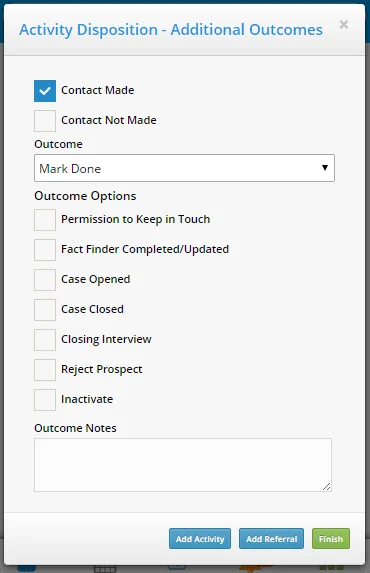
(PMG-678876)
- Link to SmartOffice Anywhere app: Users who access the SmartOffice Anywhere mobile website on an iOS or Android device now see a link to download the mobile app. (PMG-705342)
- Personal holdings in position list: The Global Investment Positions List now displays personal holdings (bank accounts, notes receivable, personal property and real estate). (PMG-716270)
Resolved Issues
- In the SmartOffice Anywhere iOS app, when users opened the SmartPad edit window, the window was not receiving focus. This issue was resolved. (PMG-562092)
- When a user created an activity, the Send Confirmation Letter option on the Activity Details screen was selected by default, even when activity confirmation letters were disabled in the user’s preferences in SmartOffice. This issue was resolved. (PMG-562190)
- When users accessed the Settings area from the contact detail screen, some Settings icons were not appearing. This issue was resolved. (PMG-565128)
- Users who signed out of the mobile app on some iOS devices were being redirected to a page other than the sign-in page. This issue was resolved. (PMG-565643)
- Two issues with record visibility were resolved:
- On the contact detail screen, SmartView for Advisors users were able to see all policies in the Policies list, not just those linked to the contact.
- When the Visible to Advisors option was not selected for a requirement, policy or presale activity in SmartOffice, advisors were still able to see those items in SmartOffice Anywhere.
(PMG-567453)
- An issue that occurred when users added e-mail and Web addresses to contacts was resolved. When users selected the Preferred option for an e-mail address and then added more e-mail and Web addresses using the Add Another button, SmartOffice Anywhere was marking more than one e-mail addresses as Preferred. (PMG-563116)
- SmartOffice Anywhere was not automatically capitalizing the first letter of the text that users typed into the contact First Name field and the business Territory field while creating a new contact or business. This issue was resolved. (PMG-572591)
- Several permissions-related issues were resolved:
- When a user had all activity permissions except for the Add permission, the user was still able to modify activities and mark them as Done.
- When a user had all activity permissions except for the Modify permission, the user was still able to modify activities and mark them as Done. In addition, the user was unable to open tasks.
- When a user had the Read-Only permission for activities, the user was still able to modify activities and mark them as Done. In addition, the user was unable to open tasks.
- When a user had all SmartPad note permissions except for the Modify permission, the user was unable to open SmartPad notes.
(PMG-534675)
- After an opportunity was advanced to the next stage through the activity outcome workflow, the new stage was not appearing in the Opportunity List. This issue was resolved. (PMG-548126)
- The office default alert preferences for new user accounts in SmartOffice Pro were not being applied to user accounts created in SmartOffice Anywhere. This issue was resolved. (PMG-572584)
- An issue with the calendar Month view was resolved. When more than two activities existed on a particular date, clicking or tapping the 1 button to view all of the activities for that date was always taking the user to the Day view for the current date. (PMG-572927)
- SmartView for Advisors users who signed in to SmartOffice Anywhere were finding that the Dashboard was not loading properly. This issue was resolved. (PMG-574683)
- In the E-mail section of Settings, the E-mail Service drop-down list under E-mail Posting contained a Microsoft Exchange Server option. This option was removed because these settings no longer apply to Exchange e-mail posting. (PMG-580149)
- An issue that prevented users from viewing the details of contact records from the Contact List was resolved. (PMG-581073)
- Screens related to calendar/contact sync and e-mail posting were removed from the first-time setup wizard and the Settings area. (PMG-583343)