Last updated: 2025-11-30
Navigation - Search Box
Overview
The Search box, located at the top of every page in SmartOffice, makes it easy to find records in any SmartOffice module.

Using the Search Box
- Click the Search drop-down list to open the search menu.
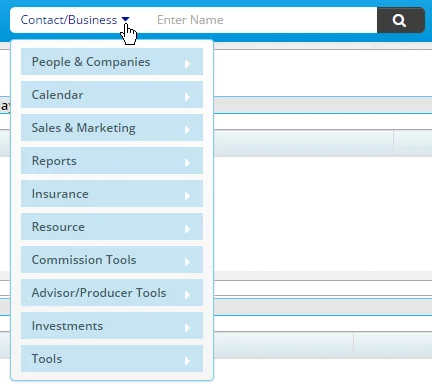
- Point to a search category, and then select a search type. Note the following:
- The available search categories vary depending on the SmartOffice modules available to the user.
- The Global Search option (under Tools) is a special search method that looks across multiple areas of the system. For more information, see Global Search.
- The SmartSearch (under Tools) option enables the user to search across several SmartOffice record types.
- Do one of the following:
- Enter any specific search criteria in the Search field. Matching records automatically display in a dynamic menu.
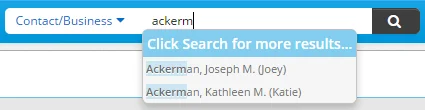
 to see a full list of search results.
- Leave the field blank and click the Search button to see all records of the selected type.
Advanced Search
Use this search method to perform detailed searches using additional criteria, such as phone numbers, e-mail addresses and ZIP Codes.
- Click the Search drop-down list and select a record type from the expanded list.
- Click the Advanced Search hyperlink to open the Search dialog box for that record type.
- Enter the appropriate search criteria, and then click the Search button.
Tip: If you are viewing a record or a list of records and want to run an advanced search for records of the same type, a quick method is to select Menu > Search or press F6.
Search Box Tips
- SmartOffice remembers the option selected from the Search drop-down list, even after the user signs out of SmartOffice.
- Partial first and last names are allowed.
- When a contact or business name is not found, the user is prompted to create a new record.
