Last updated: 2025-11-30
User Accounts - Searching User Accounts

Note: Only users with the Administrator: User Rights & Creation/Licenses/Groups or Administrator: User Rights/Groups user right can view and modify user accounts. See User Accounts - User Rights Content Link.
To search user accounts:
- Select User Accounts from the expanded Setup menu to open the Select a User Type dialog box.
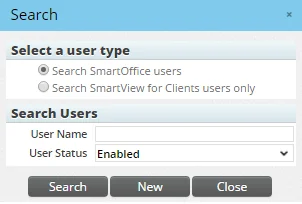
- Select the Search SmartOffice Users option to search all user accounts (this is the default option). To limit the search to SmartView for Clients users only, select the Search SmartView for Clients Users Only option.
Note: The search dialog box automatically defaults to listing active (enabled) users. To view all users in SmartOffice, including inactive (disabled) users, select All from the User Status drop-down list.
- (Optional) Enter a user name and/or user status to narrow down the list of results. Leave these fields at their default values to display all active user accounts in the system.
- Click the Search button.
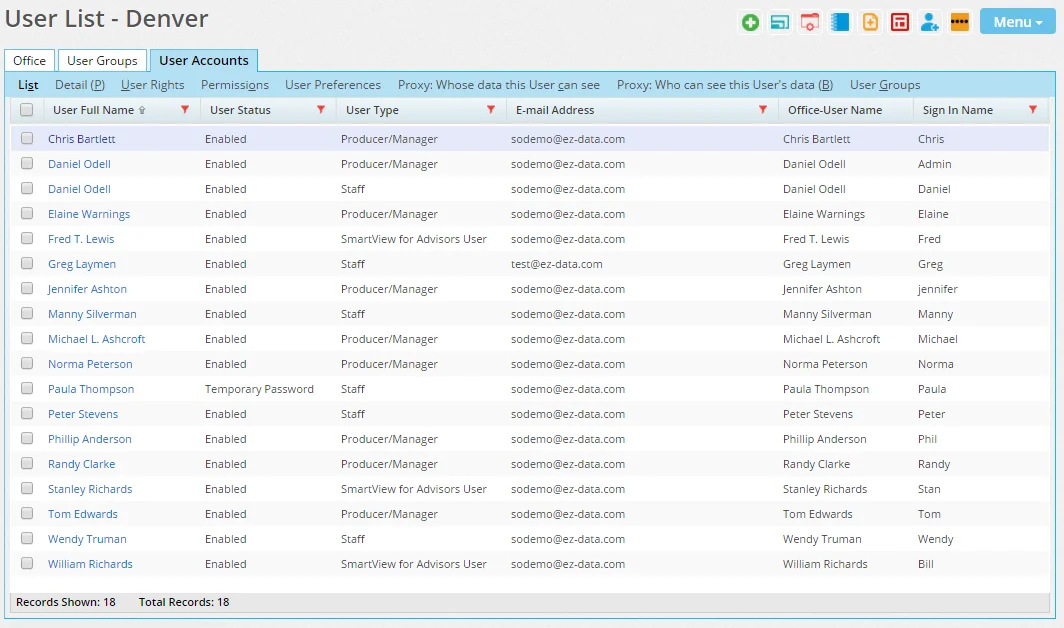
If only one user account matching the search criteria is found, SmartOffice displays the user account's Detail content link. Otherwise, the User List displays.