Last updated: 2025-11-30
SmartBenefits - Searching for Group Policies

Overview
This section describes the various methods for finding group policies in the SmartBenefits module.
 Watch the Training Class:
Searching from the Search Box
- In the Search box, select Insurance > Group Policy from the drop-down list.
- Do one of the following:
- To find a specific group policy, enter a full or partial policy number in the adjacent field. A menu listing matching policies displays. Select a policy from the menu to open that policy record, or click the Search button to display all matching products in a list format.
- To conduct a "blank" search that displays all group policies, leave the adjacent field blank and click the Search button.
Searching from the Side Menu
- From the SmartOffice side menu, select Insurance and then select Group Policies to open the Search Group Policies dialog box.
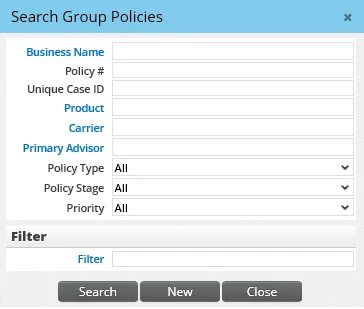
- Do one of the following:
- To find a specific group policy, enter criteria such as the policy number, carrier, policy type and policy stage to narrow down the search. (The default policy stage for group policy searches can be defined in Policy/Case Setup
- PCM Workflows.)
- To display all group policies, do not enter any search criteria.
- (Optional) Specify a filter to narrow down the results further.
- Click the Search button.
Group Policy List
The results of a group policy search are displayed in the Group Policy List.
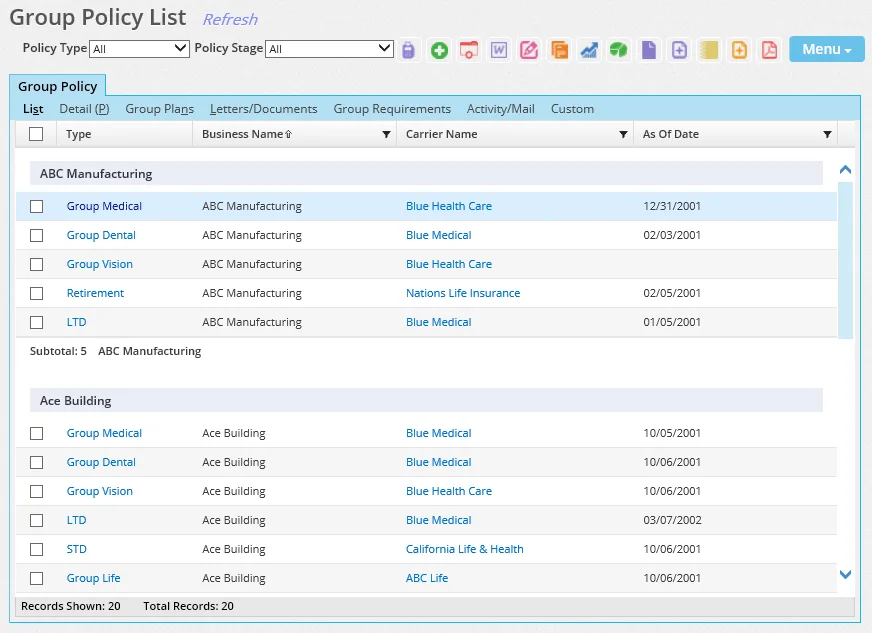
Click a first-column hyperlink to view and/or edit a group policy. Policies highlighted in red are inactive.
Learn more about working with lists in SmartOffice. Note: If only one policy matches the search, that record opens directly.