Last updated: 2025-11-30
SmartCalendar - Tracking Activity Outcomes
- Overview
- Methods for Recording an Activity Outcome
- From an Activity
- From a Contact or Other Record
- From an Activity Outcome Alert
Overview
The outcome of any activity (except for Personal-type activities) can be tracked if the Track Activity Outcome option is selected in the Activity Detail dialog.
 Watch the Training Class:
Activity tracking generates activity history records and enables a user to create a statistical analysis of actions using the Activity Statistics Report.
The Activity Outcome Wizard acts as a timesaving automation tool that quickly and easily records activity outcomes and automatically initiates certain actions. The wizard opens when a user changes a tracked activity's status to Done.
There are two versions of the wizard:
- Standard
- Comprehensive
Users can choose a preferred version in User Preferences - Activity Options. The primary difference between the two versions is that the standard version enables the user to select one outcome for an activity, while the comprehensive version enables the user to select both a main outcome and one or more additional outcomes.
Tip: Users who have the Microsoft Plug-in for SmartOffice installed on their computers can also track activity outcomes directly from Microsoft Outlook. Learn more.
Methods for Recording an Activity Outcome
From an Activity
- While viewing the details of an activity:
- If viewing the full Activity dialog box, select Done from the Status drop-down list, and then click the Save & Close button. - If viewing the activity's information card, click the Done hyperlink.
- When the confirmation message displays, click the OK button to start the Activity Outcome Wizard.
For information about the options to select in the wizard, see Standard Activity Outcome Wizard or Comprehensive Activity Outcome Wizard.
From a Contact or Other Record
These instructions apply to contact, business, advisor and agency records. Outcomes can be recorded using this method even when no activity exists for the selected record; if necessary, the user can simultaneously create an activity, mark it Done and record the activity outcome.
- Search for the record.
- Tag the record in the list of search results, or open the record.
- Select Menu > Activity Options > Activity Outcome to open the Link Activity dialog box.
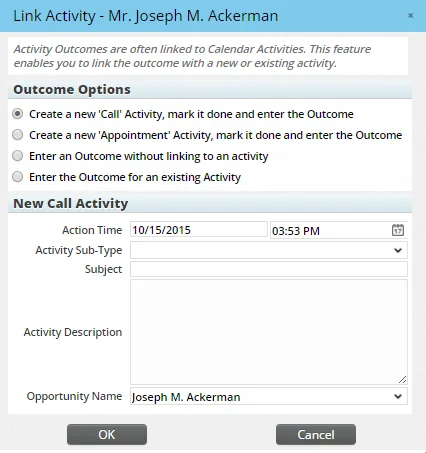
- Select the appropriate option from the Outcome Options section:
- Create a new 'Call' Activity, mark it done and enter the Outcome: This option is useful if an unscheduled phone call is conducted with a contact. It creates a Call-type calendar activity, marks it Done and opens the Activity Outcome Wizard. After selecting this option, enter the details of the call in the New Call Activity section. This section also contains an Opportunity Name drop-down list if the user has a SmartOpportunities license; select an opportunity to link to the new activity if appropriate.
- Create a new 'Appointment' Activity, mark it done and enter the Outcome: This option is useful if an unscheduled appointment with a contact takes place. It creates an Appointment-type calendar activity, marks it Done and opens the Activity Outcome Wizard. After selecting this option, enter the details of the appointment in the New Appointment Activity section. This section also contains an Opportunity Name drop-down list if the user has a SmartOpportunities license; select an opportunity to link to the new activity if appropriate.
- Enter an Outcome without linking to an activity: This option opens the Activity Outcome Wizard but does not link the recorded outcome to any activity.
- Enter the Outcome for an existing Activity: This option displays only when activities linked to the record exist. For the purposes of this option, SmartOffice considers an "existing" activity to be a past, current or future Active-status Call or Appointment activity (the activity must also have the Activity Outcome Tracking option selected and list the current user in the User Participants list). To link the outcome to an existing activity, select this option, and then tag the appropriate activity in the Select an Existing Activity section.
- Click the OK button.
From an Activity Outcome Alert
When a past calendar activity or task has the Track Activity Outcome option selected but contains to no activity outcome information, SmartOffice sends an alert to the user.
Note: The user must have activity outcome alerts enabled in the Alert Center section of User Preferences to receive these alerts.
The alert reminds the user to record outcome information and includes a link that the user can click to immediately open the activity outcome wizard. For information about the options to select in the wizard, see Standard Activity Outcome Wizard or Comprehensive Activity Outcome Wizard.
