Last updated: 2025-09-19
SmartCalendar - Activity Statistics Report
- Overview
- Generating an Activity Statistics Report
- Activity Statistics Options
- Date Range
- Comparison Period
- Filters
- Sets
- Activity Statistics Dialog Box
Overview
The Activity Statistics report is a statistical snapshot of a user's activities. It enables the user to gauge his or her effectiveness for a particular period of time. The report can express that effectiveness in terms of the number of activities scheduled and completed, total commission and other criteria. The report can also display current statistics side by side with those from a previous period for comparison purposes.
Users can generate the Activity Statistics Report for themselves or for other users in the office whom they have security privileges to access (this depends on whether the user has the Reporting on Multiple Users' Data user right enabled. See User Accounts - User Rights Content Link).
Generating an Activity Statistics Report
- On the side menu, select Reports > Activity Statistics.
- Tag one or more users and then click the OK button to open the Activity Statistics Options dialog box.
- - The list of users displayed depends on Office Settings. - The options in the Activity Statistics Options dialog box are described in detail in the next section.
- Specify the Date Range.
- Specify the Comparison Period (if applicable).
- Specify the Contact Filter (if applicable).
- Specify the Contact Set (if applicable).
- Click the OK button to display the report.
- Click the Print button to generate the report in PDF format.
Activity Statistics Options
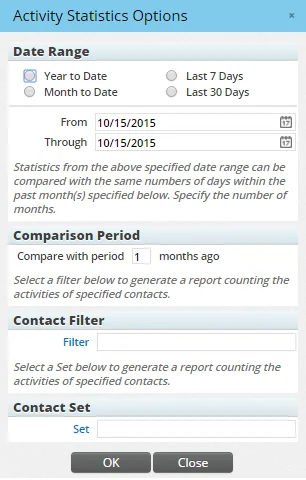
The following section describes the options available for generating Activity Statistics Reports from the Activity Statistics Options dialog box.
Date Range
Select the Date Range to specify the time period the report will cover. The date ranges can be selected using:
- The From and Through fields: Specify the date range by manually entering the starting date in the From field and the ending date in the Through field. Dates can also be entered by clicking the Pick Date button in either field.
- One of the predefined date ranges: The predefined date ranges begin from the current date and extend backward. If any of these options are selected, the entries in the From and Through fields are reset to match the date range selected. The predefined date ranges are:
- Year to Date (the beginning of the current year to the current date) - Month to Date (the beginning of the current month to the current date) - Last 7 Days (the past 7 days from the current date) - Last 30 Days (the past 30 days from the current date)
Comparison Period
Users can compare current activity statistics with those of a past period to determine the efficiency of their activities. Enter the number of preceding months to compare against the current month. For example, if April is the current month, enter 3 to compare the activity statistics for April with the statistics for January, February and March.
Filters
A user can generate specific reports with filters. The activity statistics can be applied only to contact-specific filters. For example, a user can generate statistics for contacts whose age is greater than 30\.
Sets
A user can generate specific reports with sets. The activity statistics can be applied only to contact-specific sets. For example, a user can generate statistics for contacts whose last names begins in the range H-M.
Activity Statistics Dialog Box
The Activity Statistics dialog box displays the results of the analysis, with identical statistical formulas for the current and comparison periods.
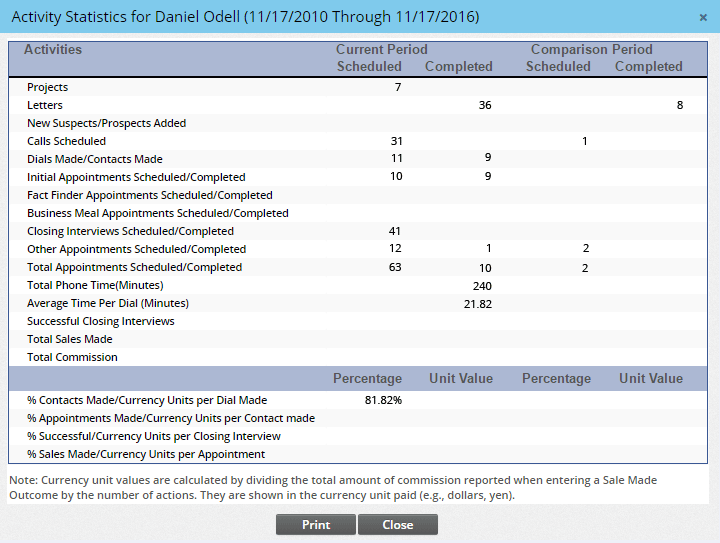
The calculation of each field in the report is described in the table below.
| Field Name | Description |
|---|---|
| Projects | Number of activities of the Project type for which there is an activity history record of the Activity Created type. |
| Letters | Number of activities for which there is an activity history record of the Letters Sent type. The letters sent are for appointment confirmation. |
| New Suspects/Prospects Added | Number of new contacts whose Created On dates fall within the date range specified and are of the Suspect or Prospect type. |
| Calls Scheduled | Number of activities of the Call type for which there is an activity history record of the Activity Created type. |
| Dials Made | Number of activities of the Call type for which there is an activity history record of the Dial Made type. |
| Contacts Made | Number of activities of the Call type for which there is an activity history record of the Contact Made type. |
| Initial Appointments Scheduled | Number of activities of the Appointment type and the Initial sub-type for which there is an activity history record of the Activity Created type. |
| Initial Appointments Completed | Number of activities of the Appointment type and the Initial sub-type for which there is an activity history record of the Appointment Completed type. |
| Fact Finder Appointments Scheduled | Number of activities of the Appointment type and the Fact Finding sub-type for which there is an activity history record of the Activity Created type. |
| Fact Finder Appointments Completed | Number of activities of the Appointment type and the Fact Finding sub-type for which there is an activity history record of the Appointment Completed type. |
| Business Meal Appointments Scheduled | Number of activities of the Appointment type and the Business Meal sub-type for which there is an activity history record of the Activity Created type. |
| Business Meal Appointments Completed | Number of activities of the Appointment type and the Business Meal sub-type for which there is an activity history record of the Appointment Completed type. |
| Closing Interviews Scheduled | Number of activities of the Appointment type and the Closing sub-type for which there is an activity history record of the Activity Created type. |
| Closing Interviews Completed | Number of activities of the Appointment type and the Closing sub-type for which there is an activity history record of the Appointment Completed type. |
| Other Appointments Scheduled | Number of activities of the Appointment type and of any sub-type other than Initial, Fact Finding, Business Meal or Closing for which there is an activity history record of the Activity Created type. |
| Other Appointments Completed | Number of activities of the Appointment type and any sub-type other than Initial, Fact Finding, Business Meal or Closing for which there is an activity history record of the Appointment Completed type. |
| Total Appointments Scheduled | Number of activities of the Appointment type for which there is an activity history record of the Activity Created type. |
| Total Appointments Completed | Number of activities of the Appointment type for which there is an activity history record of the Appointment Completed type. |
| Total Phone Time (Minutes) | For activities of the Call type for which there is an activity history record of the Contact Made type, this is the total number of minutes from the Duration column of these activity history records. |
| Average Time Per Dial (Minutes) | Total phone time/dials made. |
| Successful Closing Interviews | The number of closing interviews completed. |
| Total Sales Made | The number of activities with an activity history record of the Sale Made type. |
| Total Commission | For activities for which there is an activity history record of the Sale Made type, this is the total number of currency units (e.g., dollars, yen, rupees) from the Commission column of these activity history records. |
| % Contacts Made | Ratio (%): The value calculated in Contacts Made divided by the value calculated in Dials Made. |
| Currency Units per Dial Made | The value calculated in Total Commission divided by the total number of Dials made. |
| % Appointments Made | Ratio (%): The number of Appointments scheduled by selecting the Enter Scheduled Appointment outcome from the Contact Made dialog box divided by the value calculated in Contacts Made. |
| Currency Units Per Contact Made | The value calculated in Total Commission divided by the total number of Contacts Made. |
| % Successful | Ratio (%): The number of Closing Interviews completed to the number scheduled. |
| Currency Units per Closing Interview | The value calculated in Total Commission divided by the number of Closing Interviews completed. |
| % Sales Made | Ratio (%): The number of Sale Made outcomes entered for Appointments scheduled by selecting the Enter Scheduled Appointment outcome from the Contact Made dialog box, divided by the number of Appointments scheduled by selecting the Enter Scheduled Appointment outcome from the Contact Made dialog box. |
| Currency Units per Appointment | The value calculated in Total Commission divided by the value calculated in Appointments Completed. |