Last updated: 2025-09-19
Call Scripts
- Overview
- Setup
- Creating a Call Script
- Modifying a Call Script
- Deleting a Call Script
- Accessing Call Scripts
Overview
Call scripts are pre-written telemarketing scripts designed to help users maintain subject or product focus during telephone conversations with prospective clients.
In SmartOffice, users can create custom telemarketing call scripts, create responses for likely replies and automatically populate those scripts with client data.
Setup
Call Script Setup enables users to create, modify and delete call scripts.
Note: To access Call Script Setup, a user must have the Call Script Setup user right. For more information about user rights, see User Accounts - User Rights Content Link.
From the side menu, click Setup > Call Script Setup to open the Call Script Setup page.
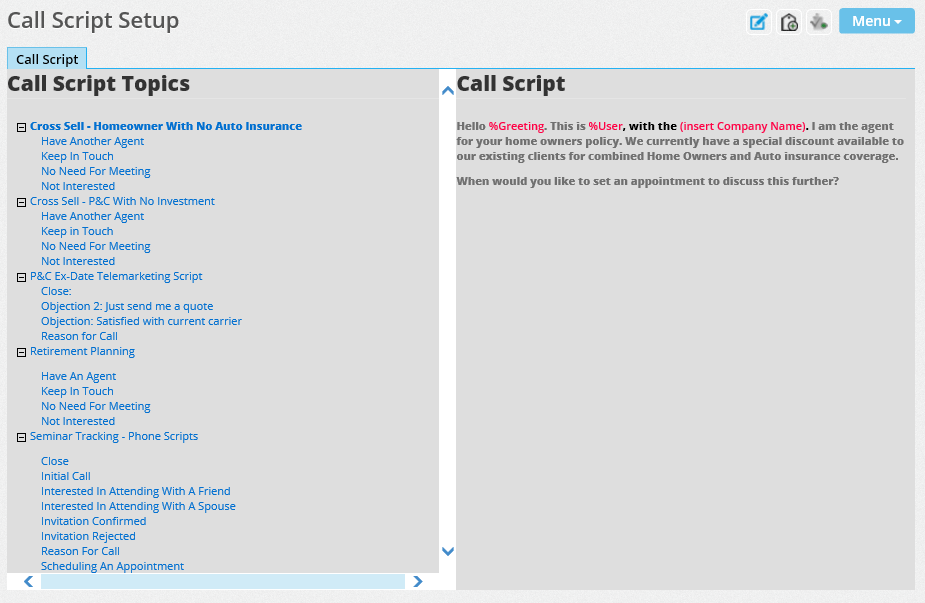
The Call Script Topics section lists all available scripts and sub-scripts. Click the plus or minus sign next to a topic to expand or collapse the sub-scripts underneath. Click a script or sub-script title to view its content in the Call Script section.
Creating a Call Script
Call scripts can be created in the home office or the local office. These steps apply to scripts and sub-scripts.
- On the Call Script Setup List, select Menu > Create a New Call Script to open the Call Script dialog box.
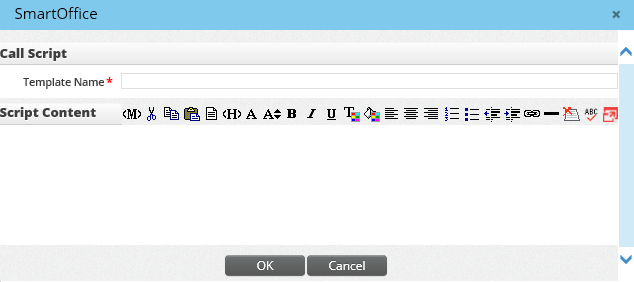
Note: To create a sub-script instead, click an existing script, and then select Menu > Create New Sub-Script.
- In the Template Name field, enter a descriptive title for the new script.
- In the Script Content box, type the text of the script. Use the toolbar buttons to format the text for better readability. Special buttons include:
- Browse Merge Codes : The Browse Merge Codes button
 opens a dialog box for inserting merge codes into the text. When a user opens a call script from a SmartOffice contact or other record, the merge codes expand to display data from that record. For example, when the Lname (Contact Last Name) merge code is inserted into the call script, users who open the script while viewing a contact record see the contact's last name in place of the merge code. Note that module-specific merge codes do not expand unless the user is working in that module.
 - Insert Link: The Insert Link button
 allows for the insertion of hyperlinked URLs in the content of a call script. Use hyperlinks to provide call script users with quick access to other pages for informational purposes.
- Click the OK button.
Modifying a Call Script
- On the Call Script Setup List, click a script to select it.
- Select Menu > Modify Script to open the Call Script dialog box.
- Make changes to the name or content of the script.
- Click the OK button to save the changes.
Deleting a Call Script
Note: Deleting a call script also deletes any sub-scripts under that script.
- On the Call Script Setup List, click a script to select it.
- Select Menu > Delete Current Script.
- When the confirmation message appears, click the OK button.
Accessing Call Scripts
While viewing a record in SmartOffice, select Menu > Advanced Options > Open Call Scripts to display a list of available call scripts. Click the appropriate call script to read it.