Last updated: 2025-11-30
Contacts and Businesses - Letters/Documents Content Link
- Overview
- Letter Log Section
- Opening a Letter
- Viewing Letter Details
- Letter Log Commands
- Document List Section
- Opening a Document
- Viewing/Editing Document Information
- Adding a Document
- Deleting a Document
- Other Document List Features
Overview
When viewing a contact or business, the user can access this content link to track all correspondence and documents associated with the contact. Correspondence can also be initiated from here.
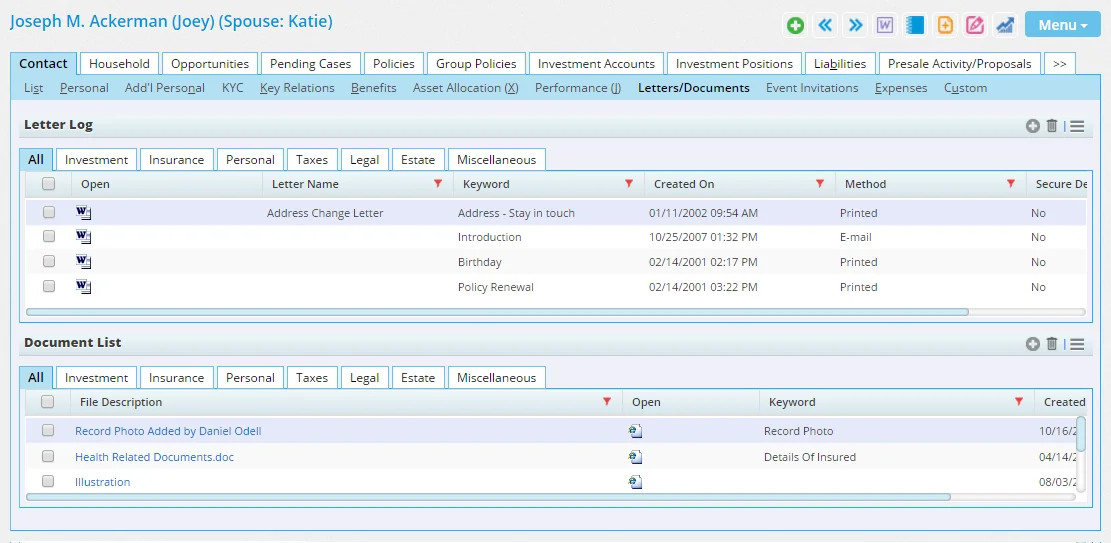
All letters sent are displayed in the Letter Log section (for information about sending letters, see Correspondence). The user can post files that pertain to the contact/business in the Document List section.
These sections are displayed separately by default. However, on the User Preferences - Correspondence Options content link, the user can opt to display a single list containing both letters and document.
Click the tabs across the top of each section (Investment, Insurance, Personal, etc.) to narrow down the letter and document lists by category. The category of a letter is defined on the letter template (see Templates), while the category of a document is specified when the document is posted (learn more about posting files to SmartOffice).
Note: The ability of users to modify or delete correspondence and documents from this content link is restricted when Protect Communication History is enabled for the office.
Letter Log Section
Opening a Letter

icon in the Open column. What happens next depends on your Correspondence Method settings in User Preferences - Correspondence Options:
- If you use the browser method for correspondence, the letter opens in the SmartOffice Editor.
- If you use the plug-in method for correspondence, your browser may ask for permission to open the SOProLauncher app. Select Open SOProLauncher to grant permission. If prompted to download an .sopro configuration file, save and open the file. Also, if prompted, sign in to the Microsoft Plug-in for SmartOffice (this normally happens automatically).
Viewing Letter Details
To view and/or edit information about the letter, such as the name and category, click its hyperlink in the Letter Name column to open the Letter Log dialog box (the Letter Name column must be the first column for this work; if it is not, customize the list layout).
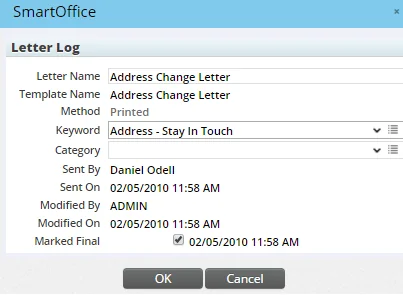
Notable fields and options in this dialog box include:
- Letter Name: This is the name by which the letter is referenced throughout SmartOffice.
- Template Name: This is the name of the correspondence template on which the letter is based. If the letter was not based on a template, the template name is the same as the letter name.
- Method: This field provides information about whether the letter was sent, how it was sent and whether it can be modified. The possible values are:
- E-mail: The letter was created and e-mailed using either the Correspondence Wizard (see Correspondence) or the E-mail button in the SmartOffice tab in Microsoft Word. The letter was not saved to SmartOffice at any point before being e-mailed. An E-mail letter cannot be modified, but a user can open it, edit it, and then save it as a new Unsent entry in the Letter Log.
- Draft: The letter was created using the Launch Word command (see Correspondence) and saved to SmartOffice without being printed or e-mailed. A Draft letter can be modified and resaved unless the Marked Final option is selected for the letter and Protect Communication History is enabled for the office. If a user prints or e-mails a Draft letter, SmartOffice creates a Reprinted or Resent - E-mail entry in the Letter Log; the Draft letter remains in the log.
- Printed: The letter was created and printed using either the Correspondence Wizard (see Correspondence) or the Print button in the SmartOffice tab in Microsoft Word. The letter was not saved to SmartOffice at any point before being printed. A Printed letter cannot be modified, but a user can open it, edit it, and then save it as a new Unsent entry in the Letter Log.
- Reprinted: The letter was created when a user opened an existing letter and printed it using the Resend command (see Letter Log Commands) or the Print button in the SmartOffice tab in Microsoft Word. A Reprinted letter cannot be modified, but a user can open it, edit it, and then save it as a new Unsent entry in the Letter Log.
- Resent
- E-mail: The letter was created when a user opened an existing letter and e-mailed it using the Resend command (see Letter Log Commands) or the E-mail button in the SmartOffice tab in Microsoft Word. A Resent - E-mail letter cannot be modified, but a user can open it, edit it, and then save it as a new Unsent entry in the Letter Log.
- Unsent: The letter was created when a user opened an existing letter and saved it as a new letter (using the Save As button in the SmartOffice tab in Microsoft Word). An Unsent letter can be modified and resaved unless the Marked Final option is selected for the letter and Protect Communication History is enabled for the office. If a user prints or e-mails an Unsent letter, SmartOffice creates a Reprinted or Resent - E-mail entry in the Letter Log; the Unsent letter remains in the log.
Letter Log Commands
 in the Letter Log:
- New 'Letter Log' record: Opens the Correspondence Wizard and guides the user through the process of sending a letter to the contact/business.
Note: A letter created using this method will not appear in the Letter Log until the page is refreshed. A refresh occurs automatically when the user navigates away from the page and then navigates back. However, the user can refresh manually using the browser's Refresh or Reload button.
- Print List: Prints the list of letters. For more information, see Printing or Exporting a List.
- Delete 'Letter Log' record: Removes the selected letter log entry from the system. Note that letters cannot be deleted if Protect Communication History is enabled for the office.
- Resend: Sends the letter again. The system presents options for resending the letter in print or e-mail format.
- Advanced Options > Mark Private: Makes the selected letter visible only to certain SmartOffice users. For more information, see Record Privatization.
- List Options > Customize List: Change the columns that display in the list. For more information, see List Layout Customization.
Document List Section
The Document List section displays documents and other files related to the contact that were not sent as correspondence.
upload doc
shared folder
Opening a Document
icon in the Open column. What happens next depends on your File Opening Method settings in User Preferences - Correspondence Options:
- If you use the browser method for opening files, the file will download to your device, and you can open it manually.
- If you use the plug-in method for opening files, your browser may ask for permission to open the SOProLauncher app. Select Open SOProLauncher to grant permission. If prompted to download an .sopro configuration file, save and open the file. Also, if prompted, sign in to the Microsoft Plug-in for SmartOffice (this normally happens automatically).
Viewing/Editing Document Information
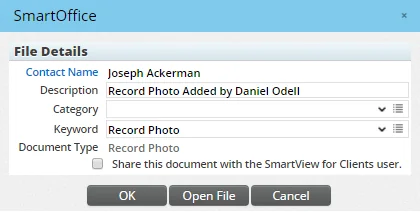
To view and/or edit information about the document, such as the description and category, click the first-column hyperlink (by default, this is the File Description column) to open the File Details dialog box.
Adding a Document
, and then select New 'Documents' Record to select one or more files from your device to post or upload it to the contact record. For more information, see File Posting.
Note: If newly posted files do not appear in the Document List, the page may need to be refreshed. A refresh occurs automatically when you navigate away from the page and then navigates back. However, you can refresh the page manually using the browser's Refresh or Reload button.
Deleting a Document
, and then select Delete 'Documents' record to remove the document from the system.
Other Document List Features
:
- Print List: Prints the list of documents. For more information, see Printing or Exporting a List.
- Link to Local Folder: Links one or more folders on the user's device to the contact. Once a folder is linked in this way, clicking its name in the Document List opens that folder on the device. Documents in the folder are not uploaded to SmartOffice; they remain on the user's device. The Microsoft Plug-in for SmartOffice must be installed for this feature to work.
- Link to Web address (URL): Links to a document stored on an intranet site or the internet. When the Document Detail dialog box opens, enter a description, URL and other information in the appropriate fields.
- Link to File Location: Links a document stored on the user's device without posting the document to SmartOffice. After selecting this command, enter the full path to the file into the File Path field (to get the full path, right-click the file, select Properties, click the Security tab, and then copy the contents of the Object name field). Linking to a file location is not recommended if other users in the office need access to the file. Those users will still see the file in the Document List, but if the file does not exist in the same location on their devices, any attempt to open the file will produce an error stating that the file could not be found.
- Advanced Options > Mark Private: Makes the selected document visible only to certain SmartOffice users. For more information, see Record Privatization.
- List Options > Customize List: Change the columns that display in the list. For more information, see List Layout Customization.
