Last updated: 2025-11-30
Customizing Drop-Down Lists
- Overview
- Requirements
- Accessing Drop-Down Choice Customization
- Editing Drop-Down Choices
- Adding a Custom Choice
- Modifying or Deleting a Choice
- Showing or Hiding a Choice
- Changing Choice Order/Sorting
Overview
A drop-down list is a field that the user clicks to display one or more available options. An example is the Nationality field on the contact Add'l Detail content link.
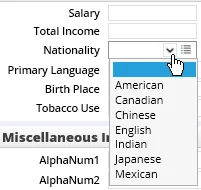
Some drop-down lists can be customized, meaning that a user who has the appropriate rights can add, delete or change choices. Any changes made to the choices available in a drop-down list are visible to all users in the office.
 Watch the Training Class:
Requirements
To customize drop-down lists, a user must have the Drop-Down Choice Customization user right enabled.
Accessing Drop-Down Choice Customization

on a drop-down list to open the Drop-Down Choice Customization dialog box.
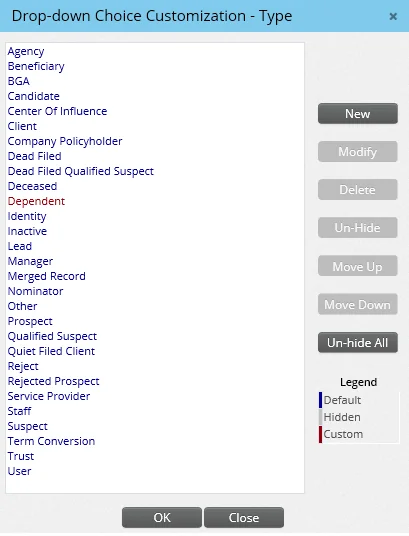
The default SmartOffice system choices are displayed in blue text, while custom choices (i.e., those added by users) are displayed in red. Hidden items are displayed in gray.
Default choices cannot be deleted, but they can be modified or hidden.
Editing Drop-Down Choices
Adding a Custom Choice
- Select the New button to open the New Office Choice dialog box.
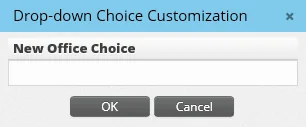
Note to enterprise customers: Administrators who are signed in to the System office will also see a New System button. Click this button instead of the New button to create a custom choice that will be available in all offices on the server.
- Enter the new choice and select the OK button.
- Select the OK button to save the changes, or select the Close button to cancel the changes.
Modifying or Deleting a Choice
Note: Only custom choices can be deleted. Default system choices can be hidden to prevent them from appearing in a drop-down list.
- Select the choice you want to modify or delete.
- Select the Modify or Delete button..
- Enter the new name for the choice, and then select OK.
Showing or Hiding a Choice
If a drop-down list contains choices that do not apply to your business, you can hide those choices. SmartOffice allows you to hide default choices only. If you change your mind later, you can show (un-hide) those choices.
- Select the choice you want to hide or show.
- Select the Hide or Un-Hide button.
A hidden choice turns gray and no longer appears in the drop-down list. Tip: To quickly show all choices that have been hidden, select the Un-Hide All button.
Changing Choice Order/Sorting
By default, drop-down lists are sorted alphabetically. You can change this order to move frequently selected choices to the top of the list and/or to move rarely selected choices to the bottom.
- Select the choice you want to move.
- Select the Move Up or Move Down button repeatedly until the selected choice is where you want it.