Last updated: 2025-11-30
Lists - Working with Records
Overview
This section describes how to select and open records in lists.
Selecting Records
Many of the actions you can perform on records in SmartOffice can be done directly from a list. Before you perform actions on records in a list, you must select (or "tag") one or more records.
To select a record, select the check box next to it.
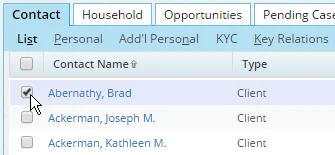
To select multiple records in a list quickly, try these shortcuts:
- To select a contiguous block of records, check the box next to the first record, hold down the SHIFT key, and then check the box next to the last record.
- To select or deselect all records currently visible in a list, select or clear the first check box at the top of the list (located to the left of the column headings).
The Records Tagged count at the bottom of the list indicates how many records you have selected.

Tip: If you try to perform an action in a list without selecting any records—or if you try to perform an action on multiple records when the action can be performed only on a single record—SmartOffice will typically perform the action on the currently "highlighted" record. The highlighted record in a list appears with a light blue row color.
When a list initially loads, the first record is highlighted by default. When you select records in a list, the most recently selected record becomes the highlighted record.
Opening Records
The standard way to open a record form a SmartOffice list is to click the hyperlink in the first column. For example, if the Contact Name column is the first column of the Contact List, clicking a hyperlink under that column opens the record.
If you change the columns using List Layout Customization, you must still click the first-column hyperlink of a record to open it.
Tip: To view some details of a record directly from a list without actually opening the record, point to the first-column hyperlink and wait a few seconds for the Information Card to appear. Note that this works with only certain types of records.
Using the Shortcut Menu
In most areas of SmartOffice, users can quickly access common commands using the right mouse button. Right-clicking opens a shortcut menu containing virtually all commands available in that part of the system.
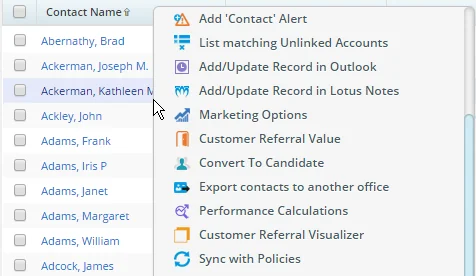
To copy, cut, paste, etc., using the right-click feature, hold down the CTRL key before pressing the right mouse button.
Saving Changes to Records
 in the Custom Button Bar or select Menu > Save.
