Last updated: 2025-11-30
Lists - Mass Modify
Overview
Mass Modify enables the user to change a specific field in many records at once from a list (including the results of some Dynamic Reports). This feature saves the user from having to open each record individually, edit it and then save the changes.
mass modify
Mass modification is not available for all fields in SmartOffice. Only certain fields can be mass modified.
Requirements
To mass modify records, a user must have the Mass Modification user right enabled. For information about user rights, see User Accounts - User Rights Content Link.
Types of Records that Can Be Mass Modified
The Mass Modify feature is available for these types of records:
- Activities
- Advisors/Producers
- Agencies/Firms
- Businesses
- Candidates
- Carriers
- Contacts
- Commission rates
- E-mail Automations
- Group policies
- Households
- Investment accounts
- Investment securities
- Investment positions
- Marketing campaigns
- Opportunities
- Policies
- Pending cases
- Products
- Presale activities
- User Accounts
Note: Some SmartOffice modules have their own specialized mass modification features. For example, in SmartOpportunities, there is a Mass Modify Opportunity Stage feature. For information about module-specific mass modification features, refer to the documentation for those modules.
Mass Modifying Records
- From a list of records, select the records to be modified.
- Click the Menu button (for lists with an Options menu, click the Options hyperlink instead).
- From the expanded menu, select Advanced Options > Mass Modify to open the Mass Modification dialog box.
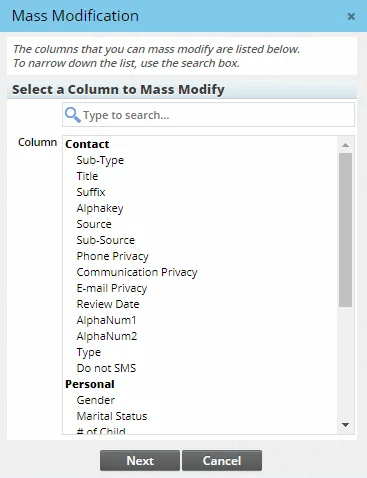
- Select a column from the list. The columns available will vary depending on the type of records being modified.
Tip: To find a column quickly, type its name in the search box above the list of columns.
- Click the Next button.
- Enter or select the appropriate value for the selected column.
- Click the OK button.
- When the confirmation message displays, click the Yes button.