Last updated: 2025-11-14
SmartCalendar - Creating Activities
In this Topic [Show/Hide]
- Overview
- Methods for Creating Activities
- Activity Creation Modes
- Simple Add
- Comprehensive Add
- Basic Activity Creation
- Mass Task Creation
- Activity Scheduling Conflicts
- Activity Confirmation Letter
Overview
This topic describes how to create calendar activities and link them to a contact or other record.
SmartOffice also has a group scheduling feature that makes it easy to schedule activities involving multiple SmartOffice users.

Methods for Creating Activities
There are several ways to open a new Activity dialog box and begin creating an activity. The methods are described in the table below.
| Location within SmartOffice | Methods | Notes |
|---|---|---|
| Any Location | • Select Activity from the Add New menu. • Press F12 to create a new calendar activity. • Press SHIFT+F12 to create a new task. | |
| Quick Action Corner | • Click the New Calendar Activity button. • Click the New Task button. | See Quick Action Corner. |
| Calendar Day | • Click an Add a New Activity at [TIME] hyperlink. • Click the New button in the Tasks section. • Double-click any blank space. | See Calendar Day. By default, activities created from the Calendar section are Appointment-type; from Tasks/All Day Events sections they are Call-type. |
| Calendar Week | • Click New Calendar Activity or New (Tasks) or New All Day Event. • Double-click any blank space. | See Calendar Week. |
| Calendar Month | Double-click any blank space in the calendar. | See Calendar Month. |
| Calendar Agenda | • Click the New 'Activity' record button. • Double-click any blank space in the agenda. | See Calendar Agenda. |
| Activity Log tab of a contact | Click the New 'Activity' record button. | |
| Opportunities tab of a contact | Click the Activities content link → New 'Activity' record button. | |
| Pending Case / Investment / Policy Lists | Click the Activity/Mail content link → Add 'Activity' record button. | Available only if the record was not electronically downloaded. |
| Microsoft Outlook | Use the Microsoft Plug-in for SmartOffice. | Learn more |
| Data Import | Use the Activity Import setting in the Data Import Wizard. |
Activity Creation Modes
Depending on the user's Activity Add Mode setting in User Preferences - Activity Options, the Activity dialog box opens in either Simple Add or Comprehensive Add mode.
Simple Add
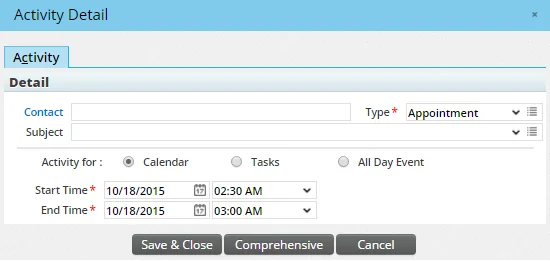
This mode presents a compact, simplified dialog box for creating new activities. Only essential fields are displayed. A Comprehensive button allows switching to the full dialog if needed.
Comprehensive Add
This mode presents the full Activity dialog box with all available fields displayed.
Basic Activity Creation
- In the Simple Add or Comprehensive Add dialog box, click the Contact hyperlink to open the contact/business search dialog.
- Enter search criteria and click Search.
- Click the contact or business name hyperlink.
- Click Save & Close to add the activity to the calendar.
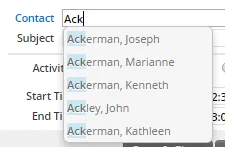
You can also type the contact name directly into the Contact field. A dynamic menu shows matching contacts. This method works even for contacts without a SmartOffice record.
Mass Task Creation
See Mass Task Creation for information about creating activities for multiple contacts at once.
Activity Scheduling Conflicts
SmartCalendar allows overlapping activities but prompts for confirmation when a conflict is detected.
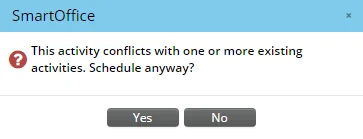
Click Yes to schedule anyway, or No to choose a different time. Participant conflict warnings can be enabled/disabled in User Preferences.
Activity Confirmation Letter
When an Appointment- or Call-type activity is scheduled, SmartOffice can prompt to send a confirmation letter.
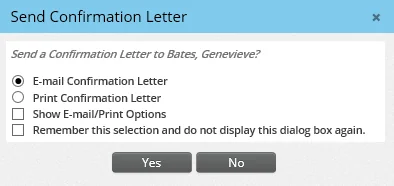
Options are controlled in User Preferences - Activity Options and Correspondence Options.
- E-mail Confirmation Letter
- Print Confirmation Letter
- Show E-mail/Print Options
- Remember this selection and do not display this dialog box again