Last updated: 2025-11-14
SmartCalendar - Deleting an Activity
In this Topic [Show/Hide]
- Overview
- Basic Activity Deletion
- Mass Activity Deletion
- Deleting Recurring Activities
- Restoring Deleted Activities
Overview
The process of deleting an activity differs slightly depending on whether an activity has one participant or multiple participants (to learn more about participants, see Activity Detail).
Basic Activity Deletion
- Do one of the following:
- From the Calendar Day, Week, or Month view, hover over an activity until its information card appears, then click Delete.
- From any activity list (e.g., contact Activity Log, search results, Agenda view), select the activity → Menu > Delete 'Activity' Record or Options > Delete 'Activity' Record.
- From a Dynamic Report result list, select the activity → Menu > Delete.
- If the activity has multiple user participants, SmartOffice displays the prompt:
> What would you like to delete? Choose one:
- Activity – Deletes the activity from everyone’s calendar (requires appropriate rights).
- Myself as a Participant – Removes only you from the activity (keeps it on others’ calendars).
- Cancel – Aborts the deletion.
If you are viewing another user’s calendar, you can delete their activities using the same methods, even if you are not a participant.
Mass Activity Deletion
Multiple activities can be deleted simultaneously only if you have the Mass Deletion user right (see User Accounts - User Rights).
To mass delete:
Select multiple activities from any list (e.g., Agenda View, contact Activity Log, search results) → click the expanded Menu or Options button → Delete.
Deleting Recurring Activities
When deleting a recurring activity, SmartOffice prompts you to choose:
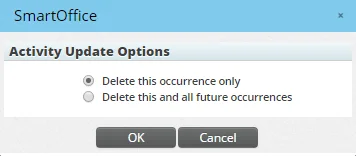
- Delete this occurrence – Removes only the selected instance.
- Delete all occurrences – Removes the entire recurring series.
Restoring Deleted Activities
Deleted activities are moved to the Deleted Records area. Users with administrator privileges can restore them at any time. See: Deleted Records