Last updated: 2025-11-14
SmartCalendar - Modifying an Activity
In this Topic [Show/Hide]
Overview
While viewing an activity in SmartCalendar, you can modify any of its details directly in the Activity dialog box and save your changes. SmartCalendar also provides quick-access methods specifically for rescheduling and changing the associated contact.
Rescheduling an Activity

You can move activities to past or future dates/times using any of these methods:
- Hover over the activity → click the arrow on the information card → Reschedule Activity
- Double-click the activity → change Start Date/Time → Save
- Drag and drop the activity to a new time slot in Day, Week, or Month view
- In Tasks section (Day/Week view): tag the activity → Options → Reschedule Activity
- From Activity Search Results or Agenda View: tag activity → Menu → Reschedule Activity
When rescheduling to a future date/time, SmartOffice prompts you to send a confirmation letter to the contact.
Changing the Contact Associated with an Activity
You can reassign an activity from one contact/business to another while keeping all activity details intact.
Important notes before changing the contact:
- Works between contacts and businesses
- Activity notes and SmartPad entries move with the activity (lost if assigned to a non-SmartOffice contact)
- Activity creation notes transfer to the new contact
- Participant list remains unchanged (participants must have access to the new contact to see the activity)
- Not allowed for recurring activities or activities linked to holdings/policies
To change the contact:
- Do one of the following:
- Hover over the activity → information card → arrow → Change Associated Contact
- From Agenda view or any task list: tag the activity → Options → Change Associated Contact The Contact/Business Search dialog opens:
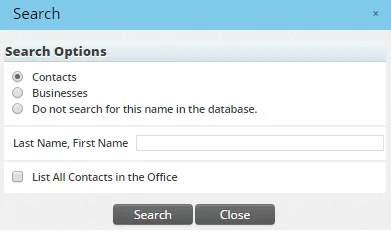
- Choose one of the following:
- Contacts or Businesses → search by name or list all
- Do not search for this name in the database → manually type a name (for contacts not in SmartOffice)
- Click Search (or proceed if typing a non-SmartOffice name)
- Select the new contact/business
The activity is instantly reassigned and appears on the new contact’s Activity Log.