Last updated: 2025-09-19
SmartCalendar - Opening the Calendar
Overview
This section describes the how to access SmartCalendar from the side menu and Quick Action Corner, as well as how to open the calendar in a separate browser window.
Side Menu
One way to access SmartCalendar is to click Calendar in the side menu and then select one of the calendar views from the expanded list.
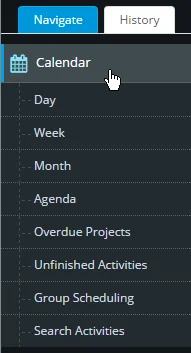
Several of the options in this menu (Overdue Projects, Unfinished Activities, Search Activities) are advanced features that require additional user rights.
Quick Action Corner

The Quick Action Corner in the upper left corner of SmartOffice is another quick way to open the calendar. By default, the first two buttons open SmartCalendar to the Calendar Day and Calendar Week views, while the next two buttons create task and calendar activities. These buttons can be customized to perform other functions.
For more information, see Quick Action Corner.
Embedded vs. Pop-up Calendar Display
SmartCalendar can be viewed within SmartOffice (i.e., embedded) or in a separate pop-up browser window.
The pop-up display option can be useful for users who prefer to keep the calendar visible while navigating to other areas of SmartOffice. Users with multiple-monitor computer setups can even move the pop-up calendar to a different monitor.
To specify whether SmartCalendar opens embedded in SmartOffice or in a pop-up window, go to User Preferences - Calendar Options.
When using the pop-up calendar, the user can refresh the calendar anytime by clicking the Refresh Calendar button.
Note: The pop-up calendar replaced the Day List feature that was present in earlier versions of SmartOffice.