Last updated: 2025-11-30
Enterprise View
- Overview
- User Setup
- User Rights/Licenses
- Hierarchy Visibility
- Turning Enterprise View On or Off
- What Enterprise View Users Can Do
- Capabilities
- Restrictions
- Impersonate Mode
- Effects on SmartOffice Modules
- Core System
- SmartCalendar
- SmartLeads
- SmartOpportunities
- SmartRecruiting
- SmartEvents
- SmartCaseManager and SmartPolicies
- SmartInvestments
Overview
Enterprise View is a special capability available to users in offices that belong to an office hierarchy. It allows users to access contacts (and data linked to those contacts, such a policies or investments) residing in other offices positioned below theirs in the hierarchy.
A common use of Enterprise View is to allow corporate or regional managers to review the data of agents in branch offices that are under their supervisory jurisdiction.
User Setup
User Rights/Licenses
To use Enterprise View, a SmartOffice user must have the following enabled on the User Rights content link of the user's account:
- Enterprise View user right
- Base SmartOffice license
For more information about assigning user rights and licenses, see User Accounts - Viewing and Editing.
Note: The Enterprise View user right is unavailable if the user's office is at the very bottom of an office hierarchy or if the office is not part of an office hierarchy. In addition, this user right cannot be enabled in conjunction with record sharing user rights.
Hierarchy Visibility
An office administrator can limit an Enterprise View user's data access to certain branches of an office hierarchy. For more information, see User Accounts - Enterprise Office Visibility Content Link.
Turning Enterprise View On or Off
- Click the Enterprise View button near the upper-right corner of your screen in SmartOffice Pro.

The Change Enterprise View dialog box opens to display your Enterprise View options.
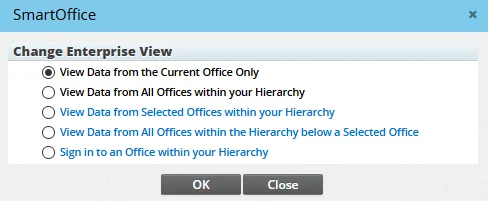
- Select the appropriate option:
- View Data from the Current Office Only: This option gives you access only to contact data residing in your office. Essentially, this turns Enterprise View off.
- View Data from All Offices Within Your Hierarchy: This option gives you access to contact data residing in all offices below yours in the hierarchy.
- View Data from Selected Offices Within Your Hierarchy: This option lets you access contact data located in one or more offices that are below your office in the hierarchy. When you select this option, SmartOffice prompts you to search for the offices. Click the Search button to display a list of available lower offices. Then select the offices whose data you want to see and click the OK button.
- View Data from All Offices Within the Hierarchy Below a Selected Office: This option lets you quickly limit the number of offices whose contact data you can access. You choose a single office, and SmartOffice grants you access to data located only in that office and all lower offices in the hierarchy. When you select this option, SmartOffice prompts you to search for the office. Click the Search button to display a list of available lower offices. Then select the appropriate office and click the OK button.
- Sign In to an Office Within Your Hierarchy: This is a special option also known as Impersonate Mode. It lets you sign in to a lower office as if you were a local user in that office. You essentially gain the same access to that office's data that local users have. Because this option gives an Enterprise View user such extensive access to data, SmartOffice allows any office in a hierarchy to prevent impersonating users from accessing its data. This access is controlled using the Restrict Parent Office Impersonate Mode office setting (see Office Settings
- Detail). If no lower office in the hierarchy allows impersonating users, the Sign In to an Office Within Your Hierarchy option will not be available.
- Click the OK button.
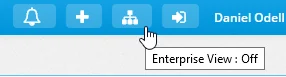
Tip: To quickly check whether Enterprise View is currently on or off, you can point to the Enterprise View button to display a tooltip.
Tip: You can choose whether Enterprise View is on or off by default when you sign in. Go to User Preferences - Basic Info and use the Default Enterprise View Mode setting to indicate your choice.
What Enterprise View Users Can Do
Enterprise View gives you access to contact data created in lower offices. For the purposes of Enterprise View, "contact data" is a broad term that includes contacts, businesses, advisors, and agencies, as well as any data linked to those records (e.g., SmartPad notes, activities, correspondence, documents, sets, opportunities, policies, investment accounts).
This section describes the capabilities and restrictions that apply when you turn on Enterprise View using any of these options:
- View Data from All Offices Within Your Hierarchy
- View Data from Selected Offices Within Your Hierarchy
- View Data from All Offices Within the Hierarchy Below a Selected Office
This section describes Enterprise View capabilities in a general way. For more detailed information, see Effects on SmartOffice Modules.
Capabilities
Note: These capabilities are available only if you also have the necessary SmartOffice user rights, licenses and permissions.
- When you view any list of contact data, you will usually see contact data from lower offices as well as your own office. Generally, records residing in lower offices are highlighted in a blue-purple color
 and/or display the name of the office they reside in. You can customize how SmartOffice displays office names in lists (see List Layout Customization).
 - You can view, modify and delete contact data in lower offices. This includes the ability to mass modify and mass delete contact data.
- You can create certain types of contact data in lower offices, including contacts, businesses, advisors, agencies, activities, opportunities and policies, among others. When you create a record, SmartOffice asks you to specify the office if the context is ambiguous.
- You automatically gain Super User///super/users) capabilities in your own office and in all lower offices. This means that, if data visibility in a lower office is restricted by office security features like user proxies///user/proxies) and user assignments///user/assignment), those restrictions do not apply to you.
Restrictions
- You cannot perform mass user assignment///user/assignment) on lower-office contacts.
- Normal record privacy rules apply. If a record in the lower office has been privatized, you cannot access it. In addition, you cannot privatize records in any office while Enterprise View is turned on.
- For many types of searches, you cannot perform a "blank" search to display all available records. If you try to, SmartOffice will prompt you to enter search criteria.
Impersonate Mode
When you turn on Enterprise View and select the Sign In to an Office Within your Hierarchy option, you enter Impersonate Mode. Instead of simply accessing lower-office contact data from within your own office, you essentially become a user in the lower office. In this mode, you can perform most actions (including administrator actions) that any other user in that office can perform, assuming you have the necessary user rights, licenses and permissions.
Note: If an administrator in a lower office has enabled the Restrict Parent Office Impersonate Mode office setting (see Office Settings - Detail), you cannot access the office using Impersonate Mode.
Effects on SmartOffice Modules
Enterprise View subtly alters how you interact with many SmartOffice modules. This section describes the differences in functionality that you will encounter when you turn Enterprise View on.
Core System
Office Settings
Enterprise View users who have the Administrator: User Rights & Creation/Licenses/Groups user right can view and change the office settings of not only their own offices but also for lower offices in the office hierarchy.
This capability enables a single user to perform key administrative tasks for multiple offices while leaving higher-level administrative tasks (e.g., creating offices, assigning licenses) to administrators in the System office. Although an administrator user account must still be created for every office, this capability makes it unnecessary for a person to sign in using that account to configure certain office settings. In this way, the organization can avoid the need to train an administrator user in every office.
Note: The Restrict Parent Office Impersonate Mode setting in an office can be changed only by an administrator signed in to that office. Enterprise View users in higher offices cannot change this setting.
Correspondence
When an Enterprise View user sends correspondence to a contact in a lower office—and if that office is configured to automatically create a SmartPad entry every time correspondence is sent—the following occurs:
- The proper entries are posted to the contact's Letter Log and SmartPad.
- If office security///introduction) is enabled in the lower office, the posted SmartPad entries are visible to any lower-office user who is assigned to the contact and who can normally view SmartPad entries made by other users in the office.
Marketing Campaigns
Normally, Enterprise users cannot view marketing campaigns that reside in lower offices (campaigns are considered "system" data in an office hierarchy). However, if a lead or opportunity is linked to a marketing campaign, an Enterprise View user can access the campaign from the lead or opportunity record and modify it.
SmartCalendar
- SmartOffice asks an Enterprise View user to select an office in the hierarchy when the user:
- Creates an activity.
- Generates a Calendar Report.
- Activates the Show Other Users' Calendars feature.
- If an Enterprise View user creates an activity in a lower office that has office security///introduction) enabled, standard rules regarding participants apply. Users in the lower office must have access to a contact before they can be added as participants.
- An Enterprise View user who creates an activity in a lower office can add participant users from his or her own office as well as any lower office in the hierarchy.
- Regarding record privatization for activities:
- An Enterprise View user can privatize activities that are created for a lower office.
- An Enterprise View user cannot see lower-office activities that other users have marked as private.
- SmartPad notes linked to activities residing in a lower office are posted to the contact's SmartPad in the lower office.
- An activity that an Enterprise View user creates for a lower office is not visible to the Enterprise View unless Enterprise View is turned on and the particular office is selected.
- An Enterprise View user run calendar reports, Activity Statistics reports and Dynamic Reports for lower-office users regardless of whether those users have the Show to other users options selected in their calendar preferences.
SmartLeads
- Enterprise View affects the Leads Coordinator user role. The leads coordinator can:
- View and edit leads from lower offices.
- Create a lead in a lower office.
- Assign leads to lower offices. When assigning leads, the Enterprise View user can select any office that is below the current office in the hierarchy.
- Reject/revoke leads assigned to an advisor in a lower office. If the advisor rejects the lead, the lead comes back to the original assigning office and the lead status changes to Rejected by Agent. If the assigning office revokes the assigned lead, the lead is restored to the original assigning office.
- Regardless of Enterprise View settings, the leads coordinator can forward leads to a specific office or a combination of offices and advisors.
- An Enterprise View user can select a specific office or all offices in the hierarchy for viewing analytical reports using the Leads Dashboard.
SmartOpportunities
- When the System office and parent office both have default opportunity processes defined and a lower office does not, new opportunities created in the lower office use the System office default. However, when the lower office has a default process defined, that setting takes precedence over any higher-office default.
SmartRecruiting
- In an office hierarchy, position workflows and their components (stage types, action types, interview types, license types and curriculum types) can be created in the System office or at another parent office to be available for use by offices lower in the hierarchy. A user in an office at the bottom of such a hierarchy can:
- Use these positions as defined in the higher offices.
- Use some or all of the components in a position created at the local office level.
- Create a position composed entirely of components defined at the local office level.
- Copy positions from higher offices, modifying them as necessary. Such positions are visible at the local-office level only.
- Enterprise users can run Leads Dashboard reports on users in lower offices.
SmartEvents
- Users in higher offices can view, modify and delete events created in lower offices.
- Users in child offices can view and use event sites created in higher offices.
- An event site created in a higher office cannot be deleted until all events linked with that site in lower offices are deleted.
- SmartEvents reports display event data from the child offices.
SmartCaseManager and SmartPolicies
- Enterprise users in a higher office can view and manage cases and policies in a lower office. By enabling an office/agency to process pending cases/policies for a lower office/agent, this feature helps to reduce work for the agency by enabling the agent to view and partially process the case.
- Although a user in a higher office cannot see insurance products created in a lower office, the higher-office user can click the Plan Name hyperlink in a pending case or policy record to view and modify the Detail content link for that product.
- When an Enterprise user adds a primary advisor to a contact, the advisor search is limited to those advisors in the office in which the contact exists.
- Advisor requests can be assigned to a manager located in either the advisor’s office or the signed-in user’s office.
SmartInvestments
- When Enterprise View is enabled, an Enterprise user can view, add, modify, delete and validate investment data in a lower office just as if that user were signed in to the lower office.
- Reports can be run for available data.
- For security reasons, investment securities created in a lower office are not visible to Enterprise users in higher offices from the SmartOffice side menu.
