Last updated: 2025-11-30
Navigation - Side Menu
Overview
The side menu runs along the left side of SmartOffice, directly below the Quick Action Corner. The menu contains two tabs: Navigate and History.
Navigate Tab
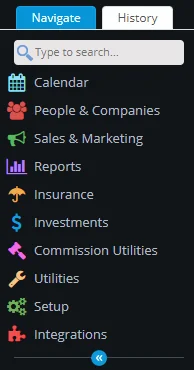
Select this tab to access various modules and areas of SmartOffice (e.g., Calendar, People & Companies, Sales & Marketing). Selecting any of these reveals a submenu containing related items.
Initially, the submenus display only the most commonly used submenu items, followed by a Show More hyperlink. Selecting that hyperlink reveals all available items in the submenu, and the Show More hyperlink changes to a Show Less hyperlink. Selecting Show Less hides all but the most commonly used menu items.
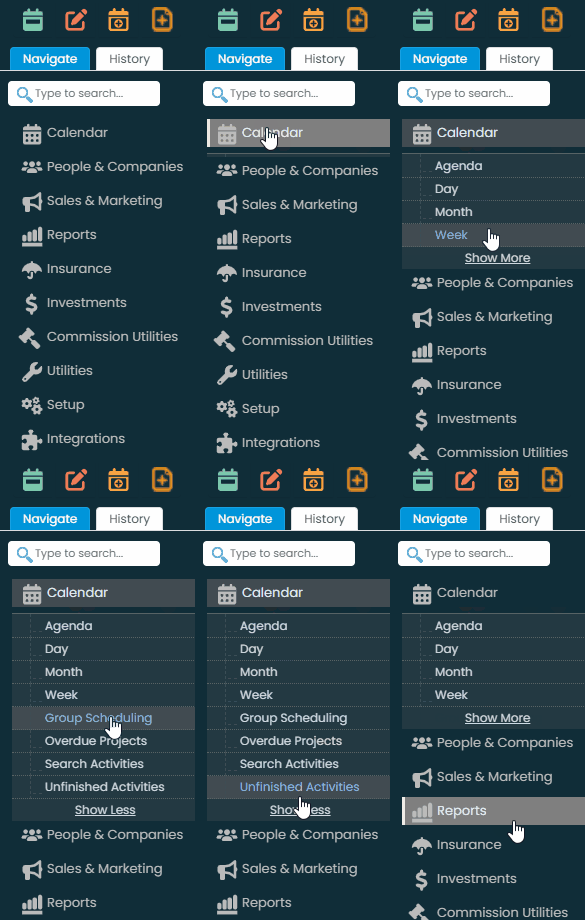
Tip: Users who prefer to access the full menu at all times can go to User Preferences - Basic Info and clear the Enable simplified Side Menu option.
Enterprise customers can enable or disable access to the simplified side menu feature by editing the server config.xml file to set the value of the
To find a menu item quickly, type its name in the search box. The side menu dynamically displays only those items that match the search. Note: The options available from the side menu may vary from those pictured, depending on the SmartOffice modules purchased and user rights assigned.
History Tab
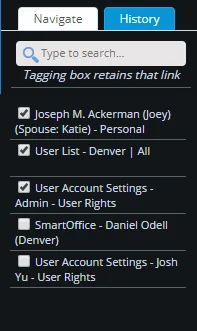
history tab
Clicking the History tab displays hyperlinks to the most recent SmartOffice pages the user visited. To navigate to a previous SmartOffice page, click a hyperlink in the History tab instead of clicking the browser's Back button.
To find a history entry quickly, type its name in the search box. The side menu dynamically displays only those entries that match the search.
 . Position the mouse pointer over the icon to see a list of column filters applied.
The entries in the History tab are cleared after the user signs out. To retain an item between SmartOffice sessions, select its check box. This is a good way to "bookmark" frequently visited areas of SmartOffice. To rename a history entry, right-click it and type the new name.
Minimizing the Side Menu

at the bottom of the side menu to minimize it. When the side menu is minimized, you can point your mouse at any menu icon to reveal the menu items.
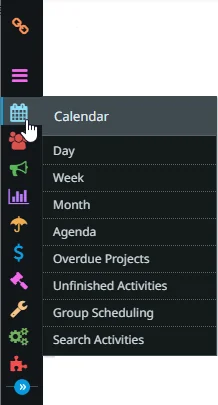
Click the bottom arrow again to restore the side menu to its normal size.
When you sign out of SmartOffice Pro, the system remembers whether the side menu has been minimized and displays it the same way the next time you sign in.
