Last updated: 2025-09-19
Signing In to SmartOffice Pro
Overview
This topic describes the sign-in experience for first-time SmartOffice users as well as users who have already signed in at least once.
Important: Using a web browser's password-saving feature to save SmartOffice sign-in credentials is not recommended. Saving credentials in this way can leave them vulnerable to certain types of malware and other attacks. For users who need a tool to save their sign-in credentials, using a dedicated password manager is recommended.
Signing In for the First Time
When the SmartOffice administrator creates an account for a user, the user receives a series of e-mail messages containing the sign-in URL, office name, user name and password.
Refer to that information to complete the following steps:
- In the welcome e-mail message, click the sign-in hyperlink to access the SmartOffice sign-in page.
- (Optional) Add the sign-in page to your browser's favorites for fast access in the future.
- Complete the Office, User Name and Password fields using the values that were e-mailed to you.
- Under the Password field, if you see two options labeled SmartOffice Pro and SmartOffice Anywhere, select SmartOffice Pro.
- (Optional) Select the Remember Me option to have the sign-in page automatically fill in the office name and user name information for future sign-ins. For security reasons, the password is never remembered and must be entered every time you sign in.
- Select the Sign In button. If two-step authentication has been enabled for enhanced sign-in security, SmartOffice asks for a verification code.
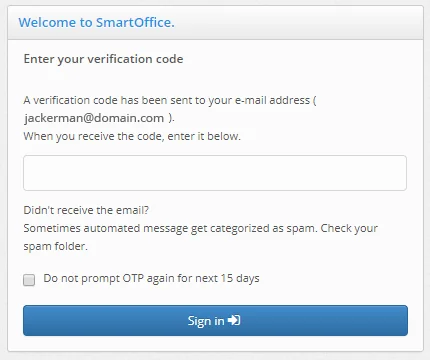
When you receive your code (via text message, e-mail or mobile app), enter it here. To prevent the verification prompt from appearing at every sign-in, select the Do not prompt OTP again for next \_\_ days option (the number of days you can suppress the prompt will depend on the settings in User Preferences - 2-Step Authentication). Then select the Sign In button.
- When the Password Security Question dialog box opens, confirm that the e-mail address is correct, and then select a security question and provide an answer. The security question and answer are used to help you retrieve a forgotten password.
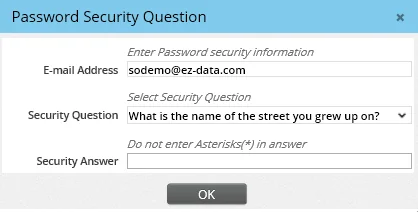
You can change the question and answer anytime in User Preferences - Basic Info.
- Select the OK button.
- When the Change Password dialog box opens, review the instructions.
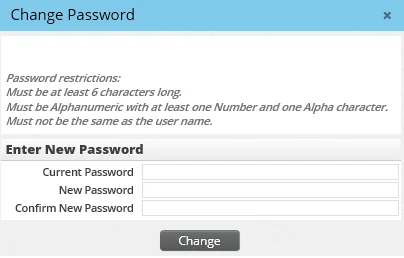
- In the Current Password field, enter the password from the e-mail message.
- In the New Password field, enter a new password. Follow the password guidelines and restrictions listed at the top of the dialog box.
- In the Confirm New Password field, retype the new password exactly as you entered it in the Type New Password field.
- Select the Change button.
- If prompted, select your time zone, and then select the OK button.
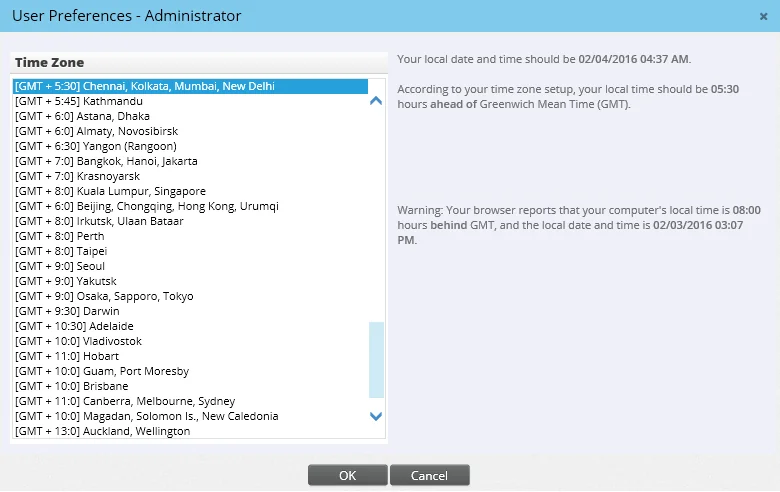
You can change your time zone preference anytime in User Preferences - Time Zone. Once this initial sign-in and setup are complete, you will see the SmartOffice home page.
Signing In After the First Time
- If you have saved the SmartOffice sign-in page as a favorite, select that favorite from your browser's favorites menu.
- Open your web browser.
- Do one of the following:
- Go to the SmartOffice sign-in URL in your welcome e-mail.
- When the SmartOffice sign-in page displays, enter your office name, user name and password.
- Under the Password field, if you see two options labeled SmartOffice Pro and SmartOffice Anywhere, select SmartOffice Pro.
- (Optional) Select the Remember Me option to have the sign-in page automatically fill in the office name and user name information for future sign-ins. For security reasons, the password is never remembered and must be entered every time you sign in.
- Select the Sign In button. If two-step authentication has been enabled for enhanced security, SmartOffice asks for a verification code.
When you receive your code (via text message, e-mail or mobile app), enter it here. To prevent the verification prompt from appearing at every sign-in, select the Do not prompt OTP again for next \_\_ days option (the number of days you can suppress the prompt will depend on the settings in User Preferences - 2-Step Authentication). Then select the Sign In button.