Last updated: 2025-09-19
SmartCalendar - Add Important Dates to the Calendar
- Overview
- Contact Birthdays, Policy Renewal Dates and Investment Maturity Dates
- Holidays
- Extracting Dates from a Specific Table
- Date Extraction Patterns
Overview
This SmartCalendar feature automatically extracts important dates related to contacts or businesses from the database and creates activities for them in the calendar.
Important dates can include contact birthdays, policy renewal dates, investment maturity dates and holidays, among others. For all activities created using this utility, the default priority is set to Normal (for more about activity priority, see Activity Dialog Box).
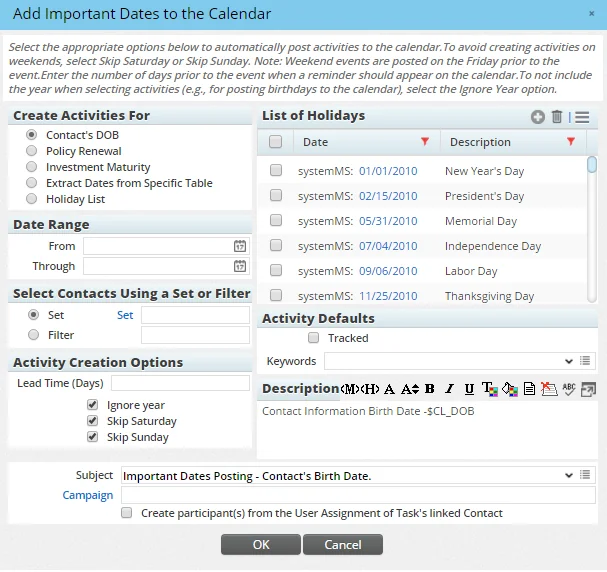
To begin, select Utilities > Add Important Dates to the Calendar from the side menu to open the Add Important Dates to the Calendar dialog box.
Contact Birthdays, Policy Renewal Dates and Investment Maturity Dates
To create activities for contact birthdays, policy renewal dates and investment maturity dates, follow these steps:
- Select the Contact's DOB, Policy Renewal or Investment Maturity option from the Create Activities For section.
- To create activities for dates within a certain date range, enter the range in the Date Range section. The dates can be typed directly in the fields or by using the Pick Date buttons.
- To limit the search to certain contacts, specify a filter or a set in the Select Contacts Using a Set or Filter section. To use a set, click the Set option to display the Set hyperlink. Then click the Set field hyperlink. This opens the Search Sets dialog box, making it possible to search for an existing set or create a set. The process is similar for filters.
- In the Activity Creation Options section, enter a value in the Lead Time field to indicate how many days prior to the important date that the activities should be posted. The default value is blank (0\), which means that activities are posted on the same dates as the important dates. Select Ignore Year if the activity should be posted on the same date every year (this is commonly used for posting birthdays). To avoid having activities posted on a Saturday and/or Sunday, select the Skip Saturday and/or Skip Sunday options.
- In the Activity Defaults section, select the Tracked option if activity outcomes are to be tracked (see Activity Outcome Wizard), and enter a keyword to make it easy to search for the activities later.
- Enter a reason for the activities in the Description text field, and enter a subject for the activities in the Subject field (the system automatically fills these two fields in with pre-defined values, but they can be changed). The Description field accepts SmartOffice merge codes, which can be used to include information specific to each contact. To insert merge codes, click inside the Description field and then click the Browse Merge Codes button to select a merge code.

- If the activities are to be associated with a marketing campaign, click the Campaign hyperlink. This opens the Search Campaigns dialog box, making it possible to search for an existing campaign or create a campaign.
- To automatically add users in the office as participants in the created activities based on their user assignments to the selected contacts, select the Create participant(s) from the User Assignment of Task's linked Contact option.
- Click the OK button.
Note: Activities are created only for contacts that the current user can normally access in SmartOffice. If the user does not have access to certain contacts, activities are not created for those contacts.
Holidays
The ability to add holidays to the calendars is available only to users with administrator rights (see User Accounts - User Rights Content Link)).
- Select the Holiday List option from the Create Activities For section.
- In the List of Holidays section, tag the holidays to be added. To add holidays to the list, click the New 'Holiday' record button in the List of Holidays toolbar and then enter a date and description for the holiday when prompted.
- Click the OK button.
Extracting Dates from a Specific Table
Important dates can be extracted from date columns/fields in any SmartOffice database table. Examples of such fields include Contact Review date, HIPAA date, Business Established date and Account Master Closed date.
- Select the Extract Dates from Specific Table option in the Create Activities For section to open the List of Tables and Fields dialog box.
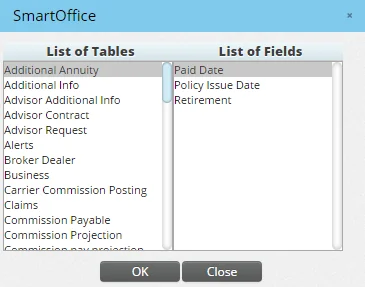
- Select a table to display its corresponding fields.
- Select a field in the List of Fields.
- Click the OK button.
The rest of the procedure is that same as that for creating activities for birthdays, policy renewal dates and investment maturity dates.
Date Extraction Patterns
Activities that are posted automatically through Add Important Dates to the Calendar begin from the current date and end on the same date (minus one day) the following year. Activities are not posted for past dates.
Date extraction for policy renewals and investment maturities is usually performed for the current period or for the future. For these options, the Ignore Year option does not have to be selected. The data is extracted and activities are posted in the future per the dates specified in the Date Range field. The Ignore Year option is used when extracting dates for activities such as contacts’ birthdays, whose occurrence is periodic.