Last updated: 2025-11-21
Advisors/Agencies - Carbon Copy List
- Overview
- Opening the Carbon Copy List
- Adding Carbon Copy Recipients
- For a Single Advisor/Agency
- For Multiple Advisors/Agencies
- Deleting Carbon Copy Recipients
- For a Single Advisor/Agency
- For Multiple Advisors/Agencies
- Viewing/Editing Carbon Copy Recipients
Overview
When e-mail or printed correspondence associated with an advisor or agency is generated as part of a pending case workflow or through the Case Status feature, SmartOffice can automatically copy additional recipients on that correspondence. This is accomplished using the Carbon Copy List.
Video not available: Carbon Copy List for Advisors
For example, to have an advisor's assistant automatically copied on pending case correspondence and/or case status reports associated with that advisor. you would add the assistant to the advisor's Carbon Copy List.
To be added as a carbon copy recipient, the recipient must exist as a contact in SmartOffice.
Note: The Carbon Copy List applies only to Case Status reports and to correspondence with a defined purpose that is sent as part of a pending case workflow. The Carbon Copy List does not apply to manually generated correspondence.
Opening the Carbon Copy List
- Search for an advisor or agency.
- In the list of search results, select the advisor or agency, or open the advisor or agency record.
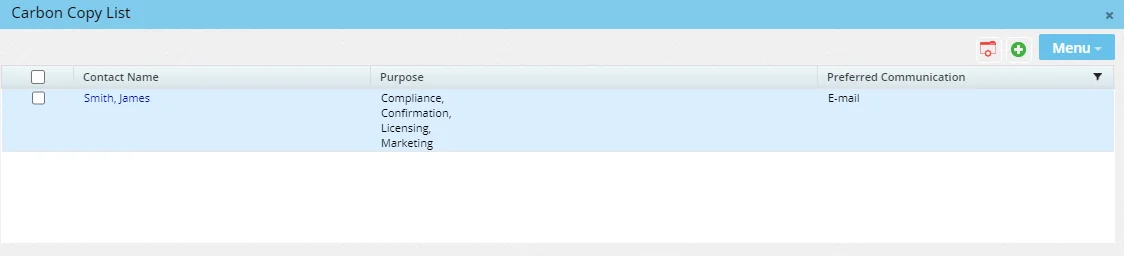
- Select Menu > Communication > Carbon Copy List to open the Carbon Copy List.
Adding Carbon Copy Recipients
For a Single Advisor/Agency
- Open the Carbon Copy List.
- Select Menu > New 'Carbon Copy' record to open the carbon copy recipient dialog box.
- Enter the appropriate contact name and options (for information about these options, see Viewing/Editing a Carbon Copy List Recipient).
- Select the OK button.
For Multiple Advisors/Agencies
- Perform an advisor/agency search to display the Advisor or Agency List.
- Select two or more advisors/agencies, and then select Menu > Communication > Carbon Copy Mass Assignment/Removal to open the mass assignment dialog box.
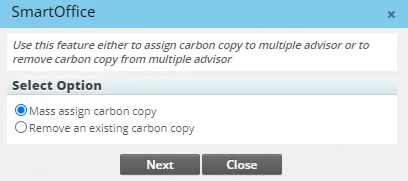
- Select Mass assign carbon copy, and then select the Next button.
- Enter the appropriate contact name and options (for information about these options, see Viewing/Editing a Carbon Copy List Recipient).
- Select the OK button.
Deleting Carbon Copy Recipients
For a Single Advisor/Agency
- Open the Carbon Copy List.
- Select the recipients you want to delete.
- Select Menu > Delete 'Carbon Copy' record.
For Multiple Advisors/Agencies
- Perform an advisor/agency search to display the Advisor or Agency List.
- Select two or more advisors/agencies, and then select Menu > Communication > Carbon Copy Mass Assignment/Removal to open the mass assignment dialog box.
- Select Remove an existing carbon copy, and then select the Next button.
- Select the Contact Name hyperlink to search for and select the contact you want to remove, and then select the Next button.
Viewing/Editing Carbon Copy Recipients
- Open the Carbon Copy List to see the current list of recipients.
- Select a recipient to open the options dialog box.
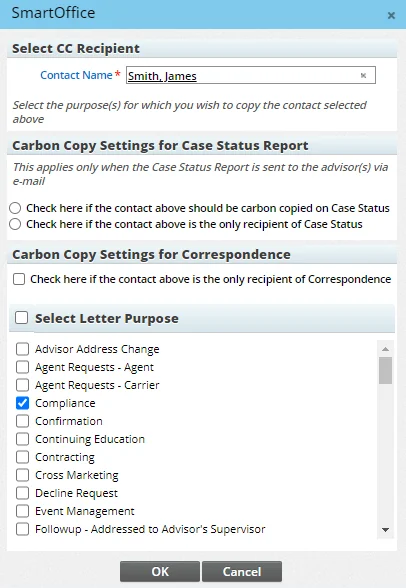
To change any of the options, follow these steps:
- In the Select CC Recipient section, select the Contact Name hyperlink to search for and select a contact.
- In the Carbon Copy Settings for Case Status Report section:
- Select Check here if the contact above should be carbon copied on Case Status to have Case Status update e-mails sent to both the advisor/agency and the CC recipient. - Select Check here if the contact above is the only recipient of Case Status to have Case Status update e-mails sent only to the CC recipient and not to the advisor/agency.
- In the Carbon Copy Settings for Correspondence section:
- Select Check here if the contact above is the only recipient of correspondence to have correspondence go to the CC recipient only (i.e., not to the advisor/agency).
- In the Select Letter Purpose section, select the letter purposes for which the contact will receive carbon copies (the purpose of a letter is defined it its correspondence template).
- Select the OK button to save the changes.