Last updated: 2025-09-19
Correspondence
Overview
SmartOffice's correspondence features enable users to create and/or send e-mail messages, letters (including form letters), labels, and envelopes. SmartOffice includes a number of templates for creating and sending correspondence, and users can create their own templates (for more information, see Templates).
 Watch related training movies:
Setup
User Rights
To send correspondence, a user must have the following user rights (an administrator with the ability to assign user rights can enable these for the user's account):
- Mass Correspondence
User Preferences
See User Preferences - Correspondence Options for information about the preferences that can be configured for correspondence.
Correspondence Basics
Here are the basic steps for creating correspondence in SmartOffice:
 in the Custom Button Bar.
- Search for the contact, business or other record for which you want to create correspondence.
- Select the record in the list of search results, or open the record.
- Do one of the following:
- Select Menu > Communication > Correspondence.
- Press the F10 key.
From most records in SmartOffice, these steps launch the Correspondence Wizard, which guides the user through the process of selecting a template and competing the correspondence. For detailed instructions, see Correspondence Wizard.
Note: For policies and pending cases, SmartOffice launches a special correspondence workflow. For more information, see Pending Cases - Additional Pending Case Management Features.
Note the following when sending correspondence:
- Correspondence sent to a household is addressed to the head of household only by default.
- Correspondence can also be initiated directly from the Letters/Documents content link of a SmartOffice contact or other record.
Using the Correspondence Menu
While viewing certain lists and records, the user can access more correspondence options by pointing to the Correspondence button. This displays a correspondence menu.
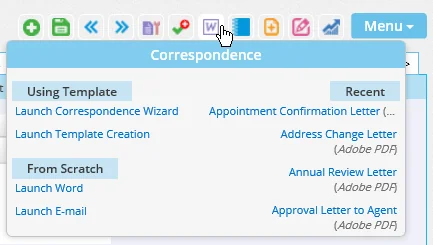
The menu options are:
- Recent: This section of the menu lists the last few templates the user selected when creating correspondence. Click a template to bypass the template selection step in the Correspondence Wizard.
- Launch Correspondence Wizard: This option opens the Correspondence Wizard as if the user had clicked the Correspondence button.
- Launch Template Creation: This option lets the user create a correspondence template save it to SmartOffice. For more information, see Creating and Deleting Templates.
- Launch Word: This command directly opens Microsoft Word or the SmartOffice Editor, depending on the user's preferred correspondence method (see Setup). If a default correspondence template is specified in User Preferences - Correspondence Options, that template is inserted automatically. Because the Launch Word option bypasses the Correspondence Wizard, it is sometimes faster for sending correspondence to a single contact.
For more information about creating SmartOffice correspondence directly from Word, see Microsoft Plug-in for SmartOffice Help. For help with creating correspondence directly from the SmartOffice Editor, see SmartOffice Editor.
- Launch E-mail: This command directly opens a new, blank e-mail message in the Outlook desktop app or in the Outlook 365 web app (the Launch E-mail settings in User Preferences - Correspondence Options control which app opens).