Last updated: 2025-09-19
Integrations - Wealthscape
- Overview
- Requirements
- Setup
- SmartOffice Setup
- Wealthscape℠ Setup
- Using the Integration
- Single Sign-on to Wealthscape Home Page
- Single Sign-on to Wealthscape Client Page
- Single Sign-on to Wealthscape Account Positions Page
- New-Account Setup
- Troubleshooting
Overview
This integration links SmartOffice with Fidelity's Wealthscape℠ advisor platform. The integration does the following:
- Establishes single sign-on (SSO) access from SmartOffice to Wealthscape, allowing an advisor who is already signed in to SmartOffice to bypass the Wealthscape sign-in page and gain immediate access to Wealthscape.
- Provides the advisor with direct single sign-on to Wealthscape’s new-account setup tool and uses client data from SmartOffice to prefill new account forms.
- Allows the advisor to navigate directly from any common client account in SmartOffice to the client's corresponding account in Wealthscape using single sign-on.
This is a free integration available to any SmartOffice user who also uses Wealthscape. For more information about Wealthscape, refer to the Wealthscape website.
Requirements
- Wealthscape account
Setup
Follow the instructions in this section to ensure that office, user and browser settings are configured correctly for New Account Setup and single sign-on.
SmartOffice Setup
Office Settings
A SmartOffice user with administrator rights must verify that the office is configured properly.
- In SmartOffice, access the office Detail content link (Setup > Office Settings).
- From the Authentication Mode drop-down list, select Both.
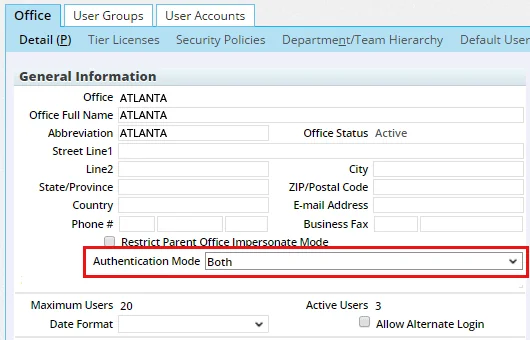
- Select Menu > Save.
User Settings
The administrator must enable the appropriate licenses for each SmartOffice user who will use the integration.
- In SmartOffice, access the User Rights content link for the advisor's user account (Setup > User Accounts).
- In the Licenses column, under Integration, enable the appropriate licenses:
- If the advisor’s firm is affiliated with Fidelity Brokerage Services, select the Wealthscape FBS SSO and Wealthscape FBS Account Set Up licenses.
- If the advisor’s firm is affiliated with National Financial Services, select the Wealthscape NFS SSO and Wealthscape NFS Account Set Up licenses.
- Select Menu > Save.
- Repeat these steps for each additional user.
Wealthscape℠ Setup
If the advisor’s firm is affiliated with National Financial Services, the firm must contact its National Financial relationship manager and request an entitlement for the SmartOffice integration.
If the advisor’s firm is affiliated with Fidelity Brokerage Services, the firm must initiate a Wealthscape Service Request to request an entitlement, as follows:
- In Wealthscape, select Service > Service & Workflow > Initiate Service Request.
- Select the master account.
- Select User Access & Entitlements > Add or Modify Access.
- Specify Third Party as the inquiry type.
- Download the User Access Request form for Integration Services from the Wealthscape Forms library (Service > Forms & Reference > Forms Library).
- Complete the form, sign it, and attach it to the service request.
Using the Integration
Single Sign-on to Wealthscape Home Page
- Sign in to SmartOffice.
- In the side menu, select Integrations > Wealthscape NFS SSO or Integrations > Wealthscape FBS SSO.
- If a sign-in page appears, sign in to Wealthscape normally.
- This sign-in step is necessary only the first time the integration is used. Subsequently, when the user accesses Wealthscape from SmartOffice, the user is signed in to Wealthscape automatically.
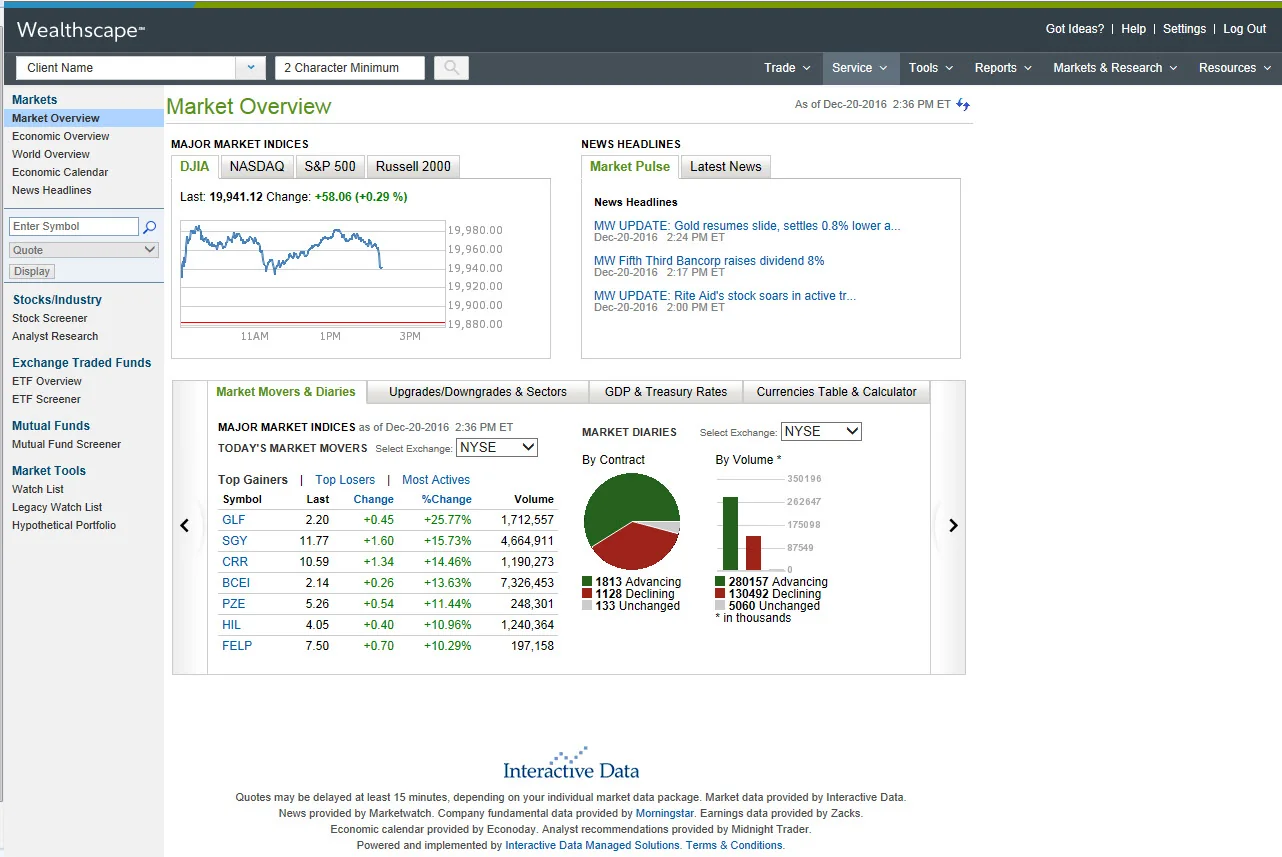
After following these steps, the user arrives at the Wealthscape home page (the home page may look different from the one pictured below).
Single Sign-on to Wealthscape Client Page
- Sign in to SmartOffice.
- Open a contact record, and then select Menu > Integrations > Wealthscape FBS SSO or Menu > Integrations > Wealthscape NFS SSO.
- If a sign-in page appears, sign in to Wealthscape normally.
- This sign-in step is necessary only the first time the integration is used. Subsequently, when the user accesses Wealthscape from SmartOffice, the user is signed in to Wealthscape automatically.
After following these steps, the user sees the Wealthscape client page for the contact selected in SmartOffice.
Single Sign-on to Wealthscape Account Positions Page
- Sign in to SmartOffice.
- Open an investment account record, and then select Menu > Integrations > Wealthscape FBS SSO or Menu > Integrations > Wealthscape NFS SSO.
- If a sign-in page appears, sign in to Wealthscape normally, noting the following:
- This sign-in step is necessary only the first time the integration is used. Subsequently, when the user accesses Wealthscape from SmartOffice, the user is signed in to Wealthscape automatically.
After following these steps, the user sees the Wealthscape Account Positions page for the account selected in SmartOffice (the page may look different from the one pictured below).

New-Account Setup
- Sign in to SmartOffice.
- Search for a contact or household.
- In the list of search results, select a contact or household, and then select Menu > Integrations > Wealthscape FBS Account Set Up or Menu > Integrations > Wealthscape NFS Account Set Up to open the Select Account Holders window.
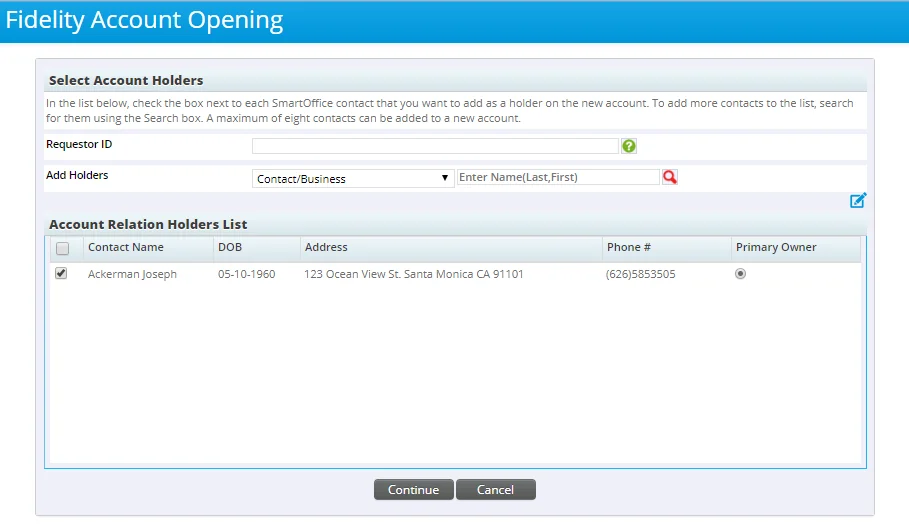
- (Optional) To add more account holders to the list (eight maximum):
- Enter a name in the search box (last name, first name) and click the search button.

- In the list of results, select one or more contacts, and then click the Add button to add them to the account holders list.
- When all required names are in the account holders list, check the box next to each name that will be added to the new account.
- Designate a primary account holder by clicking the appropriate button in the Primary Owner column.
- Make sure the Requestor ID field is not blank. If it is, contact SmartOffice Technical Support at (855\) 275-3249 for assistance.
- Click the Continue button.
- If a sign-in page appears, sign in to Wealthscape normally.
- This sign-in step is necessary only the first time the integration is used. Subsequently, when the user accesses Wealthscape from SmartOffice, the user is signed in to Wealthscape automatically.
- When the new-account page opens, fill in the required information. The page will differ depending on whether the new account is being opened under Fidelity Brokerage Services or National Financial Services. (Note: Wealthscape screens are provided for illustration purposes only and do not necessarily reflect a user's Wealthscape view or access.)
Wealthscape FBS
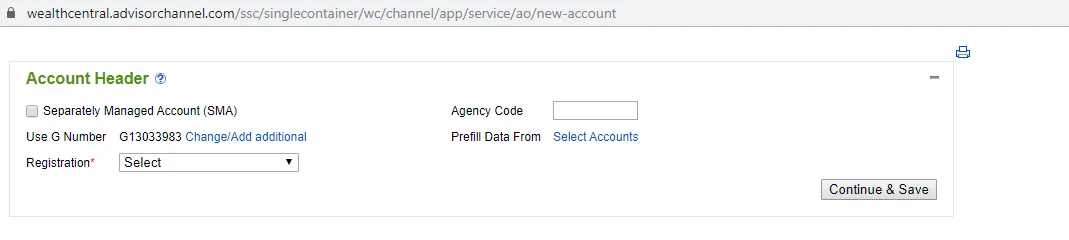
Wealthscape NFS
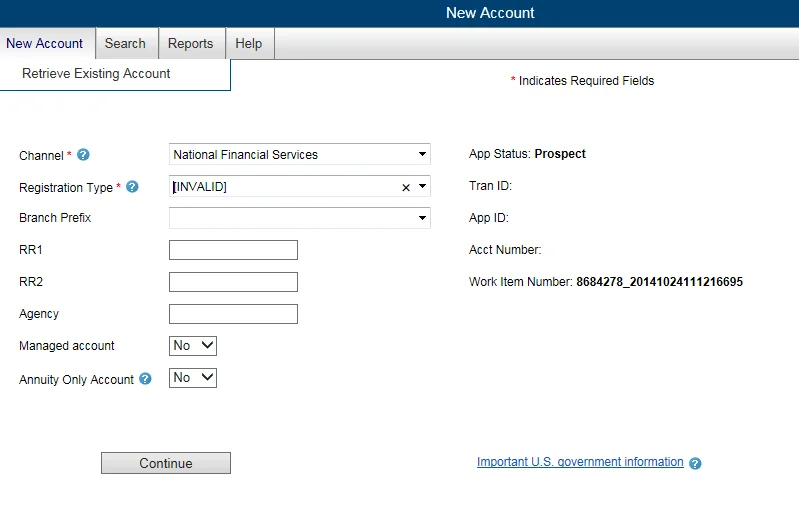
- Click the Continue or Continue & Save button. A list of the selected account holders appears.
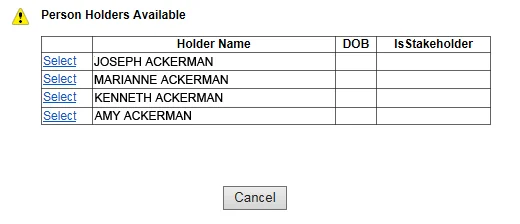
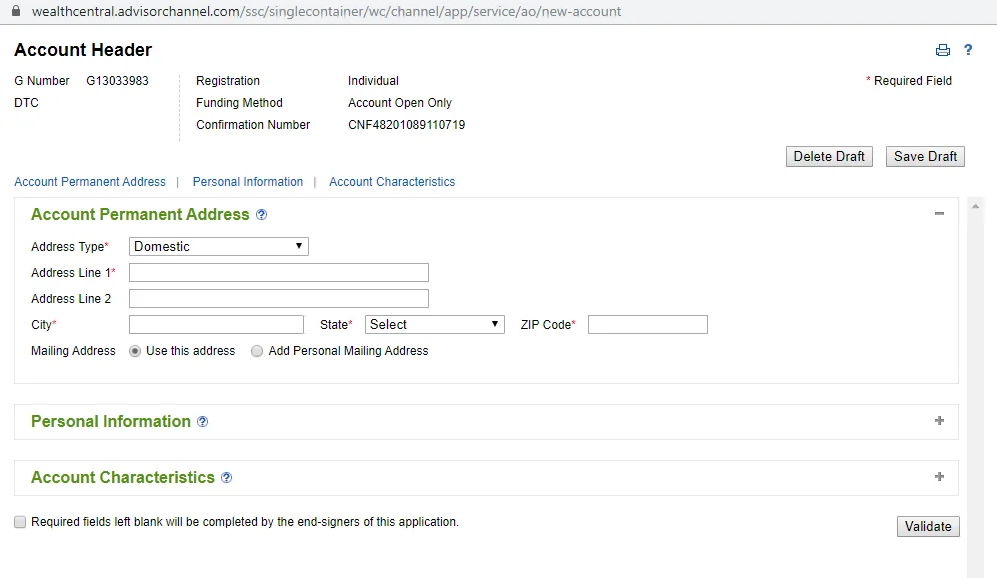
- Click the Select hyperlink next to an account holder's name. The holder's information appears in the appropriate fields on the Wealthscape account page. The page will differ depending on whether the new account is being opened under Fidelity Brokerage Services or National Financial Services.
Wealthscape FBS
Wealthscape NFS
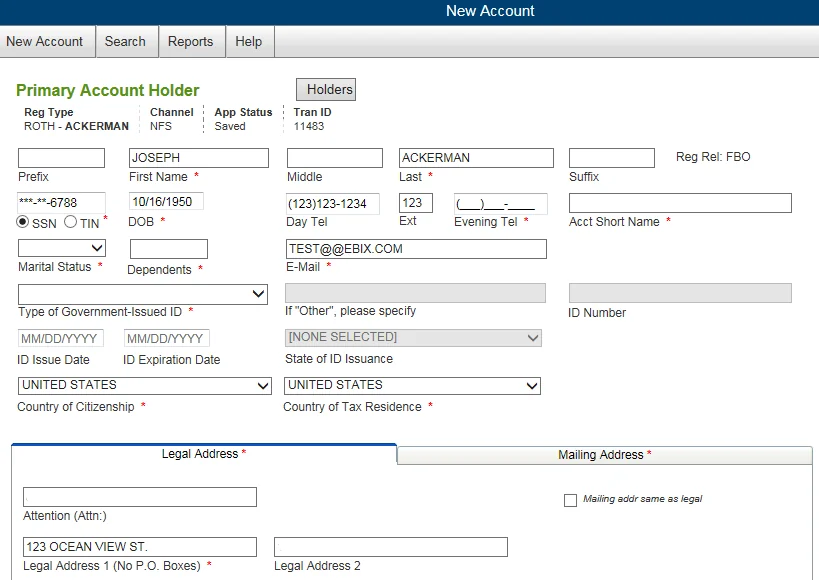
The following information is exported from SmartOffice and imported into Wealthscape:
- Contact Type (Personal/Entity)
- First Name
- Middle Name
- Last Name
- Suffix
- Prefix
- Gender
- Birth Date
- Occupation
- Address Type
- Address
- Phone Type (Residence and Business phone numbers map to Night and Day numbers in Wealthscape)
- Phone\# (required)
- Tax ID
- E-mail Address
Troubleshooting
Error message: Your Requestor ID is invalid.
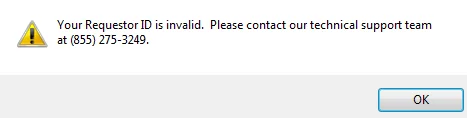
Users who receive this message should contact SmartOffice Technical Support at (855\) 275-3249\.