Last updated: 2025-11-30
Office Settings - SmartPad/New Contact/E-mail Posting
- Overview
- SmartPad Posting Options Section
- Default Preferred Communication Method for New Records
- E-mail Posting Count Section
- SmartPad Auto-Archiving Section
- New Contact Settings Section
- E-mail Posting Options Section
- SmartPad Auto-Save Section
- Column Descriptions Import/Export XML Section

Overview
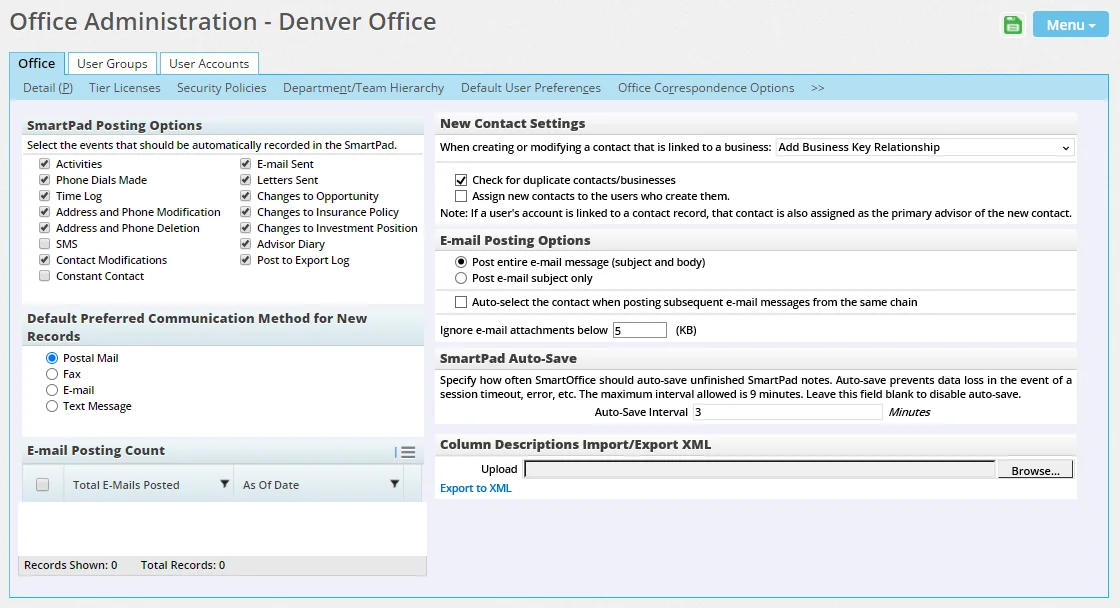
The SmartPad/New Contact/E-mail Posting content link in Office Settings specifies the events that are posted to the SmartPad as well as the default settings used when creating new contacts.
SmartPad Posting Options Section
Select the SmartOffice actions/events that should trigger the system to automatically post notes to the SmartPad. Note: The options for opportunities, policies and investment positions are available only for offices that have licenses for those modules.
The following table describes each posting option and the corresponding system-generated SmartPad notes.
Posting Option Actions Automatically Recorded in SmartPad
Examples Activities
Activity created

Activity deleted

Activity outcome created
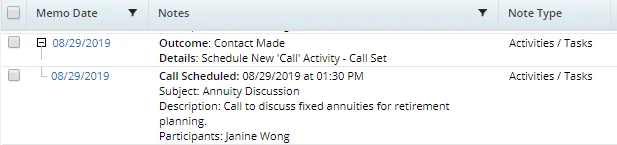
Activity modified
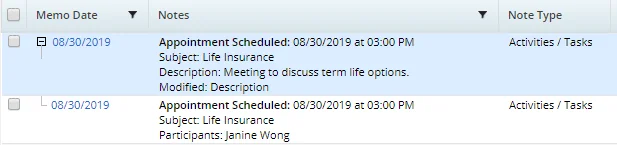
Phone Dials Made Make/Receive a Phone Call feature used

Time Log Call details/notes saved in Time Log Entry Details dialog box

Address and Phone Modification Contact or advisor address changed
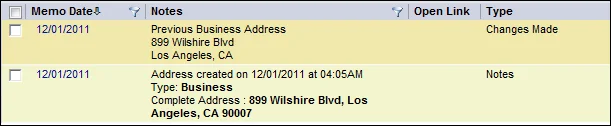
Contact or advisor phone number changed

Address and Phone Deletion Contact or advisor address deleted

Contact or advisor phone number deleted

Contact Modifications (includes modifications to businesses, advisors and agencies)
Name changed

Address changed
Address deleted
Phone number changed
Phone number deleted
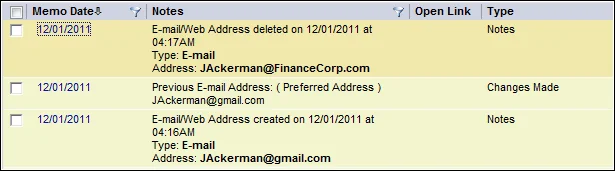
E-mail address added, deleted or changed
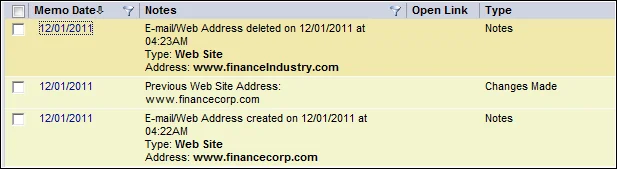
Web address added, deleted or changed
User assignment created or deleted

Primary advisor changed (contacts and business only)

Key relation created

Key relation changed

Key relation deleted

E-mail correspondence sent

Letter printed

Label printed

Envelope printed

Document uploaded

Document deleted

Letter reprinted

E-mail resent

Draft document created in Word and saved

Constant Contact E-mail communication sent using the Constant Contact integration
E-mail Sent E-mail correspondence sent
Letters Sent Letter printed
Changes to Opportunity Opportunity stage changed
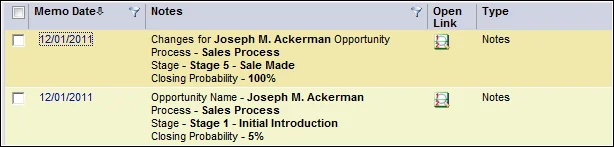
Opportunity reassigned to another contact

Opportunity outcome specified
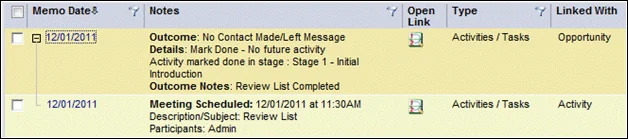
Activity scheduled for contact linked to opportunity

Changes to Insurance Policy Policy status changed
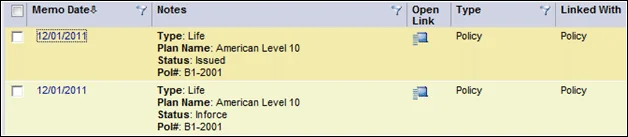
Policy number changed
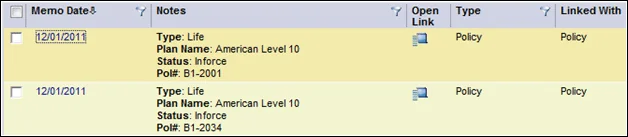
Plan name changed
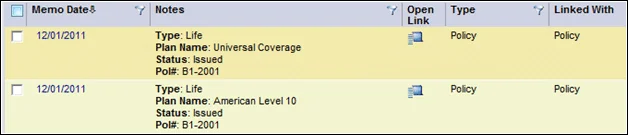
Policy deleted

Changes to Investment Position Account name or number changed

Account deleted

Account reassigned to a different primary contact
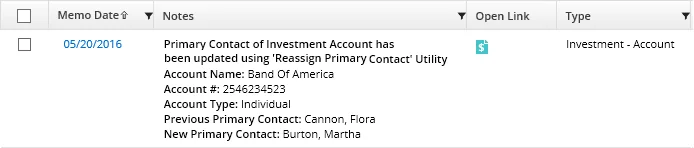
Position name or number changed, or position relinked to another account.

Position transaction created
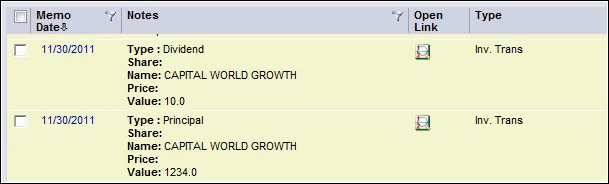
Position transaction deleted

Advisor Diary Advisor supervisor changed

Advisor license added

Advisor contract added

Advisor ACH record added

Case created

Post to Export Log This option specifies whether the Post Message to Export Log option is selected by default when users export data from a list. See Lists - Printing or Exporting a List.
N/A
Default Preferred Communication Method for New Records
In this section, select the communication method that should be selected as the default preferred communication method for new records. The preferred communication setting can be viewed or edited in the following locations:
- Add'l Personal content link (contacts)
- Add'l Detail content link (businesses, advisors, agencies)
- Detail content link (carriers)
E-mail Posting Count Section
(Enterprise customers only) This section lists the number of e-mail messages posted to SmartOffice through the enterprise Exchange Sync by all users in the office. Entries are listed by date.
SmartPad Auto-Archiving Section
Note: This section is visible only to enterprise customers who have the
To help make browsing the SmartPad faster, SmartOffice can automatically move entries to the SmartPad's Archived tab when they exceed a certain age. Use the Auto-Archive Range (Older Than) drop-down list in this section to set the age. Options range from six months to seven years.
Although archived SmartPad entries are stored separately from current entries, they remain available for viewing, filtering and reporting. You can click the Archived Notes tab in the SmartPad or use the SmartPad – Archived Notes filter/report category.
When users view a list of non-archived SmartPad entries, SmartOffice displays a message to let them know how to access old entries that may have been archived. This notification is intended to help prevent any confusion that may occur if users are not seeing all of the SmartPad entries they expect to see. The message can be disabled in User Preferences – Basic Info.
New Contact Settings Section
- When creating or modifying a contact that is linked to a business: When creating or modifying a contact, the user can link the contact to a previously created business (in the New
- Contact dialog box, this is done using the Lookup button next to the Company field). This drop-down list specifies whether the business is also added as a key relation on the contact record.
- Check for duplicate contacts/businesses: When this option is selected, a warning displays if a user is creating a contact or business that already exists in the office.
- Assign new contacts to the users who create them: When this option is selected, users who create contacts in SmartOffice are automatically assigned to those contacts (see Office Security - User Assignment///user/assignment)). This setting also applies when users import contacts into SmartOffice. In addition, if a user has a linked advisor contact record (see User Accounts - Detail Content Link), that contact record is assigned as the primary advisor of the new contact. This can have significant implications depending on how office security///introduction) is configured. If this option is not selected, the user is prompted while creating a contact to select a user to assign.
Note: Select this option if there is only one user in the office.
E-mail Posting Options Section
These options relate to Outlook E-mail Posting.
- Post entire e-mail message (subject and body): Both the subject and e-mail message body are posted to the SmartPad.
- Post e-mail subject only: Only the e-mail message subject is posted to the SmartPad.
- Auto-select the contact when posting subsequent e-mail messages from the same chain: When this option is selected, e-mail sent from SmartOffice will have a "context ID" (e.g., contact ID, policy number, case number) appended to the subject of each e-mail message. This context ID identifies and connects threaded messages. When this option is cleared, e-mail sent from SmartOffice has no context ID appended to the subject.
- Ignore e-mail attachments below \_\_\_ (KB): Using this field, you can tell SmartOffice to ignore e-mail attachments that fall below a certain file size when users post e-mail messages to the system. When this field is blank, SmartOffice uses the server's default setting of 5 KB (this value may be different for enterprise customers; check the
SmartPad Auto-Save Section
SmartOffice can be configured to automatically save SmartPad entries in the background as users write them. This feature helps to prevent situations in which a user's session expires before he/she saves a SmartPad entry, causing the loss of any unsaved text.
An administrator can enable this feature here by entering a value (in minutes) for the auto-save interval. The maximum allowed value is 9 minutes. Leaving the field blank disables the auto-save feature.
Column Descriptions Import/Export XML Section
Users can import and export layouts for lists they have customized at the user and office levels. This feature enables an office to share all of its customized list layouts with other offices.
Click the Export to XML hyperlink to export customized layouts to an XML file that can be sent to other offices. Click the Choose File button to locate and import an XML file sent from another office.