Last updated: 2025-09-19
Integrations - Constant Contact
- Overview
- Requirements
- Exporting Contacts to Constant Contact
- Enabling the Constant Contact Dashboard
- Sending E-mail to Exported Contacts
Overview
The Constant Contact integration for SmartOffice enables users to manage and track campaigns created with the Email Marketing™ solution by Constant Contact® using SmartOffice.
This integration enables a SmartOffice user to:
- Export contacts from SmartOffice to Constant Contact to create an e-mail campaign.
- Track e-mail campaign progress and results using SmartOffice dashboards.
Requirements
A Constant Contact account is required. Users who do not have one can sign up for a free trial account.
Tip: Ensure that the Constant Contact account is configured correctly by logging in to the Constant Contact site at least once.
Exporting Contacts to Constant Contact
- From a list of contacts, business, advisors or agencies in SmartOffice, tag the records to be included in the Constant Contact e-mail campaign.
Note: Contacts cannot be exported directly from a set; the user must first display the set members in a regular list. To do so, open the set members list and select Menu > Go to List, or perform an advanced contact search that specifies the set.
- Select Menu > Integrations > Upload to Constant Contact. The Constant Contact uploader window opens.
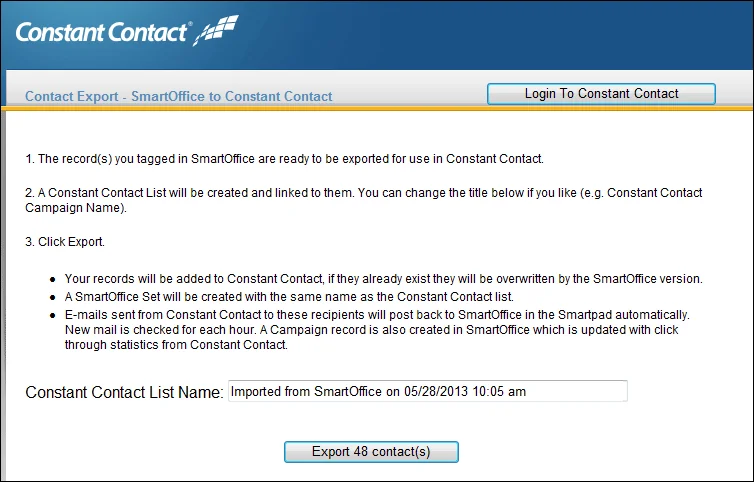
- Read the information to understand what to expect once the contacts are exported, and then click the Export button.
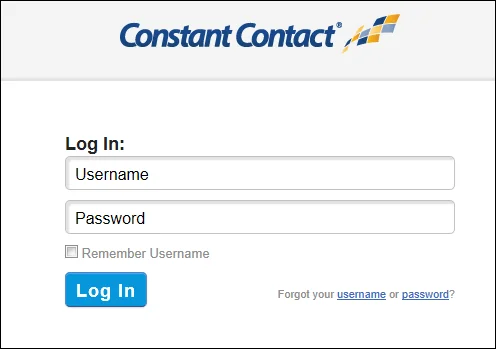
- If this is the first export attempt from SmartOffice, follow these steps to authenticate with Constant Contact (this is not required for subsequent exports):
- Log in to Constant Contact when prompted. Select the Remember Username option before clicking the Log In button.
 2. When Constant Contact asks whether to grant access to SmartOffice, click the Grant Access button.
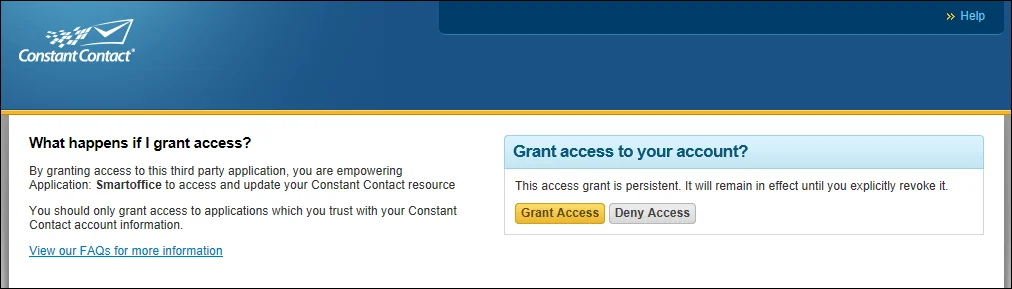
Repeat these steps to enable the Login to Constant Contact button in the uploader window. This button logs the user in to Constant Contact directly from SmartOffice without exporting any contacts.
Enabling the Constant Contact Dashboard
SmartOffice includes a dashboard that the user can add to the SmartOffice home page to track Constant Contact events from SmartOffice.
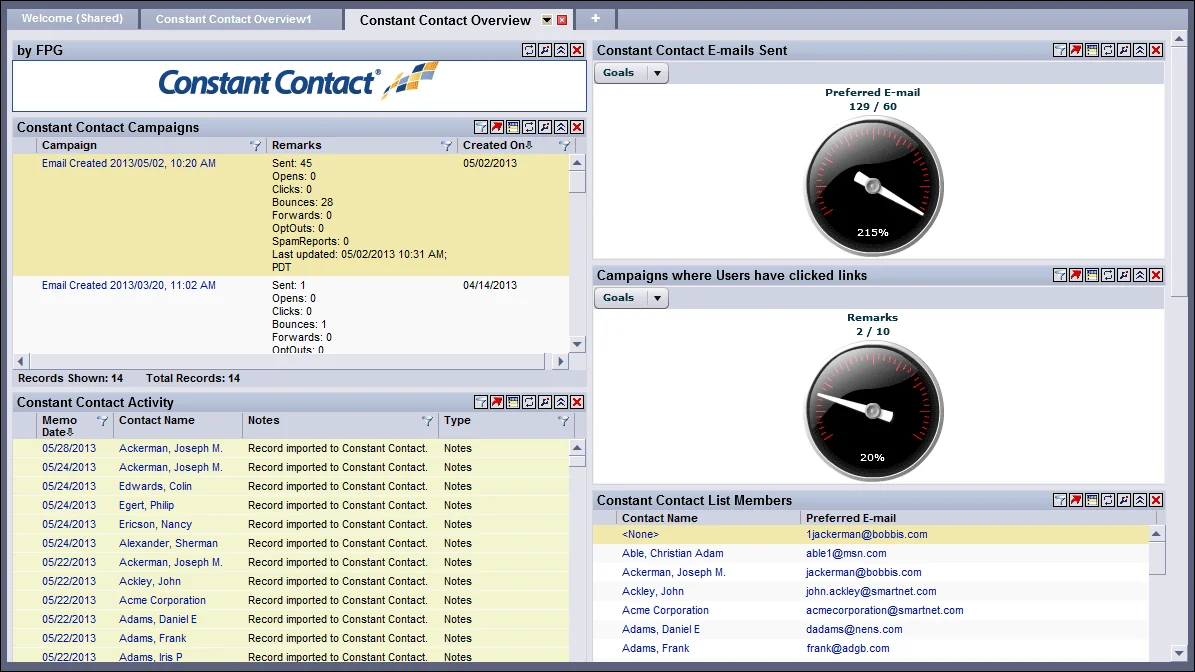
To enable the dashboard:
- Go to the SmartOffice home page.
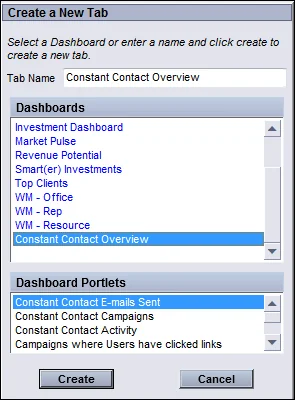
- Click the Add Tab icon
 to open the Create New Tab dialog box.
 - From the list of available dashboards, select Constant Contact Overview, and then click the Create button.
The dashboard can be modified without affecting the original template. For more information, see Working with Dashboards.
Sending E-mail to Exported Contacts
In Constant Contact, follow normal procedures to create an e-mail campaign and send communications to the exported SmartOffice contacts.
In addition to creating a campaign record in SmartOffice to track the campaign, Constant Contact can automatically post sent messages to the recipients' SmartPads in SmartOffice. To enable or disable automatic SmartPad posting for these messages, go to Office Settings - SmartPad/New Contact/E-mail Posting.