Last updated: 2025-09-19
SmartCalendar - Calendar Reports
Overview
Calendar reports display a summary of all types of activities or activities within a specific date range. A user can generate the Calendar Report for his/her own activities or for other users in the office for whom he/she has security privileges. To generate reports for the calendars of other users, a user must have the View other users’ calendars option enabled on his/her user account Detail content link.
Video not available: Calendar Reports
Calendar Reports are generated in PDF format for easy printing.
Generating Calendar Reports
- From the any calendar view, select Menu > Print Calendar to display the Print Calendar Reports dialog box.
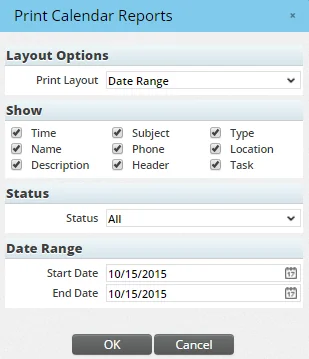
- Select a layout from the Print Layout drop-down list (layouts are described in the next section).
- In the Show section, select the activity information to be included in the report:
- - Time - Subject - Type - Name (the name of the contact associated with the activity) - Phone - Location - Description - Header (inserts the previous, current and next month's calendars at the top of most report layouts) - Task (this option includes task activities in the report)
- In the Status section, use the drop-down list to limit the activities displayed in the report by status if appropriate.
- Specify the date range for which the report is to be generated.
- Click the OK button.
- When the list of available users in the office opens, select any other users whose activities are to be included in the report.
- Click the OK button to generate the report.
Calendar Activity Report Print Layouts
SmartOffice features several different report print layouts.
Calendar activities and all-day events are displayed in all report formats; however, tasks are displayed only if the Task option is selected in the Show section of the Print Calendar Reports dialog box.
Activities spanning two or more days display in the respective sections of all report formats. The Calendar Day 1, Calendar Day Landscape and Calendar Day List report formats include a note stating that activities are displayed only for a specific time range.
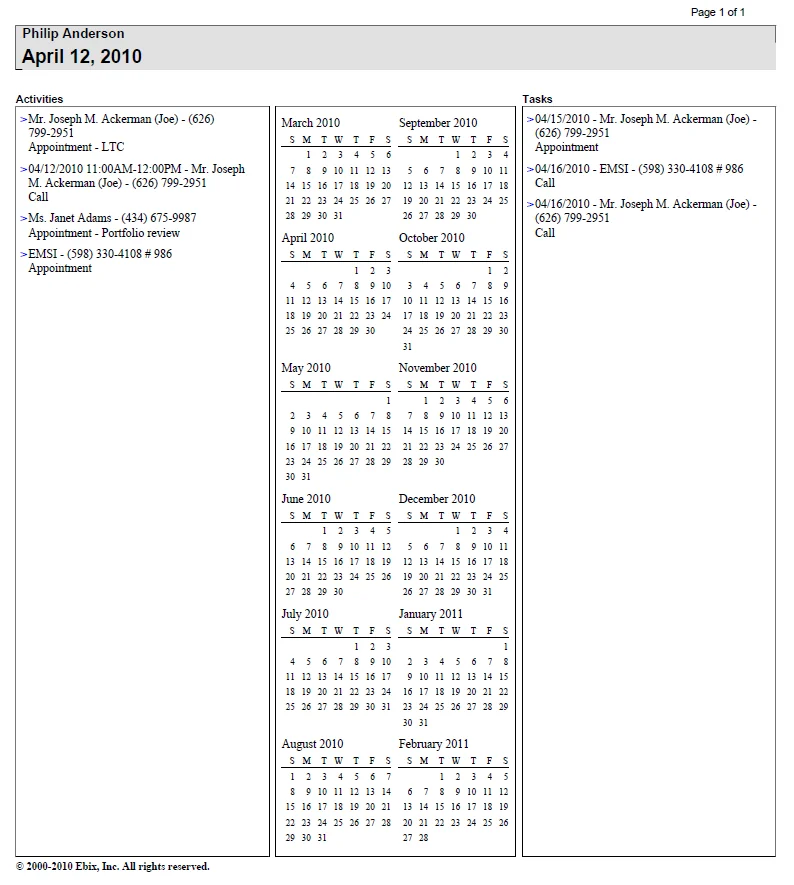
Click a report name below to see an example of the layout: Date Range)
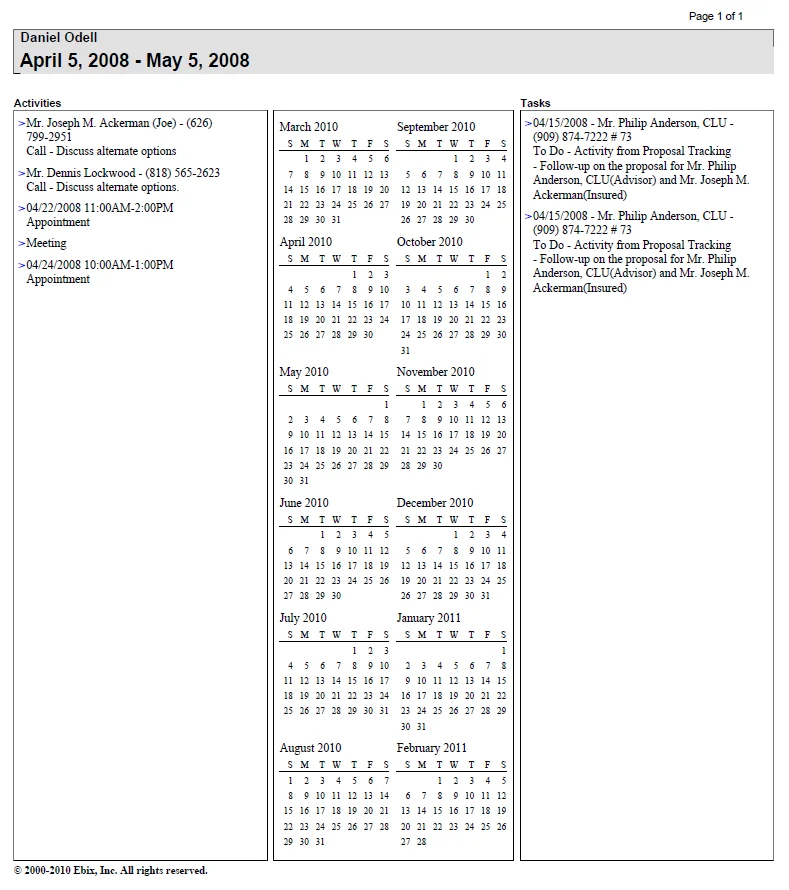
Calendar Day 1)
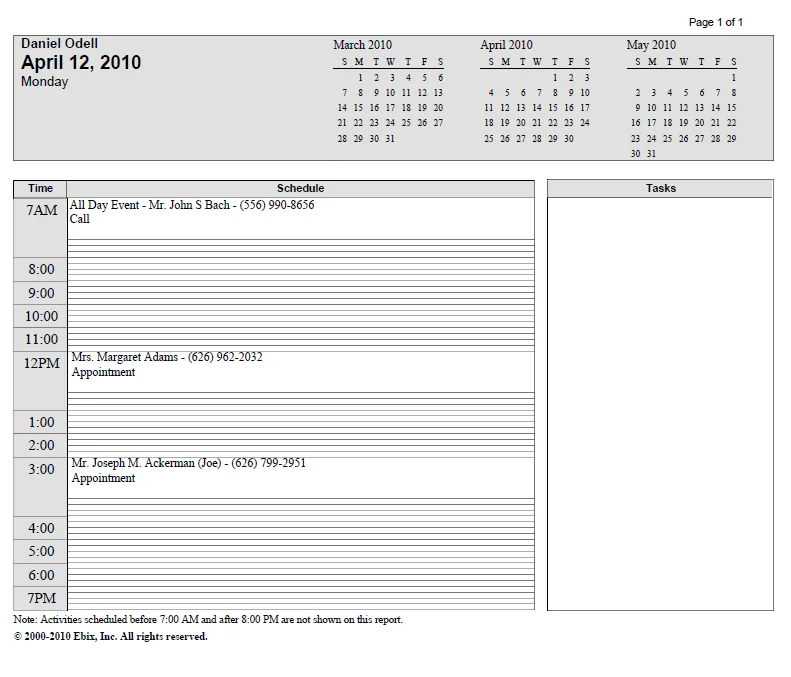
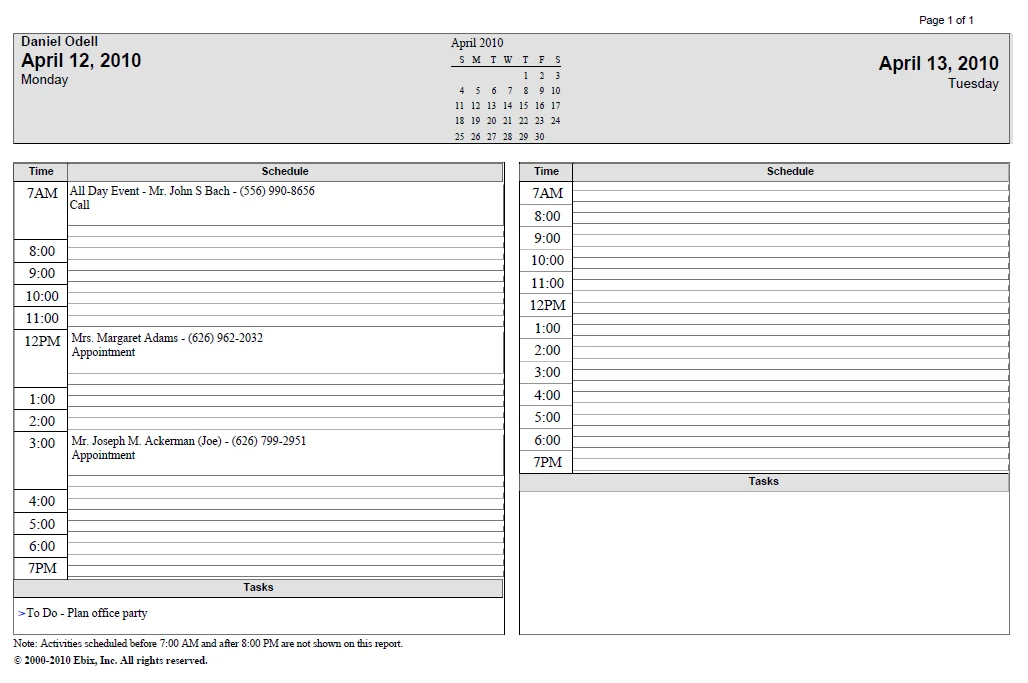
Calendar Day 2)
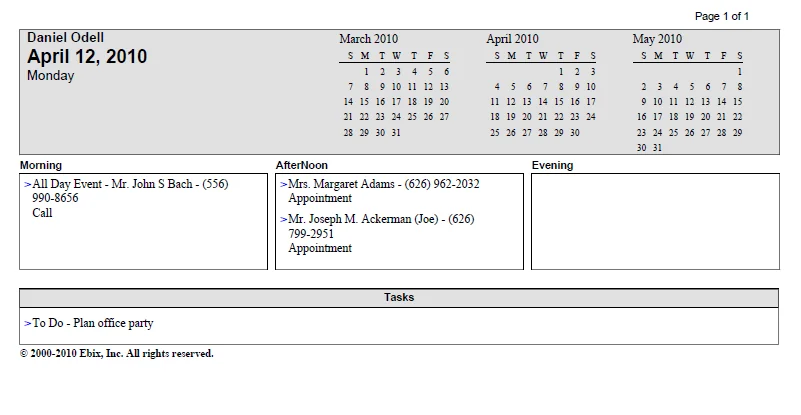
Calendar Day Landscape)
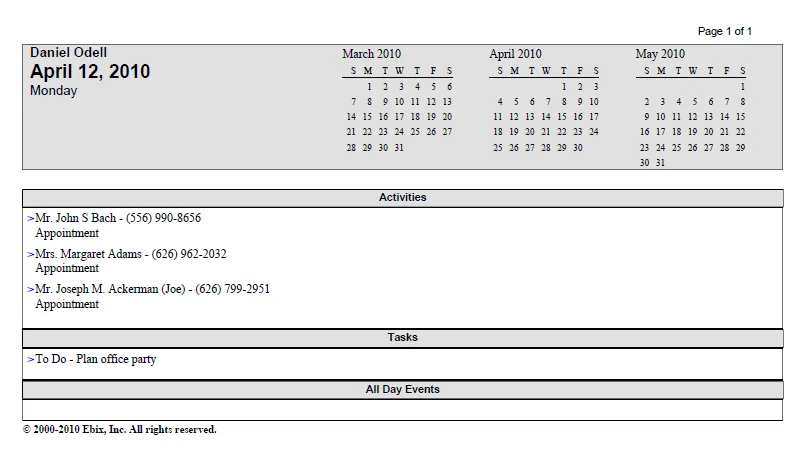
Calendar Day List)
Four Week)
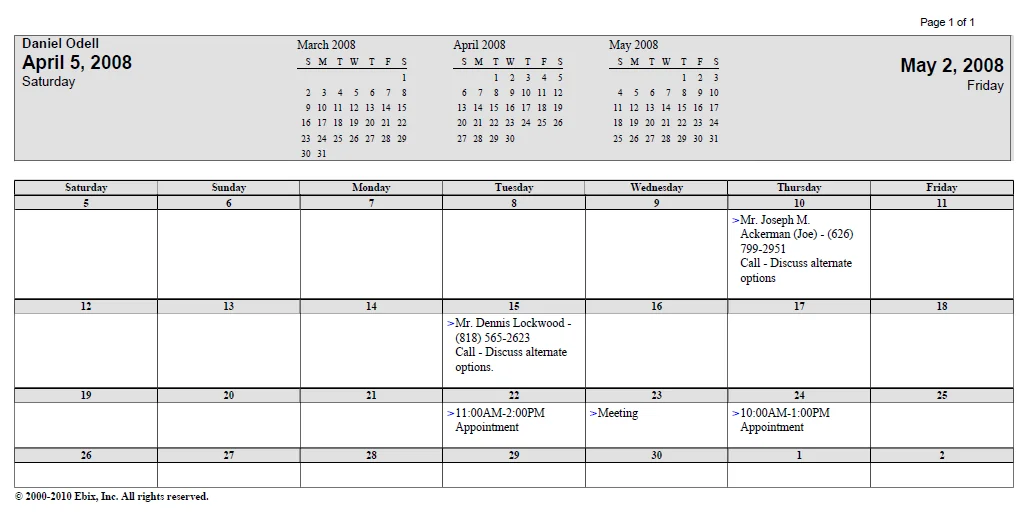
Calendar Month)
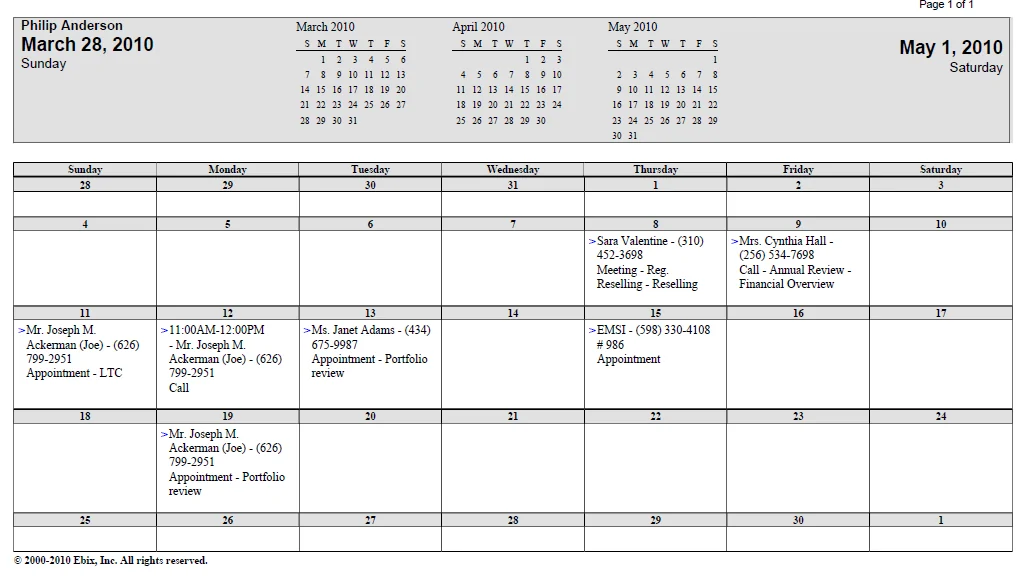
Calendar Month Portrait)
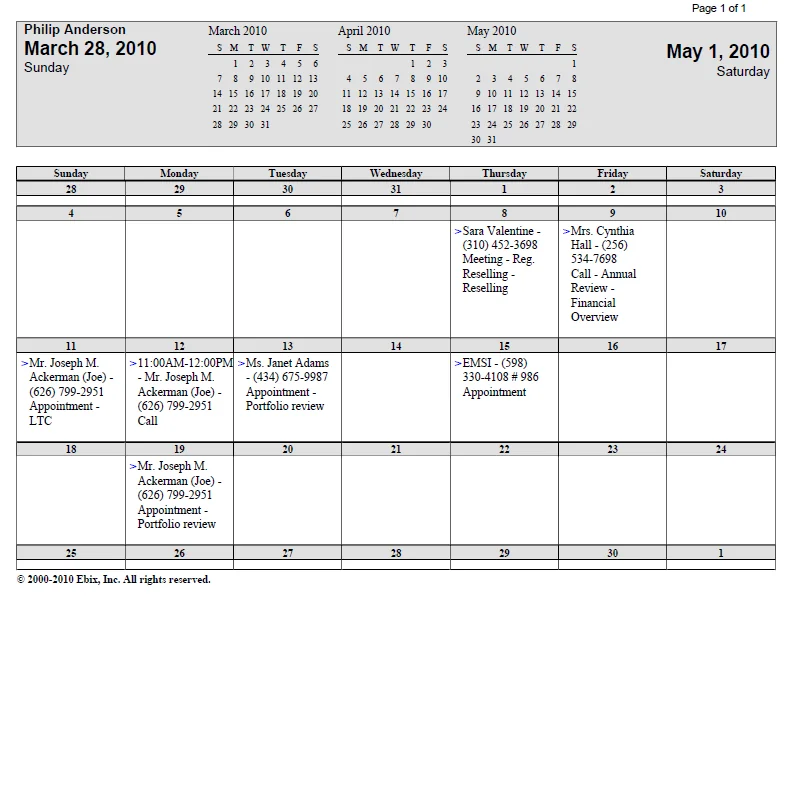
Calendar Week)
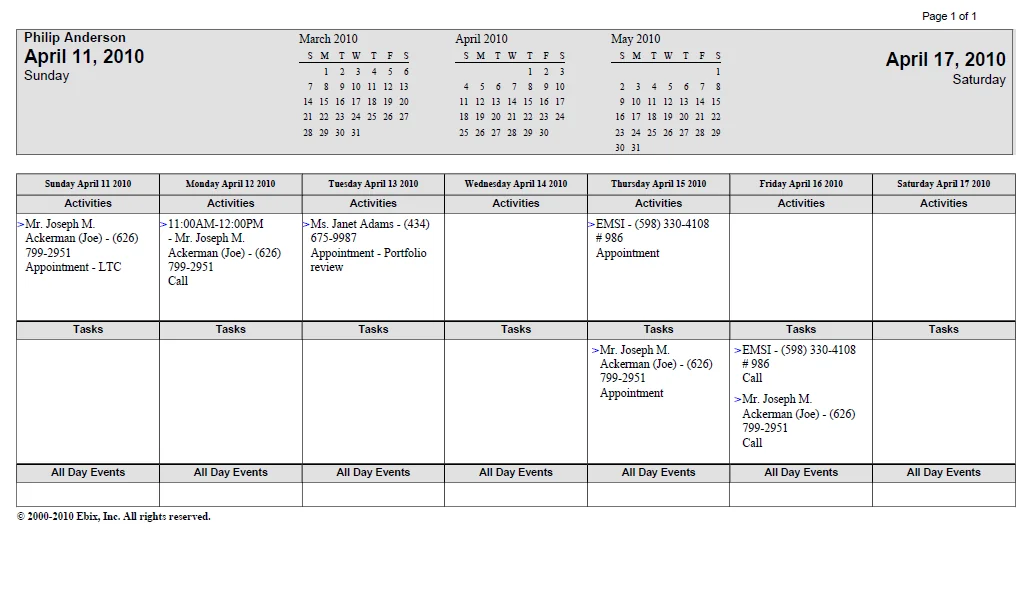
Trifold)