Last updated: 2025-09-19
Integrations - Profiles Professional
- Overview
- Requirements
- Setting Up Data in SmartOffice
- Entering Client Data
- Linking a Contact to a Household
- Setting Up Profiles Professional
- Using the Profiles Professional Integration
- Field Mappings
- Client (Person)
- Spouse (Person)
- Dependent
- Investment Accounts & Positions
- Life Insurance Policies
- Disability Insurance Policies
- LTC Insurance Policies
Overview
The Profiles Professional integration for SmartOffice exports contact, investment and policy data from SmartOffice into the Advicent Profiles Professional™ desktop financial planning application. For more information about Profiles Professional, visit Advicent's Profiles product page.
Note: Integration with the Profiles web application is covered in another topic. See Integrations - Profiles.
Requirements
- Profiles Professional v8 or higher
- SmartOffice account with the following licences:
- Investment Tracking
- Policy Tracking
- Profiles Professional
- Desktop
Setting Up Data in SmartOffice
Entering Client Data
To populate fields consistently in Profiles Professional, the user must ensure that data is entered correctly in SmartOffice.
- Client: Ensure that the client's demographics, employer, income, life insurance, disability insurance, LTC insurance and investments are entered.
- Spouse: Ensure that the spouse's demographics, employer, income, life insurance, disability insurance, LTC insurance and investments are entered.
- Dependents: Ensure that dependents' demographic information is entered.
Linking a Contact to a Household
Before a contact's data can be exported to Profiles Professional, the contact must be linked to a household in SmartOffice.
Learn how to add a contact to a household.
Setting Up Profiles Professional
- Open Profiles Professional.
- Click Tools > Options to open the Options dialog box.
- Click the Data Integrations tab.
- Select the Enable SmartOffice Integration option.
Tip: Place a shortcut to Profiles Professional on the Windows desktop to make opening the application faster.
Using the Profiles Professional Integration
Once all of the client's data is properly set up in SmartOffice, the user can export the data to Profiles Professional to begin working on the client's financial plan. This involves exporting a Profiles file from SmartOffice and importing that file into Profiles Professional.
- In SmartOffice, search for the contact.
- Tag the contact in the list of search results, or open the contact record.
- Select Menu > Integrations > Profiles.
- Save the file to an easily accessible location on the local computer, such as the desktop or downloads folder (Profiles does not support opening the file automatically).
- In Profiles\+, select File > Import/Export > Import SmartOffice Case.
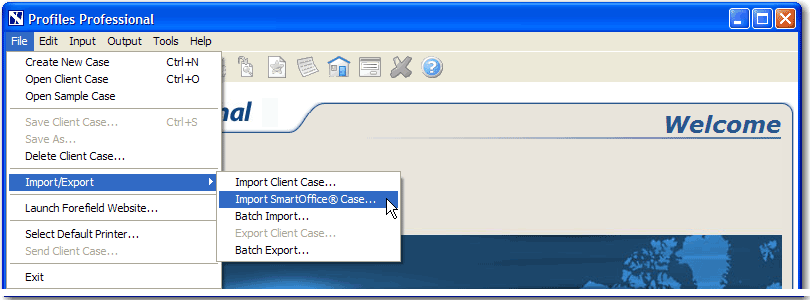
Note: If the Import SmartOffice Case option is grayed out, ensure that Profiles setup was completed.
- Locate the 'profiles.ezproxml' file that was saved previously.
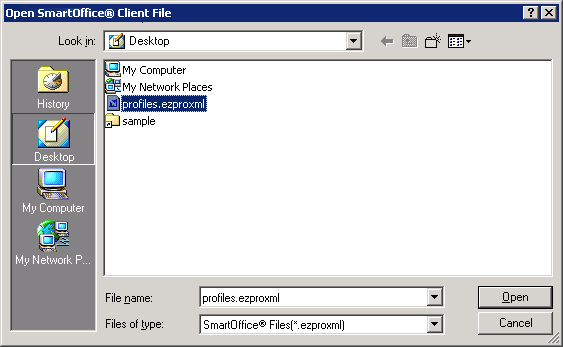
- Click the Open button to display the Profiles home page.
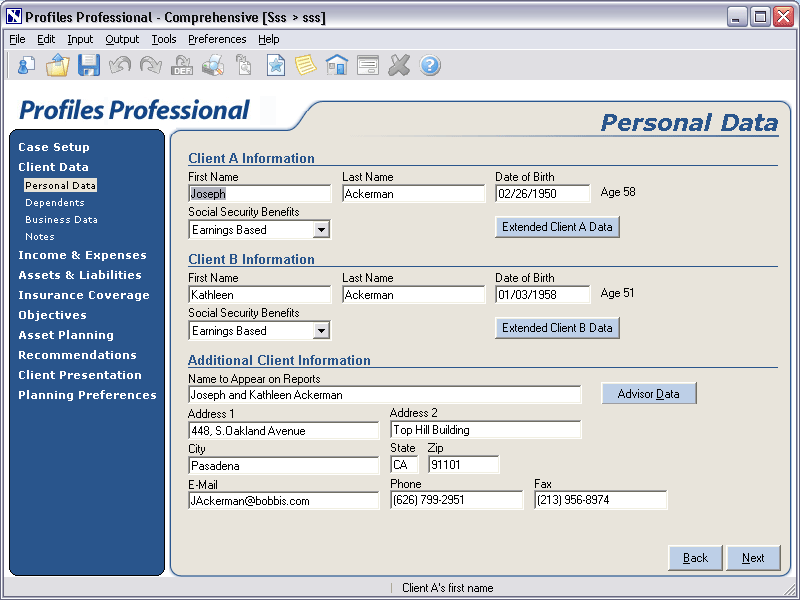
Tip: Click the Extended Client A Data button to display a summary of the data for the head of household. Click the Extended Client B Data button to display a summary of the data for the spouse.
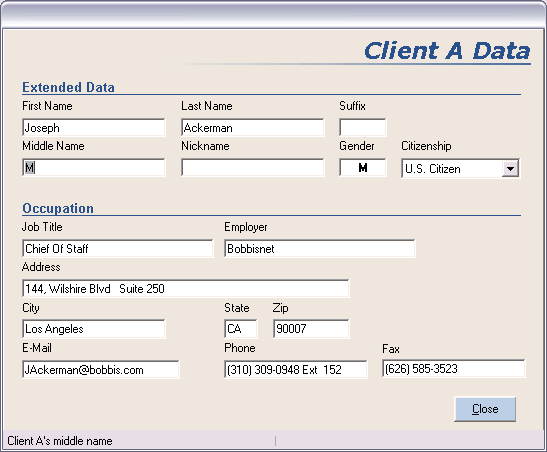
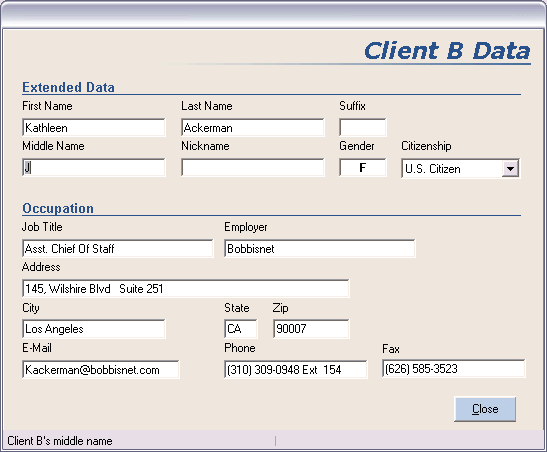
- The client's data is exported to the following sections in Profiles Professional:
| Name of Hyperlink | Description |
|---|---|
| Personal Data | Provides demographic information regarding the selected contact and his/her spouse |
| Dependents | Provides demographic information regarding dependents |
| Income | Provides annual income for the selected contact and spouse |
| Assets | Provides access to the selected contact and spouse's investments |
| Life Insurance | Provides access to the selected contact and spouse's insurance policies |
| Disability Insurance | Provides access to the selected contact and spouse's disability insurance policies, if any |
| LTC Insurance | Provides access to the selected contact and spouse's long-term care insurance policies, if any |
Field Mappings
Client (Person)
The table below lists the SmartOffice contact fields that can be exported to Profiles Professional, along with the corresponding Profiles fields. Special instructions and information about certain fields are included in the Comments column.
The demographic data entered for the selected SmartOffice contact is mapped to Case Data > Personal Data in Profiles.
| SmartOffice Fields | Comments | Profiles\+ Fields – Personal Data link |
|---|---|---|
| The following data is entered on the SmartOffice Contact Personal content link. | ||
| First Name | - | First Name |
| Middle | - | Middle Name |
| Last Name | - | Last Name |
| Birth Date | - | Date of Birth |
| Gender | - | Gender |
| Job Title | - | Job Title |
| Company | - | Employer |
| Residence Area Code/Phone \# | If the contact does not have a primary residence phone, the first residence phone will be imported into Profiles. | Phone |
| Residence Fax | If multiple residence fax numbers are added, the first one will be imported into Profiles. | Fax |
| E-mail Address | If multiple e-mail addresses are added, the first one will be imported into Profiles. | |
| Business Area Code/Phone \#/Ext | If the contact does not have a primary business phone, the first business phone will be imported into Profiles. | Phone |
| Business Fax | If multiple business fax numbers are added, the first one will be imported into Profiles. | Fax |
| Primary Residence Address | ||
| Address Block | Make sure to select the Primary Residence Address option. | Address 1 |
| Line2 | Address 2 | |
| City | City | |
| State | State | |
| ZIP Code | Zip | |
| Primary Business Address | ||
| Address Block, Line 2 | Make sure to select the Primary Business Address option. | Address |
| City | - | City |
| State | - | State |
| ZIP Code | - | Zip |
| The following data is entered on the SmartOffice Contact Add'l Personal content link. | ||
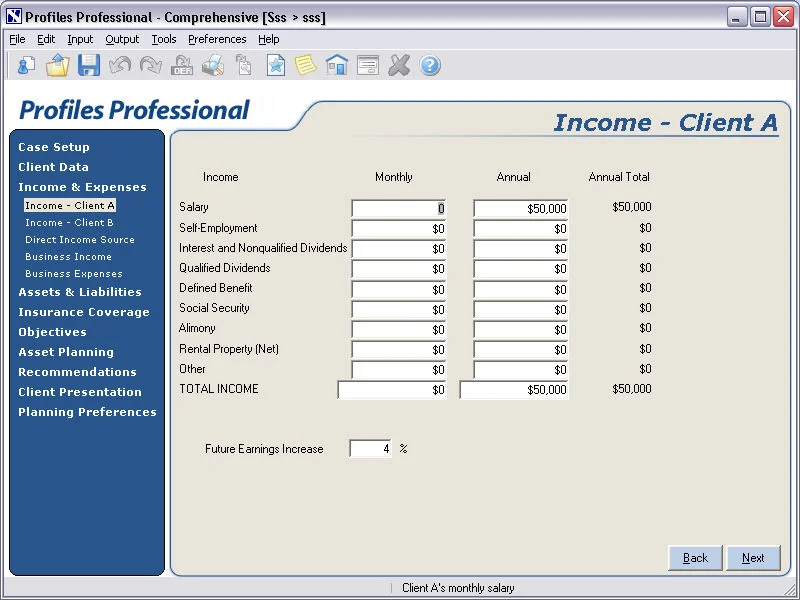
| Salary | - | Salary (Annual) |
Example: Income – Client A
Spouse (Person)
The spouse must be designated as a contact's Spouse/Husband/Wife/Domestic Partner in the Household Members section in order for the spouse's information to display in Profiles.
The table below lists the relevant SmartOffice fields and their corresponding Profiles fields. Special instructions and information about certain fields are included in the Comments column.
| SmartOffice Fields | Comments | Profiles Fields – Personal Data link |
|---|---|---|
| The following data is entered on the SmartOffice Contact Personal content link. | ||
| First Name | - | First Name |
| Middle | - | Middle Name |
| Last Name | - | Last Name |
| Birth Date | - | Date of Birth |
| Gender | - | Gender |
| Job Title | - | Job Title |
| Company | - | Employer |
| E-mail Address | If multiple e-mail addresses are added, the first one will be imported into Profiles. | |
| Business Area Code/Phone \#/Ext | If the contact does not have a primary business phone, the first business phone will be imported into Profiles. | Phone |
| Business Fax | If multiple business fax numbers are added, the first one will be imported into Profiles. | Fax |
| Primary Business Address | ||
| Address Block, Line 2 | Make sure to select the Primary Business Address option. | Address |
| City | - | City |
| State | - | State |
| ZIP Code | - | Zip |
| The following data is entered on the SmartOffice Contact Add'l Personal content link. | ||
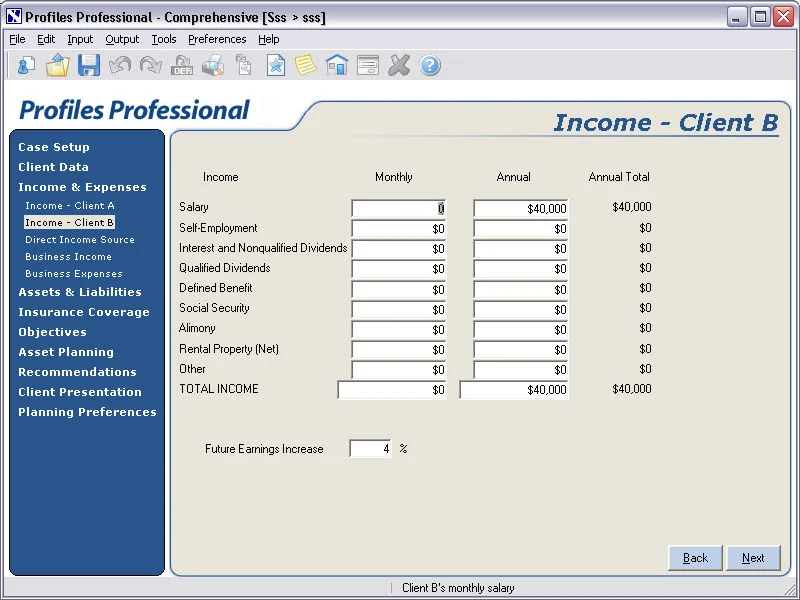
| Salary | - | Salary (Annual) |
Example: Income – Client B
Dependent
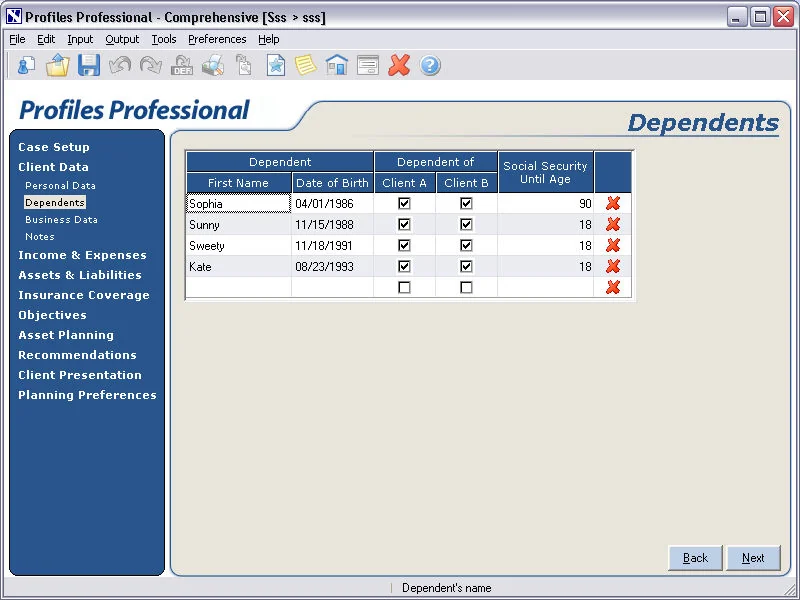
The dependent must be designated as a contact's Child/Son/Daughter/Step Son/Step Daughter in the Household Members section in order for the dependent's information to display in Profiles.
The table below lists the relevant SmartOffice fields and their corresponding Profiles fields. Special instructions and information about certain fields are included in the Comments column.
| SmartOffice Fields | Comments | Profiles Fields – Dependents link |
|---|---|---|
| The following data is entered on the SmartOffice Contact Personal content link. | ||
| First Name | - | First Name |
| Birth Date | - | Date of Birth |
Example: Dependents
Investment Accounts & Positions
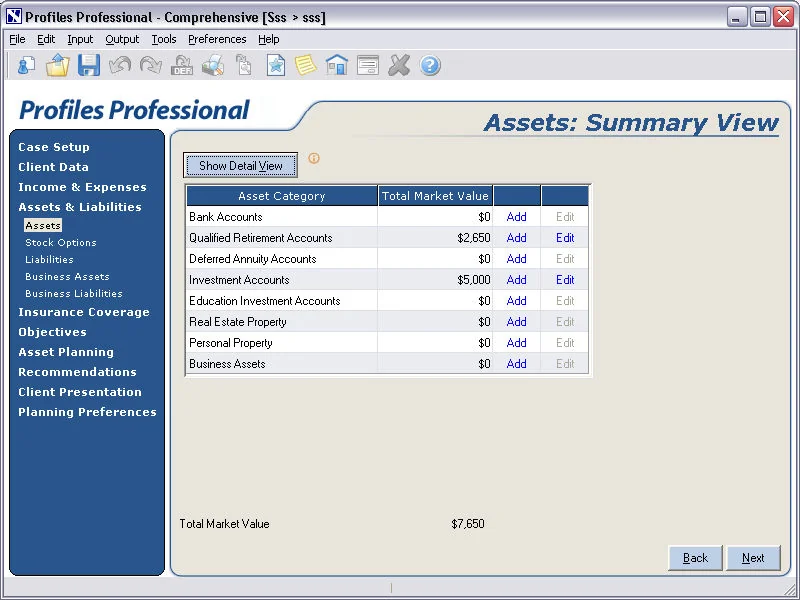
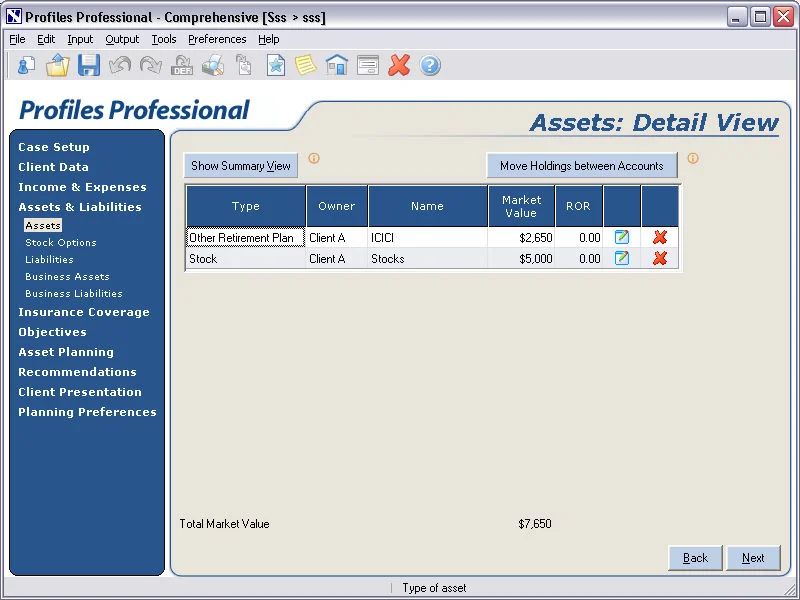
Active investments (accounts and their respective positions) where the owner or primary contact is the head of household and his/her spouse’s accounts are held jointly are displayed in Profiles.
The table below lists the relevant SmartOffice fields and their corresponding Profiles fields. Special instructions and information about certain fields are included in the Comments column.
| SmartOffice Fields | Comments | Profiles Fields – Assets link | |||||||||||||||||||||
|---|---|---|---|---|---|---|---|---|---|---|---|---|---|---|---|---|---|---|---|---|---|---|---|
| The following data is entered on the SmartOffice Investment Accounts & Account Positions content links. | |||||||||||||||||||||||
| Holding Type | - | Type | |||||||||||||||||||||
| Primary Contact/Owner | Interested Party where Role \= Primary Contact or Owner | SmartOffice | Profiles | --- | --- | Head | Client A | Spouse | Client B | Joint | Joint | Community-Property | Community | Other | Other | Owner | |||||||
| Investment Name | - | ||||||||||||||||||||||
| Current Value | - |
Example: Assets: Summary View
Example: Assets: Detail View
Life Insurance Policies
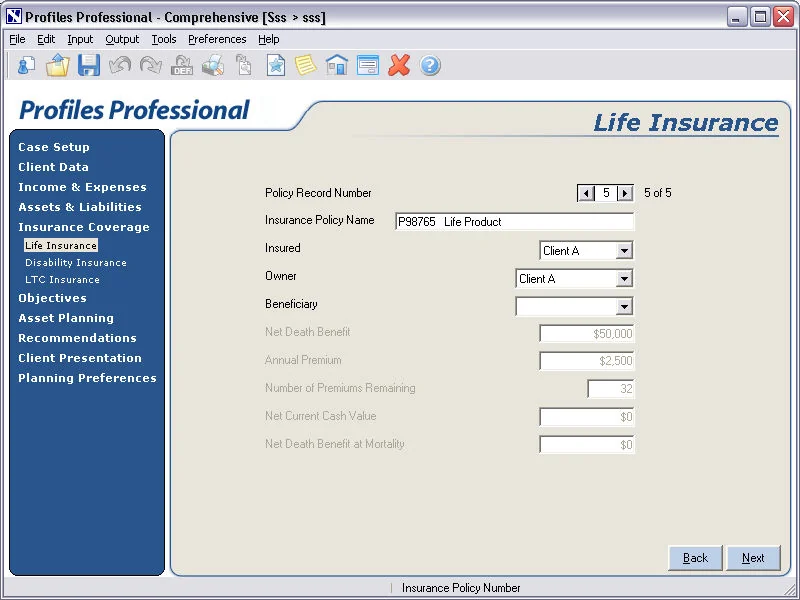
Active inforce policies where the insurance type is equal to "Life" and the owner, primary contact or his/her spouse is the head of household are displayed in Profiles.
The table below lists the relevant SmartOffice fields and their corresponding Profiles fields. Special instructions and information about certain fields are included in the Comments column.
| SmartOffice Fields | Comments | Profiles Fields – Life Insurance link | |||||||||||||||
|---|---|---|---|---|---|---|---|---|---|---|---|---|---|---|---|---|---|
| The following data is entered on the Profiles Life Insurance link. | |||||||||||||||||
| Policy \# \+ Product Name | - | Insurance Policy Name | |||||||||||||||
| Primary Insured | Where either:- Head of Household - Spouse is the Primary Insured of the policy. | SO | Desc. | Profiles | --- | --- | --- | Head | Primary Insured | Client A | Spouse | Client B | Important: If any other value is entered for the Primary Insured role, leave the field blank. | Insured | |||
| Owner | Where either:- Head of Household - Spouse is the owner of the policy. | SO | Desc. | Profiles | --- | --- | --- | Head | Owner | Client A | Spouse | Client B | Important: If there is any other value for the Owner role, do not export this information. | Owner | |||
| Basic Face Amount (Total Death Benefit) | - | Net Death Benefit | |||||||||||||||
| Annual Prem | - | Annual Premium |
Example: Life Insurance
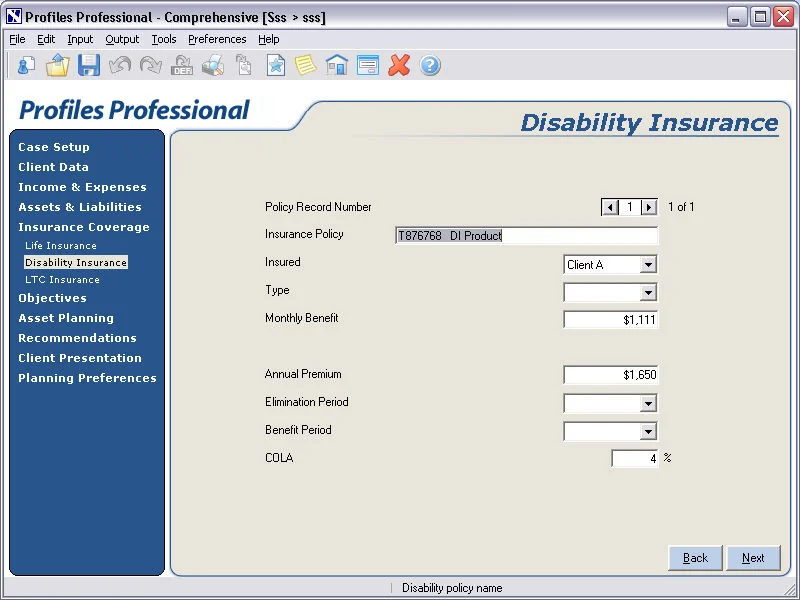
Disability Insurance Policies
Active inforce policies where the insurance type is equal to "Disability Insurance" and the owner, primary contact or his/her spouse is the head of household are displayed in Profiles.
The table below lists the relevant SmartOffice fields and their corresponding Profiles fields. Special instructions and information about certain fields are included in the Comments column.
| SmartOffice Fields | Comments | Profiles Fields – Disability Insurance link | |||||||||||||||
|---|---|---|---|---|---|---|---|---|---|---|---|---|---|---|---|---|---|
| The following data is entered on the Profiles Disability (DI) Insurance link. | |||||||||||||||||
| Policy \# \+ Product Name | - | Insurance Policy | |||||||||||||||
| Primary Insured | Where either:- Head of Household - Spouse is the primary insured of the policy. | SO | Desc. | Profiles | --- | --- | --- | Head | Primary Insured | Client A | Spouse | Client B | Important: If there is any other value entered for the Primary Insured role, leave the field blank. | Insured | |||
| Benefit Amount (Sickness) | - | Monthly Benefit | |||||||||||||||
| Annual Prem | - | Annual Premium |
Example: Disability Insurance
LTC Insurance Policies
Active inforce policies where the insurance type is equal to "Long Term Care" and the owner, primary contact or his/her spouse is the head of household are displayed in Profiles.
The table below lists the relevant SmartOffice fields and their corresponding Profiles fields. Special instructions and information about certain fields are included in the Comments column.
| SmartOffice Fields | Comments | Profiles Fields – LTC Insurance link | |||||||||||||||
|---|---|---|---|---|---|---|---|---|---|---|---|---|---|---|---|---|---|
| The following data is entered on the Profiles LTC Insurance link. | |||||||||||||||||
| Policy \# \+ Product Name | - | Insurance Policy | |||||||||||||||
| Primary Insured | Where either:- Head of Household - Spouse is the primary insured of the policy. | SO | Desc. | Profiles | --- | --- | --- | Head | Primary Insured Client | Client A | Spouse | Client B | Important: If there is any other value entered for the Primary Insured role, leave the field blank. | Insured | |||
| Owner | Where either:- Head of Household - Spouse is the owner of the policy. | SO | Desc. | Profiles | --- | --- | --- | Head | Owner | Client A | Spouse | Client B | Important: If there is any other value for the Owner role, do not export this information. | Owner | |||
| Max Daily Benefit | - | Daily Benefit | |||||||||||||||
| Max Lifetime Benefit | - | Annual Premium |
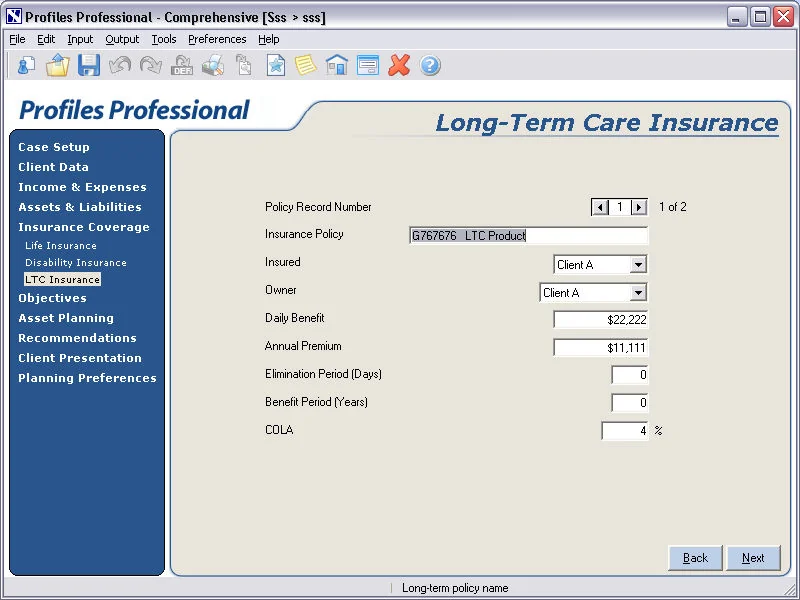
Example: Long-Term Care Insurance