Last updated: 2025-09-19
Integrations - Orion
- Overview
- Requirements
- Setup
- Office Settings
- User Settings
- Using the Integrtion
- Navigating from SmartOffice to Orion
- Troubleshooting
Overview
The Orion integration for SmartOffice establishes single sign-on (SSO) access from SmartOffice to Orion Advisor Services’ web-based advisor platform. With this time-saving integration, a user who is already signed in to one system can gain immediate access to the other system without having to sign in.
This is a free integration available to any SmartOffice user who also uses Orion.
Note: SmartOffice also has a feature that downloads client investment data from Orion directly into SmartOffice. For more information about that integration, see Investment Data Downloads.
Requirements
To use the Orion integration, the user must have:
- Orion Advisor Services account: See Orion Advisor Services’ information page.
- Release of Information authorization from Orion Advisor Services: Contact your Orion Advisor Services account manager and ask for the Release of Information authorization form. Complete and submit this form to Orion to request single sign-on activation for SmartOffice.
Setup
Follow the instructions in this section to ensure that office and browser settings are configured correctly for the Orion integration. For additional assistance with setup, contact SmartOffice Technical Support.
Office Settings
A SmartOffice administrator must verify that the office is configured properly and that the Orion integration license has been activated for the office.
- In SmartOffice, go to the office Detail content link (Setup > Office Settings).
- From the Authentication Mode drop-down list, select one of these options:
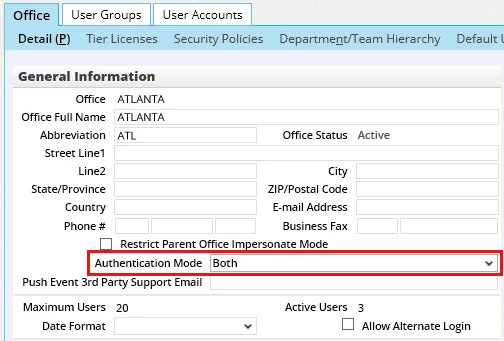
- Both: This is the recommended option. Users can sign in to SmartOffice either through Orion or directly from the SmartOffice sign-in page.
- Single Sign-On: Users can sign in to SmartOffice through Orion only. Direct sign-in is not allowed.
User Settings
After verifying office settings, the SmartOffice administrator must enable the Orion license for each SmartOffice user who will use the integration.
- In SmartOffice, access the User Rights content link for the user’s account (Setup > User Accounts).
- In the Licenses column, select Orion SSO and Orion Import.
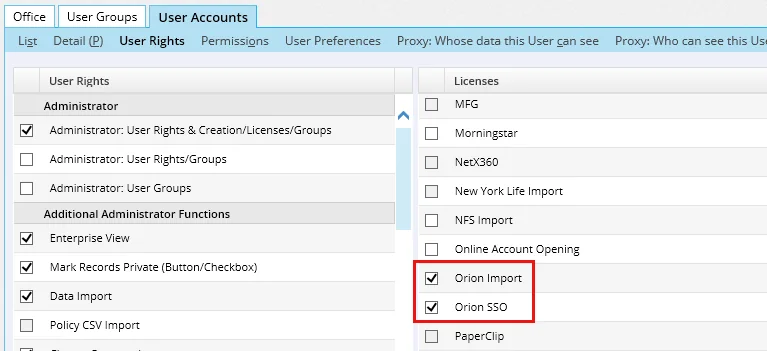
- Select Menu > Save.
Repeat these steps for each additional user. Once the integration is enabled for a user account, the user must sign in to SmartOffice and complete the following steps:
- In the side menu, select Integrations > Orion SSO to open the Setup Orion Integration dialog box.
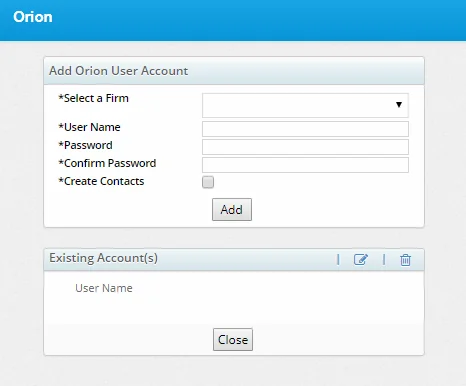
- Select the firm name from the Select a Firm drop-down list. If the firm name does not appear in the list, make sure the Release of Information authorization has been sent to Orion and contact SmartOffice Technical Support.
- Enter the advisor's Orion user name and password, and then click the Add button.
Using the Integrtion
Navigating from SmartOffice to Orion
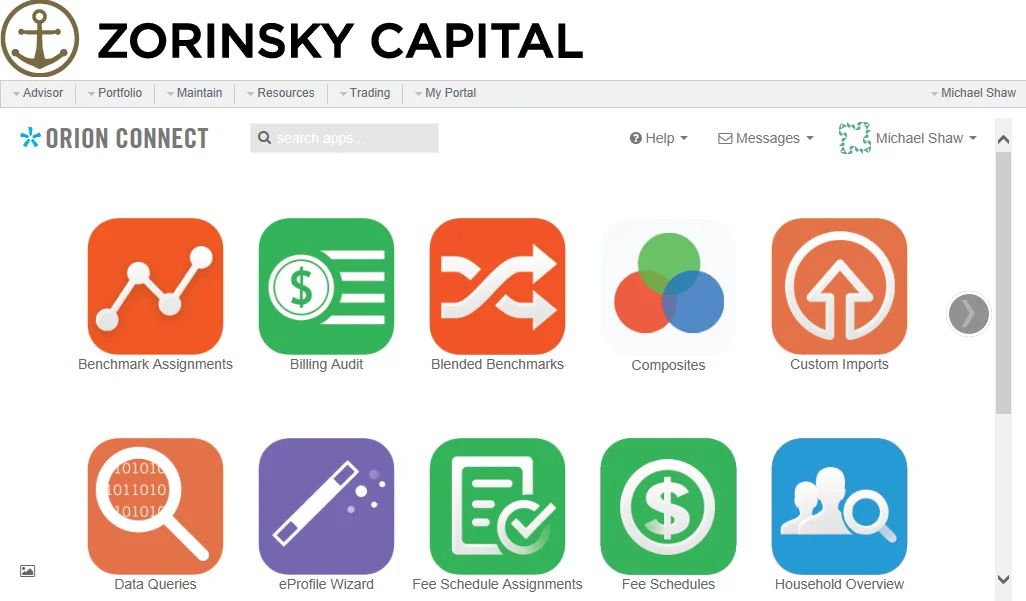
After signing in to SmartOffice, the user has several options for navigating to Orion.
- The user can navigate to the Orion home page from the SmartOffice side menu by selecting Integrations > Orion SSO.
- While viewing SmartOffice contact, household and investment account records, the user can select Menu > Integrations > Orion SSO to navigate directly to Orion’s Snapshot page.
Troubleshooting
This section describes issues that users may encounter with the Orion integration, along with possible solutions. Issue: The SmartOffice option is not available under the Account Tools menu in Orion.
This means that single sign-on access to SmartOffice from Orion has not been activated. Contact Orion Advisor Services and request single sign-on activation for SmartOffice (see Requirements).
Issue: An Error Code 5006 displays when the user tries to access SmartOffice from Orion. This error indicates that the Orion license has not been enabled for the office, the user or both in SmartOffice. Please review the instructions in Setup.