Last updated: 2025-09-19
Integrations - VitalSigns
- Overview
- Requirements
- Using the Integration
- Creating a Carrier Performance Report
- Viewing a Carrier Performance Report in SmartOffice
Overview
This integration enables the user to generate carrier performance reports from VitalSigns directly from SmartOffice. These reports can then be saved to SmartOffice.
Learn more about VitalSigns at the VitalSales Suite website.
Requirements
To use the VitalSigns integration, a user must have a VitalSales Suite subscription.
Using the Integration
Creating a Carrier Performance Report
- In SmartOffice Pro, open one of the following record types, or select one of these record types from a list:
- - Carrier - Presale activity/proposal
- Select Menu > Integrations > Carrier Rankings.
Tip: If you use this integration frequently, you can open it more quickly by adding a button to the Quick Action Corner or the Custom Button Bar.
- If prompted, enter your VitalSigns user name and password, and then select the Submit button.
- The carrier reporting system opens.
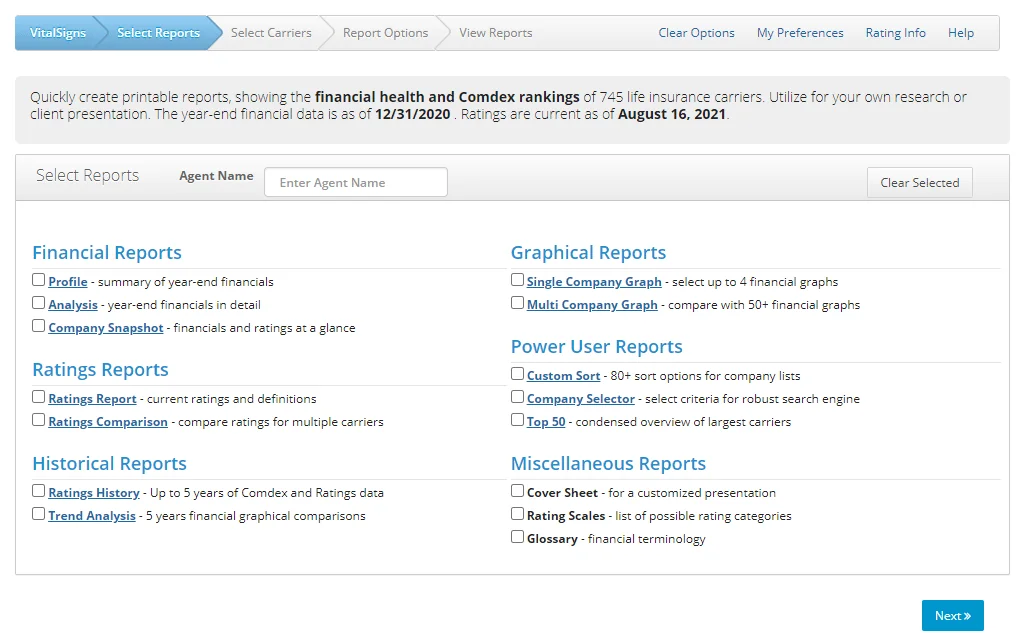
- Choose a report type, and then select the Next button.
- On the next page, add carriers to the Selected Companies list by selecting them in the Available Companies list and selecting the right-arrow button.
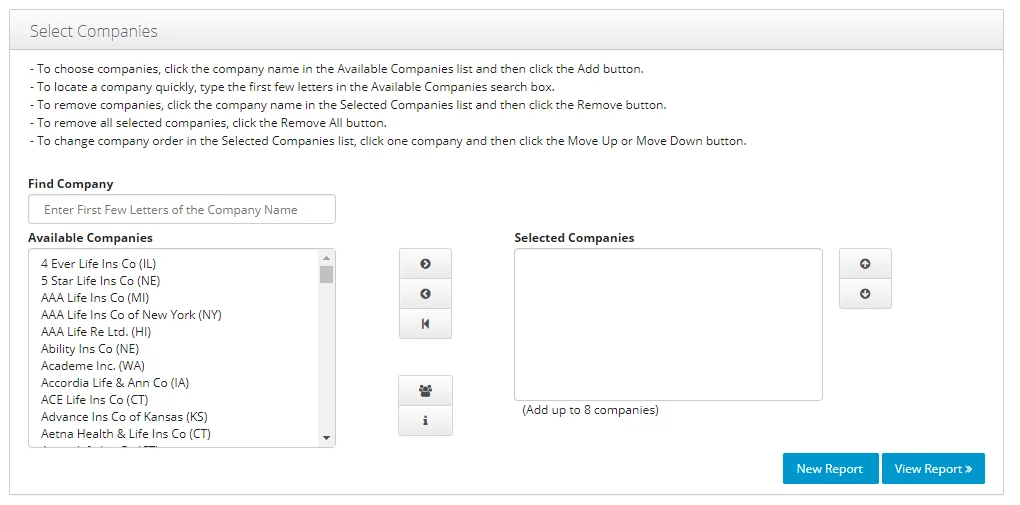
- Select the Save to SmartOffice button to save the report.
Viewing a Carrier Performance Report in SmartOffice
When a report is saved to SmartOffice, SmartOffice automatically creates a presale activity/proposal record and attaches the report to that record. If more than one report is generated, SmartOffice creates a separate presale record for each.
To find the presale activity record, search for the presale activity.
Open the presale activity record and follow these steps to view the report:
- In the Additional Details section, click the name of the illustration in the Image field.
- When the File Details dialog box opens, select the Open File button.