Last updated: 2025-11-21
Advisors/Agencies - Presale Activities/Proposals
- Overview
- Requirements
- Searching for Presale Activities
- From a Contact/Business or Advisor/Agency Record
- From the Search Box
- From the Side Menu
- Viewing/Editing a Presale Activity
- Detail Content Link
- Pending Case Content Link
- Creating a Presale Activity/Proposal
- Quick Quote
- Full Illustration
- Other Presale Activity/Proposal Features
- Sending Presale Correspondence with Image
- Converting a Presale Activity to a Pending Case/Policy
- Linking a Presale Activity to an Existing Pending Case
- Unlinking a Presale Activity from a Pending Case
- Quick Receipt of Presale Requirements
- Creating a Contact Record from a Presale Activity
- Sending Presale Status Updates
- Checking Advisor Appointments, Licensing and Compliance
Overview
SmartOffice enables users to track presale activities (e.g., illustrations and quotes) that have been created for prospective customers.
This topic describes how to search for, view and create presale activities. It also explains how to convert presale activities into new pending cases to begin the underwriting process (or link them to existing pending cases).
 Watch related training movies: Proposal Tracking Course
Requirements
To access presale activities in SmartOffice, a user must have the Presale Activity/Proposals user right enabled. For more information, see User Accounts - User Rights.
Searching for Presale Activities
From a Contact/Business or Advisor/Agency Record
While viewing a contact/business, click the Presale Activity/Proposals tab to see a list of presale records linked to that contact/business.
While viewing an advisor/agency, click the Presale Activity/Proposals tab to see a list of presale records linked to that advisor/agency. An agency's Presale Activity/Proposals tab also lists the presale activities of all advisors linked to that agency.
From the Search Box
Note: This method is available only to Super Users in offices that have office security enabled.
- In the SmartOffice Search box, select Sales & Marketing > Presale/Proposal from the Search drop-down list.
- Do one of the following:
- - Enter a full or partial contact name in the search field (last name, first name). During text entry, SmartOffice displays a dynamic menu containing any matching presale records. If the presale is listed in this menu, select the record to immediately open it. - To display all presale records in the system (i.e., perform a "blank" search), leave the search field blank.
Note: If the database contains a large number of presale records, a blank search may take a long time to complete. To prevent that, enter at least the first letter of the contact's last name.
- Click the Search button to display the Presale Activity/Proposals List.
From the Side Menu
Note: This method is available only to Super Users in offices that have office security enabled.
- From the side menu, select Sales & Marketing > Presale Activity/Proposals to display the Search Presale Activity/Proposals dialog box.
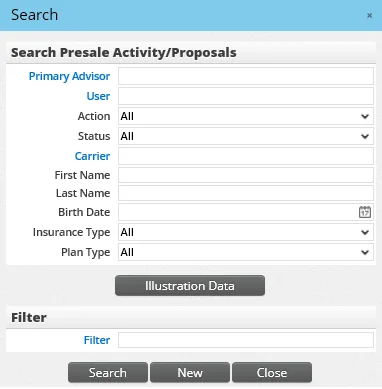
- Enter the appropriate search criteria, such as the names of the contact and the advisor, and then click the Search button to display the Presale Activity/Proposals List.
Viewing/Editing a Presale Activity
After performing a presale search, click a presale activity to view and, if necessary, edit the details of the record.
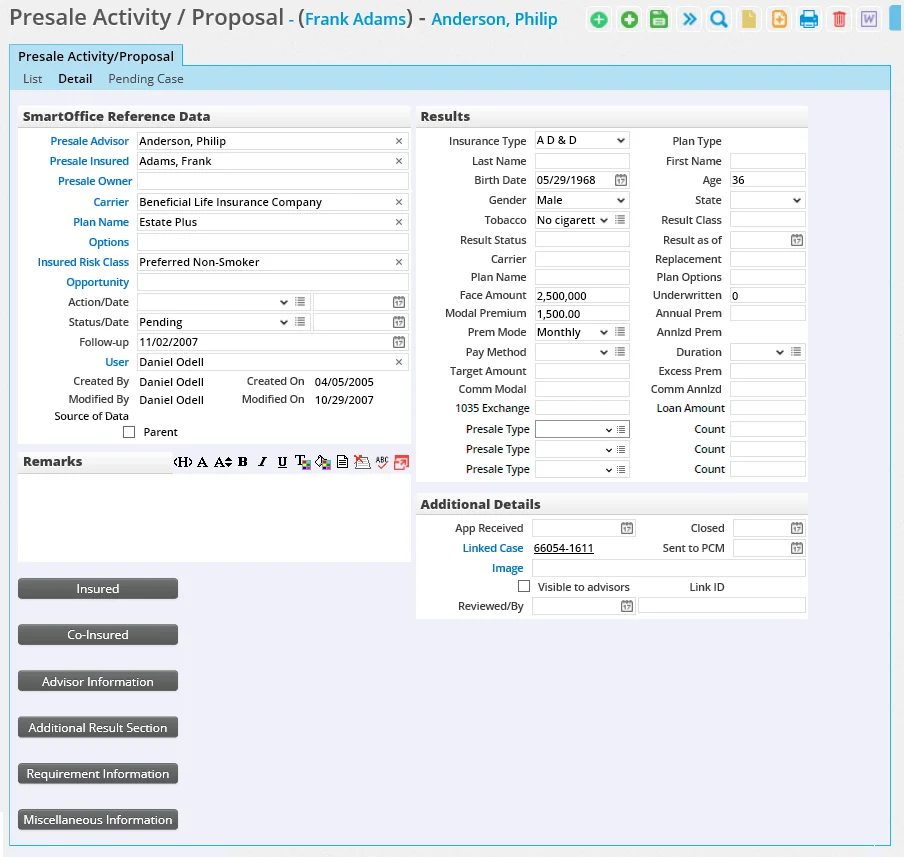
This section describes the fields and options available.
Detail Content Link
SmartOffice Reference Data Section
This section typically displays the data that SmartOffice sends to a solution like VitalQuote or WinFlex to generate an insurance quote or illustration.
- Presale Advisor: Enter the advisor's name (last name, first name) or click the Presale Advisor hyperlink to search for and select the advisor.
- Presale Insured: Enter the insured's name (last name, first name) or click the Presale Insured hyperlink to search for and select the appropriate contact.
- Presale Owner: Enter the owner's name (last name, first name) or click the Presale Owner hyperlink to search for and select the appropriate contact.
- Carrier: Enter the carrier's name or click the Carrier hyperlink to search for and select the carrier.
- Plan Name: Enter the appropriate product name or click the Plan Name hyperlink to search for and select the product.
- Plan Options: Enter the appropriate product option, or click the Options hyperlink to search for and select an option. For information about product options, see [Products
- Detail Content Link](/help/pro/products/-/detail/content/link).
- Insured Risk Class: Enter a product risk class or click the Insured Risk Class hyperlink to search for and select a risk class.
- Opportunity: To link the presale record to an opportunity, enter the opportunity name or click the Opportunity hyperlink to search for and select the opportunity. For more information, see SmartOpportunities - Linking an Opportunity to a Presale Activity/Proposal.
- Action/Date: Select the appropriate action and date. Users who have the appropriate user right can add custom options to the Action drop-down list (see Customizing Drop-Down Lists). The default choice can be specified by the administrator in Policy/Case Setup - Follow-Up Requirements.
- Status/Date: Select the presale record's current status and the date on which the status was changed. If the presale has been converted to a pending case, changing the presale record's status to Not Taken changes the linked pending case's stage to Inactive and changes the case's status to Not Taken. Similarly, changing the presale's status to Closed changes the linked pending case's stage to Inactive and changes the case's status to Closed.
- Follow-Up: To create a calendar activity to follow up on the presale's status, enter a follow-up date here.
- User: This field specifies the SmartOffice user who created the presale record. To change the user, click the User hyperlink and select a different user.
- Create On, Created By, Modified On, Modified By: SmartOffice completes and updates these fields automatically. These fields cannot be edited.
- Source of Data: This is a read-only field that indicates whether the record was entered into SmartOffice manually or whether it was downloaded electronically.
- Parent: This option indicates whether the presale record is a "parent" presale record that can be linked to other "child" presale records. Select this option and save the presale record to display a new Related Presales content link. On that content link, the user can add, remove and view all child presale records linked to the parent record. Designating a presale record as a parent provides the user with a convenient way to link together related presale activities.
Remarks Section
Use this section to enter any comments about the presale activity or details that are not tracked in other fields.
Results Section
Note: If the Source of Data field in the SmartOffice Reference Data section indicates that the record was downloaded electronically, many of the fields in this section are read-only.
The Results section typically displays the data returned to SmartOffice after an insurance quote or illustration has been generated. If SmartOffice is also integrated with an insurance e-application solution like LifeSpeed, this section shows the data that SmartOffice sends to the e-application provider to begin the e-application workflow..
- Insurance Type and Plan Type: Select an option from the Insurance Type drop-down list first. Then select a corresponding option from the Plan Type drop-down list.
- Last Name, First Name, Birth Date, Age, Gender, State and Tobacco: SmartOffice completes these fields automatically when the user completes the Presale Insured field.
- Result Class: If the value of this field contains more characters than are visible, pointing to the value displays a tooltip with the entire field value.
- Presale Type/Count: These fields can be used to track the number of quotes and/or illustrations that have been run for a particular advisor and client within a single presale activity record. For example, a user could enter Whole Life with Term Rider as one type and 3 as the count to show that three quotes/illustrations for that line of business have been run for that advisor and client. The choices available in the Presale Type drop-down lists can be defined by users who have the Drop-Down Choice Customization user right. All three Presale Type drop-down lists display the same choices.
Additional Details Section
- Linked Case: This field automatically displays the name of the associated pending case once the illustration is converted to a pending case or linked to an existing pending case.
- Image: To link a document to the illustration, click the Image hyperlink to open the Search Documents dialog box. Click the Search button to open the Document List dialog box. A list of documents from the primary insured's Letters/Documents content link are displayed. Select an existing document from the list or add a new document by selecting Menu > New 'Documents' record.
Once an image is linked to the presale record, the user can view the image by clicking the name of the document in the Image field. Images can also be viewed directly from the Presale Activity/Proposal List by clicking the icon in the Image column. This column can be added to the list through list layout customization.
- Visible to Advisors: This option determines whether the presale activity is hidden from advisors who use SmartView for Advisors or the iCaseStatus mobile app, or who receive Case Status reports and pending case correspondence.
- Reviewed/By: Use these fields to track which SmartOffice user has reviewed the presale activity. When the reviewing user enters the review date in the first field, SmartOffice automatically enters the user’s name in the second field.
Insured Section
To show/hide the fields in this section, click the Insured button. Use the fields in this section to track additional information about the insured, such as middle name, marital status and address.
Co-Insured Section
To show/hide the fields in this section, click the Co-Insured button. Use this section to enter information about a second insured if one exists.
Advisor Information Section
To show/hide the fields in this section, click the Advisor Information button. Use the fields in this section to track information regarding agent splits.
Additional Result Section
To show/hide the fields in this section, click the Additional Result Section button.
Use the fields in this section to track additional results provided by the data feed. If the Quoted Face Amount(s) field contains more characters than are visible, pointing to the value displays a tooltip with the entire field value.
Requirement Information Section
To show/hide the fields in this section, click the Requirement Information button.
This section can be used to record an advisor, delivery, policy owner service or underwriting requirement. Once the presale activity is converted to a pending case, the requirement is automatically transferred to the new case. To link the requirement to an existing pending case instead, select Menu > Link Requirement to Existing Pending Case while viewing the presale record's details.
Miscellaneous Information Section
To show/hide the fields in this section, click the Miscellaneous Information button.
 to rename the field. Note that custom field name changes apply to all presale records in the system.
Pending Case Content Link
This content link is available only after the presale activity has been converted to a pending case or after the presale activity's requirement has been linked to an existing pending case (from the Requirement Information section of the Detail content link).
From this content link, the user can view and/or edit the details of the linked pending case. For more information, see Pending Cases - Viewing and Managing Pending Cases.
Creating a Presale Activity/Proposal
There are two ways to create a presale record in SmartOffice. The Quick Quote method saves time by requesting only the essential details and is ideal for entering multiple presales quickly. The Full Illustration method provides the full set of fields and options.
Quick Quote
- Do one of the following:
- Click the Add New button and select Presale - Quick Quote. - From the Presale Activity/Proposal List, select Menu > New 'Presale Activity/Proposal - Quick Quote' record.
- The New Quick Quote Entry dialog box opens.
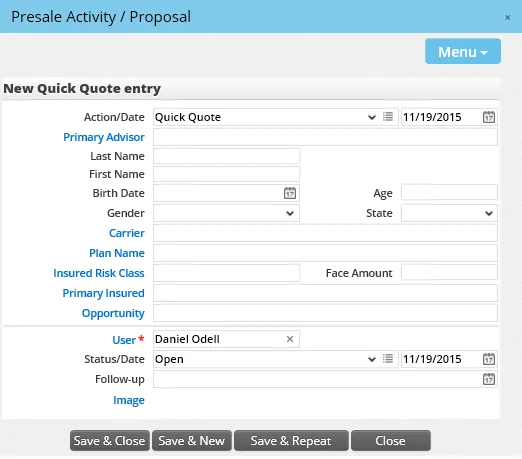
- Complete the fields. For information about these fields, see Viewing/Editing a Proposal.
- Click one of the following buttons:
- Save & Close: Saves the proposal and closes the dialog box.
- Save & New: Saves the proposal and clears the fields so that the next quote can be entered immediately.
Full Illustration
- Do one of the following:
- Select Presale/Proposal from the Add New menu to open the Presale Activity/Proposal dialog box. - From the Presale Activity/Proposal List, select Menu > New 'Presale Activity/Proposal' record to open the proposal Detail content link.
- Complete the fields. For information about these fields, see Viewing/Editing a Proposal.
- Click the OK button or select Menu > Save.
Other Presale Activity/Proposal Features
Sending Presale Correspondence with Image
A special presale correspondence feature allows the user to quickly send e-mail about a presale activity with the associated image attached.
- From a list of presale activity/proposal records, select or open a record.
Tip: To send e-mail regarding multiple presale records, perform this step from the Presale Activity/Proposals tab of an advisor, agency, contact or business record.
- Select Menu > Send e-mail with image(s). A new message opens with the image(s) attached.
Note: If the recipient does not have an e-mail address stored in SmartOffice, a validation dialog box opens instead. For information about this dialog box, refer to the description of the Validate & Send step in the Correspondence Wizard topic.
- Type a message if necessary, and then send the e-mail message.
Converting a Presale Activity to a Pending Case/Policy
When a presale activity is for an individual policy type and the case manager is ready to begin the underwriting process, the presale activity can be converted to a pending case. For group policy types, this process converts the presale activity to a group policy.
Individual Policy Types
- From the Presale Activity/Proposal List, click the first-column hyperlink (the contact name by default) of a proposal to open the proposal's Detail content link.
- Select Menu > Convert to Pending Case to open the Pending Case Add Detail dialog box.
- Complete the fields (see Creating a Pending Case for details).
- Click the Finish button.
When a presale is converted to a pending case:
- The status of the presale changes to Converted to Pending Case, and the status date reflects when the conversion took place.
- A Pending Case content link appears in the presale activity record. Clicking this content link displays the linked pending case record.
- A Presale Activity/Proposals content link appears in the linked pending case record. Clicking this content link displays the linked presale activity record.
- Learn more about viewing pending case records.
Group Policy Types
- From the Presale Activity/Proposal List, click the first-column hyperlink (the contact name by default) of a proposal to open the proposal's Detail content link.
- Select Menu > Convert to Pending Case to open the New Group Policy dialog box.
- Complete the fields (see SmartBenefits - Viewing and Editing Group Policies).
- Click the OK button.
When a proposal is converted to a group policy, the status of the proposal changes to Converted to Pending Case, and the status date reflects when the conversion took place.
Linking a Presale Activity to an Existing Pending Case
For a variety of reasons, some agencies prefer to manually create pending cases instead of converting existing presale activities to pending cases. However, this can result in pending cases and related presale activities having no link in the system. To resolve this, you can link a presale activity/proposal with a pending case that already exists in SmartOffice:
- From the Presale Activity/Proposal List, click the first-column hyperlink (the contact name by default) of a presale activity to open its Detail content link.
- Select Menu > Link Presale Activity/Proposal to Existing Pending Case.
- When the search dialog box opens, search for the pending case. Note that, to help you narrow your search, SmartOffice automatically selects the appropriate options for the Plan Type and Policy Type fields in the search dialog box based on the information present in the presale activity.
Unlinking a Presale Activity from a Pending Case
If a link between a presale activity and a pending case was made in error or is no longer needed, follow these steps to unlink them:
- From the Presale Activity/Proposal List, click the first-column hyperlink (the contact name by default) of a presale activity to open its Detail content link.
- Select Menu > Unlink Pending Case/Policy.
Quick Receipt of Presale Requirements
When an agency needs to quickly record the receipt of items such as checks and paramedical exams before an application has been received, the agency can create a quick receipt record.
- Do one of the following:
- Select Presale
- Requirement from the Add New menu.
- From the Presale Activity/Proposal List, select Menu > New 'Presale Activity/Proposal - Requirement' record.
- The New Requirement Receipt Entry dialog box opens.
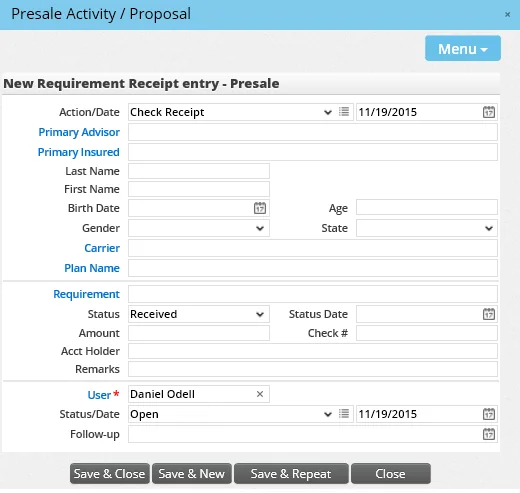
- Complete the fields.
- Click one of the following buttons:
- Save & Close: Saves the received requirement and closes the dialog box.
- Save & New: Saves the received requirement and clears the fields so that the next received requirement can be entered immediately.
Creating a Contact Record from a Presale Activity
While viewing a presale activity record, you can now quickly create a contact containing information about the insured drawn from the Results section of the presale activity.
- Open the presale activity to view its Detail content link.
- Select Menu > Create New Contact.
- Review the information that SmartOffice automatically filled in. Make any necessary changes and complete any missing fields.
- Click the OK button.
Sending Presale Status Updates
Similar to the Case Status feature, the Presale Status feature enables users to send print or e-mail updates to advisors detailing the status of their presale activities/proposals. This feature is available to any user who has the Presale Activity/Proposals user right.
- From the side menu, select Sales & Marketing > Presale Status to open the Presale Status dialog box.
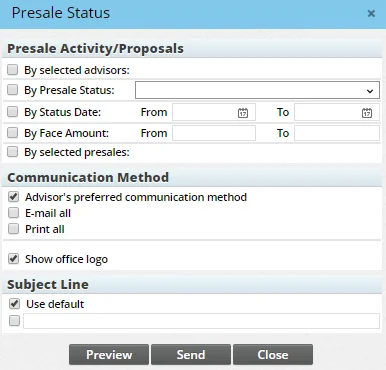
- In the Presale Activity/Proposals section, specify how the updates should be limited in terms of the advisors who will receive them and the presale activities that will be included:
- By selected advisors: This option limits the updates to specific advisors. Selecting this option opens an advisor search dialog box. Search for and select the advisors who will receive the update (see Searching for Advisors and Agencies). If this option is cleared, updates will be sent to all advisors linked to presale activities that meet the rest of the criteria in the dialog box.
- By presale status: This option limits the update to presale activities of a certain status. After selecting this option, choose the status from the drop-down list.
- By status date: This option limits the update to presale activities whose status date falls within a certain range. After selecting this option, specify the range by entering dates in the From and To fields.
- By face amount: This option limits the update to presale activities with a face amount that falls within a certain range. After selecting this option, specify the face amount range by entering amounts in the From and To fields.
- By selected presales: This option limits the update to specific presale activities. Selecting this option opens a presale activity search dialog box. Search for and select the presale activities you want to include in the update (see Searching for Presale Activities). Note that, once you select specific presale activities, the other options in the Presale Activity/Proposals section become unavailable because they are no longer applicable.
- In the Communication Method section, select one of these options:
- Advisor's preferred communication method: This option sends the update using the method specified in the Preferred Communication section of the advisor Add'l Detail content link.
- E-mail all: This option sends the update by e-mail, regardless of an advisor's preferred communication method.
- Print all: This option sends the update by letter, regardless of an advisor's preferred communication method.
- Show office logo: Selecting this option inserts the organization's logo into case status reports. The image used is the same one selected in Office Settings (see SmartOffice Branding).
- In the Subject Line section, do one of the following:
- Select the Use default option to use the system's default subject line for the presale status update. The default subject line can be specified in Policy/Case Setup
- Advisor Communication.
- Select the check box next to the blank field and enter a custom subject line.
- (Optional) Click the Preview button to see a report of the advisors who will receive presale status updates based on the selected options (when the user clicks the Preview button, the settings in the Presale Status dialog box are no longer editable; to make any changes, the user must close the dialog box and start over.) The preview will note any issues, such as advisors who have missing or invalid e-mail addresses or postal addresses. To print this preview, click the Print button. When finished with the preview, click the Close button.
- When ready to send the update, click the Send button. SmartOffice prints the updates or sends them by e-mail.
Checking Advisor Appointments, Licensing and Compliance
You can quickly check whether the advisor on the presale activity has any current appointment, licensing or compliance issues. This check examines the advisor's record in SmartOffice for any issues and displays them in an easy-to-read list so that they can be addressed.
- Open the presale activity to view its Detail content link.
- Select Menu > Check License/Appointment.