Last updated: 2025-09-19
Search Distributors
From the side menu, click People & Companies and then select Producer/Firm to open the Select a Distributor Type dialog box.
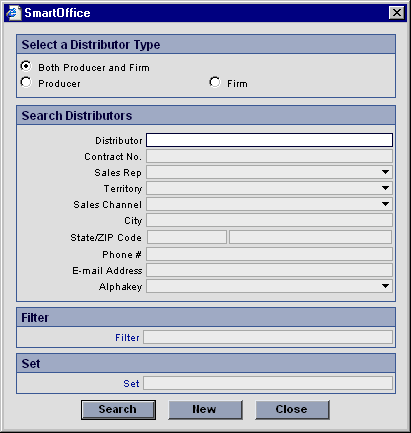
Specify the Distributor Name, Contract No., Sales Rep, Territory, Sales Channel, City, State, ZIP Code, Phone Number, E-mail Address and/or Alphakey. Alternatively, click the Filter or Set hyperlink to select a filter or set to narrow the search results. Click the Search button to locate all matching distributors.
Advanced search options are available by selecting the Producer or the Firm option in the Select a Distributor Type section:
- Producer Search)
From the side menu, click People & Companies and then select Producer/Firm from the expanded menu to open the Distributor Search Options dialog box. Change the selection from Both Producer and Firm to Producer. Unique values become available as search criteria.
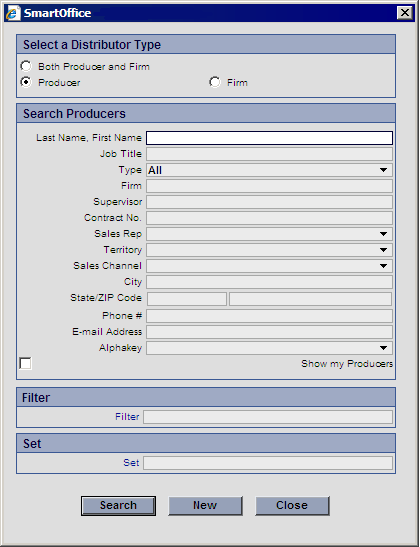
The unique field not included in the firm search is the Supervisor. Also, the Show my Producers check box is available to restrict the search to just the producers of the logged in wholesaler.
- Firm Search)
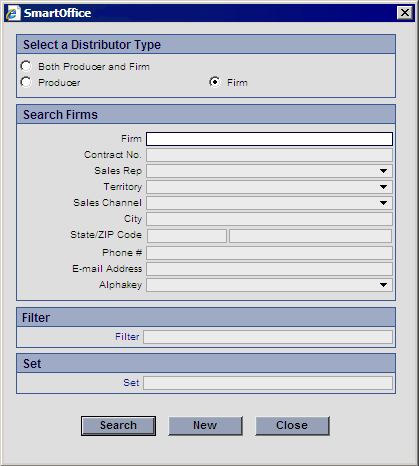
From the side menu, click People & Companies and then select Producer/Firm from the expanded menu to open the Distributor Search Options dialog box. Change the selection from Both Producer and Firm to just Firm, and options that are not applicable to a firm are removed.
Viewing Producer and Firm Information The Distributor List displays the results of a distributor, firm or producer search. The search results are displayed from the List content link.
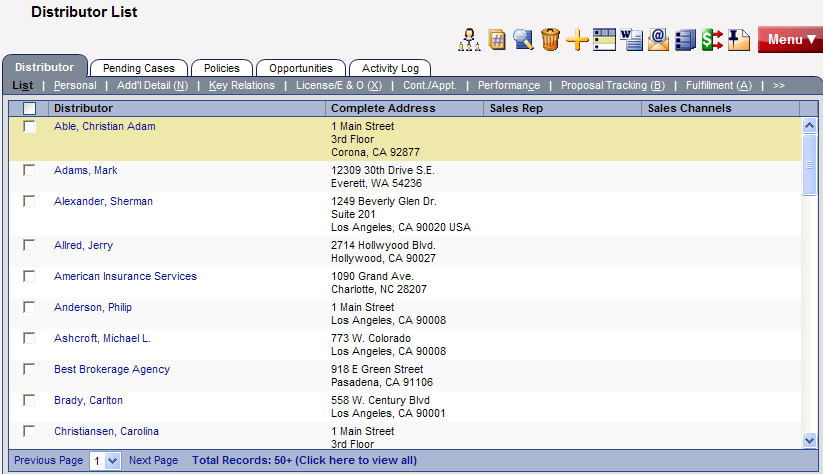
- Distributor List Buttons and Options)
The following options are available from the Custom Button Bar and/or the Menu button on the Distributor List: - Sales Rep Assignment (Automatic))
Automatically assigns a sales rep to a distributor depending on the territory and preferred address of the distributor. - Distributor Hierarchy)
Displays the Distributor Hierarchy spreadsheet showing the hierarchy for the selected distributor. If a producer is selected, the spreadsheet displays the firm and producer hierarchy for that producer. If a firm is selected, the spreadsheet displays the firm hierarchy for that firm.
Distributor Hierarchy Setup) The distributor hierarchy clearly shows the relationship between producers and firms.
The following is the setup information for adding a distributor hierarchy to the SmartWholesaler module. To accomplish this task, the user must have Wholesaler rights, and the producers and firms must already exist in the system.
Firm Hierarchy Adding a Firm with a Parent Firm and Primary Advisor:
- From the SmartOffice side menu, select People & Companies then select Producer/Firm from the expanded list of options. 2. In the producer/firm search dialog box, click the Search button. The Distributor List displays. 3. Click the New 'Wholesaler – Distributor' record button and then select the Firm distributor type. 4. Add the Firm Name, Parent Firm identifier (this must be an existing firm) and any additional details. 5. Click the Save & Close button.

6. Click the Menu button and select Distributor Hierarchy from the expanded menu to display the Firm Hierarchy spreadsheet.
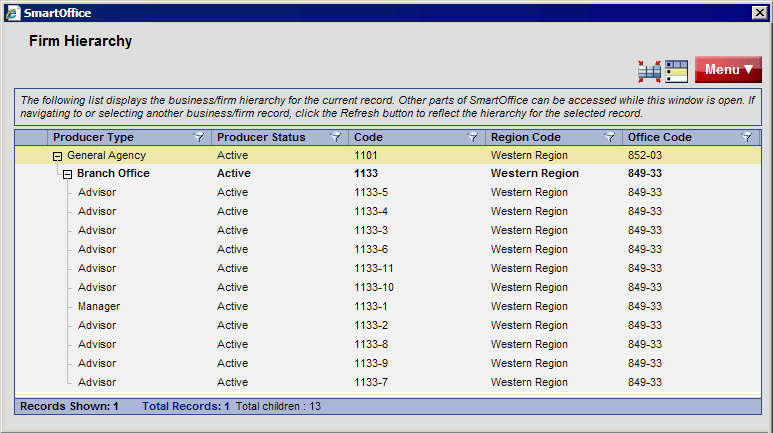
The spreadsheet displays the complete firm hierarchy for the current firm with all parent and child firms and producers. The current firm is highlighted to indicate its position in the hierarchy.
Producer Hierarchy Adding a Producer with a Supervisor and Firm:
- From the SmartOffice side menu, select People & Companies and then select Producer/Firm from the expanded list of options. 2. In the producer/firm search dialog box, click the Search button to open the Distributor List. 3. Click the New 'Wholesaler – Distributor' record button and then select the Producer distributor type. 4. Add the Producer Name (Last Name, First Name), Supervisor (Producer) and Firm, along with other details. 5. Click the Save & Close button. 6. Click the Menu button and select Distributor Hierarchy from the expanded menu to display the Firm & Producer Hierarchy.
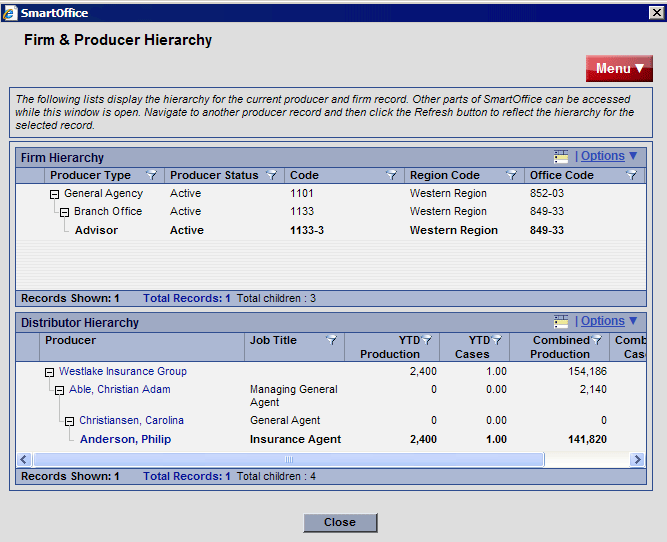
The spreadsheet displays the complete firm & producer hierarchy for the new producer. All parent and child producers are displayed under the Distributor Hierarchy section, and all parent firms for the current producer are displayed in the Firm Hierarchy section. The new producer name is displayed in bold. - Contract Hierarchy)
Opens a Contract Hierarchy dialog box with two sections. The first section, Distributor Contract Information, displays all of the distributor contracts that have been established via the Cont./Appt. content link. Once a given contract has been selected in the first section, the corresponding contract hierarchy is displayed in the Distrbutor Contract Hierarchy section. After selecting the distributor contract, click the Options hyperlink in the Distributor Contract Hierarchy section and select Reload from the expanded menu to display the contract hierarchy for the selected distributor contract.
Contract Hierarchy Setup) The purpose of the contract hierarchy is to establish a relationship between firms and producers. This relationship may be firm-to-firm or firm-to-producer.
The following is the setup information for adding a contract hierarchy to the SmartWholesaler module. To accomplish this task, the user must have SmartWholesaler rights, and the producers, firms and contracts must already exist in the system (for information about creating contract, see Contracts).
Once contracts have been created, the user attaches them to the firm or producer. The relationships are established in a top-down manner beginning at the firm level and moving down the hierarchy until the final producer record is linked.
Parent Office (Home Office record)
- From the side menu, select People & Companies and then select Producer/Firm from the expanded list of options to open the distributor search dialog box. 2. In the Distributor field, enter the name of the parent office (firm name) and then click the Search button.
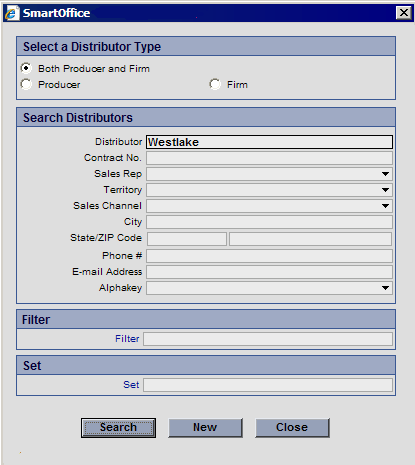
3. The Distributor List displays any producers and firms matching the search (if only one match is found, the Producer Detail or Firm content link displays). 4. Click the Cont./Appt. content link to display the Distributor Contract Information and Appointment Information sections.
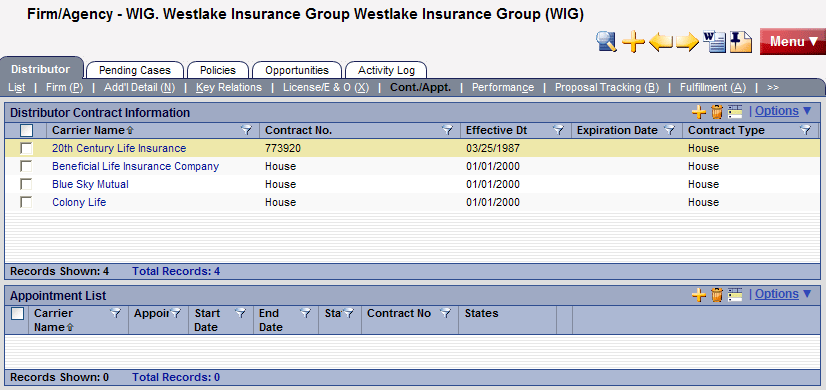
5. From the Distributor Contract Information section, click the New 'Advisor Contract' record button to open the Contract Information dialog box. 6. Enter the contract name in the Contract Name field and then click the Contract Name hyperlink to open the Contract List dialog box.
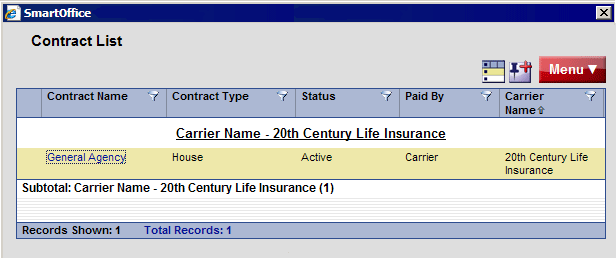
Note: If the House Account check box is selected in the Add’l Detail content link, the Contract List displays only house-type contracts. If the House Account check box is not selected, then Advisor and Supervisor contract types display in the Contract List.
- Select the appropriate contract. The Contract Information dialog box displays again with the contract name inserted. 8. Enter the number of the contract in the Contract No. field. 9. Click the OK button. The new contract displays in the Distributor Contract Information section.
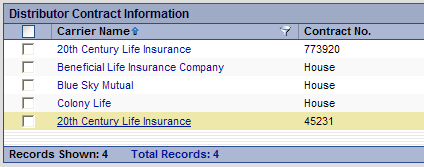
Branch Office
- Follow steps 1-8 from the parent office procedure described in the previous section. 2. In the Supervisor Information section of the Contract Information dialog box, enter the parent office name in the Supervisor Name field and then click the Supervisor Name hyperlink. The Advisor & Agency List dialog box opens.
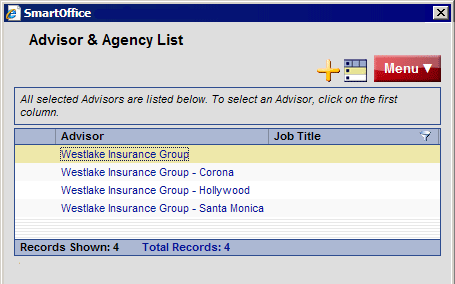
3. Select the appropriate office name. 4. Select the appropriate contract from the Supervisor Contract List.
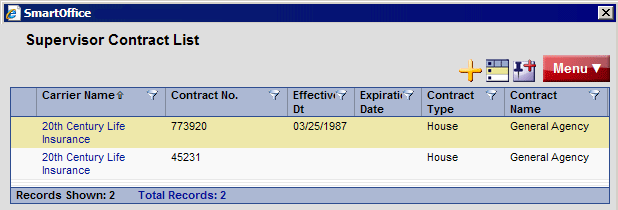
5. In the Contract Information dialog box, when both the Supervisor Name and Supervisor Contract fields have been completed, click the OK button to save the information. 6. From the expanded Menu list, select Contract Hierarchy. Producers
- From the SmartOffice side menu, select People & Companies and then select Producer/Firm from the expanded list of options. 2. When the producer/firm search dialog box opens, enter the name of a producer (e.g., a broker name) in the distributor field and then click the Search button. The Distributor List displays the search results (if only one match is found, that producer’s Personal content link displays). 3. From the Distributor List, tag the appropriate producer and then click the Cont./Appt. content link to display the Distributor Contact Information and Appointment Information sections. (The Cont./Appt. content link is also visible while viewing a producer’s Personal content link.) 4. From the Distributor Contact Information section, click the New ‘Advisor Contract’ record button to open the Contract Information dialog box. 5. Type the contract name in the Contract Name field and then click the Contract Name hyperlink to open the Contract List dialog box. 6. Select the appropriate contract. The Contract Information dialog box displays again with the contract name displayed. 7. Type the contract number in the Contract No. field. 8. In the Supervisor Information section, type the parent office name and then click the Supervisor Name hyperlink to open the Advisor & Agency List dialog box. 9. Select the appropriate office name. 10. Select the appropriate contract name from the Supervisor Contract List dialog box. 11. When both the Supervisor Name and Supervisor Contract fields have been completed, type the contract number in the Contract No. field 12. Click the OK button to save the information. 13. From the expanded Menu list, select Contract Hierarchy. - Fulfillment Request)
Enables quick responses to the common requests sales reps make for materials and sales aids. This feature also enables the tracking of material requests and how much is being spent on the firms. After selecting this option, enter the Handling Option and any items that the sales rep has requested. All items entered are tracked. - Producer Owner Transfer)
Mass-reassigns the selected distributors to a different sales rep. Select the appropriate distributors from the Distributor List and then select this option.
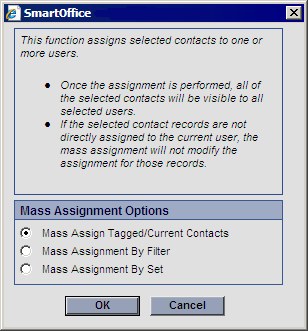
- Mass Assign Tagged/Current Contacts accepts the tagged records from the Distributor List.
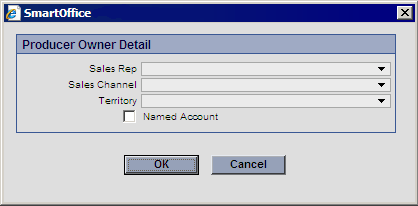
- Mass Assignment By Filter enables a filter to be generated to select specific Distributors - Mass Assignment By Set enables the user to select a set and assign all Distributors linked to that set. Once the selection has been made, the user selects the appropriate sales rep to assign to these distributors from the Producer Owner Detail dialog box:
- Distributor List Content Links and Tabs)
Content Links - Personal)
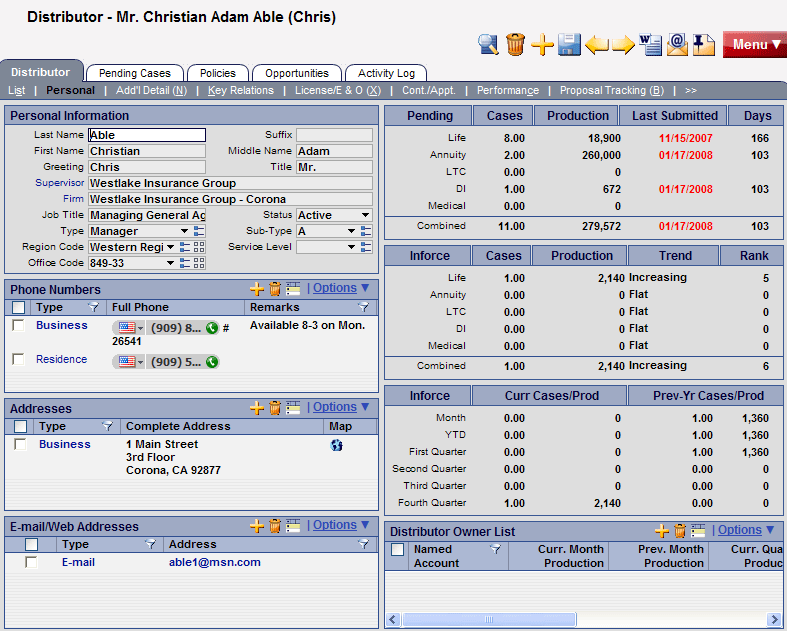
This content link displays for producers. Advisor-specific information such as Personal, Production Dashboard, Distributor Owner List, Phone Number, Address, and E-mail/Web Address information is available on this content link.
- Personal Information Section)
- Last Name, First Name, Middle Name: The Last Name field is mandatory.
- Suffix: The producer’s name extension, if any. - Greeting: The preferred name to use when addressing the producer. - Title: The producer’s title (Mr., Ms., etc.).
- Supervisor: The Supervisor field is used to link the producer to the supervisor-producer. - Firm: The name of the firm for which this producer works. - Job Title: The producer’s job title. - Status: The status of this distributor (Active, Inactive, etc.).
- Type: The type can be Advisor, Broker, General Agent, Manager, Sales Staff, Staff, etc. - Sub-Type: The Sub-type drop-down list options depend on the type selected. - Region Code: This is a user-customizable field that can also be renamed to represent any missing data item. - Service Level: These are the various levels assigned to producers based on their performance (Gold, Platinum, Regular or Silver).
- Distributor Owner List Section)
This section displays all sales reps responsible for the distributor. To change the distributor owner, select a sales rep to change and then select Producer Owner Transfer from the expanded Options menu. When the Producer Owner Detail dialog box opens, select the appropriate sales rep from the drop-down list and then click the OK button. The newly selected sales rep replaces the previous sales rep. - Production Dashboard Section)
The Production Dashboard displays pending case and inforce summary information for a distributor from the Personal content link. The dashboard is updated each evening and can be customized to display specific lines of business relative to the wholesaler’s business.
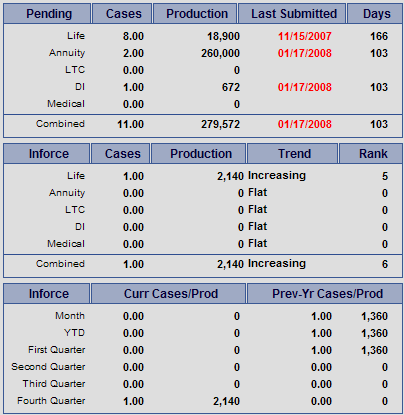
The information used to display Production Dashboard data is as follows:
- The calculated data is rolled-up nightly. This means that changes made to policies are not reflected for up to 24 hours. - The Production column for the Pending, Inforce and Year to Date sections displays a rolling 12 months of data by annualized premium. - The information is based on the current advisor/producer being the primary advisor of a pending case or policy. - The data displayed is a rolling 12 months of pending cases and policies segmented by policy date. The following statuses are used to display the data for the Pending section:
- Pending
- Submitted - Home Office Matched - Application Status - Follow Up - Applied For - Waiting Initial Premium - Forms Follow Up Status - Reschedule - Buy Guide Only - Application Signed - Received - Entered - Carrier Entered - Converted Trial - Eligible Issue Pending - Counter Offer - Conditional Approval - Rejected - Await Approval - Approved - Issued - Informal Application The following statuses are included in the Inforce section:
- Inforce
- Premium Paying - Paid - Active - Disabled - Dropped To Inforce - System Only Status - All Forms In - Transferred to Paid - Reinstated - Restored - Death Claim Pending - Extended Term - Reissue - Contractual change pending - Back Billed - Annuitized - Conversion Pending - Grace Period - Pending Replacement - Waiver - Reduced Paid Up - Other - Reissue requested Pending Case Inforce Section
- Pending: The lines of business listed in this column can be changed from the Policy/Case Setup. Changes are reflected when the screen refreshes. Note that the calculated data is not displayed until the nightly procedure is completed; this can take up to 24 hours.
- Cases: The Cases column displays the number of cases that each line of business has submitted in the past 12 months. - Production: The Production column displays the total pending cases (new business) submitted by annualized premium for the past 12 months. - Last Submitted: The Last Submitted column displays the last date on which a pending case was submitted. - Days: The Days column displays the number of days since the last pending case was submitted. Inforce Section
- Inforce: The lines of business listed in this column can be changed from Policy/Case Setup (see Customizing Lines of Business for the Production Dashboard on page 10\). Changes are reflected when the screen refreshes. Note that the calculated data is not displayed until the nightly procedure is completed; this can take up to 24 hours.
- Cases: The Cases column displays the number of Active-status cases for each line of business in the past 12 months. - Production: The Production column displays the Active statuses by the total number of annualized premiums from the past 12 months. - Trend: The Trend column compares the previous 12 months of annualized premium with what was completed one year prior to that 12-month period. The column displays Increasing, Declining, and Flat trends. For example: For the past 12 months, if the agent produced $10,000\.00 in annualized premium, the system will compare the same information from the previous year’s annualized premium and display the trend. If the previous year was $12,000\.00 in annualized premium, the trend will display as Declining. - Rank: The Rank column compares all of the advisors in the office by production number (annualized premium). Number 1 is the highest-ranked producer. The same business logic is used for firm/Agencies that are in the same level. Inforce Year to Date Section
The labels under the Inforce column are not modifiable. Each represents a time period for which statistics are displayed in two columns:
- Curr Cases/Prod: This column displays the current number of cases written within each time period, along with the total annualized premium numbers for those cases.
- Prev-Year Cases/Prod: This column displays the number of cases written within each time period for the previous year, along with the total annualized premium numbers for those cases. - Phone Numbers Section)
Any phone numbers associated with a producer are tracked in the Phone Numbers section. The phone number types include Residence, Business, Vacation, Business Fax, Corporate Office, Emergency, Temporary, Marine, Mobile, Modem/Data line, Pager (Beeper), Regional Office, Residence Fax and Other.
Click the New 'Phone' record button to enter phone numbers. When dialing a producer/firm using the auto-dialer, SmartOffice will use the number that has the Preferred Phone option selected. - Addresses Section)
Any addresses associated with a producer are tracked in the Addresses section. These include Residence, Business, Previous, Regional Office, Residence, Billing, Temporary, Vacation and Other.
Click the New 'Address' record button to enter an address. Enter the Address Type, Street, City, State/ZIP, etc. - E-mail/Web Addresses Section)
A producer's e-mail and Web addresses are stored in this section. Click the New 'E-mail/Web Address' record button to add an e-mail or Web address. When sending e-mail, SmartOffice will use the address that has the Preferred Address option selected. - Firm)
This content link displays for firms. Firm-specific information such as Firm Name, Abbreviation, DBA, Parent Firm, Firm Code, Primary Contact, Type, Sub-Type, Service Level, Status, Phone, Address List and E-mail/Web Address information and the Distributor Owner List is displayed on this content link.
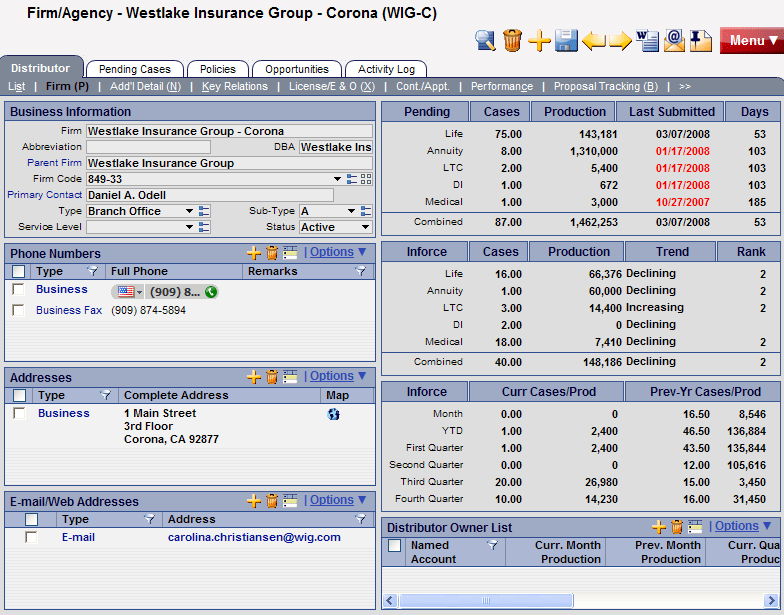
- Business Information Section)
- Firm: This mandatory field displays the firm's name.
- Abbreviation: This field displays the firm’s abbreviation, if any. - DBA: Enter the "doing business as" name of the firm. - Parent Firm: This field is used to link the firm to its parent firm. - Firm Code: This field displays the code that identifies the firm. - Primary Contact: The Primary Contact field is used to link the firm to the primary advisor. The primary advisor (producer) is the primary contact for the firm. - Type: The type can be BGA, Branch Office, Broker Dealer, General Agency, Home Office, Regional Office, etc. - Sub-Type: The Sub-Type drop-down list options depend on the type selected. - Service Level: These are the various levels assigned to firms based on their performance (Gold, Platinum, Regular or Silver). The Phone Numbers, Addresses, E-mail/Web Addresses, Production Dashboard and Distributor Owner List sections for firms are the same as those for producers. - Add'l Detail)
On the Add'l Detail content link, more information about the producer/firm is available, such as producer/firm personal information, lines of business, etc.
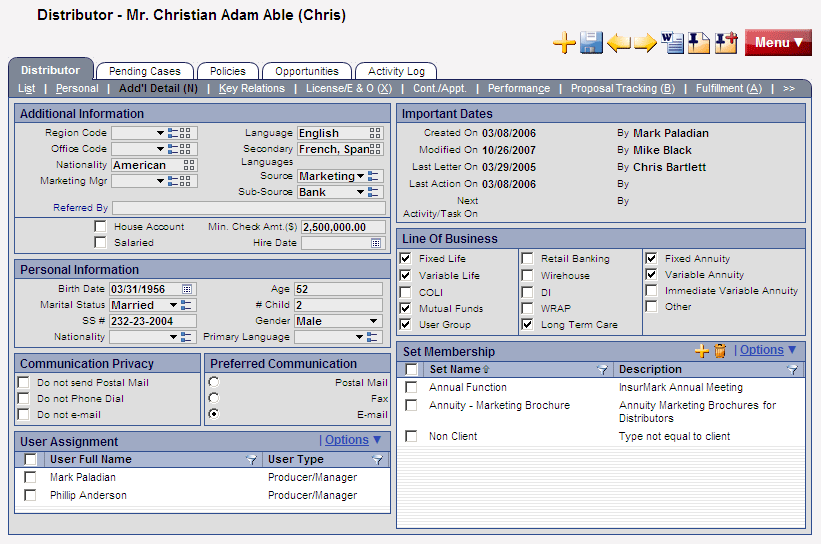
- Additional Information Section)
 ) can be renamed to capture unique information required by the office. - Personal Information Section)
The Personal Information section is used to track personal information such as the producer's Birth Date, SS \#, and Marital Status. The Gender field changes automatically to correspond to the Title. For firms, the Add'l Detail content link displays the Source, Sub-Source, Referred By and Tax ID fields. - Communication Privacy Section)
The Communication Privacy section tracks whether or not the producer/firm wants to be contacted through a particular form of communication. For example, selecting the Do not e-mail check box indicates that the producer/firm does not want to be contacted by e-mail. If the user tries to send e-mail to this producer/firm, a prompt will warn the user that the producer/firm does not want to receive e-mail. - Preferred Communication Section)
The Preferred Communication section indicates the form of communication the producer/firm prefers. For example, select the Postal Mail option to use postal mail as the default method when correspondence to this producer/firm is generated. - User Assignment Section)
Any users assigned to the selected producer/firm are listed in the User Assignments section. To assign a user to a producer/firm, click the New 'Assignment' record button. Note that only the current user and the proxy for the current user are displayed on this list. - Important Dates Section)
The program automatically populates the Important Dates section. These fields are read-only. - Line of Business Section)

). Customized labels also display on the Detail page and on spreadsheet headings. - Remarks Section)
This section contains remarks for the producers/firm. - Set Membership Section)
A set is a user-specified grouping. Any sets that the selected producer/firm belongs to are listed on the Set Membership list. Click the New 'Set Member' record button to add the selected producer/firm to a set. - Key Relations)
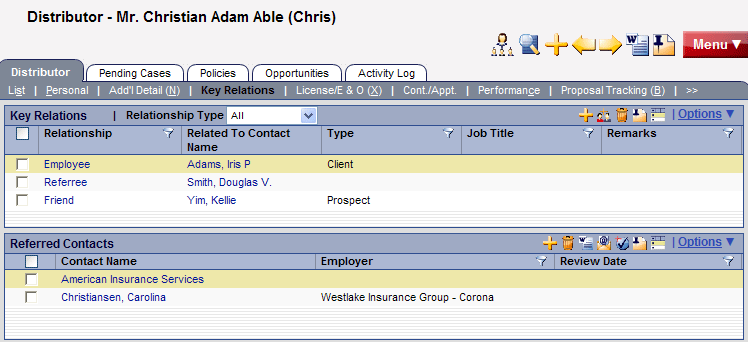
The Key Relations content link tracks any relations the producer/firm has with other contacts in the office's database. Firm – Key Relations
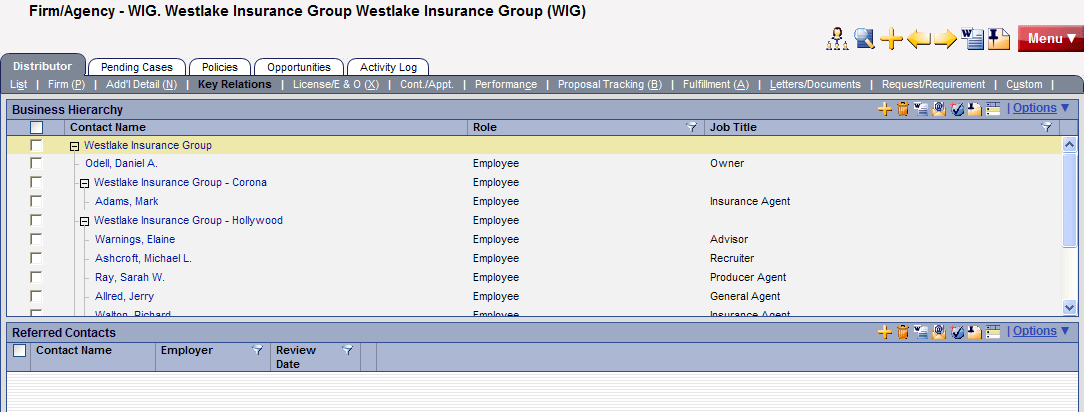
Producer – Key Relations
- Key Relations Section)
The Key Relations section lists producer/firms that have a relationship, including family and personal, with the selected producer/firm. Click any of the producer/firm hyperlinks to view their details. - Referred Contacts Section)
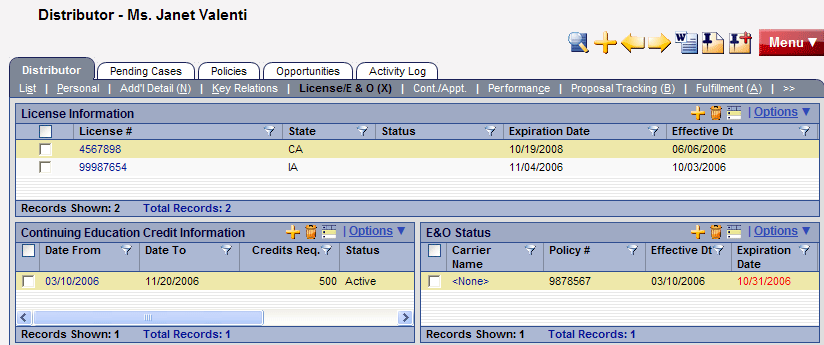
The Referred Contacts section tracks all contacts that the selected producer/firm has referred. - License/E&O (Errors and Ommissions)) The License/E&O content link tracks licensing, continuing education and E&O (Error and Omissions) information.
- License Information Section)
The selected producer/firm's licensing information— such as the License Number, State, Status, Expiration Date and Effective Date— is tracked in the License Information section. - Continuing Education Credit Information Section)
A producer/firm's continuing education information such as a description of the class, the number of credits earned, the date that those credits were applied, and any other remarks are tracked in the Continuing Education Credit Information section. - E&O Status Section)
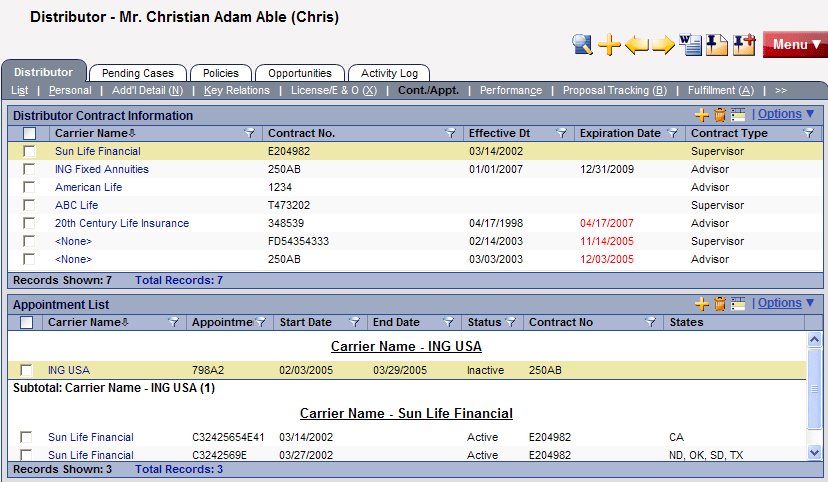
Error and Omissions information is tracked by the E&O Status spreadsheet. - Cont./Appt. (Contracts and Appointments)) Type your Contract and appointment information for a producer/firm is tracked on the Cont./Appt. content link.
- Distributor Contract Information Section)
The Distributor Contract Information section tracks the contracts that a producer/firm has with carriers to sell those carriers’ policies. Click the New 'Contract' record button to add contract information. The line of business refers to insurance types, such as life, DI, medical, etc. - Appointment Information Section)
The Appointment Information section tracks the distributor’s appointment information. To add information on an appointment, click the New 'Appointment' record button. If a distributor has an appointment with a life line of business, the distributor is appointed to sell life insurance in the specified state or states. - Performance)
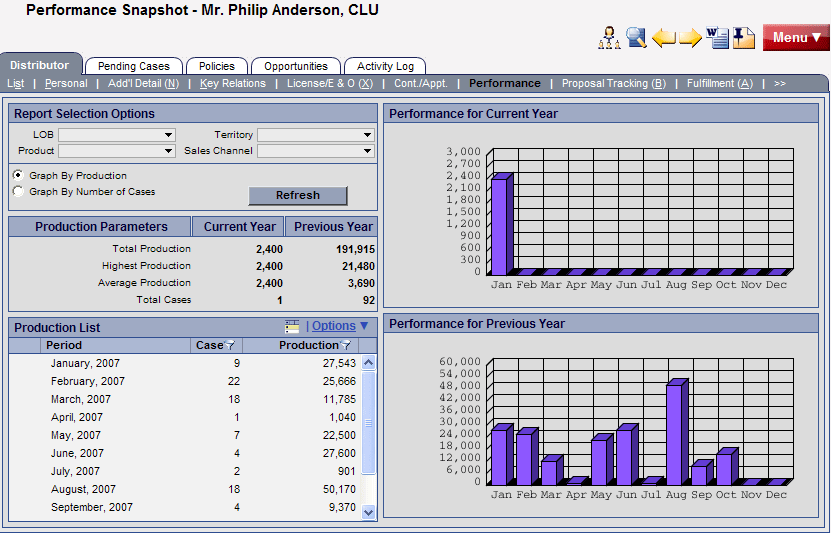
The Performance content link displays production data by line of business, product, territory, and sales channel. A nightly process updates the current month’s production data.
- Report Selection Option Section)
The Report Selection Option section enables the user to view production data by line of business, product, territory, and sales channel using the appropriate drop-down lists. The Graph By Production and Graph By Number of Cases options change the side graph to the specified graph.
After the appropriate options are selected, click the Refresh button. This will change the Production Parameters, Production List, and graphs accordingly. - Production Parameters Section)
The Production Parameters section displays the Total Production, Highest Production, Average Production and Total Cases for the Current Year and Previous Year. - Production List Section)
Depending on the column description, the Production List section displays the data from a high overview of the production to a detailed view of how the numbers are rolling up. - Performance for Current Year and Performance for Previous Year Sections)
The Performance for Current Year and Performance for Previous Year sections display the graph of the Production or Cases for the selected options. - Proposal Tracking)
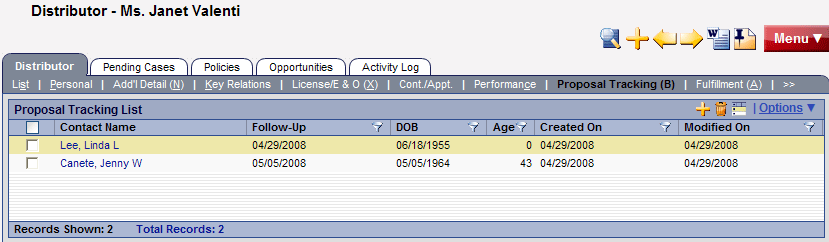
The Proposal Tracking content link tracks illustrations that a producer/firm has sent to a potential insured. Click the New 'Proposal Tracking' record button to add an illustration.
To see this content link, the user must have the Proposal Tracking user right enabled in User Accounts. The user right is in the Office Setup Options section in the User Rights column of the User Rights content link.
- Fulfillment)
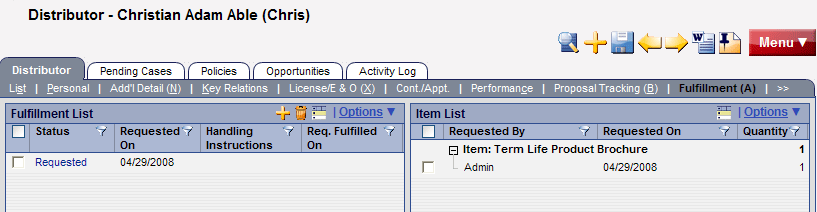
The Fulfillment content link contains two sections: the Fulfillment List, which displays a date list of all fulfillment requests, and the Item List, which displays a list of all items requested, sorted by item. By viewing the list of requests, the user can quickly determine which requests have been shipped and which have not by their color. Items in red have not been shipped.
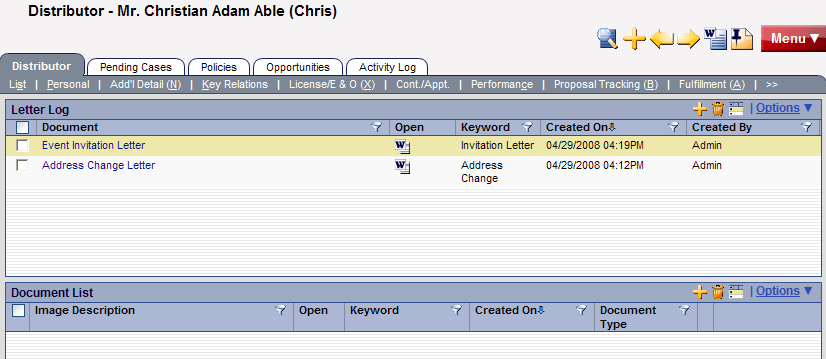
- Letters/Documents) The Letters/Documents content link contains sent letters and uploaded documents.
- Request/Requirement)
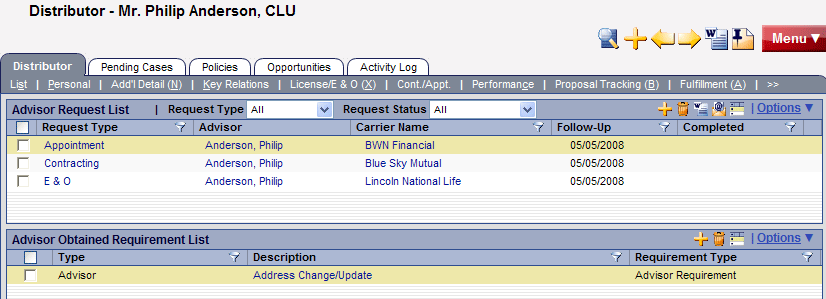
The Request/Requirement content link contains two sections: the Advisor Request List and the Advisor Obtained Requirement List. For more information about advisor request functionality and the agency manager role, refer to the SmartOffice v6 - SmartCaseManager User Guide.
- Advisor Request List)
An agency manager can view all requests required of a specific advisor on the Advisor Request List. These requests are outstanding requirements that an advisor needs to complete in order to sell products. - Advisor Obtained Requirement List)
The Advisor Obtained Requirement List displays all advisor-obtained requirements other than appointment, contract, error and omissions insurance, and licensing. - Custom)
The Custom content link consists of customizable alphanumeric, numeric, integer, date and check box fields. The field names can be edited by clicking the Customize Field Labels button. Enter new field labels into the appropriate fields. Only the altered fields are displayed on the Custom content link. Tabs
- Policies (Individual Policy)) The Policies tab lists all individual policies of the primary producer/firm.
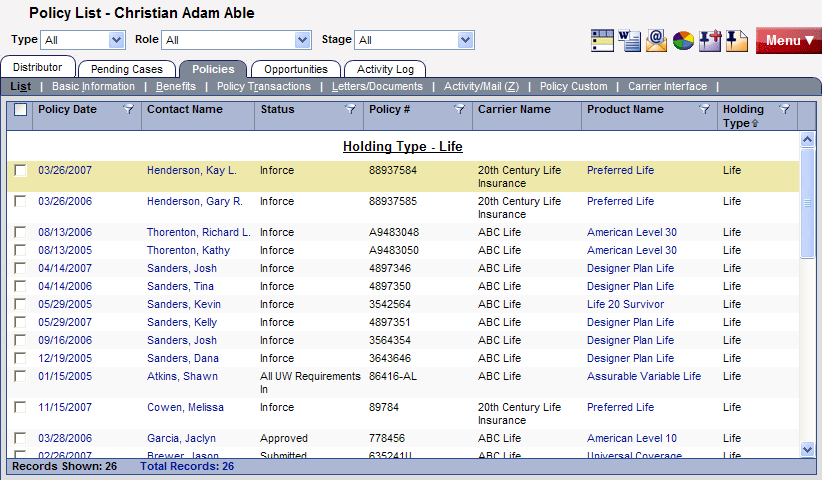
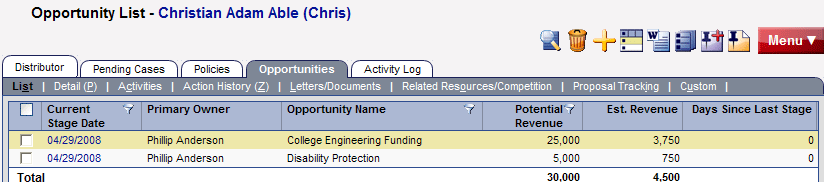
The list displays the individual policies for which the selected distributor is the primary advisor. The policies highlighted in pink are in the Underwriting stage. Clicking the first column hyperlink of an inforce policy opens the Basic Information content link. Clicking the first column hyperlink of a policy in underwriting opens the Detail content link for the selected policy. - Opportunities)
The Opportunities tab provides the user with a powerful and flexible way to automatically identify and follow-up on sales opportunities. The SmartOpportunities module enables users to save time by streamlining processes and promoting efficient organization, leading to cost savings (direct and indirect) while improving customer satisfaction.