Last updated: 2025-09-19
Integrations - PaperClip eM4
Overview
The PaperClip eM4 integration for SmartOffice encrypts e-mail messages and attachments sent from SmartOffice by routing them through a PaperClip eM4 relay. In addition, users gain the benefits of eM4's e-mail audit trail capabilities for their SmartOffice communications.
Important: This integration encrypts all outgoing e-mail from SmartOffice, including communications such as case status reports sent to advisors. There is currently no way to exclude certain types of e-mail communications from being encrypted.
More information about eM4 is available at PaperClip's website.
Requirements
To integrate SmartOffice and PaperClip eM4, an organization must have the following:
- In-house or hosted PaperClip eM4 relay
Note: Customers with an in-house relay must also have an eM4-hosted relay. Note: This integration does not support eM4 Cloud Client customers at this time.
PaperClip eM4 Setup
Contact PaperClip at helpdesk@paperclip.com and ask for:
- Confirmation that your organization's eM4 configuration supports integration with SmartOffice.
- The SMTP password you will need to use when configuring SmartOffice.
Then proceed with SmartOffice setup.
SmartOffice Setup
Note: These steps must be performed by a SmartOffice user with administrator rights.
Office Setup
- Sign in to SmartOffice and select Setup > Office Settings in the side menu.
- In the Send Options – Form Letters section, click the Send From drop-down list and select Custom E-mail Server (SMTP).
- In the Enter the Secure Delivery text to prefix the E-mail subject field, enter at least one character.
Note: For this integration, the text entered in this field does not actually appear in the subject line of outgoing messages, but it is required to enable secure-sending options for users creating correspondence (see Using the Integration).
- Select Menu > Save.
- In the Outgoing E-mail (SMTP) Settings section, enter the following values:
- Enable encrypted e-mail: Enable
- SMTP Server Address: mail.virtualclientfolder.net
- SMTP Server Port: 587
- E-mail Account User Name: paperclip
- Swap SMTP From: No
- E-mail Account Password: Contact PaperClip support for this information.
- Connect Securely with SSL: No
- Connect Securely with TLS: Yes
- Select Menu > Save.
User Setup
- In SmartOffice, select Setup > User Accounts in the side menu (for more information about accessing user accounts, see User Accounts - Introduction).
- Search for and open the user account record for a user who will be sending encrypted e-mail through eM4\.
- On the Detail content link, verify that the address in the E-mail Address field is the same address under which the user is subscribed to PaperClip eM4\.
- If necessary, change the e-mail address, and then select Menu > Save.
Using the Integration
Once the integration is set up, users can send e-mail from SmartOffice normally, noting the following:
- In the Options step of the Correspondence Wizard, the user must select the Send Secure option to have the message encrypted by PaperClip eM4\.
Note: If the Send Secure option is not available, the user may need to clear the Apply correspondence default options check box in the Correspondence Wizard.
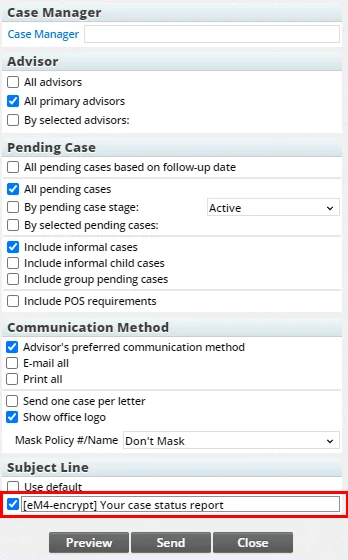
- To send encrypted pending case status reports using PaperClip eM4, select the check box next to the blank field under Subject Line in the Case Status dialog box, and then enter \[eM4-encrypt] in the field, followed by any additional subject line text you want to include (\[eM4-encrypt] must appear first, before any other text in the subject line). Reports are encrypted only when the case manager's e-mail address in SmartOffice matches the e-mail address of an eM4 subscriber.