Last updated: 2025-11-30
SmartPolicies - Basic Information Content Link
- Overview
- Basic Policy Information Section
- Premium Information Section
- Policy Advisor List Section
- Policy Insured List Section
- Policy Relationship List Section
- Key Information Section
- Important Contacts Section
Overview
When viewing a policy, the user can access the Basic Information content link to see information such as the policy number, carrier, plan name and type, advisor and premium information.
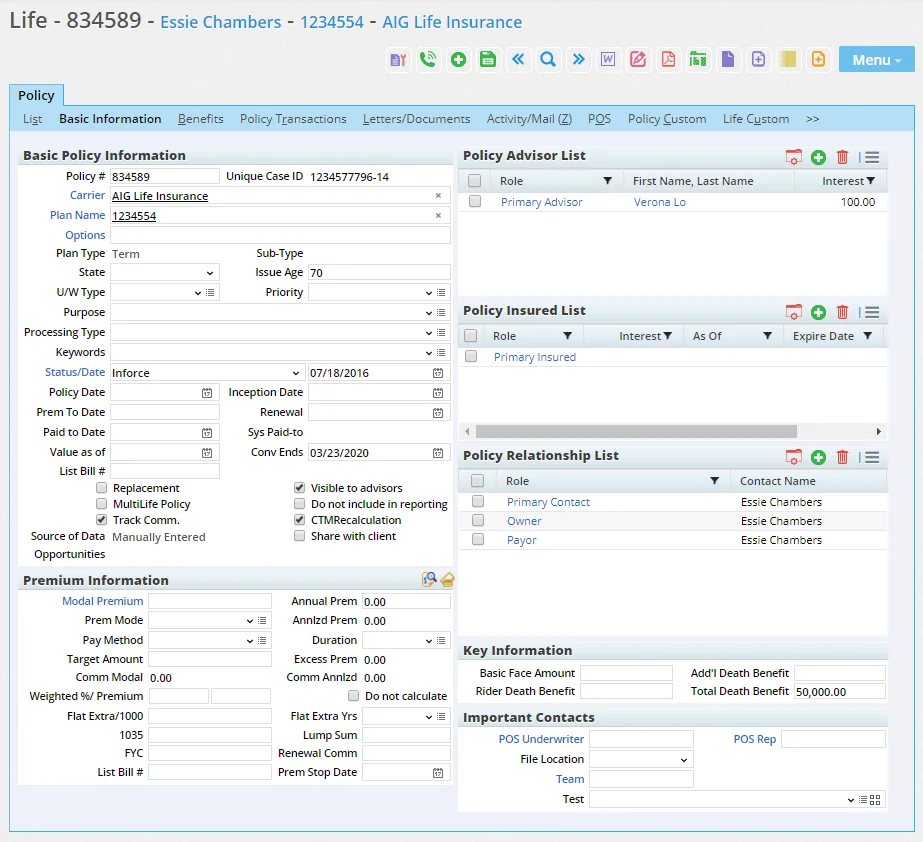
You can customize this content link to display different content if you have the appropriate user rights (see Page Layout Customization). This topic describes the contents of the SmartOffice default layout.
Basic Policy Information Section
The Basic Policy Information section is used to track the same basic information for all types of insurance. This includes the carrier, plan name (product) and policy date. Notable fields include:
- Options: If the insurance product linked to this policy has multiple commission structure options (see Policy/Case Setup
- Product Options), the user can click the Options hyperlink to select one.
- Processing Type: This field allows organizations to identify internal workflows based on application type. It is intended for informational and reporting purposes.
- Status/Date: To display the policy's status history and the dates associated with each status, click the Status/Date hyperlink to open the Policy Status History List dialog box.
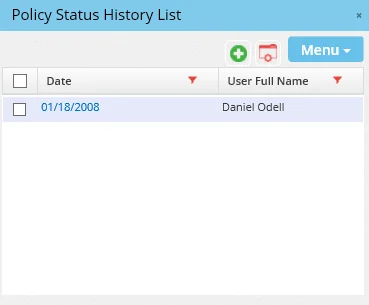
Click the Menu button for options to add or delete status information (the ability to delete is available only to administrators).
The Inforce, but not administered status is for policies that are inforce but whose administration is handled by another firm.
- Policy Date: The date on which the policy went inforce. If this field is updated with a date that does not fall within the effective and expiration dates of the linked product (see Products
- Detail Content Link), SmartOffice displays a warning message.
Note: If a policy is first entered into the system as a pending case through the SmartCaseManager module, SmartOffice assigns a policy date even though the policy is not yet inforce (by default, SmartOffice uses the case creation date). SmartOffice uses this date to perform certain commission calculations. This policy date is automatically updated when the policy goes inforce.
- Inception Date: The date on which coverage began. This date can be different from the policy date in some situations. For example, with individual medical policies, where it is common for the insured to change plans and even carriers periodically, the Inception Date field can be used to track the date on which coverage began under the first policy sold, while the Policy Date field can be used to track the date on which the current policy went inforce.
- Renewal: The date on which the policy is up for renewal. In lists, SmartOffice displays this date in red if it falls within the next 30 days.
- Conv Ends: This field specifies the last date on which a term life policy can be converted to permanent coverage. The date, which can be useful for marketing purposes, is initially calculated using the values entered in the Max Conversion Age and Conversion Period fields on the product Detail content link, but the value can be edited by the user.
- Paid to Date: This field is for users to manually enter the date up to which the policy premium has been paid.
- Sys Paid-to: This is a policy commission paid-to date field that is updated by SmartOffice. Visible only to SmartCommissions users, it specifies the Paid-To/Next Due date of the last commission transaction at the point of reconciliation in Carrier Posting. The field is normally read-only, but if it displays an incorrect date, it can be edited by a user who has the Administrative Database Maintenance user right.
- Visible to Advisors: Clear this option to hide the policy from advisors who use SmartView for Advisors. For more information about policy visibility settings for advisors, see SmartView for Advisors.
- Replacement: This option indicates whether the policy was purchased to replace an existing policy.
- CTMRecalculation: Select this option to flag the policy for recalculation of expected commissions the next time the user manually calculates commissions or uses mass commission projection. SmartOffice automatically selects this option when the inforce data feed or Direct Download and Replace process changes one or more key aspects of the policy. SmartOffice also selects this option automatically when the commission rate of the policy is changed. Once calculations are finished, this option is automatically cleared. For more information about commission calculations, see SmartCommissions
- Projected and Expected Commissions..
Premium Information Section
The Premium Information section contains details about premium costs and payments. To view or modify premium breakdown information, click the Modal Premium hyperlink.
For detailed information about this section, see Life Policy Calculations.
Policy Advisor List Section
 in this section. To view the details of an advisor, click the first-column hyperlink for that advisor.
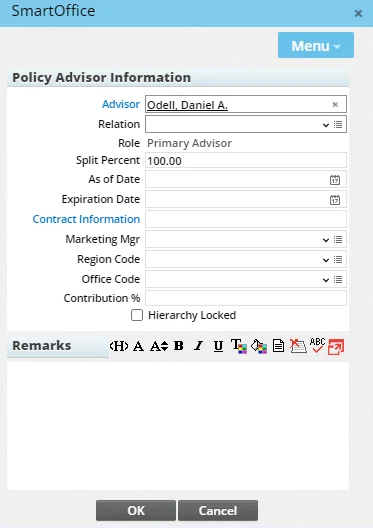
Notable fields include:
- Role: The advisor roles available for selection in this drop-down list are defined by the administrator (see Advisor Role Exclusion Setup).
- Split Percent: The commission split percentage the advisor receives on the policy. The SmartCommissions and SmartCommissions for Advisors modules use this value to when projecting/calculating commission on the policy.
- Contribution %: Use this field to track what percentage of the total effort the advisor contributed to the policy sale. This field is useful if the Split Percent field doesn't reflect the advisor's contribution.
If a policy has only one primary advisor, that advisor cannot be deleted.
and choose Show Old Advisors. To hide them again, select > Hide Old Advisors.
In addition, SmartCommissions users should note that an advisor cannot be deleted from the list if the advisor has linked commission payable records for the policy. This restriction applies even when an advisor is assigned an Old or Reassigned role.
Tip: If your phone system is integrated with SmartOffice, you can quickly dial advisors from the Policy Advisor List by selecting the advisor's number in the Full Phone column. If this column is not visible, you or another user with list layout customization rights can add it (for more information, see Lists - List Layout Customization).
Policy Insured List Section
Note: For annuities, this section is titled Policy Annuitant List.
in this section.
Note: When the user adds an insured contact to the list and the product associated with the policy is a second-insured product, the Second Insured role becomes available. For more information, see Products - Detail Content Link.
To view the details of an insured contact, click the first-column hyperlink for that contact to open the Policy Relationship dialog box.
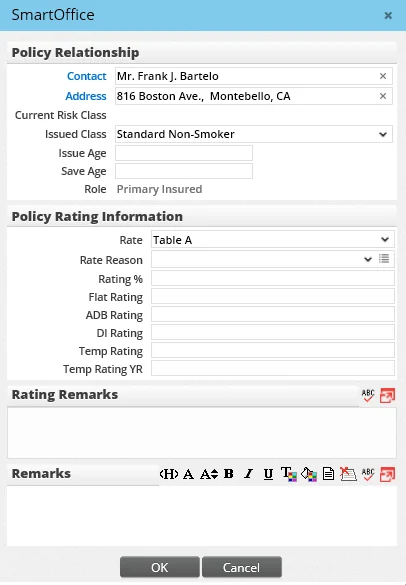
Notable fields in the Policy Relationship dialog box include:
- Current Risk Class: This read-only field works as follows:
- If the stage of the pending case linked to the policy is Approved, Issued or Active, the issued risk class displays in this field.
- If the stage of the pending case linked to the policy is Underwriting, Proposed, Informal Application or Await Approval, the submitted risk class displays.
- Rate: The Rate field accepts text entered by the user, but the user can also click the field's drop-down arrow to choose from a set of standard choices such as Table 1 (A), Table 2 (B) and so on. The standard choices provide better consistency for the purposes of reporting.
Policy Relationship List Section
Additional contacts associated with the policy, such as the policy owner and beneficiaries, are listed in this section.
and select New 'Policy Insured/Relationship' record to open the Policy Relationship dialog box, which contains these fields:
- Contact: The person associated with the policy.
- Address: This is the address associated with the policy and is not necessarily the contact's primary address. To select an address, click the Address hyperlink.
- Relation: The relationship the contact has with the primary insured person.
- Role: The contact's relationship to the policy.
- As Of: The date on which the contact became associated with the policy.
- Expiration Date: The date on which the contact is no longer connected with the policy.
- Percentage: The amount for which the contact is related to the policy. For example, this field would indicate the percentage that a beneficiary would receive.
Key Information Section
The fields in the Key Information vary depending on the insurance and/or plan type. Notable fields include:
- Benefit for Reports: For long-term care policies, the value in this field appears in PDF reports such as the Policy Summary.
Important Contacts Section
The Important Contacts section lists the POS underwriter, POS rep and team contacts. The File Location drop-down list specifies the unit within the organization that has been assigned to handle the policy.
