Last updated: 2025-09-19
Life Policy Calculations
- Overview
- Basic Information Calculations
- Premium Information Section
- Premium Breakdown Dialog Box
- Modification Calculations
- Policy Modifications
- Premium Mode and Payment Method Modifications
- Face Amount Modifications
- Commissionable Modal Premium Modifications
- Life Benefit Calculations
Overview
The calculations used to determine the premiums and benefit amounts of life policies and pending cases are detailed in the following sections.
Basic Information Calculations
The fields described in this section are located on the policy Basic Information content link and the pending case Detail content link.
Premium Information Section
Note: In pending cases, this section is called Current Premium Information. The Premium Information section displays details regarding premium costs and payments.
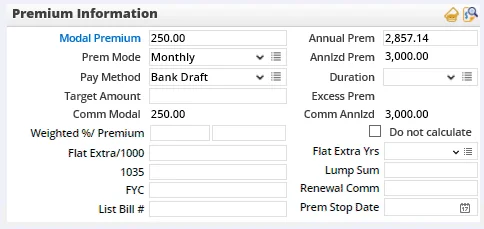
The fields in this section are:
- Modal Premium: This is the premium the client pays for the insurance policy. To see a breakdown of the fees and other amounts that make up the modal premium, click the Modal Premium hyperlink, which opens the Premium Breakdown dialog box. See Premium Breakdown Dialog Box for more information.
- Annual Prem: The Annual Prem (annual premium) field displays the amount the client would be paying for the policy if he/she were paying annually instead of monthly, semi-annually, etc. Unless the Do not calculate option is selected, SmartOffice calculates this field by factoring out any modal fee included in the premium. Therefore, the annual premium is less than the annualized premium. For example, a client paying $100 a month ($1,200 annualized) on a policy with a 0\.0875 modal factor would be paying $1,142\.86 if paying annually instead of monthly. The $100 monthly premium is based on the annual premium multiplied by the modal factor ($1,142\.86 x 0\.0875 \= $100\).
- Prem Mode: The Prem Mode (premium mode) field indicates the frequency of premium payments. Each premium mode is associated with a multiplier that represents the number of payments per year and is used to calculate values such as the annualized premium.
| Premium Mode | Multiplier (Payments Made in a Year) |
|---|---|
| 10 Pay | x 10 |
| 8 Pay | x 8 |
| Annually | x 1 |
| Bi-Weekly | x 26 |
| Daily | x 365 |
| Every 10 Months | x 12/10 |
| Every 11 Months | x 12/11 |
| Every 2 Months | x 6 |
| Every 4 Months | x 3 |
| Every 5 Months | x 12/5 |
| Every 7 Months | x 12/7 |
| Every 8 Months | x 12/8 |
| Every 9 Months | x 12/9 |
| Every 3 Weeks | x 52/3 |
| Four Weekly | x 52/4 |
| Monthly | x 12 |
| Monthly for 9 Months | x 9 |
| Quarterly | x 4 |
| Semi-Annually | x 2 |
| Semi-Monthly | x 24 |
| Single Pay | x 1 |
| Weekly | x 52 |
- Annlzd Prem: The value in the Annlzd Prem (annualized premium) field is Modal Premium x Prem Mode. This is the amount per year that the client pays for the policy. SmartOffice calculates this field using the multiplier associated with each premium mode. If the Modal Premium or Prem Mode field is changed, this value is recalculated.
- Pay Method: Select the payment method the insured uses to pay premiums on the policy.
- Duration: The duration (in years) of the premium.
- Target Amount: In the Target Amount field, manually enter the maximum premium on which full commissions are to be paid.
- Excess Prem: The Excess Prem (excess premium) field applies to universal life policies only. This value can be edited if the Do not calculate option is selected; otherwise, SmartOffice calculates the value automatically based on the total commissionable annualized premium (Comm Modal x Premium Mode multiplier):
- If the total commissionable annualized premium is greater than the target amount: Excess Prem \= Total Commissionable Annualized – Target Amount
Comm Annlzd \= Target Amount - If the total commissionable annualized premium is less than or equal to the target amount: Excess Prem \= 0
Comm Annlzd \= Total Commissionable Annualized Note: The SmartCommissions module does not use the Excess Prem value for commission calculations.
- Comm Modal: The Comm Modal (commissionable modal premium) is calculated automatically. To see a breakdown of the amounts that make up the commissionable modal premium, click the Modal Premium hyperlink, which opens the Premium Breakdown dialog box. See Premium Breakdown Dialog Box for more information.
- Comm Annlzd: The Comm Annlzd (commissionable annualized premium) field can be edited if the Do not calculate option is selected; otherwise, the field is calculated automatically. The calculations is:
Comm Modal \+ Modal Policy Fee \+ Flat Extra Premium x Premium Mode Note: The Target Premium is included in the calculation of the Comm Annlzd field for universal life and variable universal life policies.
- Replace the Commissionable Annualized Premium with the Target amount if the Target Premium is less than the Commissionable Annualized Premium. - Keep the Commissionable Annualized Premium if the Target Premium is null, zero or greater than the Commissionable Annualized Premium.
- Weighted %/Premium: These fields enable policies and cases to be "weighted" so that the value of an advisor's book of business can be determined more accurately. For example, to weight an annuity policy at 5% and a life policy at 85%, enter the values 5 and 85, respectively, in the Weighted % field for each policy. These fields are available as columns (Weighted Percentage and Weighted Premium) in many lists and Dynamic Reports related to commissions, policies, group policies and pending cases. An agency can use these fields to report on premium in ways other than straight commissionable annualized premium, such as when qualifying sales reps for contests and trips. When a weighted premium percentage is specified at the product level (see Product Settings Content Link), that percentage is applied as the default on newly created policies and cases linked to that product; in addition, SmartOffice uses that default percentage to automatically calculate the weighted premium on the policy or case (the calculation is the weighted premium percentage multiplied by the commissionable annualized premium).
- Do Not Calculate: If this option is selected, the user is able to enter values in the Excess Prem and Comm Annlzd fields manually.
- Flat Extra/1000: The flat extra premium per $1,000 of coverage is entered manually.
- Flat Extra Yrs: This is the number of years that the flat extra premium is to be paid by the insured.
- 1035: Enter any premium amount related to a 1035 exchange.
- Lump Sum: Enter any lump sum premium.
- FYC: The FYC (first year commission) field can be edited by users who do not have the SmartCommissions module. For SmartCommissions users, the field is calculated automatically.
- Renewal Comm: The Renewal Comm (renewal commission) field can be edited by users who do not have the SmartCommissions module. For SmartCommissions users, the field is calculated automatically.
- List Bill \#: This field can be useful if the policy is part of a list bill arrangement, such as when employees of a company buy individual life policies and pay premiums through payroll deductions, which the employer pays to the carrier. Enter the list bill number in this field, e.g., to track billing of the employer for premium payments.
- Premium Stop Date: The date on which the insured will stop paying the premium. This applies to policies in which the insured pays a specific number of premiums before the policy value begins to pay the premium. Type the premium stop date or click the Pick Date button to select the date.
Premium Breakdown Dialog Box
To view or modify premium breakdown information, click the Modal Premium hyperlink to open the Premium Breakdown dialog box.
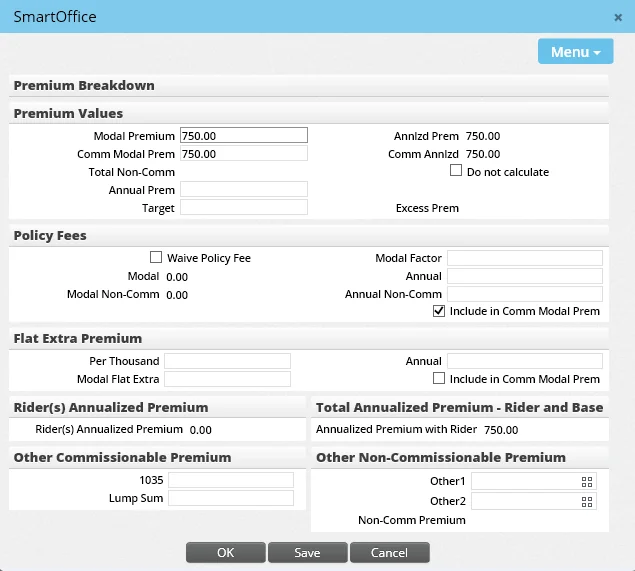
During policy creation, when the premium, premium mode and payment method are entered and the information is saved, the following calculations occur:
- Premium Values
- Modal Premium: Comm Modal Premium \+ Modal Policy Fee \+ Modal Non-Comm Policy Fee \+ Modal Flat Extra - Comm Modal Prem: Modal Premium – Modal Non-Comm – Modal Flat Extra – Modal Policy Fee
The user can omit Modal Flat Extra and/or Modal Policy Fee from this calculation by clearing the Include in Comm Modal Prem options in the Policy Fees and Flat Extra Premium sections of the dialog box. - Total Non-Comm: The sum of all non-commissionable premiums. - Annual Prem: This amount is carried over from the Premium Information section. - Target: This amount is carried over from the Premium Information section. - Annlzd Prem: This amount is carried over from the Premium Information section. - Comm Annlzd: This amount is carried over from the Premium Information section. - Excess Prem: This amount is carried over from the Premium Information section.
- Policy Fees
- Modal Factor: Taken from the Modal Fee Information section of the product Detail content link.
- Annual: The commissionable fee value taken from the Product Fee List section of the product Detail content link.
- Annual Non-Comm: The non-commissionable fee value taken from the Product Fee List section of the product Detail content link.
- Modal: Annual x Modal Factor. If no modal factor is defined in the product Detail content link for the current premium mode and pay method, this field is set to zero. - Modal Non-Comm: Annual Non-Comm x Modal Factor. If no modal factor is defined in the product Detail content link for the current premium mode and pay method, this field is set to zero. - Waive Policy Fee: When this option is selected, the Modal and Modal Non-Comm Fee fields are set to zero.
- Flat Extra Premium
- Per Thousand: Carried over from the Flat Extra/1000 field in the Premium Information section. - Annual: Per Thousand x Basic Face Amount - Modal Flat Extra: Annual x Modal Factor - Commissionable: Select this option to indicate that the flat extra premium is commissionable.
- Rider(s) Annualized Premium
- Rider(s) Annualized Premium: The Modal Premium x Premium Mode for all riders.
- Total Annualized Premium
- Rider and Base
- Annualized Premium with Rider: Annlzd Prem \+ Rider(s) Annualized Premium
- Other Commissionable Premium
- 1035: This value is carried over from the Premium Information section. - Lump Sum: This value is carried over from the Premium Information section.
- Other Non-Commissionable Premium
- Other 1 & 2: Any additional non-commissionable premiums on the policy. Click the Customize Field Label buttons
 to change the field names.
Modification Calculations
Policy Modifications
When a policy is modified, the following fields are recalculated:
- Comm Annlzd
- Comm Modal
Premium Mode and Payment Method Modifications
If the Prem Mode or Pay Method fields in the Premium Information section are modified, the following fields are recalculated:
- Comm Modal
- Annlzd Prem
- Comm Annlzd
- Modal and Modal Non-Comm (policy fee fields in the Premium Breakdown dialog box)
Face Amount Modifications
If the Face Amount of a policy is modified, the following fields are recalculated:
- Comm Modal
- Comm Annlzd
- Modal and Modal Non-Comm (policy fee fields in the Premium Breakdown dialog box)
Commissionable Modal Premium Modifications
If the commissionable modal Premium is modified, the following fields are recalculated:
- Modal Premium
- Annlzd Prem
- Comm Annlzd
Note: The user can select Menu > Calculate Policy Fee to recalculate the Modal and Modal Non-Comm policy fee fields in the Premium Breakdown dialog box. This is useful when the modal fee and product fee settings on the product's Detail content link have changed.
Life Benefit Calculations
For information about how life benefit fields are calculated, see SmartPolicies - Benefits Content Link.