Last updated: 2025-09-19
Contacts and Businesses - Customer Referral Value
Related Topics; "Related Topics")
Overview
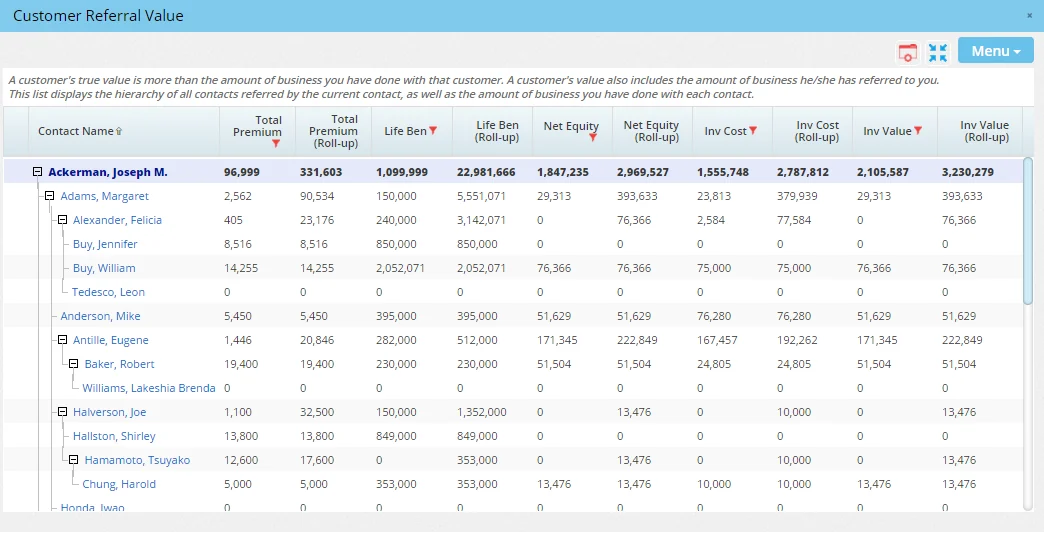
Referral value is the amount of business generated by a contact or business and by clients that the contact/business has referred. By measuring that value, users can identify their most valuable contacts and focus retention efforts on them.
The customer referral value comprises total premium, benefit and investment information for a contact and his/her referrals. This data is generated based on the referred contacts listed on the contact's or business' Key Relations content link.
Customer Referral Value Report

Customer Referral Visualizer
A contact's referral value can also be viewed using an interactive graphical tree. From a contact list or open contact record, select Menu > Customer Referral Visualizer to open the Referral Tree dialog box.
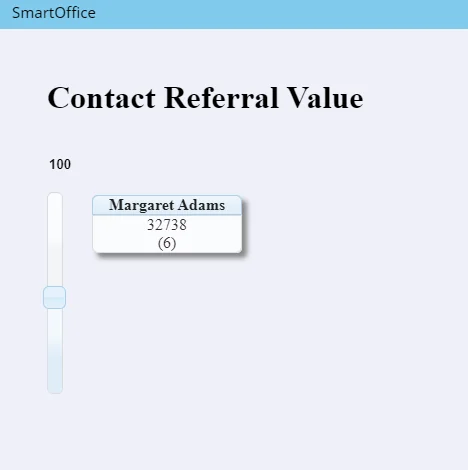
Tip: Referral trees can be viewed for two or more contacts simultaneously. To do so, select two or more contacts from a contact list before selecting Menu > Customer Referral Visualizer.
The selected contact appears in a box that indicates the contact's total asset value based on referrals and, in parentheses, the number of directly referred contacts. Select the contact's name to display those referred contacts (and any contacts referred by those contacts).
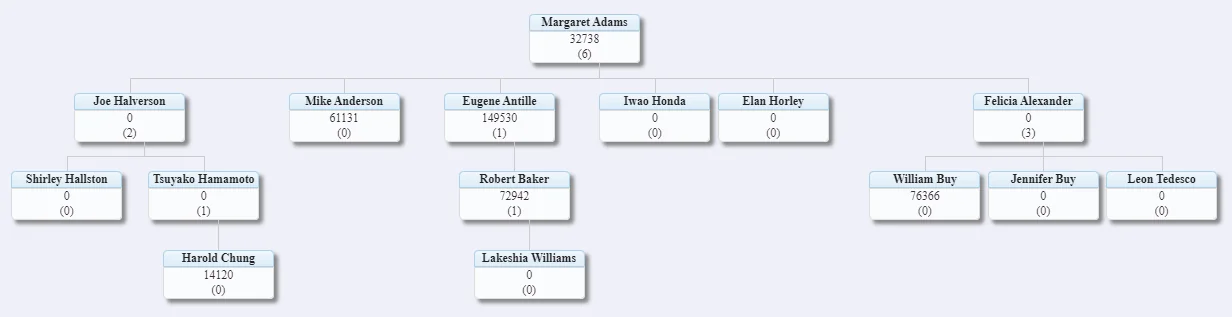
Additional actions available in the visualizer:
- Zoom in/out: Drag the lever on the left to zoom in or out of the chart. This control is particularly useful for viewing large referral trees.
- View contact details: Double-click the white portion of a contact box to open a dialog box displaying contact details.
- Expand/collapse a portion of the tree: The user can collapse all referrals displayed under a particular contact, rendering them invisible. Use either of these methods:
- Click the name of a contact. To undo the action, click the contact's name again.
- Point to a contact box to reveal the Collapse button
 , and then select that button. To undo the action, point to the contact box again and select the Expand button
  .
. - Focus on a branch: This action hides all referrals under a particular contact except for the selected referral. Point to a referral to reveal its Level Focus button
 , and then select that button. To undo this action, point to the referral again and select the Expand button .