Last updated: 2025-09-19
Integrations - MyRepChat
- Overview
- Requirements
- SmartOffice Setup
- Data Setup
- User Setup
- MyRepChat Setup
- Using the Integration
- Sending Texts
- Reviewing Text History
Overview
The MyRepChat integration for SmartOffice provides compliant SMS texting features to advisors. The integration enables users to:
- Have text conversations with clients from within SmartOffice.
- Import contacts from SmartOffice into ionlake's MyRepChat application.
- Automatically store MyRepChat text messages as notes in the client's SmartPad, preserving an audit trail of those communications.
For more information about MyRepChat, visit the MyRepChat website.
Requirements
- MyRepChat account
SmartOffice Setup
Data Setup
The integration requires that you import contacts from SmartOffice into MyRepChat before you can chat with them. MyRepChat will import only those SmartOffice contacts that have mobile phone numbers.
Make sure any contacts you want to communicate with through MyRepChat have at least one mobile phone number (i.e., the Phone Type field of the phone number is set to Mobile). For help with adding phone numbers, see Contact Personal Content Link.
User Setup
A SmartOffice administrator with the ability to assign licenses must enable the appropriate license for each SmartOffice user who will use the integration.
- Sign in to SmartOffice Pro.
- Do one of the following:
- If you are setting up the integration for the user account your are currently signed in to, click the profile menu in the upper-right corner, and then select Profile & Settings
 .
. - If you are setting up the integration for another user account, select Setup > User Accounts on the SmartOffice side menu, and then search for the user account.
- With the user account record open, click the User Rights content link.
- In the Licenses column, under Integration, select MyRepChat.
- Select Menu > Save.
In addition, any SmartOffice user who has the Dashboard(s) Administrator user right can import the MyRepChat dashboard for all users in the office to use:
- Download the dashboard file (MyRepChat\_Dashboard.zip).
- Unzip the file to any location on your computer, such as your Desktop.
- Import the dashboard file into SmartOffice (for instructions, see Managing Dashboards).
Once the dashboard is imported, any user who wants to have text conversations within SmartOffice can then add the dashboard to his or her SmartOffice home page (for instructions, see Creating a Tab).
MyRepChat Setup
After performing SmartOffice setup, follow the steps below to link your SmartOffice and MyRepChat accounts and import your contacts into MyRepChat. You can import an unlimited number of contacts (individually or by set). Any imported contacts that already exist in MyRepChat will be merged with the existing contacts.
- In SmartOffice, select Integrations > MyRepChat from the side menu. The MyRepChat login page opens.
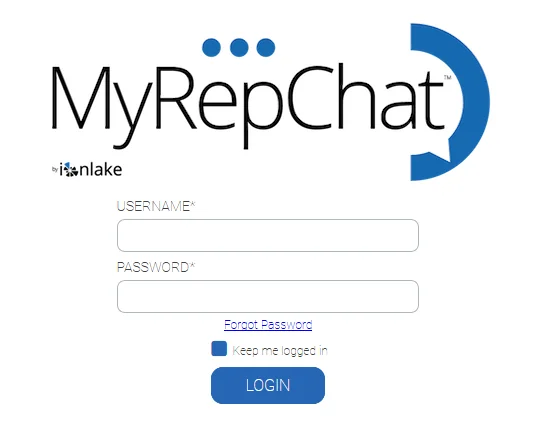
- Enter your MyRepChat username and password, and then click the Login button.
- Once you are logged in, follow ionlake's instructions for connecting to SmartOffice. As part of the import process, MyRepChat may ask you to provide a "token," but this is unnecessary; SmartOffice automatically enters that information for you.
Note: Make sure to turn on the Activate Notes option during the import process if you want to save a record of your text conversations in the SmartPad in SmartOffice.
Using the Integration
Sending Texts
After you set up the integration, you can access MyRepChat from the SmartOffice in any of these ways:
- If you added the MyRepChat dashboard to your home page (see User Setup), go your home page and click the MyRepChat tab. If you see a login prompt, log in using your MyRepChat username and password. You can then send texts from within the dashboard.
- From the SmartOffice side menu, select Integrations > MyRepChat to open the MyRepChat website. If prompted, log in to the site, and then send text messages to your contacts as you normally would.
- Log in directly to the MyRepChat website and send text messages to your contacts as you normally would.
For more information about using MyRepChat, visit the MyRepChat Support page.
Reviewing Text History
If you enabled the Activate Notes option during MyRepChat setup, you can view a history of your text conversations with a contact in the SmartPad. To learn how to access a contact's SmartPad, see Contacts and Businesses - SmartPad.