Last updated: 2025-11-30
Record Privatization
Overview
A user can designate certain records as private so that only that user (and certain other designated users) can access them. The SmartOffice record types that can be privatized include:
- Activities
- Advisors
- Agencies
- Businesses
- Contacts
- Dynamic Reports
- Filters
- Investment accounts and positions
- Pending cases
- Policies
- Sets
- SmartPad entries
Note the following regarding private records:
- When designating a record as private, the user can still enable one or more other users to view the record (this is described in the following sections).
- When office security///introduction) is enabled, record privatization overrides user assignment///user/assignment). If a record is marked private, users who are assigned to that record cannot access it.
- When office security///introduction) is enabled, a private record cannot be viewed by a Super User///super/users) unless the Super User is specifically allowed to view the record.
- Private records cannot be viewed from any office, including higher offices, in an office hierarchy.
- Private records can be viewed by users who have the Compliance View user right.
- Records containing record tags cannot be privatized.
- When a contact with linked calendar activities is privatized, the activities are automatically privatized as well.
Requirements
To privatize records, a user must have the Mark Records Private user right enabled.
Viewing and Changing a Record's Privacy Status
Note: You cannot privatize records if you have Enterprise View turned on.
- Open the record or select it from a list.
- Click the Menu button (or the Options button
 if it appears for the list), and then select Advanced Options > Mark Private to open the Privacy dialog box, which displays the record's current privacy status.

Note: For activities, the Advanced Options > Mark Private command is also available from the activity information card. Privatizing an activity automatically marks it private to all activity participants; SmartOffice does not present the Privacy dialog box or any additional privacy options for activities.
- Select one of the following options:
- Not Private: If the record has been privatized, select his option and then click the OK button to remove privacy from the record.
- Private to This Office Only (Enterprise View): This setting applies to offices that are part of an office hierarchy. Select this option and click the Privatize button to make the record visible only to users in the current office. The record will be invisible to Enterprise View users in higher offices.
- Private: Select this option to make the record visible to specific users and invisible to all other users. Selecting the Private option displays a list of users.
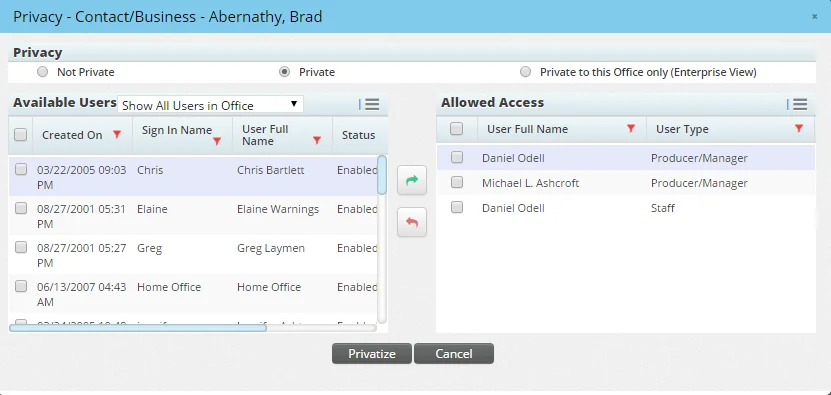
- In the Allowed Access section, specify the users who should have access to the privatized record.
- - To add users to the list, tag the appropriate users or user groups in the Available Users list and then click the Allow Access button.
Note: Adding users to the Allowed Access list is the same as assigning those users to the record. See User Assignment///user/assignment).
- - To remove users or user groups from the Allowed Access list, tag them and then click the Remove button.
- Click the Privatize button.
Note: When privatized records appear in a list, they are highlighted in a pale yellow color.