Last updated: 2025-09-19
SmartLeads - Searching Leads
Overview
Much of the user's work in SmartLeads centers on the Leads List. The list is displayed when the user performs a leads search.
Performing a Search
The user can search for leads from the SmartOffice Search box or from the side menu. To perform a leads search from the Search box:
- Click the Search drop-down list and select Sales & Marketing > Lead.
- Type the name of a lead (last name, first name), or leave the field empty to display all leads.
- Click the Search button.
To perform a leads search from the side menu:
- Select Sales & Marketing > Leads to open the Search These Lead Types dialog box.
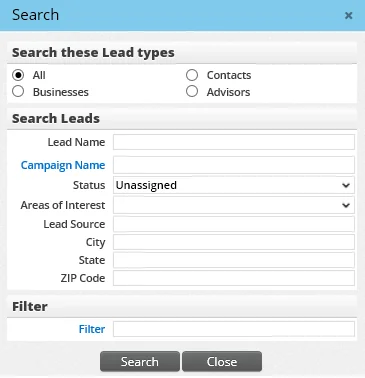
Tip: Another way to display this search dialog box is to click the Advanced hyperlink next to the Search box.
- Enter details about a specific lead, or leave the fields blank to view all leads.
- Click the Search button.
The Leads List
The Leads List provides a comprehensive view of all the leads dispatched to, created for, rejected by and revoked from the current office. The default list that displays when the user conducts a search differs depending on the SmartLeads user type and the type of search performed.
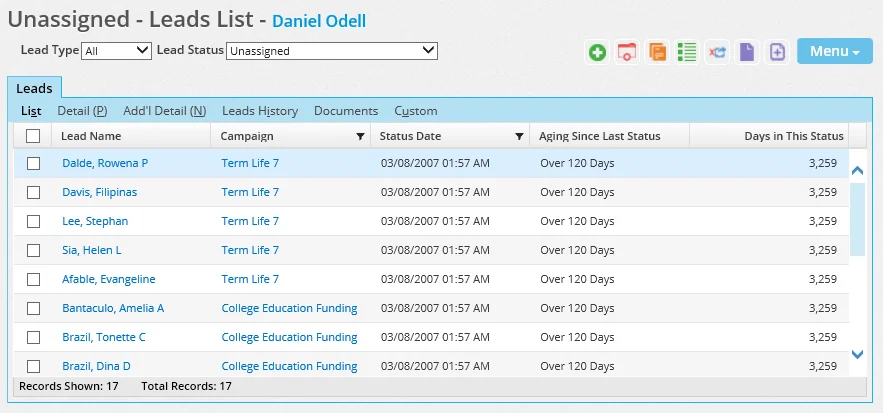
Two important versions of the Leads List are the Unassigned Leads List, which is used by leads coordinators, and the Unaccepted Leads List, which is used by advisors.
Unassigned Leads List
Unaccepted Leads List
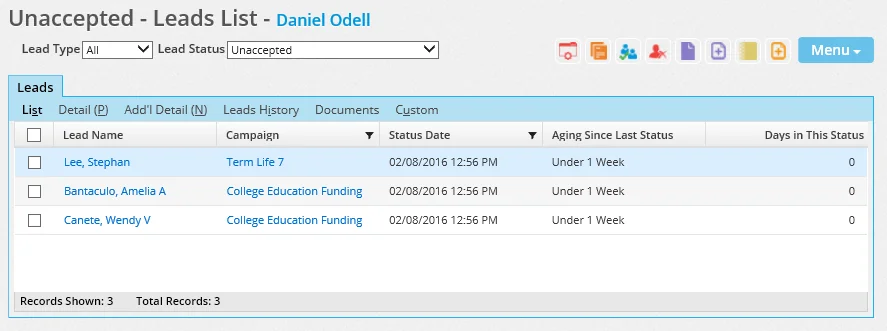
Tip: A Leads Coordinator with Advisor View user can quickly switch between both lists. While viewing the Unassigned Leads List, the coordinator can select Menu > Show My Leads to switch to the Unaccepted Leads List and view leads assigned to him/her. From that list, selecting Menu > Back to Office View returns the coordinator to the Unassigned Leads List.
If the appropriate list does not display after a search, the user can click the Lead Status drop-down list and select the Unassigned option or the Unaccepted option.
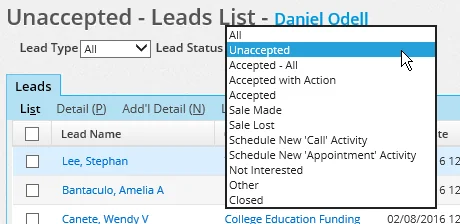
Along with the Lead Status drop-down list, the Lead Type drop-down list can also be used to display only specific lead types of a particular status on the Leads List.