Last updated: 2025-09-19
Integrations - eMoney
- Overview
- Requirements
- SmartOffice Setup
- User Setup
- Data Setup
- Using the Integration
- Accessing eMoney from SmartOffice
- Adding a Client Connection in eMoney
- SmartOffice Fields Exported to eMoney
- Contacts
- Investments
- Policies
Overview
The eMoney integration for SmartOffice imports contact, policy and investment data from SmartOffice into the eMoney financial planning tool. The integration enables you to save time creating financial plans for clients in eMoney.
For more information about eMoney, visit the eMoney website.
Requirements
- eMoney account
- The following SmartOffice licenses:
- Policy Tracking (required for policy export) - Pending Case & Policy Setup Administrator (required for policy export) - Investment Tracking (required for investment export)
SmartOffice Setup
User Setup
A SmartOffice user with administrator rights must enable the appropriate license for each SmartOffice user who will use the integration.
- In SmartOffice, select Setup > User Accounts and access the User Rights content link for the user's account.
- In the Licenses column, select eMoney in the Integration section.
- Select Menu > Save.
- Repeat these steps for each additional user.
Data Setup
Verify the following in SmartOffice:
- Demographic data has been entered for the client contact.
- If the client is married:
- The marital status is specified. - The spouse's demographic data has been entered. - The spouse has been added as a key relation for the contact, with the appropriate key relation type specified (e.g., Husband, Wife, Domestic Partner, etc.).
- (Optional) A household has been created and is linked to the contact.
For more information, see SmartOffice Fields Exported to eMoney.
Using the Integration
Accessing eMoney from SmartOffice
You can access eMoney from any contact or household record in SmartOffice. If the client does not already exist in eMoney, SmartOffice automatically creates a record for that client in eMoney.
- In SmartOffice, search for the client's contact or household record, and then select or open the record.
- Select Menu > Integrations > eMoney to open the eMoney User Authentication dialog box.
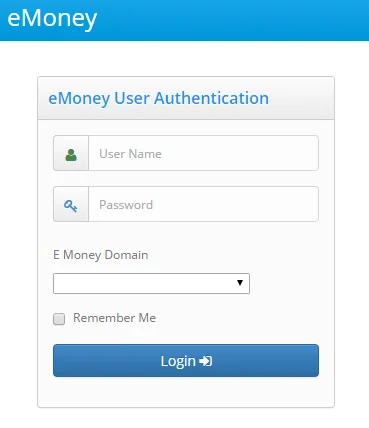
- Enter your eMoney user name and password, and select your eMoney Domain from the drop-down list.
- (Optional) Select the Remember Me option to bypass this dialog box in the future.
- Click the Login button.
- If the selected contact or head of household already exists in eMoney, the message "Do you want to update client's information?" displays. Do one of the following:
- Click the Yes button to update the client's record in eMoney with any changes made to the client's contact data in SmartOffice.Note: If nothing seems to happen after you click Yes, your browser's pop-up blocker may be interfering with the integration. Make sure SmartOffice is allowed to open pop-ups in your browser. Fore more information about allowing pop-ups, see Getting Started Checklist & Helpful Resources.
- Click the No button to prevent SmartOffice from updating the client's record in eMoney with any changes made in SmartOffice.
- When the eMoney home page opens, type the client's name (last name, first name) in the search box. When the contact's name appears, select it.
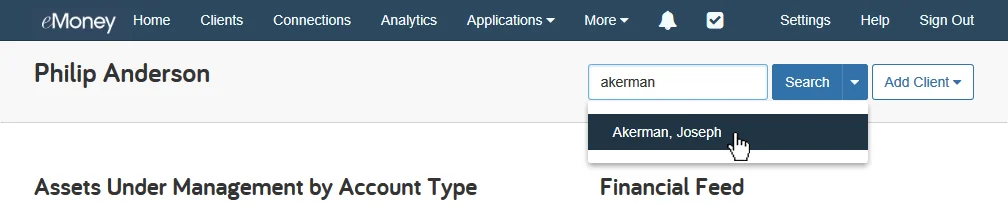
eMoney displays the client's record.
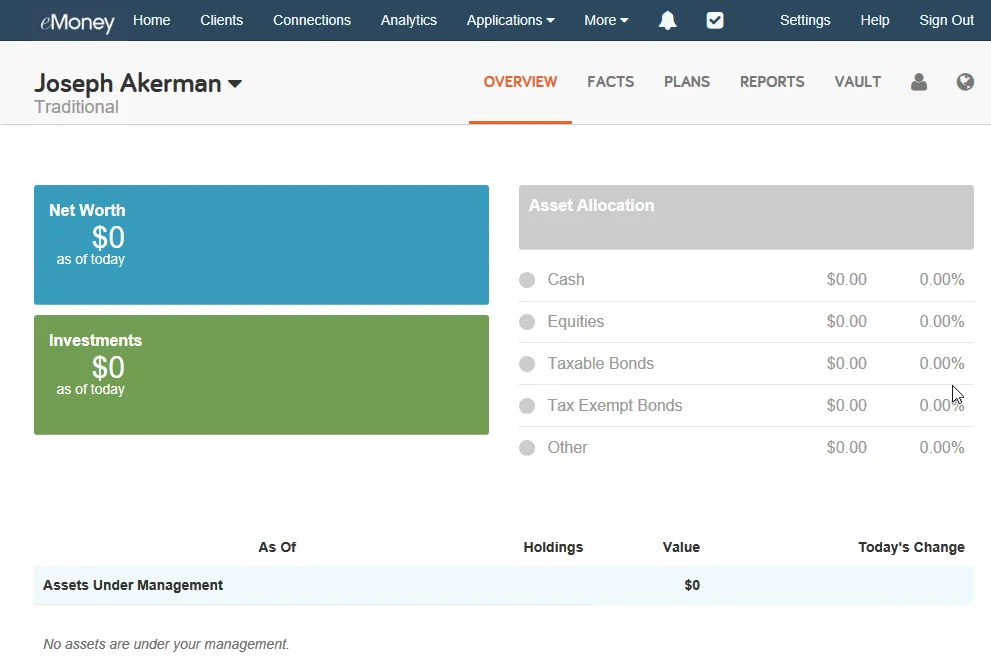
To review contact data exported from SmartOffice, click the Facts link. For a list of fields exported to eMoney, see SmartOffice Fields Exported to eMoney.
If this is a new eMoney client record, you can import the client's investment accounts and policies from SmartOffice by adding a Connection for the client in eMoney.
Adding a Client Connection in eMoney
Adding a Client Connection in eMoney allows you to import a contact's investments and policies from SmartOffice into eMoney (in eMoney, this is referred to as "linking" accounts and policies).
- In eMoney, click Connections at the top of the page.

- On the Connections page, click the Add Connection button.
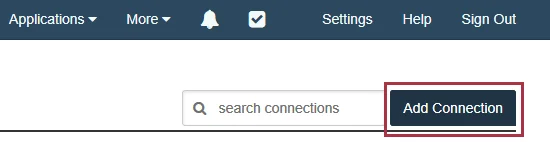
The Add Connection dialog box opens.
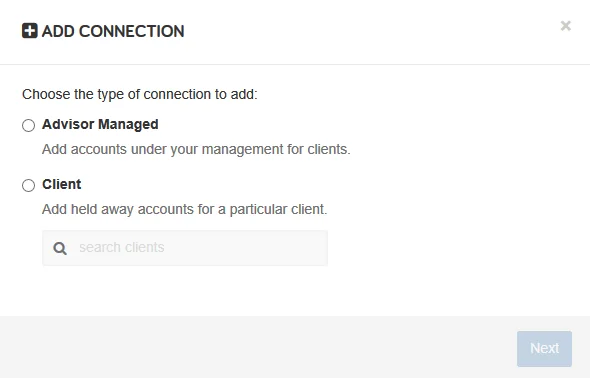
- Select the Client option, and then type the client's name in the search box. When the client's name appears in the menu, select it.
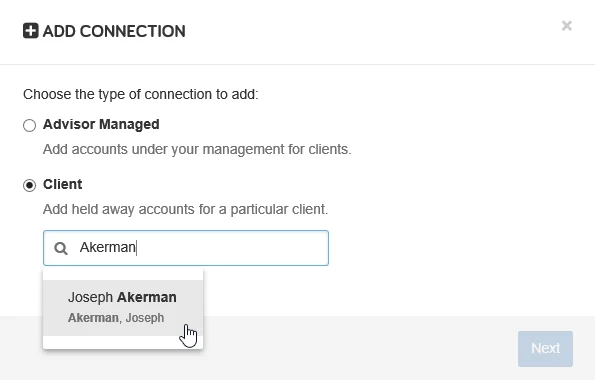
- Click the Next button.
- In the financial institution search box, type "SmartOffice," and then click SmartOffice (Ebix CRM) in the search results list.
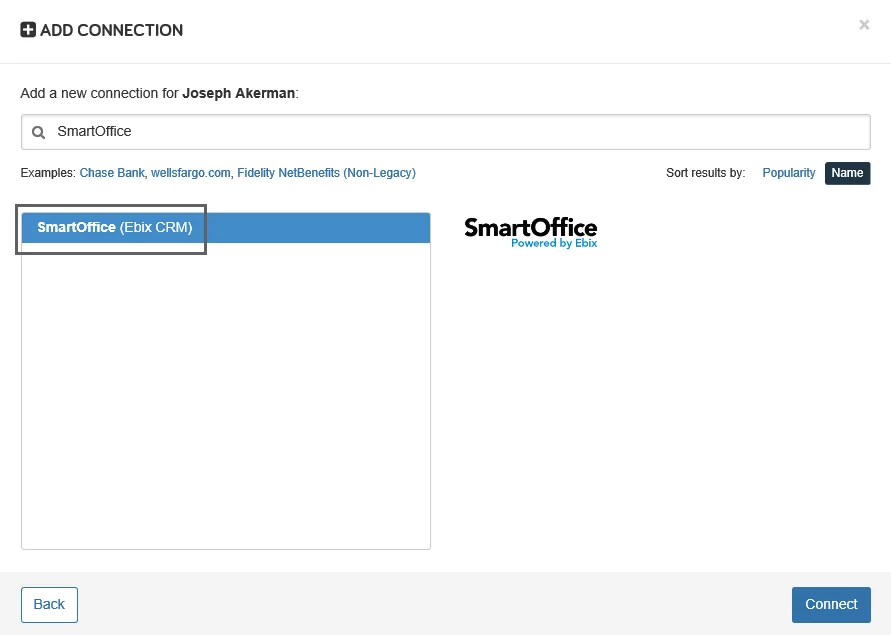
- Click the Connect button to display the client's accounts page.
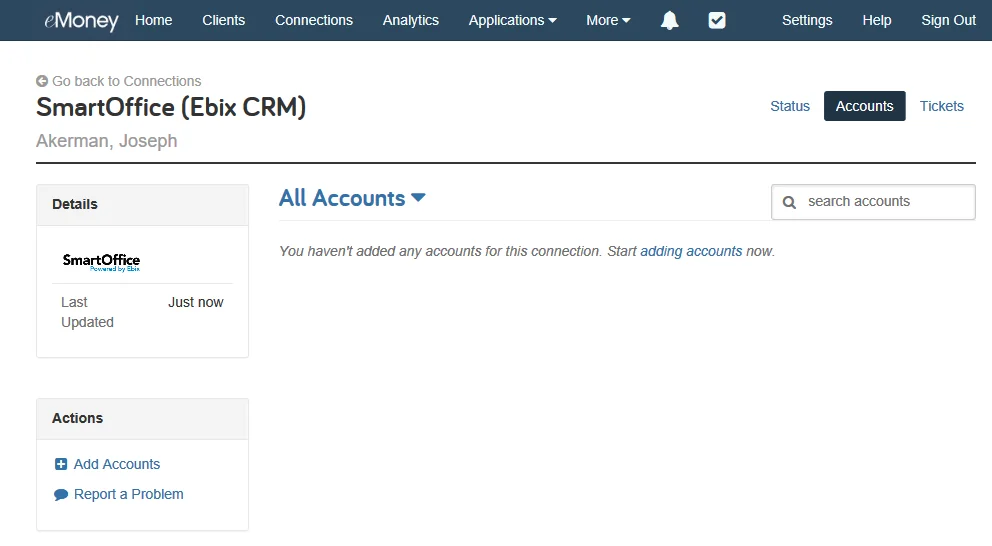
- In the left column, under Actions, click Add Accounts to open a list of available accounts from SmartOffice.
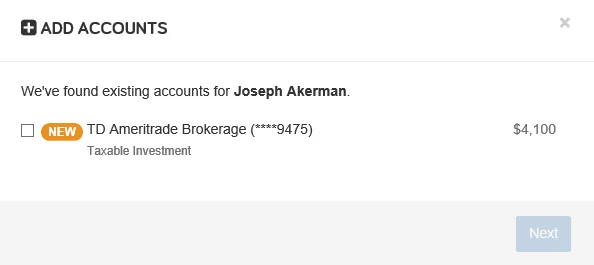
- Select the accounts you want to add, and then click the Next button.
- When prompted, classify the accounts appropriately in eMoney, and then click the Link button.
Once you link an account or policy, eMoney automatically refreshes it every weeknight to update its value (the date and time of the last refresh appears under each account's value). However, you can manually refresh the values of a client's linked accounts and policies anytime by clicking the Refresh link on the client's accounts page in eMoney.
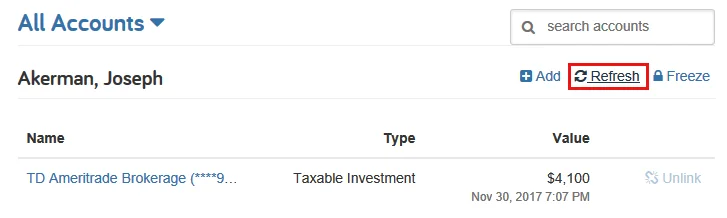
Tip: In addition to updating values for currently linked accounts, eMoney's refresh feature also detects any new accounts or policies added for a client in SmartOffice since the last refresh. You may see a notification on the client's Overview page stating that new accounts are available.

If you see the notification, click Link Accounts to see a list of new accounts, and then click the Link icon next to each account you want to bring into eMoney. Alternatively, go to the client's accounts page in eMoney and click the Add Accounts link to view and select new accounts, as described previously.
SmartOffice Fields Exported to eMoney
The following tables summarize the SmartOffice contact, investment account and policy fields that are exported to eMoney, along with the corresponding eMoney fields.
Contacts
The following information pertaining to the client and his/her spouse (if any) is transferred to eMoney.
| SmartOffice Fields | eMoney Fields | |
|---|---|---|
| Personal content link | Client | Spouse |
| First Name | First Name | |
| Last Name | Last Name | |
| Birth Date | Date of Birth | |
| Residence Address | Address | N/A |
| Home Phone | Home Phone | N/A |
| Cell Phone | Cell Phone | Spouse Cell Phone |
| Fax | Fax | N/A |
| N/A | ||
| Company | Employer Name | |
| Business Address | Employer Address | |
| Business Phone | Work Phone | |
| Business Fax | Work Fax | |
| Job Title | Title/Position |
Investments
The following information pertaining to investments is transferred to eMoney.
| SmartOffice Fields | eMoney |
|---|---|
| Account Name | Asset Name |
| Account Value | Holdings Value |
| Loan Balance | Cash Balance |
| Net Value | Total Value |
| Options (i.e., Qualified, Held Away, etc.) | Type of Funds |
| Owner | Owner |
Policies
The following information pertaining to policies is transferred to eMoney.
| SmartOffice Fields | eMoney |
|---|---|
| Carrier \+ Plan Name | Policy Name |
| Policy \# | Policy Number (only last 4 digits displayed, i.e., \*\*\*1234\) |
| Primary Insured Owner | Owner |
| Total Death Benefits | Current Death Benefits |