Last updated: 2025-09-19
Using the SmartOffice Help System
Overview
This topic explains how to get the most benefit from the information offered in this Help system.
Accessing the Help System
To access the Help System, open the profile menu and select SmartOffice Help System. In some cases, a help page related to the module the user is working in opens.
In other areas of the program, the Help home page opens.
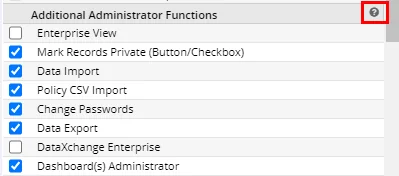
To make help information easier for users to access, key areas of SmartOffice display a help button that users can select to go directly to the relevant help topic.
Browsing Help Topics
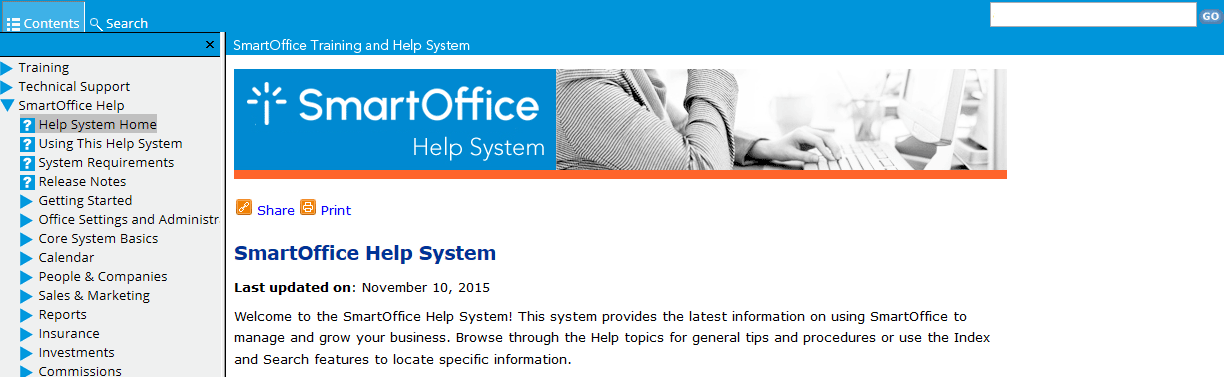
To display the table of contents, click the Contents button in the upper-left corner. The table of contents is arranged hierarchically. Click an arrow (>) to expand the topic tree.
Searching for Help Topics
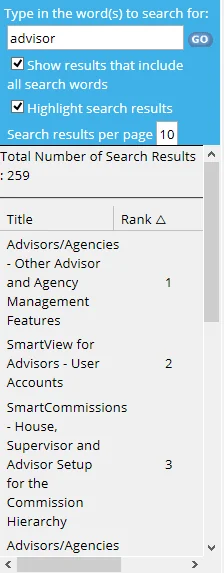
To search for help topics, type one or more search terms in the search box, and then click the Go button. The search results display in the left pane.
Follow these tips to improve searches:
- Customize the results list: Use the number and arrow buttons at the bottom of the search results list to navigate the results. Search results are displayed 10 at a time by default. To display more search results, change the number in the Search results per page field. Clicking the number or arrow buttons will then display more topics.
- Change the sorting of results: To sort search results by rank (i.e., by their relevance to the search terms), click the Rank column heading (this is the default sorting). To sort results in alphabetical order, click the Title column heading. Click a column heading repeatedly to switch the sorting between ascending and descending order.
- Enable/disable search highlighting: Search terms are highlighted in topics so they can be found easily. To remove highlighting, clear the Highlight search results check box, and then click the Go button to rerun the search.
- Search for exact phrases: Use quotation marks to search for exact phrases. For example, entering pdf reports locates topics containing either or both of those words anywhere in the topic. On the other hand, entering "pdf reports" locates topics containing that exact phrase. Note that, if search highlighting is enabled, individual words in the phrase are still highlighted anywhere they appear in the topic.
- Search for hyphenated terms: For better results with search terms containing hyphens (e.g., "plug-in"), enclose those terms in quotation marks.