Last updated: 2025-09-19
Security Features
Use Security within SmartOffice to control access to data and advanced system functions. Safeguard yourself and your data from unwanted manipulation! SmartOffice security features are categorized by Office, Role, and Enterprise.
Office Security
If office security is enabled, a user can only display a contact based on the following conditions: If the contact is not private:
- The contact is assigned to him/her.
- The contact is assigned to *all users.*
- The contact is assigned to an agent, and the user is a proxy for that agent.
Note: If office security is not enabled, any user can display all of the data in the office.
Data Entitlement
Contact Assignment, Proxy, and Data Privatization are used to enforce data visibility in an office.

Contact Assignment): In SmartOffice, every contact is assigned to one or more agents. Contacts may be set up for access by every agent in an office or by one agent exclusively. Contacts not assigned to any user will be assigned to an internal user called *all users*. In this case, every user in the office will be able to view that contact.
For example, in an office with two agents, John and Tom, the agents do not want to display the other's data. The office administrator can set up the office security so that each contact is assigned to its respective agent. Afterwards, John will only display contacts assigned to him. Likewise, Tom will only display his contacts. Contacts assigned to both agents will be visible to both. Contacts not assigned to anyone will be visible to all agents.
Proxy): A proxy is a user who has authority to access contact data of one or more agents. For example, in a two agent office, an office assistant who is designated as a proxy for both agents will have access to all of the contacts that each of these agents can access.
To prevent unauthorized access, the permission to become a proxy for an agent is only granted by the office administrator.
Data Privatization): Occasionally, a user may want to prevent other users from viewing his/her private contacts. The user can enable a selected number of proxies to view his/her private contacts or allow none at all. Private records cannot be viewed from any office including offices higher in the office hierarchy.
Role-Based Security
SmartOffice is equipped with role-based security to control access to different features throughout the system. See the User Accounts - User Rights Content Link topic for further information.
Enterprise Level Security
For more information on Enterprise Level Security, see the Enterprise Security topic. For more information on Enterprise functionality, see the Enterprise View topic.
At the office level, contact assignment, proxy, and data privatization provide the needed security for data entitlement. However, in the Corporate Office environment, there is often a need for corporate or regional managers to review data of agents who are under their jurisdiction. To meet this need, SmartOffice provides another security feature at the enterprise level. This feature depends on the structure of the office hierarchy in the Corporate Office, allowing Enterprise users from offices higher in the office hierarchy to access the lower offices. These Enterprise users bypass office security settings.
Example of Office Hierarchy)
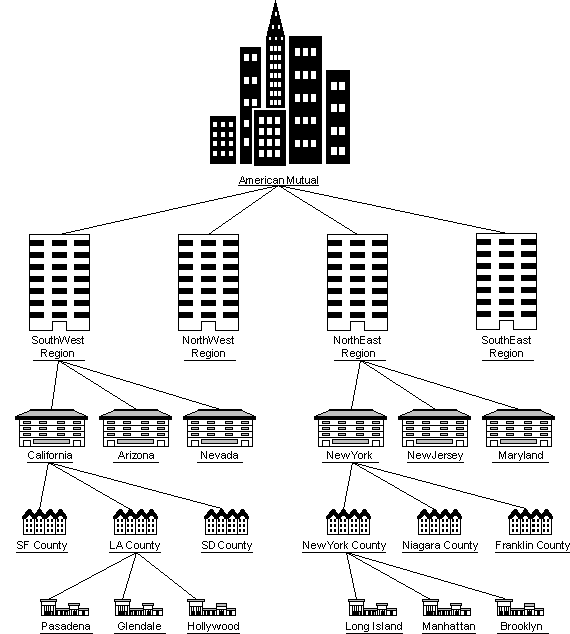
Office Hierarchy): In order to take advantage of this enterprise security feature, offices in the Corporate Office have to be structured in an office hierarchy. In the example, American Mutual is divided into regions, areas, districts, and field offices. American Mutual is the Corporate Office and resides at the top of the office hierarchy.
Corporate Office): The Corporate Office is the highest office in the hierarchy. At the Corporate Office level, business data such as form letters, Dynamic Reports, and filters can be shared with the entire hierarchy. Maintaining business compliance, convenience and standardization throughout this structure is very important.
Enterprise User): An Enterprise user can display and modify data of the current office as well as data of any offices below that office. For more information, see the Enterprise Overview topic.
Record Sharing Management): SmartOffice supports case sharing between agents in different offices of the same corporate structure. Agents that specialize in specific products are set up as Expert users to facilitate case sharing. When the primary agent needs to sell a product that is part of an Expert user's product line, the primary agent splits the record by assigning the Contact to the Expert user. After the Contact is assigned to an Expert user, a predetermined commission distribution schedule can be applied.