Last updated: 2025-09-19
SmartAnalyzer
- Overview
- Installation
- Running SmartAnalyzer
- Viewing Report Results
- Resolving Issues
- Internet Explorer Issues
- System and Application Issues
- Other SmartAnalyzer Features
Overview
SmartAnalyzer is a tool that provides users with detailed information about their Windows system. It is not a required component for SmartOffice Pro, but it can be used to help troubleshoot some SmartOffice issues.
Installation
SmartAnalyzer is installed as part of the Microsoft Plug-in for SmartOffice. Download and install the plug-in.
Running SmartAnalyzer
- Open the Windows Start menu and do one of the following:
- Click the Launch SmartAnalyzer for SmartOffice shortcut.
- In the programs list, select Ebix Inc > Launch SmartAnalyzer for SmartOffice.
The SmartAnalyzer report opens in Internet Explorer.
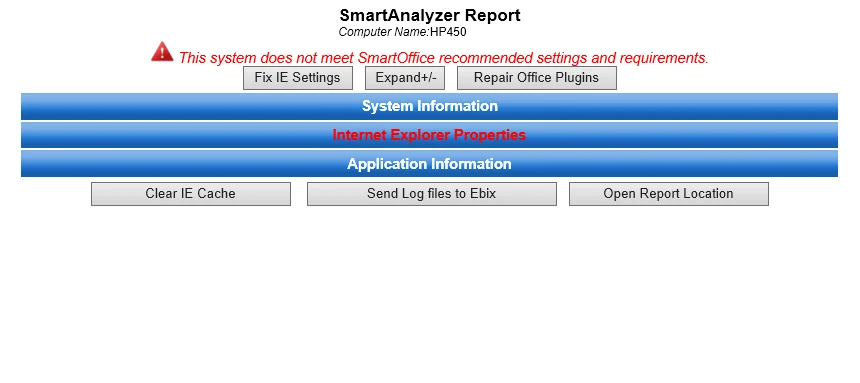
- If Internet Explorer displays an information bar across the bottom of the window stating that scripts or ActiveX controls have been restricted, click the Allow blocked content button.
Viewing Report Results
At the top of the report, SmartAnalyzer states whether the user's system meets SmartOffice recommended settings and requirements. Click the Expand+/- button to display the report subcategories under the System Information, Internet Explorer Properties and Application Information headings.
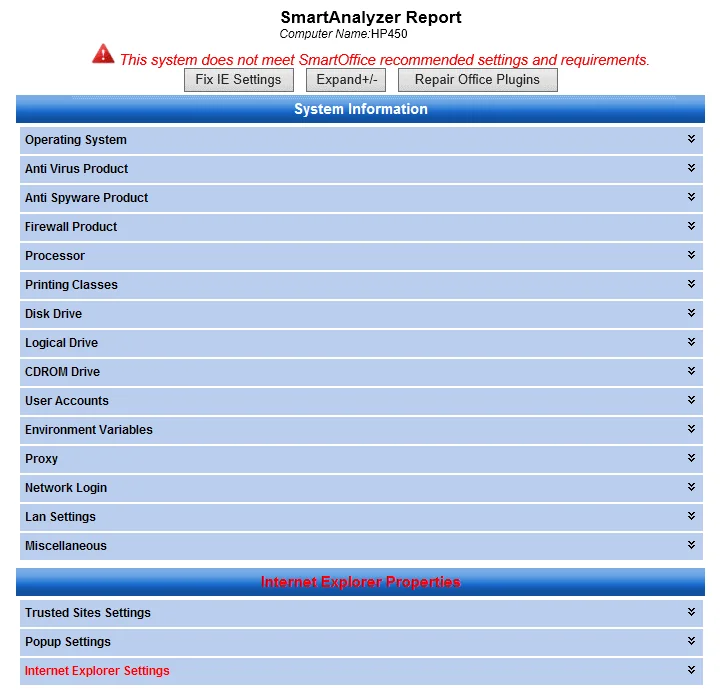
Click any subcategory to display details about its settings. Red text indicates areas that do not meet SmartOffice recommendations.
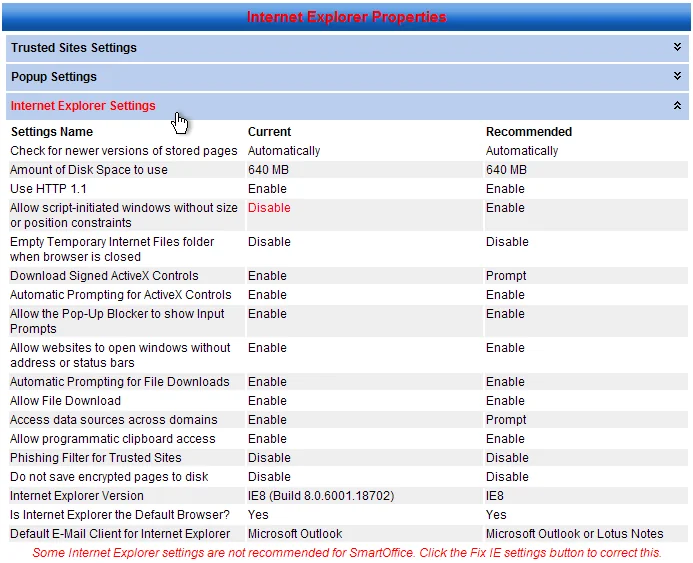
To collapse an expanded subsection, click its heading again.
Resolving Issues
If SmartAnalyzer reports that the user's system does not meet certain recommendations, the user can resolve these issues and rerun SmartAnalyzer to verify that the issues have been resolved.
Internet Explorer Issues
For users who access SmartOffice using Microsoft Internet Explorer, SmartAnalyzer can automatically resolve any issue noted under the Internet Explorer Properties heading in the report.
To resolve all Internet Explorer issues, click the Fix IE Settings button near the top of the report. Once the issue is resolved, SmartAnalyzer automatically generates a new report that states whether the user's system meets SmartOffice recommendations.
System and Application Issues
To resolve any system or application issues reported by SmartAnalyzer, the user or the organization's IT department can resolve them manually. After resolving all issues, close the SmartAnalyzer report window and rerun SmartAnalyzer from the Start menu to determine whether the issues have been resolved.
Other SmartAnalyzer Features
SmartAnalyzer includes the following additional features that can help SmartOffice users resolve issues:
- Clear IE Cache: This button deletes the temporary files that Internet Explorer caches as the user browses websites (including SmartOffice). Minor Internet Explorer issues can often be resolved by clicking this button.
- Send Log Files to Ebix: If a SmartOffice Technical Support representative requests SmartAnalyzer log files to help resolve an issue, click this button. After the user enters his/her user name and office name, SmartAnalyzer automatically collects and sends the log files securely to the SmartOffice team.
- Repair Office Plugins: Microsoft Office may automatically disable the Microsoft Plug-in for SmartOffice. To re-enable the plug-in and prevent Office from disabling it again, click this button.