Last updated: 2025-09-19
Adding SmartOffice to Your Browser's Bookmarks
Overview
After signing in to SmartOffice, you can add SmartOffice to your browser's bookmarks for quick access to the sign-in page in the future. This topic contains instructions for web browsers currently supported by SmartOffice.
Note: Only the SmartOffice home page can be bookmarked. To bookmark specific pages, use the History tab on the side menu.
Google Chrome
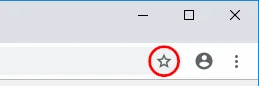
- Select the Bookmark this tab button in the address bar.
- In the Bookmark Added dialog box, select Done.

, select Bookmarks, and then select the bookmark you created.
Microsoft Edge
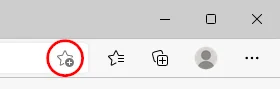
- Select the Add this page to favorites button in the toolbar.
- In the Favorite Added dialog box, select Done.

, select Favorites, and then select the bookmark you created.
Mozilla Firefox
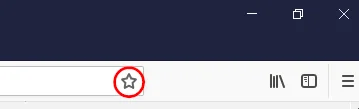
- Select the Bookmark this page button in the address bar.
- In the Add Bookmark dialog box, select Save.

, select Bookmarks, and then select the bookmark you created.