Last updated: 2025-09-19
SmartInvestments - Position History Content Link
- Overview
- Adding a Position History Entry Manually
- Automatically Reconciling Position Transactions to the Position History
Overview
When viewing an investment position, the user can access this content link to view and record share balances of positions without the associated transactions.
Note: This content link is visible only to users who have the Show Investment Position History license enabled in User Accounts - User Rights. This content link is not available for annuity positions or personal holdings.
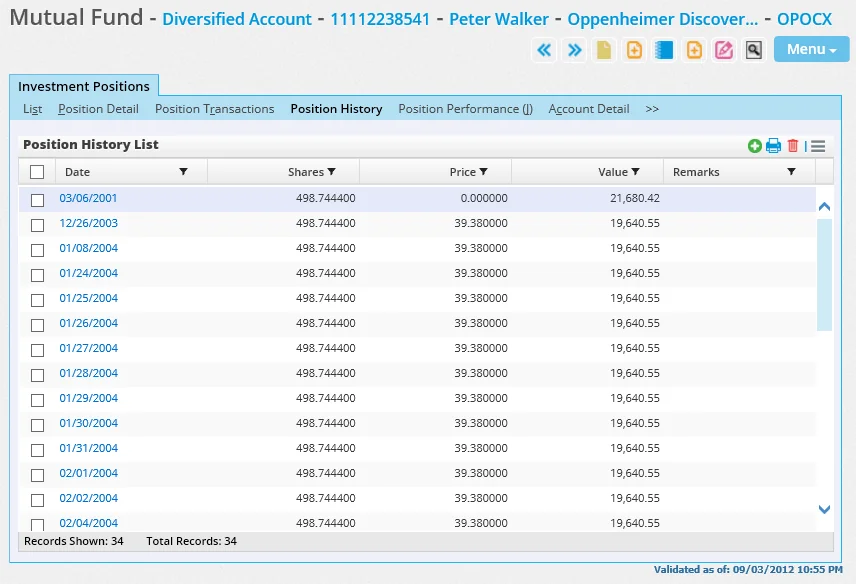
All position balances have a unique date; no duplicate or null date is allowed.
One important difference between the Position History content link and the Position Transactions content link is that, regardless of the number of transactions posted in a day, only one summarized position balance can be created on the Position History content link for any given day.
Adding a Position History Entry Manually
 and select New 'Position History' record.
Automatically Reconciling Position Transactions to the Position History
- From the SmartOffice side menu, select Investments > Reconciliation.
- Do one of the following:
- If a previously run reconciliation report was interrupted before displaying full results, select the View remaining results of previous reconciliation option and click the View button to display those results.
- To run a new reconciliation report, select the Process new reconciliation report option. Fields for entering contact, account name, account number and other search criteria appear.
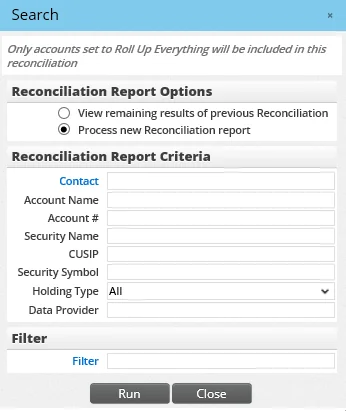
To narrow down search results, type criteria in any of these fields and/or select a filter by clicking the Filter hyperlink. Then click the Run button.
- When the confirmation message appears, click the OK button to display the Reconciliation Report List.
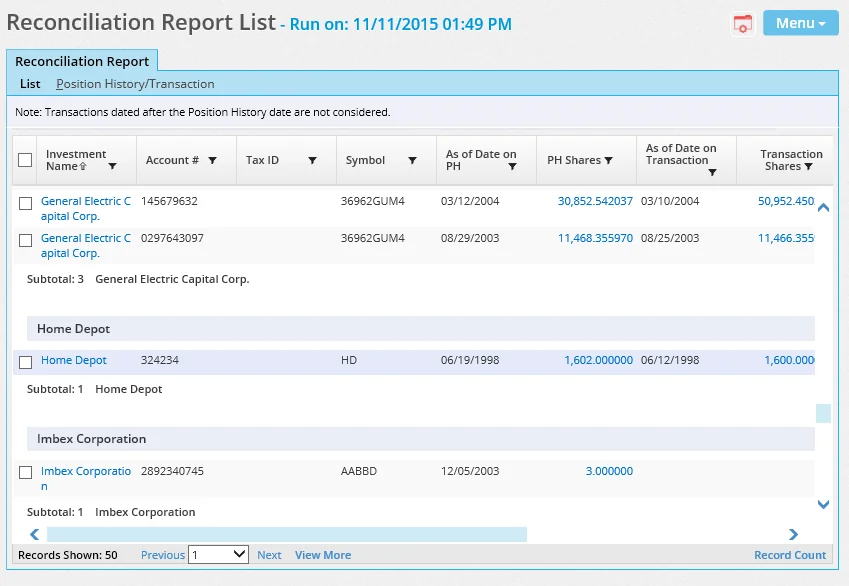
- Tag one or more positions. Verify that the correct positions have been tagged, as this operation cannot be reversed once the process begins.
- Select Menu > Reconcile Shares to open the Create Miscellaneous Transaction dialog box.
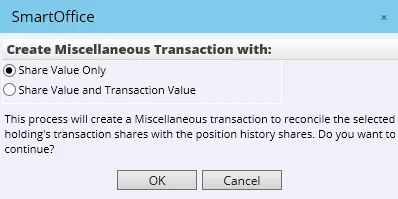
- Select one of the following options:
- Share Value Only: Choose this option to create a Miscellaneous transaction for the share difference between the selected holding's transaction shares and the position history shares.
- Share Value and Transaction Value: Choose this option to create a Miscellaneous transaction for the share difference, retrieve the share price and calculate the value. To find the share price, the system looks at the price history of the security record. If a price for the transaction date exists in the security's price history, that price will be used. Otherwise, the system will use the most recent price prior to the transaction date (this may produce imprecise results if the price is very old). This option is intended primarily for users who are reconciling their data after their first download of investment transaction data.
- Click the OK button.
- When the confirmation message displays, click the Yes button.
Once a position has been reconciled, it is removed from the Reconciliation Report List.
8.