Last updated: 2025-09-19
SmartInvestments - Investment Validation
- Overview
- Configuring Account Roll-up Options
- Roll Up Liabilities
- Roll Up: Do Not Roll Up
- Roll Up: Transactions
- Roll Up: Current Position Value
- Running Validation
- Manual Validation
- On-Access Validation
- Investment Validation Results
Overview
Investment validation ensures that client investment data in SmartOffice is up to date. Specifically, validation does the following:
- Recalculates columns related to cost basis and values
- Adds up investment transactions and liabilities
- Updates prices for investment positions
- Refreshes the investment information displayed on contact and household records
This section describes aspects of validation specific to investments. For information about data validation in other SmartOffice modules, see Data Validation.
Configuring Account Roll-up Options
Investment validation is affected by the roll-up options specified for investment accounts. These options are configured in the Options section of the Account Detail content link.
Roll-up options enable validation for specific fields and change accessibility to the position fields accordingly. The options tell the system whether transactions should be rolled up from the transaction level to the position and from the position to the account.
Note: Roll-up options have no effect when validation is run at the contact and household levels. In those cases, as long as the Current Value field on the Position Detail content link contains a value, that value is added to the contact's and household's investment total on the Benefits content link.
Roll Up Liabilities
This option specifies how validation rolls up liabilities at the account and position levels—specifically, how validation affects the Loan Balance field on the Account Detail and Position Detail content links. The settings at the account and position levels are independent of each other.
Account Level
Validation rolls up liabilities at the account level as follows:
- If the Roll Up Liabilities option is cleared, the account's Loan Balance field can be edited manually. Validation has no impact on the Loan Balance field, even if a loan is attached to the account on the Account Liabilities or Position Liabilities content links.
- If the Roll Up Liabilities option is selected, the Loan Balance field is read-only. Validation rolls up the value in the Loan Balance field on the Position Detail content link and any liability attached to the account on the Account Liabilities content link. This occurs regardless of whether the Loan Balance field on the Position Detail content link was manually entered or rolled up from the Position Liabilities content link. As long as there is a value in the Loan Balance field on the Position Detail content link, that value is rolled up to the loan balance on the Account Detail content link.
The Account Liabilities content link displays the liabilities for the entire account, i.e., liabilities linked to both the account and its positions.
Position Level
Validation rolls up liabilities at the position level as follows:
- If the Roll Up Liabilities option is cleared, the position's Loan Balance field can be edited manually. Validation has no impact on the Loan Balance field, even if a loan is entered on the Position Liabilities content link.
- If the Roll Up Liabilities option is selected, the Loan Balance field is read-only. Validation rolls up the loan balance from the Position Liabilities content link into the Loan Balance field on the Position Detail content link.
The Position Liabilities content link displays only the liabilities linked to a specific position.
If the Tax Deferred option is selected on the Position Detail content link, the Cumulative Tax Cost column on the Position Transactions content link is blank. Therefore, the Tax Cost field on the Position Detail content link is blank.
Personal Holdings
Personal holdings are special types of investments such as bank accounts, notes receivable, personal property and real estate. (For more information, see Creating and Deleting Investment Positions.) There is a Roll Up Liabilities option on the Position Detail content link of a personal holding. If that option is selected—and if there is a liability entered on the Position Liabilities content link—that liability is rolled up to the Loan Balance field. If the Roll Up Liabilities option is not selected, the Loan Balance field can be edited manually.
Note: Although bank accounts have a Qualified/Tax Deferred option, this option is for informational purposes only. It does not affect validation.
Roll Up: Do Not Roll Up
This option disables validation for the account. This is the recommended setting when:
- Transactions in the account are unreliable, and the user does not want the transactions to roll up to the position and account levels.
- Some of the account's positions contain a questionable share balance or value, and the user does not want the position to roll up to the account level.
- The user prefers to manually maintain the account and does not want any value at the account or position level to be overwritten.
Because no fields in the account are recalculated through validation, the following fields can be edited manually:
| Content Link | Fields that Can Be Edited Manually |
|---|---|
| Account Detail | Account Value |
| Position Detail | Purchase Date |
| Initial Cost | |
| Tax Cost | |
| Purchase Cost | |
| Shares | |
| Share Date | |
| Price | |
| Price Date | |
| Current Value |
Roll Up: Transactions
This is the recommended setting when the account's transactions are reliable and the user would like to roll them up from the transaction to the position and from the position to the account.
This option enables validation to recalculate the following fields, all of which become read-only:
| Content Link | Fields that Become Read-Only |
|---|---|
| Position Detail | Purchase Date |
| Tax Cost | |
| Purchase Cost | |
| Shares | |
| Shares Date | |
| Price | |
| Price Date | |
| Current Value | |
| Net Value |
Note: Roll Up: Transactions is the default setting for DST data download (for information about DST downloads, see Investment Data Downloads). However, if the data does not appear correct after the download, the user can temporarily change the roll up option to Do Not Roll Up, perform the necessary data clean up and then switch back to Roll Up: Transactions.
Roll Up: Current Position Value
This option sets validation to recalculate the position value and account value based on the data from the position shares and position price data. This is the recommended setting when:
- The account has no transactions.
- The account's transactions are unreliable in terms of providing an accurate position balance or value.
Because the following fields in the account are not recalculated through validation, they can be edited manually:
| Content Link | Fields that Can Be Edited Manually |
|---|---|
| Position Detail | Purchase Date |
| Tax Cost | |
| Purchase Cost | |
| Shares | |
| Shares Date |
In addition, a variable annuity position is closed upon validation if all of its subaccounts are closed.
Running Validation
Validation can be run manually at the contact, household, account, account group or position level, or it can be run automatically (using on-access validation).
Regardless of the validation method used, SmartOffice validates only modified records by default. This behavior, called Smart Validation, ensures that system resources are not wasted revalidating records that have not changed since their last validation.
To revalidate records that the system considers unmodified, a user can temporarily disable Smart Validation and validate the records manually. To do so, the user must clear the Smart Validation check box on the User Preferences – Policies/Investments content link. After validation is complete, the user can then re-enable Smart Validation or allow SmartOffice to re-enable it automatically (this occurs after about 30 minutes).
Note: Enterprise customers can configure SmartOffice so that manual validation always validates records, regardless of whether the records have been modified. This is accomplished through the server's \
\
Manual Validation
Contact Level
- Perform a contact search.
- Tag one or more contacts in the list of search results, or open a contact record.
- Do one of the following:
- From the contact list, select Menu > Advanced Options > Validate Tagged Contacts.
- From the contact Personal content link or Performance content link, select Menu > Advanced Options > Validate Current Contact.
Household Level
- Perform a household search.
- Tag one or more households in the list of search results, or open a household record.
- Do one of the following:
- From the household list, select Menu > Validate Tagged Households.
- From the household Detail content link or Performance content link, select Menu > Validate Current Household.
Account Level
Note: If an account is linked to an account group, validating the account causes the account group to be automatically validated as well.
- Perform an account search.
- Tag one or more accounts in the list of search results, or open an account record.
- Do one of the following:
- From the account list, select Menu > Validate Tagged Accounts.
- From the Account Detail content link or Account Performance content link, select Menu > Validate Current Account.
Account Group Level
Note: When investment validation is run at the account group level, SmartOffice validates all linked accounts. The current values, net values and loan balances of those accounts are then totaled to arrive at the values for the account group.
- Perform an account group search.
- Tag one or more account groups in the list of search results, or open an account group record.
- Do one of the following:
- From the account group list, select Menu > Validate Tagged Account Groups.
- From the account group Detail, Group Positions or Group Performance content link, select Menu > Validate Current Account Group.
Position Level
- Perform a position search.
- Tag one or more positions in the list of search results, or open a position record.
- Do one of the following:
- From the position list, select Menu > Validate Tagged Positions.
- From the Position Detail content link, select Menu > Validate Position.
Tip: If the Liquidated Date column in a position list shows an incorrect date, manually validating that position will correct the date. On-access validation does not update the Liquidated Date column.
On-Access Validation
When on-access validation is enabled on the Office Settings – Detail content link, validation occurs automatically when users access records.
Note: To conserve system resources, SmartOffice does not automatically validate modified records accessed between 8:00 PM and 9:00 AM Eastern Time unless those records were last validated more than an hour before. Users can still validate such records manually if necessary.
For information about on-access validation, see Data Validation.
Investment Validation Results
The results of investment validation display on the contact Benefits content link and the household Detail content link (for households, SmartOffice validates each household member and then totals those investment values).
Note: Values from closed investment accounts are not included in the Investment Totals section, even when a closed account contains active positions.
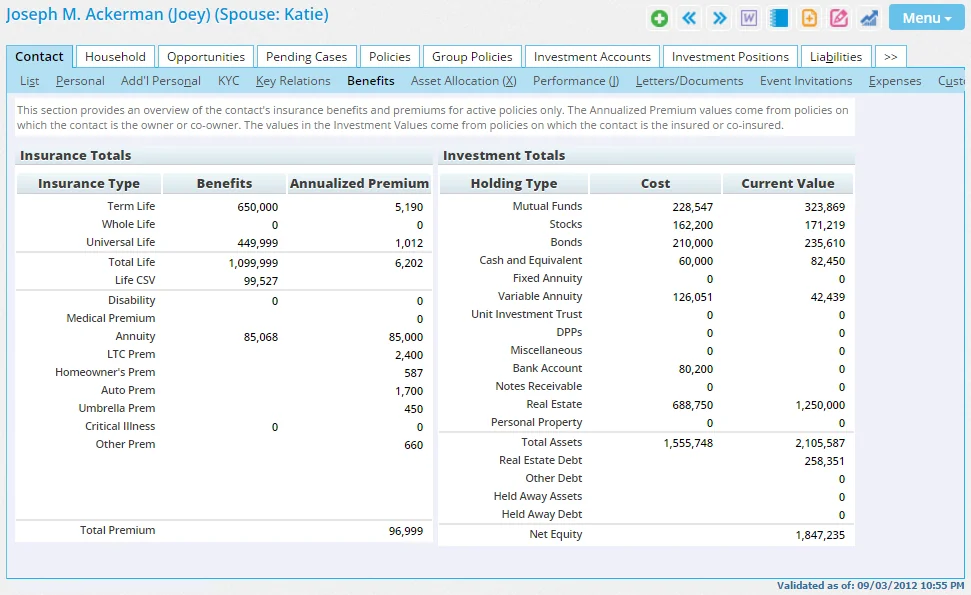
If multiple contacts are associated with an investment account, SmartOffice posts validated investment information to the Benefits content link of the primary contact.
Investment validation recalculates the Cost and Current Value columns for each investment holding type (e.g., mutual funds, stocks, bonds), regardless of the roll up options specified for the contact's or household's accounts. The cost and current value of each holding type are then summed up in the Total Assets field.
The Other Debt value includes any debt other than real estate. It can be debt from the contact, account or position level. Validation for Other Debt values proceeds as follows:
- From the contact level, all unsecured liabilities are rolled up to the contact Benefits content link's Other Debt field.
- From the account level, the system rolls up the loan balance from the Account Detail content link. It does not matter whether the loan balance was manually entered or rolled up from the Account Liabilities content link. As long as there is a value in the Loan Balance field, that value is rolled up to the contact Benefits content link's Other Debt field.
- From the position level, the system rolls up the loan balance from the Position Detail content link of all personal holdings (bank accounts, notes receivable and personal property).
Other results of investment validation process include:
- The contact Benefit and household Detail content links display a "Validated as of" date and time in the bottom-right corner. This information is useful when the user is unsure whether the data has been refreshed or whether the account needs to be validated.
- On the Account Detail content link, any position that has a value on the Position Detail content link is rolled up to the Account Value field. The exception is if the Do not roll up option is selected on the Account Detail content link; in that case, nothing is rolled up to the Account Value field. Validation recalculates or initializes the Net Value field on the Account Detail content link by taking the difference between the Account Value and the Loan Balance fields.
- Variable annuity subaccounts with a share balance of zero are displayed with a status of Closed.