Last updated: 2025-09-19
Integrations - Pershing NetX360
- Overview
- Requirements
- Setup
- SmartOffice Setup
- Pershing Setup
- Using the Integration
- Single Sign-on (SSO)
- Client Onboarding
- Troubleshooting
Overview
The Pershing NetX360 integration for SmartOffice enables investment advisors to quickly prefill new-account forms in Pershing's NetX360® Client Onboarding solution using client data stored in SmartOffice.
The integration also establishes single sign-on (SSO) access from NetX360 to SmartOffice. An advisor who is already signed in to NetX360 can bypass the SmartOffice sign-in page and gain immediate access to SmartOffice.
The Pershing NetX360 integration is free and available to any SmartOffice user who also uses NetX360\.
Requirements
To use the Pershing NetX360 integration, the user must have:
- NetX360 from Pershing
- Entitlement to the SmartOffice integration from Pershing (see Pershing Setup)
Setup
Follow the instructions in this section to ensure that office, user and browser settings are configured correctly for the Pershing NetX360 integration.
SmartOffice Setup
Office Settings
A SmartOffice user with administrator rights must verify that the office is configured properly.
- In SmartOffice, access the office Detail content link.
- From the Authentication Mode drop-down list, select one of these options:
- Both: This is the recommended option. Users can sign in to SmartOffice either through NetX360 or directly from the SmartOffice sign-in page. - Single Sign-On: Users can sign in to SmartOffice through NetX360 only. Direct sign-in is not allowed.
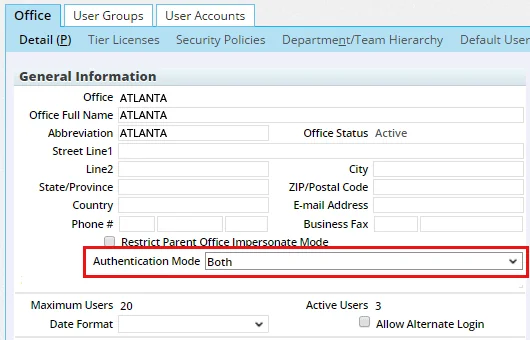
- Select Menu > Save.
User Settings
After verifying office settings, the administrator must enable the NetX360 license for each SmartOffice user who will use the integration.
- In SmartOffice, access the User Rights content link for the user's account.
- In the Licenses column, select NetX360 in the Integration section.
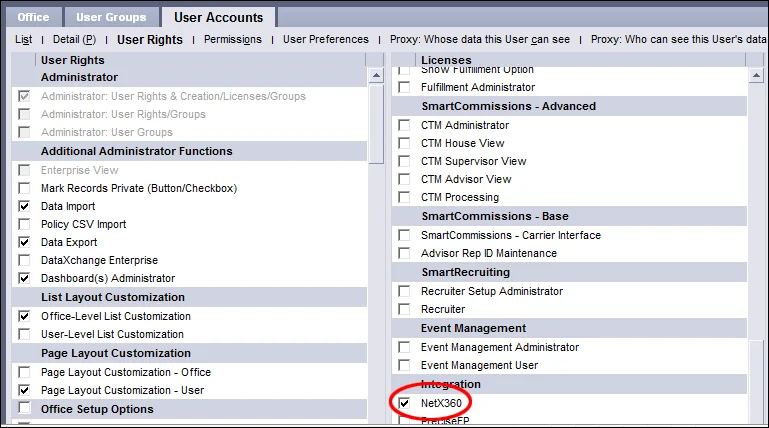
- Select Menu > Save.
- Repeat these steps for each additional user.
Pershing Setup
To enable the integration in NetX360, the advisor's home office must contact its Pershing account manager and request an entitlement for the SmartOffice integration. Pershing typically takes about a day to process these requests.
Once the entitlement has been obtained, the home office can enable and configure the SmartOffice integration for its advisors through the NetX360 Client Onboarding Configuration Tool. For more information about using the Configuration Tool, refer to Pershing's NetX360 documentation.
Using the Integration
Single Sign-on (SSO)
- Sign in to the NetX360 desktop or Web application.
- Select Tools > SmartOffice.
Desktop
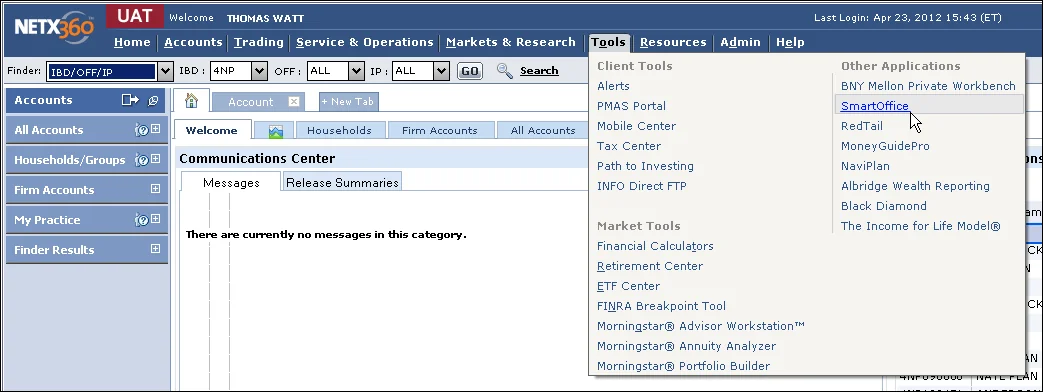
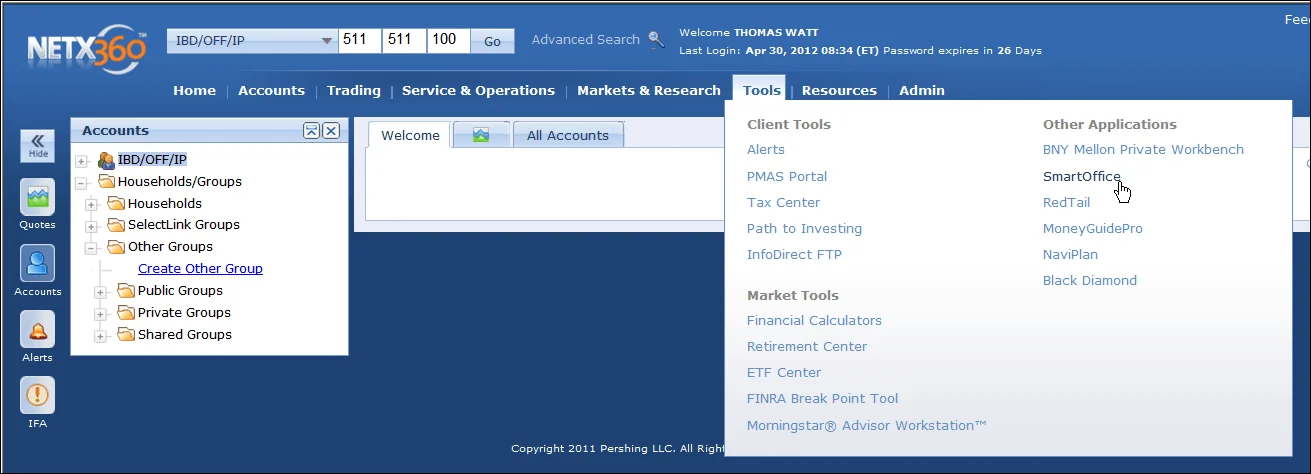
- If the SmartOffice sign-in page displays, sign in to SmartOffice normally. This step is necessary only the first time the integration is used. Subsequently, when the user accesses SmartOffice from within NetX360, the user is automatically signed in to SmartOffice.
Client Onboarding
- Sign in to the NetX360 desktop or Web application.
- Select Accounts > Client Onboarding.
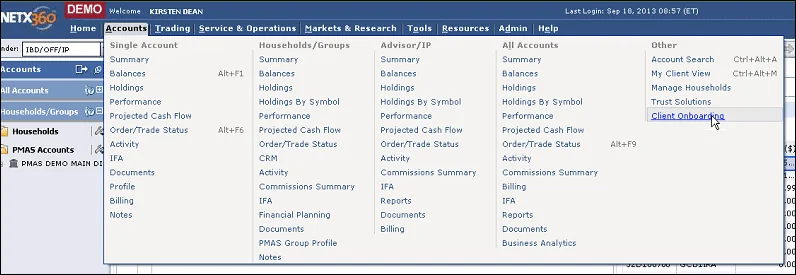
- When prompted, enter the IBD number and other required information.
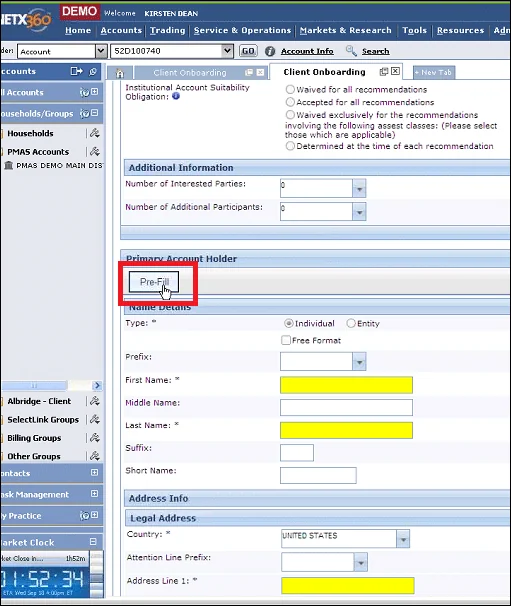
- On the Client Onboarding page, click the Pre-Fill button.
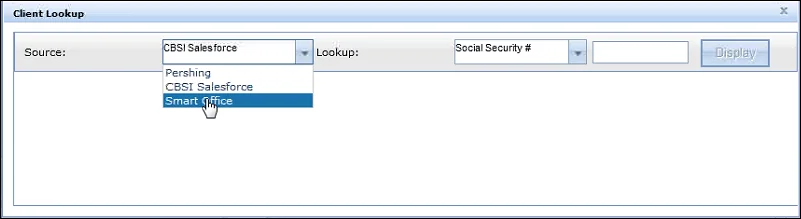
- When the Client Lookup dialog box opens, select SmartOffice from the Source drop-down list, and then use the Lookup drop-down list and search box to enter the search criteria.
- Click the Display button to view the search results.
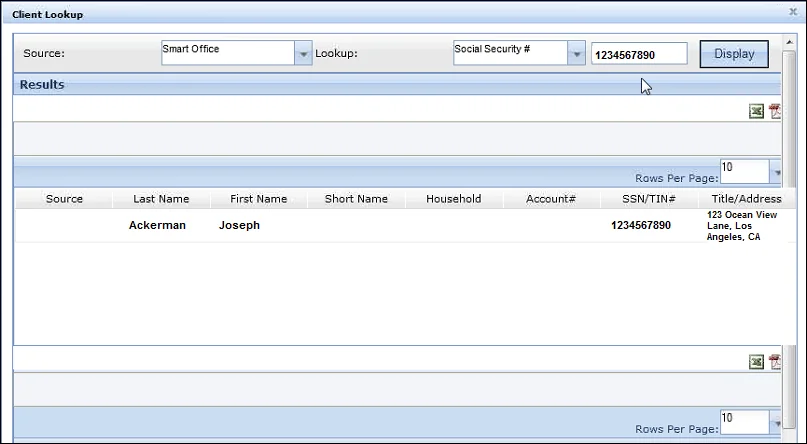
- Select a client from the list. The data is imported into the NetX360 Client Onboarding system.
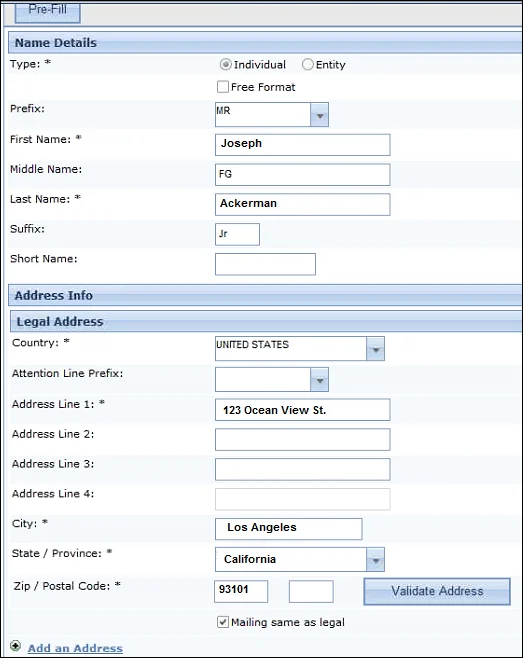
NetX360 imports the following client information from SmartOffice:
- Contact Type (Personal/Entity)
- First Name
- Middle Name
- Last Name
- Suffix
- Prefix
- Birth Date
- Citizenship
- Gender
- Marital Status
- Address
- Phone\#
- Tax ID
- Driver License Number
- Driver License State
- Driver License Issue Date
- Driver License Expiration Date
- Total Income
- Net Worth
- Occupation
- Employer Name
Troubleshooting
This section describes issues that users may encounter with the Pershing NetX360 integration, along with possible solutions. For help with any issues other than those described below, please contact the Pershing Technology Help Desk at (888\) 878-3142\.
Issue: The SmartOffice option is not available in the Tools menu in NetX360\.
A user experiencing this issue should request the proper entitlement from his/her independent broker-dealer. For broker-dealers using the NetX360 Entitlement Management Service (EMS), the entitlements are:
| BFE \# | Catalog Type | Category | BFE Name | Access Level | Description |
|---|---|---|---|---|---|
| 181 | Content | Tools | SmartOffice | Access | Allows a user to access the SmartOffice Customer Relationship Management (CRM) tool. |
The corresponding NetExchange Entitlement (NPNX) System entitlement is: SMARTOFFICE $ Issue: An Error Code 5006 displays when the user tries to access SmartOffice from NetX360\.
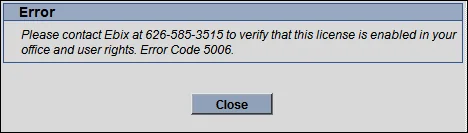
This error indicates that the NetX360 license has not been enabled in SmartOffice. Please review the instructions in Setup.