Last updated: 2025-09-19
SmartRecruiting - Searching and Viewing Candidates
- Searching Candidates
- Candidate/Recruit List
- Viewing and Editing Candidates
- Personal Content Link
- Add'l Personal Content Link
- Interview/Actions Content Link
- Precontract Content Link
Searching Candidates
To search for existing candidate records in the system, use either of the following methods:
- In the SmartOffice Search box, select People & Companies > Candidate from the Search drop-down list. Enter a candidate's name in the Search field (or leave the field blank to display all candidates in the system) and then click the Search button.
- From the SmartOffice side menu, select People & Companies > Candidates to open the Search Candidate/Recruits dialog box.
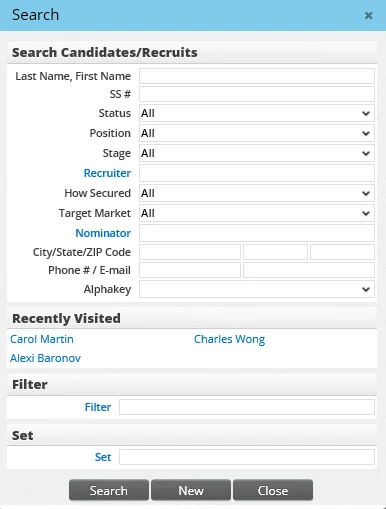
Enter a candidate's name and any other relevant details (or leave all fields blank to display all candidates in the system) and then click the Search button.
Tip: The user can also create a candidate by clicking the New button in the Search Candidates/Recruits dialog box. For more information about creating candidates, see Creating and Importing Candidates.
Candidate/Recruit List
If only one candidate matches the search criteria, SmartOffice displays that candidate's record. If two or more matches are found, the Candidate/Recruit List displays.
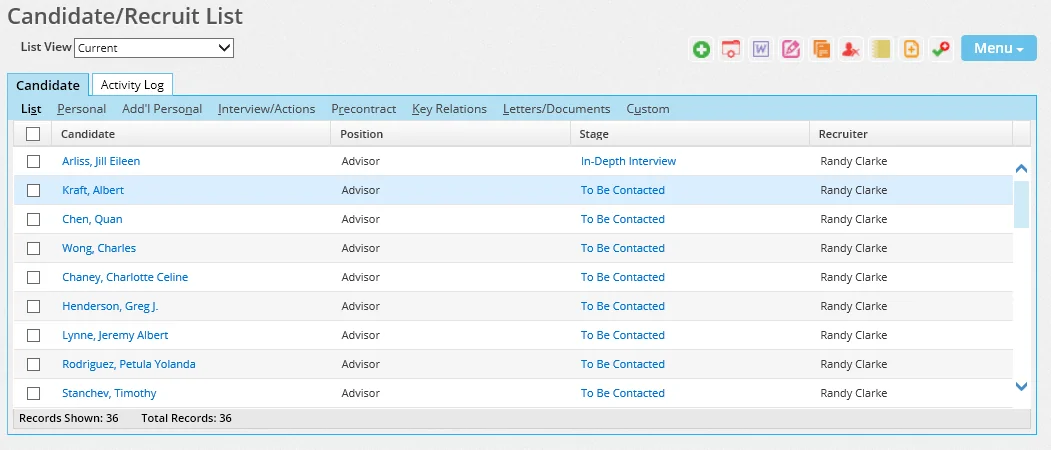
Click a candidate's name to open the record. Tip: The columns in this list can be customized. See List Layout Customization.
By default, the Candidate/Recruit List displays all candidates who match the search criteria. To narrow down the list according to candidate status, click the List View drop-down list and select a status.
Viewing and Editing Candidates
Generally speaking, a candidate record contains the same data as a regular contact record . This section describes the content links and fields that are unique to candidates.
Personal Content Link
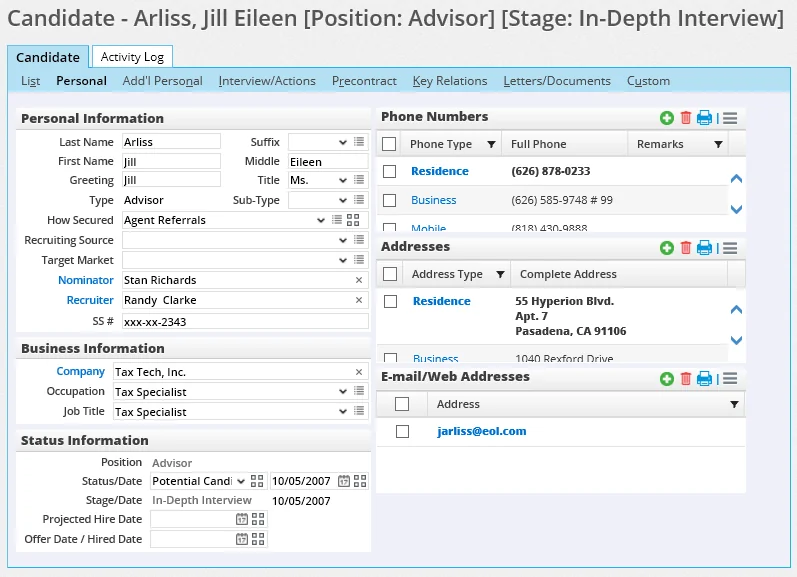
You can customize this content link to display different content if you have the appropriate user rights (see Page Layout Customization). This topic describes the contents of the SmartOffice default layout.
The candidate-specific fields in the Personal content link are:
Personal Information Section
- How Secured: This field specifies the method by which the candidate came to the organization's attention. Select an option from the drop-down list. Users with the appropriate rights (see User Accounts - User Rights Content Link) can customize the drop-down list to add options. The How Secured field figures prominently in recruiting reports.
- Recruiting Source: This field enables the user to further elaborate on the selection in the How Secured field. Select an option from the drop-down list. Users with the appropriate rights (see User Accounts - User Rights Content Link) can customize the drop-down list to add options.
- Target Market: For organizations that target specific demographic groups in their hiring processes, this field can be used to specify the demographic group into which the candidate fits. Select an option from the drop-down list. Users with the appropriate rights (see User Accounts - User Rights Content Link) can customize the drop-down list to add options.
- Nominator: The nominator is the SmartOffice contact who referred the candidate. This is typically an individual outside the organization, but it can also be the contact record of a SmartOffice user in the office. Click the Nominator hyperlink to search for and select a contact.
Note: This field displays only if the value of the How Secured field is Agent Referrals, Center of Influence, Nominators or Personal Observation.
- Recruiter: The recruiter is the SmartOffice user who recruited the candidate. Click the Recruiter hyperlink to search for and select a user.
- COI Interview: The COI Interview field displays only when the value of the How Secured field is Center of Influence. This field can be used to note the COI interview date. Type a date in the field, or click the Pick Date button in the field to select the date.
Status Information Section
- Position: This field notes the position for which the candidate is being considered. This field is specified when the candidate record is created.
- Status/Date: These fields specify the status of the candidate in the hiring process and the date of the most recent status change.
- Stage/Date: These fields specify the current stage in the position workflow and the current stage's start date.
- Projected Hire Date: The date the candidate is expected to be hired/contracted.
- Offer Date/Hired Date: The date on which the candidate was offered the position or hired.
Add'l Personal Content Link
You can customize this content link to display different content if you have the appropriate user rights (see Page Layout Customization). This topic describes the contents of the SmartOffice default layout.
The candidate-specific fields in the Add'l Personal content link are:
Other Information Section
- Training Class: This date field can be used to note when the advisor attended a training class.
- Graduation Date: This date field can be used to note the candidate's training class graduation date.
Interview/Actions Content Link
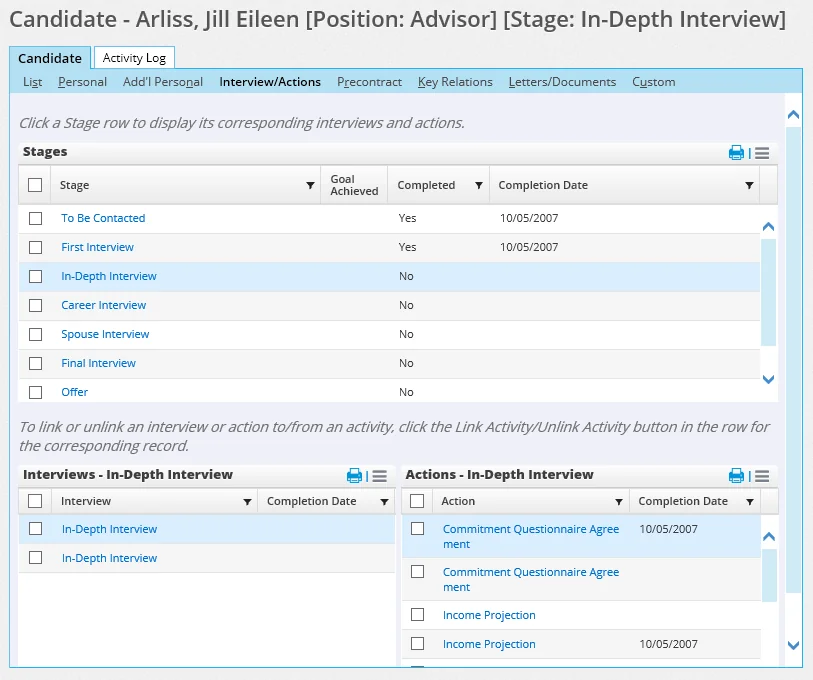
The Interview/Actions content link is where most of the important tasks in SmartRecruiting take place. The content link displays the stages of the position and enables the user to:
- Review complete and incomplete stages.
- Review the interviews and actions for a particular stage.
- Enter and check the results of completed interviews and actions.
- Mark stages as complete.
For more information about using this content link, see Recruiting Process.
Precontract Content Link
On this content link, SmartRecruiting tracks precontract activities such as licensing preparation, licensing, precontract curricula, certification and appointments.
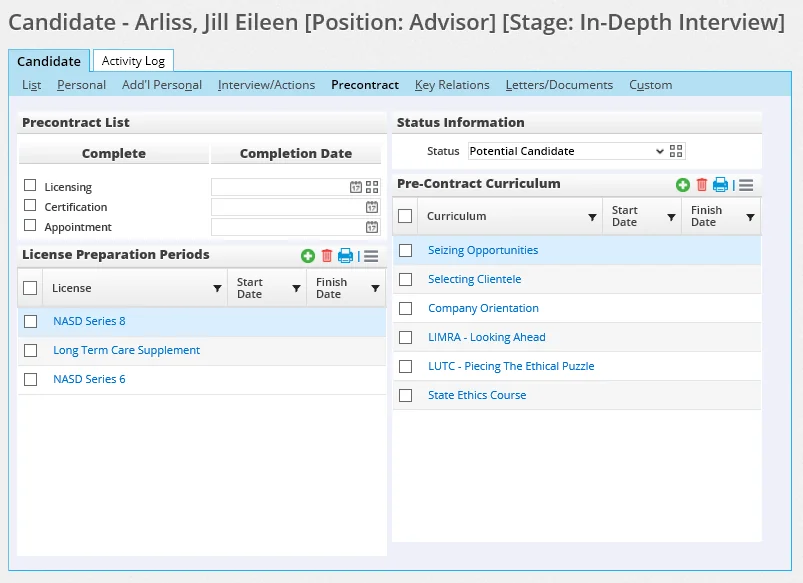
For more information about using this content link, see Recruiting Process.