Last updated: 2025-09-19
Advisors/Agencies - Searching for Advisors and Agencies
- Overview
- Searching from the Side Menu
- Advisor & Agency List
- Finding Advisors/Agencies with a Matching Profile
- Other Ways to Access the Advisor/Agency Module
Overview
This section describes how to conduct a search for advisor and agency records in SmartOffice.

Searching from the Side Menu
- From the SmartOffice side menu, select People & Companies and then choose Advisors/Agencies to open the Search Advisors and Agencies dialog box.
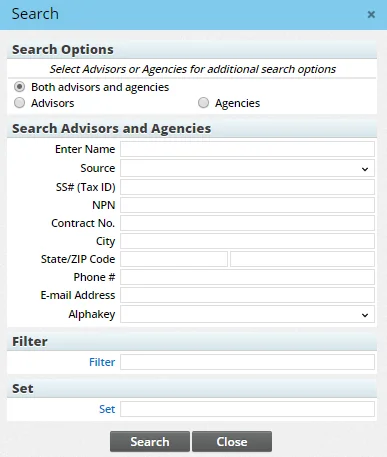
- In the Search Options section, select whether the search should include advisors, agencies or both.
- Do one of the following:
- Leave all fields blank to find all advisor and/or agency records in the system.
- Enter a specific advisor/agency name, source, SS\#/Tax ID, National Producer Number (NPN), contract number or other criteria to narrow the search.
- (Optional) Specify a filter or set to further narrow down the search results.
- Click the Search button.
Advisor & Agency List
The results of an advisor/agency search display in the Advisor & Agency List. (If the user searches for advisors only or agencies only, the Advisor List or Agency List displays.)
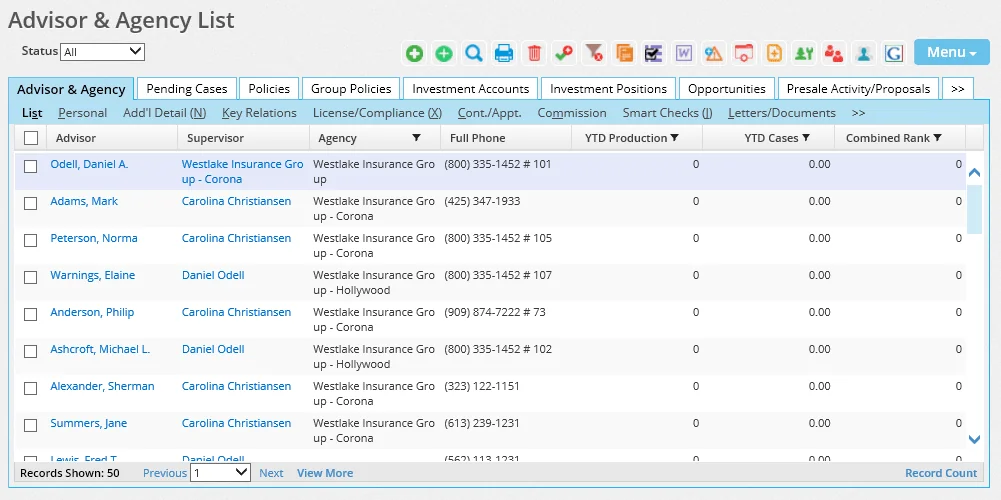
Note: If the search returns only one result, SmartOffice bypasses the list and automatically displays the advisor Personal content link or agency Detail content link.
To filter records according to status, use the Status drop-down list at the top. The default setting for this drop-down list is specified in the Advisor Privacy section of Policy/Case Setup - Advisor Communication.
For information about working with lists in SmartOffice, see Lists.
Finding Advisors/Agencies with a Matching Profile
The user can quickly find records that share one or more identical characteristics with a particular advisor or agency record. For example, the user can search for advisors with the same job title and status as the selected advisor. This feature is identical to that available for finding matching contacts and businesses by profile.
For more information, see Contacts and Businesses - Searching for Contacts and Businesses.
Other Ways to Access the Advisor/Agency Module
- From the Search box, select People & Companies, and then select Advisor/Agency, Advisor or Agency from the drop-down list. Click the Search button to display the results. Note that if you select the Agency option in the Search box, you can search for agency abbreviations in addition to agency names. You must enter at least three characters to activate the agency abbreviation search.
- From the side menu, select Policies from the expanded Insurance menu to open the Search Policies dialog box. Then click the Primary Advisor hyperlink.
- From the side menu, select Pending Cases from the expanded Insurance menu to open the Search Pending Cases dialog box. Then click the Primary Advisor hyperlink.
- From the contact Personal content link, click the Primary Advisor hyperlink.
- From the business Detail content link, click the Primary Advisor hyperlink.