Last updated: 2025-09-19
SmartLeads - Creating, Importing and Collecting Leads
- Overview
- Creating Leads Manually
- Importing Leads
- Creating a New Import Setup
- Running an Existing Import Setup
- Collecting Leads from the Internet (Leads Web)
- Enabling Leads Web
- Web Form Fields
- Customizing the SmartLeads Web Form
- SmartLeads Fields
Overview
In SmartOffice, leads can be added to the system in several ways. A user can manually create a lead or import leads from a file. Leads can also be collected through a form on the Web.
The following sections describe each of these methods.

Creating Leads Manually
Leads can be created manually by the following leads user types:
- Leads Coordinator with Advisor View
- Leads Coordinator Only
- Leads Coordinator View
To create a lead:
- Do one of the following:
- - Click the Add New button and select Lead. - From the Leads List, select Menu > New 'Lead' record or click the New 'Lead' record button. - From the side menu, select Leads from the expanded Sales & Marketing menu. When the Search These Lead Types dialog box opens, select a lead type and then click the New button.
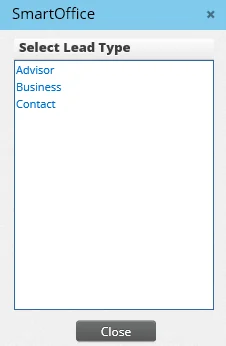
- If the Select Lead Type dialog box opens, select the appropriate type.
- Fill in the fields for the lead (for descriptions of fields, see Viewing and Editing Leads) and click the Save button.
Importing Leads
Leads can be imported from a comma-separated values (.CSV) file. The following user types can import leads into SmartOffice:
- Leads Coordinator with Advisor View
- Leads Coordinator Only
- Leads Coordinator View
Importing leads involves creating a lead import setup and then running that setup to import the leads data.
Creating a New Import Setup
A user who is importing leads into SmartOffice for the first time must create an import setup for leads. The import setup defines column mappings and other information. SmartOffice saves this setup, making subsequent lead imports quicker.
- From the side menu, click Sales & Marketing and then select Import Leads to SmartOffice from the expanded menu to open the Import Setup List dialog box.
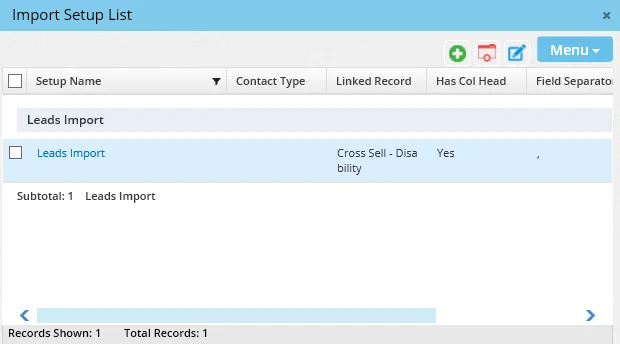
- Select Menu > New 'Import Setup' record button to open the Add Import Definition dialog box.
- Enter a name for the import setup in the Enter Setup Name field and then click the Next button.
- In the Select File to Upload dialog box, click the Browse button to locate and select the file. Select a date format from the Date Format drop-down list. Select the phone format and century if needed.
- Click the Next button to open the Select Options dialog box.
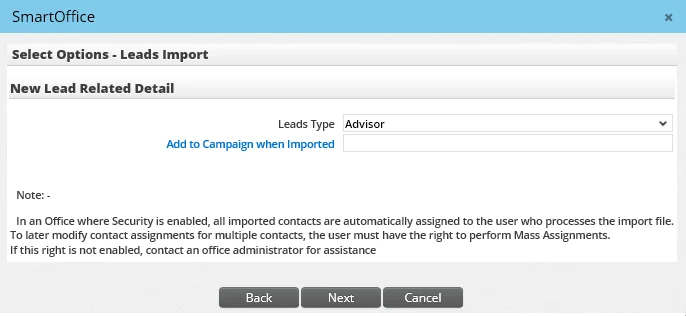
- Select the appropriate campaign name (if applicable) and lead type and then click the Next button. By default, the lead type is Contact. Select the lead type necessary for import.
- In the Select Mapping - Leads Import dialog box, make sure the columns from the import file are mapped to the appropriate columns in SmartOffice. After all of the fields have been mapped, click the Save Import Setup button.
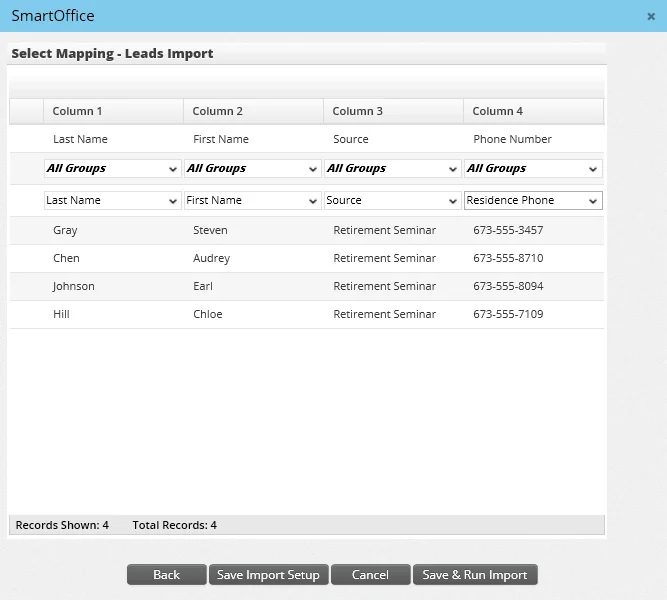
- The newly created setup is now listed on the Setup List.
Running an Existing Import Setup
If the user has imported leads before and has created an import setup for leads, the user can run the same setup to import subsequent .CSV files:
- From the side menu, click Sales & Marketing and then select Import Leads to SmartOffice from the expanded menu to open the Import Setup List dialog box.
- Tag the appropriate setup name and then select Menu > Run Setup.
- From the Select File to Upload dialog box, click the Browse button to select the file. After successfully locating the file, specify the proper data format and then click the Next button to open the Select Mapping dialog box.
- Check for any changes needed in mapping and then click the Run Import button.
- The next dialog box tracks the progress of the record import process. When the import is complete, the Import Completed dialog box opens with a report of the number of records imported.
- Click the Done button to close the dialog box.
The columns available for leads import are:
| Business Address- Business City - Business Country - Business Line2 - Business Line3 - Business Line4 - Business Line5 - Business State - Business Street - Business ZIP Code Business Phone- Business Phone Business Fax- Business Fax Leads- Action - Company - Contact Exists - Created On - Current Leads Status - External Leads ID - First Name - Follow-Up - Greeting - HO Client ID - Interest - Last Name | Leads (cont)- Lead Score - Lead Type - Middle Name - Potential - Priority - Qualification - Remarks - Source - Stage - Status Date - Sub-Source - Suffix - Tax ID - Title Personal Info of Leads- Age - DOB - E-mail - Gender - Job Title - Marital Status - Occupation - Salary - Tax - Tobacco Use | Residence Address- Res Line2 - Res Line3 - Res Line4 - Res Line5 - Residence City - Residence Country - Residence State - Residence Street - Residence Zip Code Residence Phone- Residence Phone Spouse- Spouse Age - Spouse Company - Spouse DOB - Spouse E-mail Address - Spouse First Name - Spouse Greeting - Spouse Job Title - Spouse Last Name - Spouse Middle Name - Spouse Occupation - Spouse Suffix - Spouse Title Web Site- Web Site Mobile- Mobile |
|---|
Collecting Leads from the Internet (Leads Web)
Leads Web enables an office to collect leads through an online form. When a potential customer completes and submits the form, the information is sent directly to SmartOffice, which creates a new lead based on the submitted information.
Enabling Leads Web
A user with administrator rights must enable Leads Web Options in Office Settings. For more information, see Office Settings - Detail.
Web Form Fields
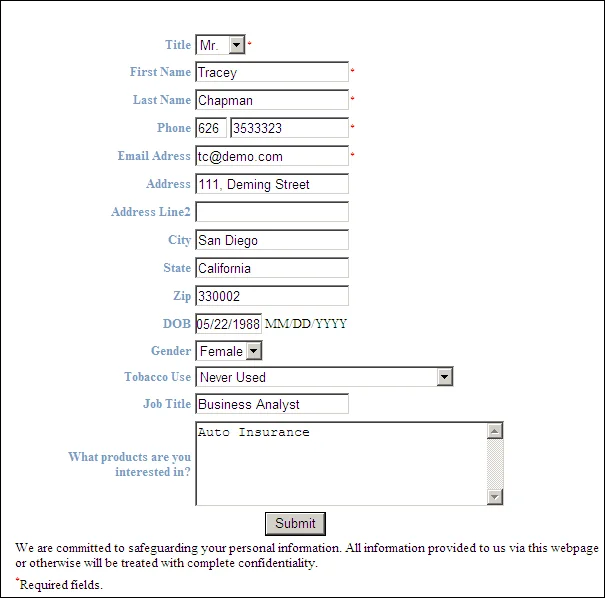
The Web form for collecting leads contains the following fields:
- Title: The title of the lead (Mr., Mrs., etc.).
- First Name: The first name is also added to the Greeting field on the lead Detail content link in SmartOffice.
- Last Name
- Phone
- E-mail Address
- Address: The first address line (e.g., Street or P.O. Box).
- Address Line 2: The second address line (e.g., Suite or Apartment).
- DOB: The lead’s date of birth. This must be entered in MM/DD/YYYY format.
- Tobacco Use: This drop-down list contains the following options:
- Never Used - No nicotine or tobacco is last 3 years - No nicotine or tobacco in last 12 months - Uses some form of nicotine or tobacco - No cigarettes in past 12 months - Smokes cigarettes - Other - Unknown
- What products are you interested in? This field enables the lead to request information about specific products.
Customizing the SmartLeads Web Form
This section explains how a webmaster can customize the SmartLeads Web Form.
- Identify the SmartLeads URL under the Office Settings - Detail content link.
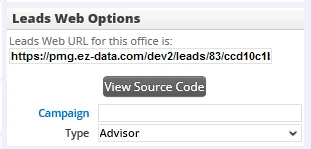
- Copy the Leads Web URL and paste it into a browser window.
Note: If the View Source Code button is available in Office Settings, click it to display the form code. The displayed form code can then be edited as described in Step 5\.
- In the browser, select Source or View Source from the expanded View menu.
- Copy the displayed HTML code and paste in into a Web content editor.
- Edit the content. Add graphics or colors, rearrange fields or add additional fields. The additional fields that can be added are listed in the next section, SmartLeads Fields.
- Before completing the page, verify that the form action code contains the Leads Web URL from Step 1\. Make sure the URL ends with index.save.act and not just index.act.
- Save the completed page.
- Host the page on the organization's website.
Prospective clients can now fill out the customized form on the organization's website. That data then arrives as a lead in SmartOffice.
After a visitor completes and submits the SmartLeads Web form, a default confirmation page created by SmartOffice appears. To redirect visitors to a different confirmation page, insert the following line into the form code, replacing URL with the address of the confirmation page:
\
SmartLeads Fields
| LEADS\_LastName LEADS\_Suffix LEADS\_FirstName LEADS\_MiddleName LEADS\_Greeting LEADS\_ContactTitle LEADS\_LeadType LEADSPERSONAL\_Gender LEADS\_Employer LEADSPERSONAL\_JobTitle LEADS\_Source LEADS\_SubSource LEADSPERSONAL\_DOB LEADSPERSONAL\_Age LEADSPERSONAL\_Tobacco LEADS\_StatusText LEADS\_StatusDate LEADS\_AreaOfInterest LEADS\_CampaignID CAMPAIGN\_Name LEADS\_MediaID MEDIA\_Description LEADS\_SpecialEventsID SPECIALEVENTS\_Name LEADS\_Remarks LEADSPERSONAL\_BusAreaCode | LEADSPERSONAL\_BusDialNumber LEADSPERSONAL\_BusExtension LEADSPERSONAL\_BusPreferred LEADSPERSONAL\_ResAreaCode LEADSPERSONAL\_ResDialNumber LEADSPERSONAL\_ResPreferred LEADSPERSONAL\_MobileAreaCode LEADSPERSONAL\_MobileDialNumber LEADSPERSONAL\_FaxAreaCode LEADSPERSONAL\_FaxDialNumber LEADSPERSONAL\_EmailAddress LEADSPERSONAL\_EmailPreferred LEADSPERSONAL\_EmailAddress1 LEADSPERSONAL\_EmailPreferred1 LEADSPERSONAL\_WebAddress LEADSPERSONAL\_ResLine1 LEADSPERSONAL\_ResLine2 LEADSPERSONAL\_ResCity LEADSPERSONAL\_ResState LEADSPERSONAL\_ResZip LEADSPERSONAL\_ResCountry LEADSPERSONAL\_BusLine1 LEADSPERSONAL\_BusLine2 LEADSPERSONAL\_BusCity LEADSPERSONAL\_BusState LEADSPERSONAL\_BusZip LEADSPERSONAL\_BusCountry |
|---|