Last updated: 2025-09-19
SmartLeads - Viewing and Editing Leads
- Overview
- Leads Content Links
- List Content Link
- Detail Content Link
- Add'l Detail Content Link
- Leads History Content Link
- Documents Content Link
- Custom Content Link
- Viewing the Leads of Proxy Users
Overview
The information that SmartLeads tracks about every lead is largely the same for the three lead types (contact, advisor or business), but some differences exist in terms of available fields, etc. These differences are noted below.
Note: If a lead has been accepted, its fields cannot be edited.
Leads Content Links
To access information about a lead, tag it in the Leads List and then click the appropriate content link under the Leads tab.
List Content Link
Clicking the List content link returns the user to the Leads List.
Detail Content Link
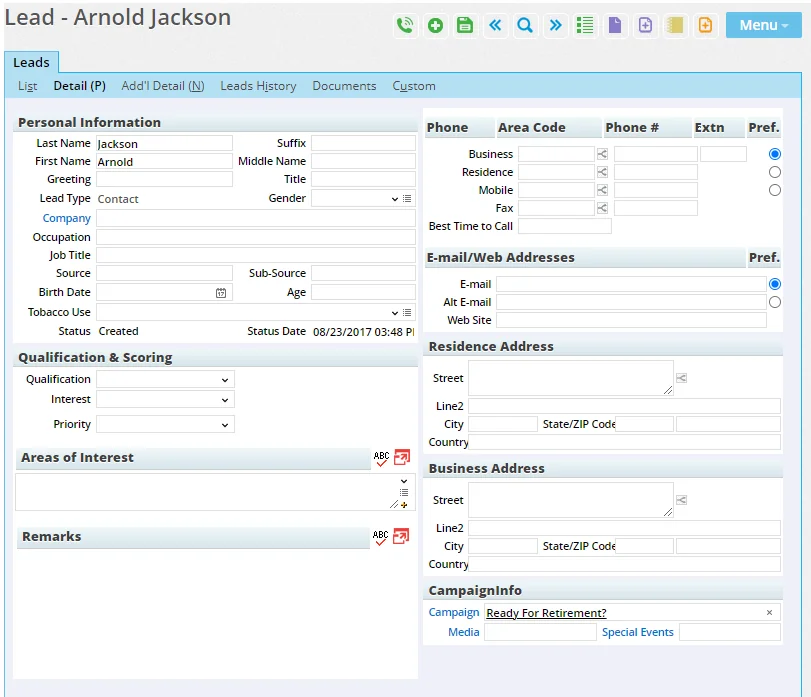
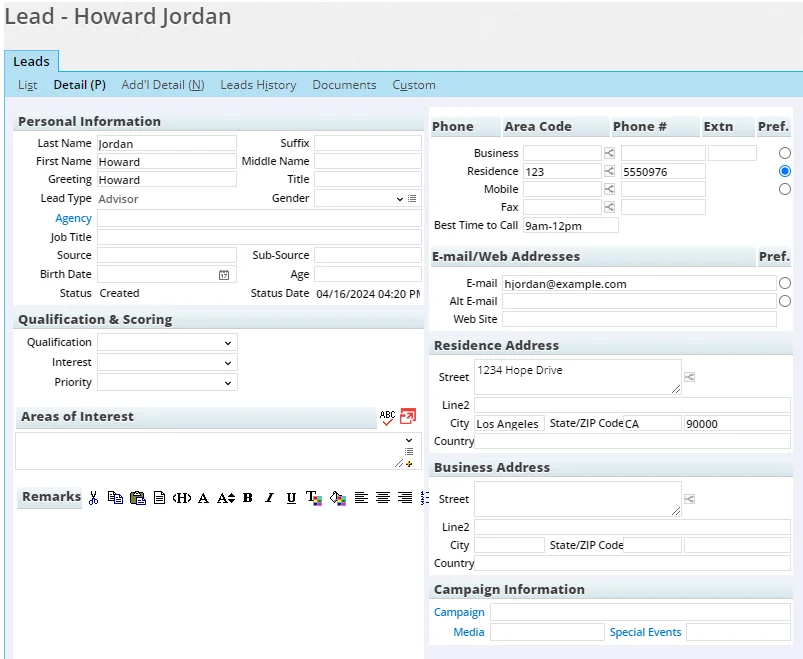
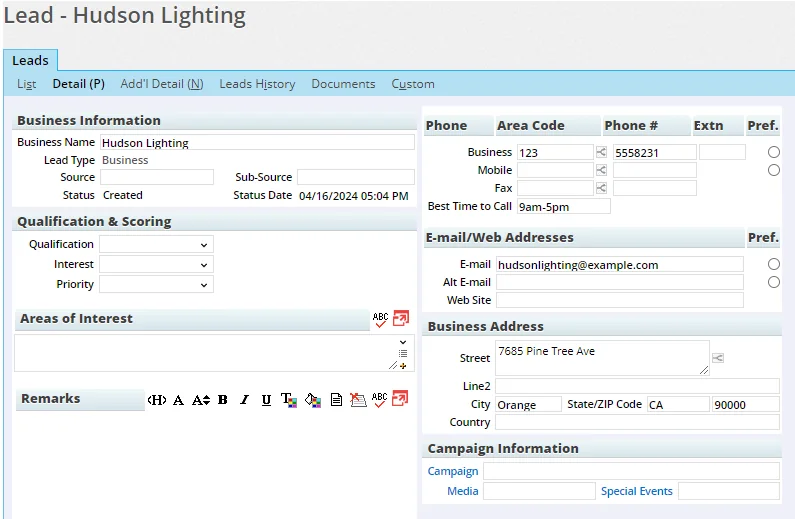
The Detail content link displays basic information about a lead. Contact Lead Detail
Advisor Lead Detail
Business Lead Detail
Personal/Business Information Section
- Last Name: This field is required for contact and advisor leads. It does not display for business leads.
- First Name: This field displays for contact and advisor leads only.
- Greeting: The preferred name (e.g., a nickname) to use when addressing a lead. Contact and advisor leads only.
- Lead Type: The type of lead (contact, business or advisor).
- Company/Agency: The name of the lead’s company or agency. Contact and advisor leads only.
- Occupation: Contact leads only.
- Job Title: Contact and advisor leads only.
- Source: The source of the lead (e.g., magazines, trade shows, brochures).
- Birth Date: Click the Pick Date button in this field and then select the appropriate date. Contact and advisor leads only.
- Tobacco Use: The lead’s history of tobacco use. The user can customize the options in the drop-down list by clicking the Customize Choice button adjacent to the drop-down list. Contact and advisor leads only.
- Status: The current stage of the lead. This information is automatically entered by the system.
- Suffix: The lead’s name suffix, if any (e.g., Jr., Sr.). Contact and advisor leads only.
- Middle Name: Contact and advisor leads only.
- Title: The lead’s name prefix (e.g., Mr., Ms.). Contact and advisor leads only.
- Gender: Contact and advisor leads only.
- Sub-Source: The sub-source of the lead, if applicable. For example, if the source of a lead was a seminar, the sub-source may note the subject of the seminar, e.g., Investment Planning.
- Age: Contact and advisor leads only.
- Status Date: The date the status was last updated; this information is automatically entered by the system.
Qualification and Scoring Section
- Qualification: Select the Qualification from the drop-down given
- Interest: Select Interest from the drop-down given
- Priority: Priority is automatically selected based on Qualification and Interest. However if the user wishes priority can be changed. The leads list when customized to display Priority column, displays color highlights based on the priority selected for the lead.
Areas of Interest Section
The Areas of Interest field is a special text field that enables the user to select the types of products the lead has expressed interest in. Note the three buttons adjacent to the field.

To select a single area of interest, click the arrow. To select multiple areas of interest, click the Select Choice(s) button. To add custom choices, click the Customize Choice button.
Campaign Information Section
- Campaign: This field lists any campaigns associated with the lead. If the field is blank, clicking the Campaign hyperlink opens a search dialog box through which the user can either search for an existing campaign or create a new one. If the field is not blank, clicking the Campaign hyperlink displays details about the campaign. To select a different campaign, delete the name of the current campaign and then click the Campaign hyperlink.
- Media: This field lists any media associations. If the field is blank, clicking the Media hyperlink opens a list of media associated with the selected campaign that the user can choose from (if no media are associated with the campaign, the list will be empty). If the field is not blank, clicking the Media hyperlink displays details about the media. To select different media, delete the name of the current media and then click the Media hyperlink.
- Special Events: This field lists any associated special events. If the field is blank, clicking the Special Events hyperlink opens a list of events associated with the selected campaign that the user can choose from (if no events are associated with the campaign, the list will be empty). If the field is not blank, clicking the Special Events hyperlink displays details about the event. To select a different special event, delete the name of the current event and then click the Special Events hyperlink.
Remarks Section
Use the Remarks section to enter any additional details about the lead.
Phone Section
- Business
- Residence: Contact and advisor leads only.
- Mobile
- Fax
- Best Time to Call: Enter a time or time range in any format, e.g., 1-2pm or 3:00 PM - 4:00 PM.
E-mail/Web Addresses Section
- Alt E-mail: An alternate e-mail address for the lead, if any.
- Web Site
Residence Address Section (contact and advisor leads only)
- Street: The residence address of the lead (e.g., Street or P.O. Box).
- Line2: The residence address of the lead (e.g., Suite/Apartment number).
- City
- State/ZIP Code
- Country
Business Address Section
- Street: The business address of the lead (e.g., Street or P.O. Box).
- Line2: The business address of the lead (e.g., Suite/Apartment number).
- City
- State/ZIP Code
- Country
Add'l Detail Content Link
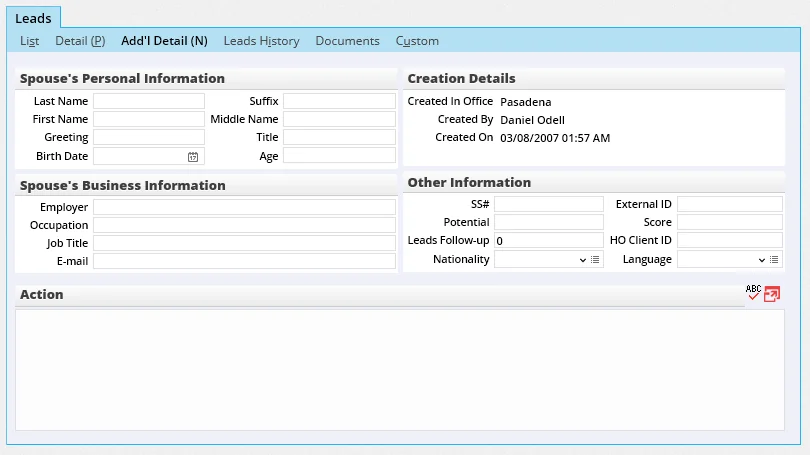
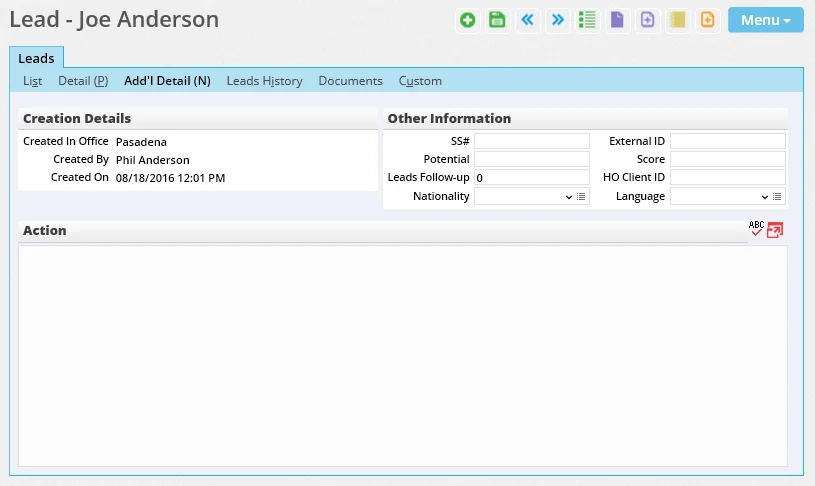
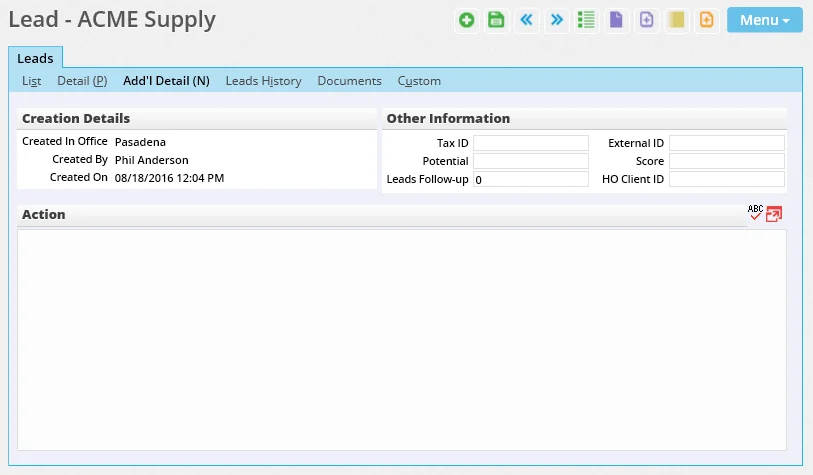
The Add'l Detail content link contains more information about the lead, such as a spouse’s personal and business information, tax ID, etc. Contact Lead Add'l Detail
Advisor Lead Add'l Detail
Business Lead Add'l Detail
Spouse's Personal Information and Spouse’s Business Information Section (contact leads only)
The fields in this section are the same as those found on the Detail content link. Note: SmartOffice does not create a new business record using the business information entered for a spouse.
Creation Details Section
- Created In Office: The name of the office in which the lead was created.
- Created By: The name of the user who created the lead.
- Created On: The date and time the lead was created.
Other Information Section
- Tax ID: The social security number or taxpayer ID number.
- Potential: The estimated amount of sales.
- Leads Follow-up: The number of days before the lead should be followed up.
- Nationality: The nationality of the lead. This field does not display on business leads.
- External ID: The code to identify the lead.
- Score: The score of the lead. This field can be used to rate the lead's value and determine whether it should be a priority.
- HO Client ID: The Home Office (Corporate Office) Client ID.
- Language: The language that the lead speaks. Contact and advisor leads only.
Action Section
Use the Action section to specify any action that needs to be taken regarding the lead. This can be a comment entered for the benefit of other users, such as a note that the lead is hot and should be followed up immediately.
Leads History Content Link
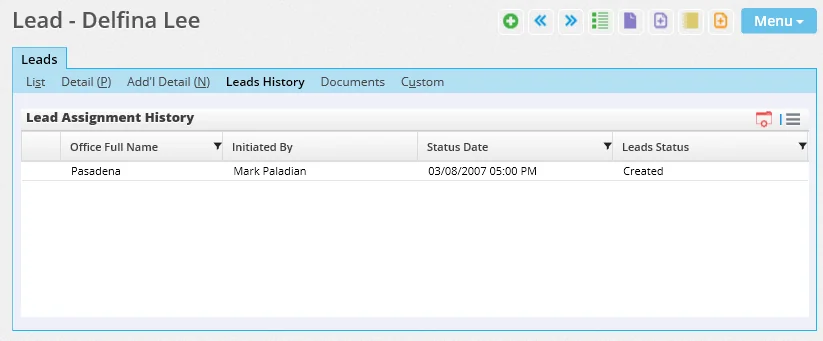
The Leads History content link records tracked activities associated with a lead. Whenever the status or stage changes, a note is added here.
Documents Content Link
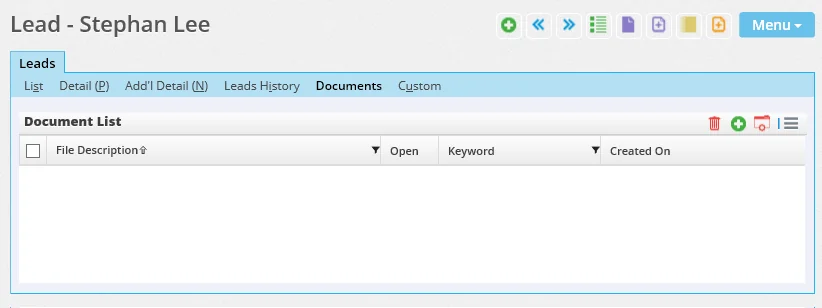
The Documents content link keeps a record of documents related to the lead. To learn how to upload files, see Contacts and Businesses - Letters/Documents Content Link.
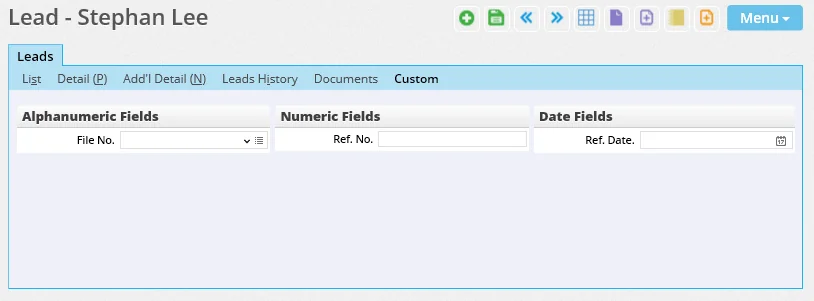
Custom Content Link
The Custom content link stores custom data related to the lead. Custom field data can be moved to the contact, business or advisor record that SmartOffice creates when a lead is accepted. For more information, see Accepting Leads.
Viewing the Leads of Proxy Users
If a SmartLeads user is a proxy for one or more other users, the user can view any leads assigned to those users. For this feature to be available, the user must proxy for one or more other users in the office, or the user must have Enterprise View turned on.
To view the leads of another user in the office, select Menu > Show Leads For Proxy Users from the Leads List. When a particular user is selected from the list, the view changes to display that user's leads.