Last updated: 2025-09-19
Integrations - Laser App Anywhere
- Overview
- Requirements
- Setup
- User Setup
- SmartOffice Data Setup
- Filling Forms
- Exporting Data from SmartOffice
- Verifying and Completing Data
- Field Mappings
- Client (Person)
- Client (Business)
- Spouse
- Beneficiaries
Overview
The Laser App Anywhere integration for SmartOffice lets users export contact data from SmartOffice into Laser App Anywhere, the web-based version of Laser App's form-filling software (an integration with Laser App's desktop software is also available). By leveraging the user's existing data in SmartOffice, the integration dramatically reduces the amount of time needed to fill out Laser App forms.
For more information about Laser App Anywhere, visit www.laserapp.com.
Requirements
To use the Laser App Anywhere integration, a user must have a Laser App Anywhere account (available from Laser App Software).
Setup
This section describes the initial user an data setup required for the Laser App Anywhere integration. For additional assistance with setup, contact SmartOffice Technical Support.
User Setup
A SmartOffice user with administrator rights must enable the integration for each SmartOffice user who will be using it (learn more about user licenses).
- Sign in to SmartOffice Pro.
- Do one of the following:
- If you are setting up the integration for the user account your are currently signed in to, click the profile menu in the upper-right corner, and then select Profile & Settings
 .
. - If you are setting up the integration for another user account, select Setup > User Accounts on the SmartOffice side menu, and then search for the user account.
- With the user account record open, click the User Rights content link.
- In the Licenses column, select the following:
- Advisor Contract/License Management under SmartPolicies
- Laser App Anywhere under Integration
- Select Menu > Save.
SmartOffice Data Setup
SmartOffice exports specific contact record fields to create the client, spouse and beneficiary data that Laser App Anywhere needs to fill forms. For best results, ensure that contact data is entered accurately and consistently in SmartOffice. See Field Mappings for a complete list of the fields that SmartOffice exports and the corresponding fields in Laser App Anywhere.
Important: To be exported to Laser App, a SmartOffice contact record must have at least six fields populated that can be mapped to Laser App. Two of those fields must be First Name and Last Name. If the contact is linked to a spouse in SmartOffice, the six fields can be from the contact or the spouse (for example, four fields from the contact and two fields from the spouse), but the contact must still have the First Name and Last Name fields populated.
Filling Forms
After performing the appropriate setup steps, users can fill forms using the Laser App Anywhere integration by following the instructions in this section.
Exporting Data from SmartOffice

- Search for a contact in SmartOffice.
- Select the contact in the search results list, or open the contact.
- Select Menu > Integrations > Laser App Anywhere.
- If the User Authentication dialog box opens, enter the user name and password normally used to access Laser App Anywhere, and then click the Continue button.
When Laser App Anywhere opens, the user sees a dashboard with several options in the left menu.
Verifying and Completing Data
Before selecting a form to fill in Laser App, follow these steps to review the data exported from SmartOffice and add any missing data.
- In Laser App Anywhere, click Contact Data under Active Form Data in the left column to open the Client page.
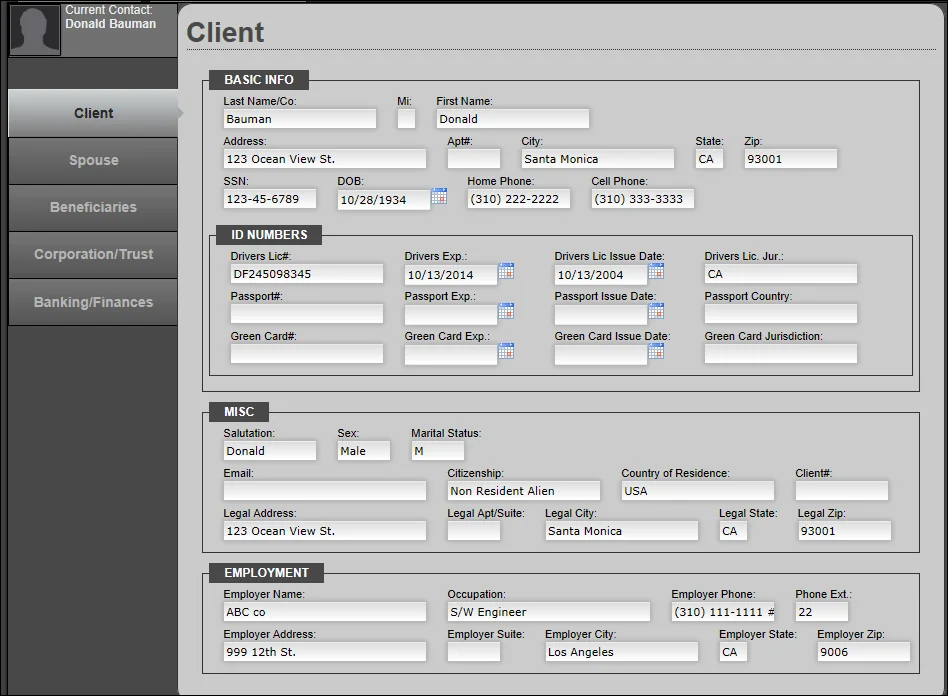
- If the page is missing information required for a particular form or forms, add that information manually.
- Click the tabs on the left (Spouse, Beneficiaries, etc.) to verify and enter any additional required information in those sections.
Note: Any additional data entered on these pages is available only during the current Laser App Anywhere session. It is not saved when Laser App Anywhere is closed.
Once client data is correct and complete, return to the Dashboard page in Laser App Anywhere and select a form to fill from the Forms menu on the left side of the page.
For detailed information about filling out forms, refer to Laser App Anywhere's help documentation.
Field Mappings
The tables in this section list the SmartOffice fields that are exported to Laser App Anywhere, along with their corresponding Laser App Anywhere fields. Special instructions and information about particular fields are included in the Comments column of each table.
SmartOffice data is used to complete the following Laser App Anywhere records:
- Client: This can be either a person or business.
- Spouse: This data is used for joint applications, applications for spouses and beneficiary information.
- Beneficiaries: A beneficiary is anyone listed on a contact's Key Relations content link in SmartOffice who is specified as a beneficiary.
Client (Person)
The SmartOffice contact fields listed below are exported to the Client page in Laser App Anywhere.
| SmartOffice Fields | Comments | Laser App Fields |
|---|---|---|
| Personal Content Link | ||
| First Name | This field is required. | First Name |
| Middle | MI | |
| Last Name | This field is required. | Last Name |
| Greeting | Salutation | |
| Birth Date | DOB | |
| Marital Status | Marital Status | |
| Gender | Sex | |
| Company | Employer | |
| Occupation | Occupation | |
| SS \# | SSN | |
| Primary Residence Phone Number | Make sure to select the Primary Residence Phone option in SmartOffice. If the contact has only one phone number, Laser App uses that number regardless of whether the Primary Residence Phone option is selected. | Home Phone |
| Mobile | Laser App uses the first mobile number entered in the SmartOffice contact record. | Cell Phone |
| Primary Business Phone Number | Make sure to select the Primary Business Phone option in SmartOffice. If the contact has only one business phone number, Laser App uses that number regardless of whether the Primary Business Phone option is selected. | Employer's Phone |
| Primary Business Phone Extension | Employer's Phone Extension | |
| Business Fax | Laser App uses the first business fax number entered in the SmartOffice contact record. | Employer's Fax |
| Preferred E-mail Address | Make sure to select the Mark as Preferred option in SmartOffice. If the contact has only one e-mail address, Laser App uses that e-mail address regardless of whether the Mark as Preferred option is selected. | |
| Primary Residence Address | ||
| Address Block, Line 2, Line 3 | Make sure to select the Primary Residence Address option in SmartOffice. If no address is marked as the primary residence, SmartOffice exports any address designated as Mailing or Billing (in that order of preference). If the contact record contains only one address, Laser App uses that address regardless of type. | Address |
| City | City | |
| State | State | |
| ZIP Code | ZIP | |
| Country | Country of Residence | |
| Primary Business Address | ||
| Address Block, Line 2, Line 3 | Make sure to select the Primary Business Address option in SmartOffice. If the contact has only one address, Laser App uses that address regardless of whether the Primary Business Address option is selected. | Employer's Address |
| City | Employer's City | |
| State | Employer's State | |
| ZIP Code | Employer's ZIP | |
| Billing Address | ||
| Address Block, Line 2, Line 3 | If the contact record contains no address designated as Billing, SmartOffice exports the address designated as Primary Residence Address, Mailing or Preferred Address (in that order of preference). | Legal Address |
| City | Legal City | |
| State | Legal State | |
| ZIP Code | Legal ZIP | |
| Add’l Personal Content Link | ||
| Total Income | Client Income | |
| Net Worth | Net Worth | |
| Citizenship | Citizenship | |
| Driver’s License \# | Driver’s License \# | |
| State | Issuing Entity | |
| Expiration Date | Exp. Date | |
| Key Relations Content Link | ||
| Relationship (Accountant) | Only the Name and Preferred Phone Number fields are used by Laser App. | Accountant Name Acct. Phone & Phone ext. |
| Relationship (Attorney) | Only the Name and Preferred Phone Number fields are used by Laser App. | Attorney Name Attorney Phone & Phone ext. |
| The following data is entered for businesses. This is only available when the client is an owner of a business. Key Relations > Business Relations (Role \= Owner) | ||
| Business Name | Company Name | |
| Tax ID | Tax ID | |
| Business Address | ||
| Address Block, Line 2, Line 3 | Company Address | |
| City | City | |
| State | State | |
| ZIP Code | Zip | |
| Business Phone | Phone and Ext. | |
| Preferred E-mail Address | Make sure to select the Preferred option in SmartOffice. If the business key relation has only one e-mail address, Laser App uses that address regardless of whether the Preferred option is selected. | |
| Business Fax | Laser App uses the first business fax number entered in the SmartOffice business record. | Fax |
Client (Business)
The SmartOffice business fields listed below are exported to the Client page in Laser App Anywhere for business clients.
| SmartOffice Fields | Comments | Laser App Fields |
|---|---|---|
| Business Detail Content Link | ||
| Business Name | Last Name/Co. (Client tab) Company Name (Corporation/Trust tab) | |
| Tax ID | Tax ID (Corporation/Trust tab) | |
| Tax | Client Tax Bracket (Banking/Finances tab) | |
| Preferred Phone Number | Make sure to select the Preferred option in SmartOffice. If the business has only one phone number exists, Laser App uses that number regardless of whether the Preferred option is selected. | Phone (Corporation/Trust tab) |
| Primary Business Phone Extension | Phone Extension (Corporation/Trust tab) | |
| Business Fax | Laser App uses the first business fax number entered in the SmartOffice business record. | Fax (Corporation/Trust tab) |
| Preferred E-mail Address | Make sure to select the Preferred option in SmartOffice. If the business record has only one e-mail address, Laser App uses that number regardless of whether the Preferred option is selected. | Email (Corporation/Trust tab) |
| Preferred Address | ||
| Address Block, Line 2, Line 3 | Make sure to select the Preferred Address option in SmartOffice. If the business record has only one address, Laser App uses that address regardless of whether the Preferred Address option is selected. | Address |
| City | City | |
| State | State | |
| ZIP Code | ZIP | |
| Business Address | ||
| Address Block, Line 2, Line 3 | Laser App uses the first business address entered in the SmartOffice business record. | Legal Address |
| City | Legal City | |
| State | Legal State | |
| ZIP Code | Legal ZIP | |
| Key Relations Content Link | ||
| Role (Accountant) | Name and Preferred Phone Number | Accountant Name Acct. Phone & Phone ext. (Banking/Finances tab) |
| Role (Attorney) | Name and Preferred Phone Number | Attorney Name Attorney Phone & Phone ext. (Banking/Finances tab) |
Spouse
The spouse must be designated as a contact's key relation in SmartOffice in order for the spouse's information to display in Laser App. The SmartOffice spouse fields listed below are exported to the client's Spouse page in Laser App Anywhere.
| SmartOffice Fields | Comments | Laser App Fields |
|---|---|---|
| Personal Content Link | ||
| First Name | First | |
| Middle | Mi | |
| Last Name | Last | |
| Greeting | Salutation | |
| Birth Date | DOB | |
| Gender | Sex | |
| Company | Employer | |
| SS \# | SSN | |
| Occupation | Occupation | |
| Mobile | Laser App uses the first mobile number entered in the SmartOffice spouse record in SmartOffice. | Cell Phone |
| Primary Business Phone Number | Make sure to select the Primary Business Phone option in SmartOffice. If the spouse record has only one business phone number, Laser App uses that number regardless of whether the Primary Business Phone option is selected. | Employer's Phone |
| Primary Business Phone Extension | Employer's Phone Extension | |
| Business Fax | Laser App uses the first business fax number entered in the spouse record in SmartOffice. | Employer's Fax |
| Preferred E-mail Address | Make sure to select the Preferred option in SmartOffice. If the spouse record has only one e-mail address, Laser App uses that address regardless of whether the Preferred option is selected. | |
| Primary Residence Address | ||
| Note that the client's Primary Residence Address is used for the Spouse's Home Address in Laser App. | ||
| Primary Business Address | ||
| Address Block, Line 2, Line 3 | Make sure to select the Primary Business Address option in SmartOffice. If the spouse record has only one address, Laser App uses that address regardless of whether the Primary Business Address option is selected. | Employer’s Address |
| City | Employer’s City | |
| State | Employer’s State | |
| ZIP Code | Employer’s ZIP | |
| Add’l Personal Content Link | ||
| Total Income | Spouse Income (Banking/Finances tab) | |
| Citizenship | Citizenship | |
| Driver’s License \# | Driver's License \# | |
| State | Issuing Entity | |
| Expiration Date | Exp. Date |
Beneficiaries
Beneficiaries must be designated as a client's key relations in order for their data to be exported correctly to Laser App. The SmartOffice spouse fields listed below are exported to the client's Beneficiaries page in Laser App Anywhere.
| SmartOffice Fields | Comments | Laser App Fields |
|---|---|---|
| Contact Personal Content Link | ||
| First Name | First | |
| Middle | MI | |
| Last Name | Last | |
| Birth Date | DOB | |
| Company | Employer | |
| Occupation | Occupation | |
| SS \# | SSN/TID | |
| Preferred Phone Number | Make sure to select the Preferred Phone option in SmartOffice. If the beneficiary record has only one phone number, Laser App uses that number regardless of whether the Preferred Phone option is selected. | Phone |
| Primary Business Phone Number | Make sure to select the Primary Business Phone option in SmartOffice. If the beneficiary record has only one business phone number, Laser App uses that number regardless of whether the Primary Business Phone option is selected. | Employer's Phone |
| Primary Business Phone Extension | Employer's Phone Extension | |
| Preferred E-mail Address | Make sure to select the Preferred option is selected in SmartOffice. If the beneficiary record has only one e-mail address, Laser App uses that value regardless of whether the Preferred option is selected. | |
| Preferred Address | ||
| Address Block | Make sure to select the Preferred Address option in SmartOffice. If the beneficiary record has only one address, Laser App uses that address regardless of whether the Preferred Address option is selected. | Legal Address |
| City | Legal City | |
| State | Legal State | |
| ZIP Code | Legal ZIP | |
| Primary Business Address | ||
| Address Block, Line 2, Line 3 | Make sure to select the Primary Business Address option in SmartOffice. If the beneficiary record has only one business address, Laser App uses that address regardless of whether the Business Address option is selected. | Employer's Address |
| City | Employer's City | |
| State | Employer's State | |
| ZIP Code | Employer's ZIP | |
| Key Relations Content Link | ||
| Relationship | Relationship |